As an Amazon Associate we earn from qualifying purchases.
Graphic design looks like a job for an office mouse, until you watch what a designer actually does all day. There is the slow, careful work of tracing a bezier curve, nudging a mask edge one pixel at a time, and retouching skin at high zoom. There is the fast work of panning across a huge artboard, flicking through a long layer stack, and switching tools dozens of times an hour. And there is the repetitive work — undo, redo, zoom, hand tool, brush size up, brush size down — that quietly decides whether your hand and wrist still feel fine at six in the evening.
A gaming mouse is built for exactly that mix, often better than a plain office model. Gaming sensors are designed to track with no smoothing, filtering, or acceleration, so the cursor moves the same distance every time you move your hand the same distance. That predictability matters as much for placing an anchor point as it does for aiming. Gaming mice also bring programmable buttons that can carry your most-used shortcuts, dual-mode scroll wheels that can spin freely through a document or click through it one notch at a time, and shapes that are refined for people who hold a mouse for hours under pressure.
This guide picks gaming mice that genuinely suit design work as well as play. Every pick below is a real gaming mouse, not an office mouse in disguise. The priorities, in order, are sensor precision at low sensitivity, a comfortable shape for long sessions, a useful scroll wheel, and buttons you can map to design shortcuts. Raw maximum sensitivity headlines come last, because no designer works at the top of a sensor range — what matters is how cleanly a mouse behaves at the low end.
Our Top Picks
 Logitech G502 X Plus Wireless RGB Gaming MouseWireless7.1 x 4.6 x 2.7 inches0.84 poundsCheck on Amazon
 Razer DeathAdder V3 Pro Wireless Gaming Mouse1000 Hz5.01 x 2.65 x 1.69 inches0.1 poundsCheck on Amazon

Top 3 picks at a glance

What Graphic Design Actually Demands From a Mouse
Precision at low sensitivity, not headline numbers
Designers usually work at low sensitivity settings so that small hand movements produce small, controlled cursor movements. That is where sensor quality shows. A good sensor tracks smoothly at slow speeds, does not add acceleration that makes the same movement land in different places, and does not jitter when you slow down to place a point. When a listing says a sensor offers zero smoothing, filtering, or acceleration, that is a design feature, not just gaming marketing: it means a five-millimetre hand movement is always a five-millimetre hand movement, whether you make it quickly or slowly.
High maximum DPI figures are still useful as headroom. A sensor engineered to stay accurate across a huge range tends to be very well behaved in the narrow band a designer actually uses. Treat the big number as evidence of engineering margin, not as a setting you will ever select.
A shape your hand can live in
A gaming session might last two hours. A design session can last eight, with the mouse under your hand for most of them. Right-handed ergonomic shells that support a palm or relaxed claw grip spread the load across the hand instead of pinching it between thumb and ring finger. A sculpted thumb rest, a back that fills the palm, and textured sides all reduce the grip force you need, and grip force is what tires a hand over a long day.
Weight plays into this too. A heavier, tunable mouse can feel steady and planted for slow retouching strokes, which is why many designers prefer some heft. A very light mouse reduces the effort of constant small repositioning across a large monitor. Neither is automatically right — but the choice should be deliberate, and this guide includes both ends of that range.
The scroll wheel is a design tool
Designers scroll constantly: through layer stacks, font lists, long documents, timelines, and zoom levels. Two wheel features matter here. A dual-mode wheel that switches between a ratcheted, notched mode and a free-spinning mode lets you crawl through a font list one entry at a time, then spin to the bottom of a long page in one flick. A tilt wheel, which can be pushed left and right, adds two more inputs that map naturally to horizontal scrolling across a wide artboard or timeline — or to brush size adjustments, so you can grow and shrink a brush without reaching for bracket keys.
Buttons that carry shortcuts
Every shortcut you move onto the mouse is a shortcut your keyboard hand does not have to stretch for, and a moment your eyes stay on the artwork. The natural candidates are undo, redo, the hand tool for panning, zoom in and out, brush size, and switching between your two most-used tools. Mice with onboard memory and per-application profiles go further: the same thumb button can mean one thing in your illustration program, another in your photo editor, and something else entirely in a game, switching automatically with the application in focus.
The Picks
1. Logitech G502 X Plus — the best all-round design and gaming mouse
Logitech G502 X Plus on Amazon
The G502 line has been the default recommendation for people who want one mouse for work and play for years, and the G502 X Plus is the most complete version of it. Its listing highlights a HERO 25K gaming sensor with sub-micron precision and zero smoothing, filtering, or acceleration, thirteen programmable controls, and a redesigned dual-mode scroll wheel that switches between hyper-fast free spin and precise ratcheting, and tilts left and right for two additional customisable controls.
For design work, that wheel is the headline. Ratchet mode for layer stacks and font lists, free spin for long documents, tilt for horizontal movement across a wide canvas — it covers the three scrolling jobs a designer does most, on one wheel. The thirteen controls include a removable DPI-shift button by the thumb, which is a gift for precision work: hold it to drop temporarily to a very low sensitivity for a delicate mask edge or a careful retouch, then release it to return to your normal speed. Mapped the other way, the same button can carry a shortcut instead.
The shape is a sculpted right-handed shell with a clear thumb rest, built for palm and claw grips, and LIGHTSPEED wireless means the cable never drags against a drawing tablet or catches on a desk edge mid-stroke — an underrated benefit when a stroke has to be one smooth movement. Battery life is listed at up to 130 hours with lighting off in the product information for this line, and USB-C charging plus POWERPLAY compatibility mean keeping it powered is rarely a thought. If you only buy one mouse from this list for a mixed desk, buy this one.
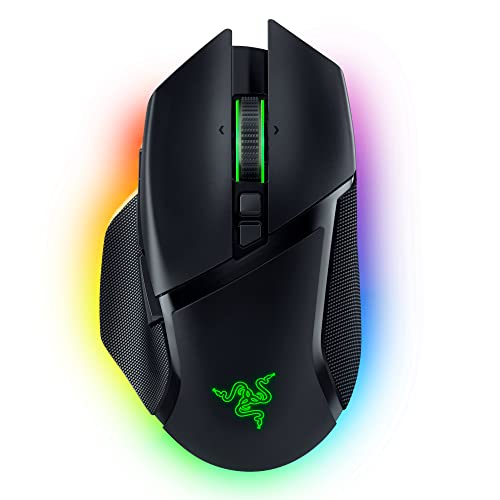
2. Razer Basilisk V3 Pro — the tilt-wheel shortcut machine
Razer Basilisk V3 Pro on Amazon
The Basilisk V3 Pro is Razer’s ergonomic, feature-heavy gaming mouse, and its listing reads like a designer’s wish list: a Focus Pro 30K optical sensor, a HyperScroll tilt wheel, Gen-3 optical switches, thirteen programmable controls in the current Amazon listing title, and three connection modes covering wireless, Bluetooth, and wired use.
The tilt wheel is the reason it belongs here. Razer’s HyperScroll wheel can be configured between tactile and free-spin modes, and the tilt clicks give you a natural left-right input pair. Map tilt to brush size and a photo-editing session changes character: your brush grows and shrinks under the same finger that scrolls, with no keyboard trips at all. Map it to horizontal scroll and wide spreadsheets, timelines, and panoramic artboards become much less tedious.
The ergonomic right-handed shape has a pronounced thumb rest and a thumb paddle that works well as a momentary precision control or a held modifier. Three connection modes are genuinely useful for designers who move between a desktop and a laptop: keep the fast wireless connection on your main machine, pair Bluetooth to the laptop, and the same profiles and habits travel with you. If your design work involves a lot of scrolling and shortcut repetition, this is the strongest alternative to the Logitech above, and the choice between them mostly comes down to which software and shell shape you prefer.
3. Logitech G502 HERO — the wired value pick with tunable weight
The wired G502 HERO remains on sale years after launch because the formula works. Its Amazon listing specifies the HERO 25K sensor at up to 25,600 DPI with zero smoothing, filtering, or acceleration, eleven programmable buttons, a dual-mode hyper-fast scroll wheel, onboard memory for five profiles, and an adjustable weight system with five 3.6-gram weights.
That weight system is a design feature worth pausing on. The mouse weighs 121 grams before weights, and you can add up to five small weights in the base to change both the total heft and the balance. Many designers find that a slightly heavier, bottom-balanced mouse steadies slow pen-like strokes and stops the cursor feeling twitchy during fine retouching. With a tunable mouse you can experiment over a week of real work and settle on the setup that suits your hand, instead of guessing from a specification sheet.
Being wired is a trade, not just a saving. You never think about charging, the connection never sleeps, and the mouse is always ready when an idea arrives — but the cable needs managing so it does not drag during long strokes. The eleven buttons and five onboard profiles cover per-application shortcut sets for several programs at once, stored on the mouse itself. For a designer on a tighter budget who works at one desk, this is the pick that gives up the least.
4. Razer DeathAdder V3 Pro — the light, simple ergonomic option
Razer DeathAdder V3 Pro on Amazon
Not every designer wants a button-covered command centre. The DeathAdder V3 Pro takes the opposite approach: a refined, large ergonomic shell at only 63 grams, a Focus Pro 30K optical sensor, Gen-3 optical switches, five programmable buttons, HyperSpeed wireless, and up to 90 hours of battery life, according to its Amazon listing.
The DeathAdder shape is one of the longest-running ergonomic designs in gaming, and this version keeps the tall, palm-filling back and gentle curves that suit palm grips during long sessions. At 63 grams it asks very little of your hand when you are constantly making small repositioning movements across a large, high-resolution display — the kind of movement that fills a layout designer’s day. The low weight also helps if you share the mouse between design work and fast-paced games, where the same mouse has to flick as well as creep.
You give up the tilt wheel and the deep button count of the two flagship picks above, so this is not the mouse for a shortcut-heavy workflow. It is the mouse for a designer whose work is mostly drawing, masking, and layout — pointer movement all day, shortcuts on the keyboard — and who wants that movement to feel as light and predictable as possible, in a shape that supports the whole hand. Sometimes the best design mouse is the one you stop noticing.
How to Set Up a Gaming Mouse for Design Work
Whichever pick you choose, a few setup choices make more difference than the model itself. First, set a modest base sensitivity and use it consistently for a week before judging it; consistency is what builds the muscle memory that makes cursor placement feel automatic. Second, assign a momentary low-sensitivity control — a DPI-shift or thumb paddle — and use it only for genuinely fine work, rather than constantly changing your main setting.
Third, build one profile per application instead of one giant shared profile. Your photo editor, vector program, and layout tool all use different shortcuts, and per-application profiles mean the mouse adapts when you switch windows instead of forcing you to memorise three layouts on the same buttons. Start with just undo, the hand tool, and brush or zoom controls on the thumb buttons; add more only when those feel automatic.
Fourth, decide your wheel behaviour per task. Ratcheted scrolling for lists and layers, free spin for documents, tilt for horizontal movement or brush size. And finally, keep acceleration off everywhere — in the mouse software and in your operating system pointer settings — so the clean tracking these sensors provide is not undone by the system between the mouse and your program.
Who Should Choose What
Choose the G502 X Plus if you want the most complete single mouse: the best wheel here, a temporary precision button, plenty of controls, and wireless freedom. Choose the Basilisk V3 Pro if the tilt wheel and multi-device connections appeal most, and you like Razer’s shape and software. Choose the G502 HERO if you work at one desk, want to experiment with weight and balance, and prefer a wired mouse you never charge. Choose the DeathAdder V3 Pro if your work is movement-heavy rather than shortcut-heavy, and a light, supportive ergonomic shell sounds like relief for your hand.
One honest limitation applies to all four: these are right-handed mice. Left-handed designers, and anyone who needs a vertical shape for an existing wrist problem, will not be served by this list and should look at dedicated left-handed or vertical options instead, even if that means leaving the gaming category. Comfort that prevents pain always outranks a sensor specification.
Frequently Asked Questions
Is a gaming mouse actually better than an office mouse for design? For pointer precision and customisation, usually yes. Gaming sensors are built to track without smoothing or acceleration, gaming wheels offer free-spin and tilt modes office mice often lack, and gaming buttons and profiles carry far more shortcuts. A premium office mouse can still win on multi-device pairing or a sculpted shape, which is why the picks above focus on gaming models that also offer those comforts.
What sensitivity should a designer use? There is no universal number, because it depends on your screen size and resolution. The principle is to pick the lowest setting that still lets you cross your screen comfortably, keep it fixed, and use a momentary low-sensitivity button for pixel-level work instead of constantly changing settings.
Wireless or wired for design work? Modern gaming wireless, such as the LIGHTSPEED and HyperSpeed connections in these picks, is responsive enough that the practical difference is about your desk, not performance. Wireless removes cable drag during long strokes; wired removes charging from your life entirely. Both are defensible, and this list includes strong examples of each.
Can these mice work with design software on a Mac? The Logitech picks list PC and Mac compatibility in their Amazon listings, and the Razer models connect by standard wireless, Bluetooth, or USB. Button-customisation software features can vary by operating system, so check the current listing details for the specific model if deep macro support on a Mac is essential to your workflow.
The Bottom Line
The best gaming mouse for graphic design is the one whose precision you can trust at low speed, whose shape your hand forgets about, and whose wheel and buttons quietly absorb the repetitive parts of the job. The Logitech G502 X Plus is that mouse for most people, with the Razer Basilisk V3 Pro close behind for tilt-wheel fans, the G502 HERO as the tunable wired value pick, and the DeathAdder V3 Pro for designers who want ergonomic lightness above all. Set up your profiles properly, keep acceleration off, and the same mouse will serve your artwork all day and your games all evening.
Related guides
More from Amazon
Programs that pair well with the guide above. Offers and eligibility are set by Amazon and may change.
Free shipping on eligible items, Prime Video and more. Eligible new members can start with a free trial.
Start a Prime free trialAd-free music streaming. Eligible new subscribers can start with a free trial.
Try Music Unlimited freeA Prime membership for ages 18-24 with a trial period. Eligibility is set by Amazon.
See Prime for Young AdultsAudiobooks and podcasts to listen to on the go. Eligible new members can start with a free trial.
Try Audible freeAs an Amazon Associate we earn from qualifying purchases.