As an Amazon Associate we earn from qualifying purchases.
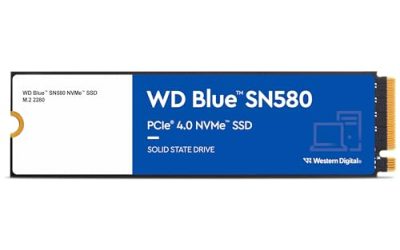
The choice between a 500GB and a 1TB M.2 SSD is really a choice about how you live with your PC for the next few years. A 500GB drive holds Windows, a handful of large games, and your everyday programs, and then it starts asking you to uninstall something every time a new release arrives. A 1TB drive removes that weekly negotiation, gives Windows room to breathe, and keeps the drive from running so full that performance and lifespan suffer. Raw speed matters less than listings suggest, because once a drive is NVMe, the gap between generations shows up mainly in large file transfers rather than in how a game feels.
This guide is for first-time builders, owners of a full drive, laptop users with a single slot, and console players adding storage. It walks through capacity, interface, size, cooling, and endurance, so you can match a drive to your machine instead of buying on a headline number alone.
How to Choose
Start with capacity: 500GB or 1TB
Capacity shapes everything else, so settle it before comparing speeds or brands. Windows and your core programs take a meaningful share of any drive, and a single modern game can exceed 100 GB. On a 500GB drive, that leaves room for roughly three to five large titles alongside the operating system, enough for a player who finishes one game before starting the next. A 1TB drive roughly doubles that headroom, suiting anyone who keeps a rotation of games installed, records gameplay, or edits video. If it will be the only storage in the machine, lean toward 1TB. As a second drive purely for games, 500GB can work, provided your main drive already holds the operating system and programs.
Match the PCIe generation to your motherboard
An M.2 SSD talks to your system over PCIe lanes, and the generation of those lanes sets the ceiling for transfer speed. A PCIe 4.0 drive works in a 3.0 slot, but only at the slower speed. Check the motherboard manual or slot diagram before buying, because the second M.2 slot on many boards runs at a lower generation than the first. A current board with a free PCIe 4.0 slot gets the full benefit of a Gen4 drive. An older board is better served by a Gen3 drive, since paying for speed the slot cannot carry buys nothing. The generation also matters for laptops, where the slot version is fixed and cannot be changed.
Check the length, the slot, and the heatsink
Almost every desktop M.2 SSD is 80 mm long, known as 2280. Some laptops and handheld devices take shorter 2242 or 2230 drives, and a 2280 stick will not fit them. Check the manual for the supported lengths, and confirm whether the slot accepts a drive with a pre-fitted heatsink. A thick heatsink can collide with the graphics card above the M.2 bay, or with the motherboard’s own cover. Many boards include a heatsink built into the M.2 cover, in which case a bare drive is the right call and a second heatsink becomes a problem rather than a help. A console expansion bay is stricter still, with a fixed height and clearance figures from the console maker.
Look past headline speeds to sustained performance and endurance
Headline read and write figures describe short bursts, not a 100 GB game install or a long video export. Drives slow down once their cache fills, and the gap between models shows up there, in sustained writes rather than in a benchmark. Endurance is the other number worth comparing: it is listed in terabytes written, and it tells you how much data the drive is rated to absorb. A drive used for a game library, frequent recording, and large downloads burns through writes faster than one that only holds the operating system. Check whether the drive carries DRAM or relies on host memory instead, because DRAM helps random access and keeps performance steady when the drive fills up.
Which One Fits Your Situation
Building a new gaming PC from scratch
Choose a 1TB PCIe 4.0 drive in the 2280 size as the single system drive. It holds Windows, your programs, and a working rotation of games without forcing constant uninstalls, and a current motherboard will have a Gen4 slot ready for it. Skip the pre-fitted heatsink if your board already covers the slot with its own, and keep the second M.2 slot free for a future addition.
Adding a second drive to a full library
Pick a 1TB drive for the second slot if your main drive is nearly full, or a 500GB drive if you only need room for two or three more titles. Confirm the generation of that second slot first, since it often runs slower than the first, and match the drive to what the slot can actually carry. A bare drive usually fits best here, because the space around a secondary slot is often tight.
Upgrading a laptop with a single slot
Pick a 1TB drive in the exact length your laptop accepts, and check the manual before ordering, because many laptops take only 2280 while some compact models take 2230. Clone the old drive before swapping it out, and choose a drive with a strong endurance rating, since this single drive will carry the operating system, programs, and games together for years.
Expanding console storage
Pick a 1TB PCIe 4.0 drive that meets the console maker’s published speed and size requirements, including the heatsink height limit for the expansion bay. Capacity matters more here than on a PC, because console games cannot be moved to a slow external drive for play, so 500GB fills up fast. Verify the exact model against the console maker’s compatibility list before buying.
Common Mistakes
-
Buying 500GB for a machine that will hold everything. A single-drive PC with 500GB fills up faster than most buyers expect, because Windows, programs, and a few large games leave almost no headroom. Once a drive passes roughly three quarters full, there is little room for updates, temporary files, and the spare area the drive uses to manage itself, so installs slow down and the system starts nagging for space. The result is a cycle of uninstalling a game to install another, which wastes time and wears the drive with repeated large writes. A 1TB drive avoids most of that friction for a single-drive build, and the difference in usable space is larger than the raw numbers suggest, because the operating system and its reserves take the same bite out of either size. Before settling on 500GB, add up the sizes of the games you actually play, add the operating system and programs, and then add a margin for updates and new releases over the next year.
-
Paying for a PCIe generation your slot cannot use. A PCIe 4.0 or 5.0 drive installed in a PCIe 3.0 slot runs at PCIe 3.0 speed, so the extra capability in the listing never reaches your files. This happens often with second M.2 slots, which frequently run at a lower generation than the primary slot, and with older motherboards and laptops where every slot is an earlier generation. The fix is simple and takes five minutes: open the motherboard manual or the manufacturer’s specifications page, find the M.2 slot table, and note the generation and lane count of the exact slot you plan to use. If the slot is Gen3, a Gen3 drive gives the same real-world result and leaves room in the build for something that actually improves the experience. If the slot is Gen4 and the board is current, then a Gen4 drive makes sense, and the same check protects you from buying a Gen5 drive for a board that cannot feed it.
-
Ignoring the heatsink and the space around the slot. A drive with a tall pre-fitted heatsink can foul the graphics card above it, collide with the motherboard’s own M.2 cover, or fail to fit a laptop or console bay entirely. The reverse mistake is just as common: buying a bare drive for a console expansion bay that requires a heatsink, or for a board with no cooling over a slot that will see sustained writes. Either error means removing the drive, ordering a different version, and doing the installation twice. Before buying, look at the slot with the case open or check the manual for clearance, note whether the board supplies its own heatsink, and read the console maker’s height limit if the drive is destined for a console. A drive that fits on paper but not in the machine is the most avoidable mistake on this list.
-
Judging a drive only by its headline speed. Sequential read and write figures describe short bursts from an empty cache, and they say little about a 100 GB install, a long recording session, or a drive that is nearly full. What matters in daily use is sustained write speed once the cache fills, random access performance for loading game assets, and endurance measured in terabytes written. A drive with a slightly lower headline figure but steadier sustained performance will feel faster during the long tasks that actually tax storage. Compare the endurance rating across drives of the same capacity, check whether the drive carries DRAM or leans on host memory, and remember that a nearly full drive performs worse than the same drive with free space. Capacity, endurance, and sustained behavior together predict the experience far better than a single burst number.
-
Cloning a failing drive instead of starting clean. When a laptop or desktop drive starts showing errors, the instinct is to clone it onto the new SSD and carry on, but a clone copies the corruption, the bad sectors’ worth of damaged files, and the accumulated clutter along with everything else. The safer route is a fresh operating system install on the new drive, followed by reinstalling programs and copying personal files from a backup. It takes longer on the day, yet it removes the faults that prompted the upgrade and gives the new drive a clean filesystem to work with. Always verify the backup before removing the old drive, and keep the old drive untouched for a week or two after the move, so a forgotten file can still be recovered. A rushed clone that fails halfway leaves you with neither a working old system nor a working new one.
Frequently Asked Questions
Is 500GB enough for a gaming PC in 2026?
It depends on how the machine is used. A 500GB drive works as a second drive for games, or as the only drive for someone who plays one or two titles at a time and uninstalls finished games. It is tight as a single drive, because Windows, programs, and a few large games can fill most of it. A 1TB drive is the safer default for a single-drive gaming PC.
Can I use a PCIe 4.0 SSD in a PCIe 3.0 slot?
Yes, the drive will work, but it runs at PCIe 3.0 speed, so the extra capability goes unused. This is a reasonable compromise if you plan to move the drive to a newer board later, or if the Gen4 drive is the one that fits your capacity and endurance needs. For a board that will stay Gen3, a Gen3 drive delivers the same result in that machine.
Do I need a heatsink on an M.2 SSD?
Not always. Many motherboards include a heatsink in the M.2 slot cover, and many drives run cool enough for gaming without one. A heatsink matters most for sustained writes, such as large installs and video exports, and for console expansion bays, where the console maker may require one. Check the board, the bay, and the clearance before choosing a version with a heatsink fitted.
Is a 1TB drive faster than the 500GB version of the same model?
Often slightly, yes. Larger versions of the same model usually have more NAND chips working in parallel, which can lift write speeds and endurance, while the smaller version may use fewer chips. The difference is modest in gaming, where loading depends more on random access than on peak sequential speed. Choose the capacity your library needs first, and treat any speed gap as a bonus.
Related guides
More from Amazon
Programs that pair well with the guide above. Offers and eligibility are set by Amazon and may change.
Free shipping on eligible items, Prime Video and more. Eligible new members can start with a free trial.
Start a Prime free trialAd-free music streaming. Eligible new subscribers can start with a free trial.
Try Music Unlimited freeA Prime membership for ages 18-24 with a trial period. Eligibility is set by Amazon.
See Prime for Young AdultsAudiobooks and podcasts to listen to on the go. Eligible new members can start with a free trial.
Try Audible freeAs an Amazon Associate we earn from qualifying purchases.