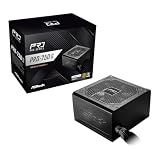
To jump-start a PC power supply, unplug it from the wall and from every component, then bridge the green PS_ON wire (pin 16 of the 24-pin connector) to any black ground wire with a paperclip or insulated jumper. Plug the cord back in and flip the rear switch. If the PSU fan spins and stays spinning, the unit can switch on. That is a useful first check, but it does not prove the PSU is healthy, so this guide also covers voltage checks, how to read each failure, and when a dedicated tester is the better tool.
Our Top Picks
 Thermaltake Dr. Power III Pro; ATX Power SupplyIII Pro5.5 x 3 x 0.75 inches0.3 PoundsCheck on Amazon


Top 3 picks at a glance
Quick Answer
- What you short: the green PS_ON# wire to a neighboring black ground wire on the 24-pin connector. On the standard pinout, that is pin 16 to pin 15 or pin 17.
- What it proves: the PSU starts and the fan runs with the motherboard out of the picture. It says nothing about voltage accuracy or stability under load.
- What to check next: measure the rails with a multimeter or plug in a tester. Acceptable windows are 11.4 to 12.6 V on the 12 V rail, 4.75 to 5.25 V on 5 V, and 3.14 to 3.47 V on 3.3 V.
- If the fan spins and then stops: do not keep retrying. A protection circuit or a fault is the likely reason, and repeated attempts can stress a damaged unit.
- If anything looks burnt, swollen or smells hot: do not test it at all. Replace the unit.
What You Need
- A jumper. A straightened paperclip works, but a purpose-made jumper with an insulated body is safer. Use a clean, unbent metal piece that fits the cavity without forcing it.
- The PSU outside the case, or fully unplugged inside it. Disconnect the 24-pin, CPU, graphics and drive cables from every component so nothing live is attached to hardware you care about.
- A small load (optional but wise). One case fan or one old hard drive on a SATA or Molex lead gives the PSU something to power. Wikipedia notes that testing under load is recommended for the most accurate readings. Some units, particularly older designs, may behave differently with no load at all, so check your manual.
- A digital multimeter set to DC volts, if you want to check rails.
- The PSU manual or the pinout label, so you can confirm the green wire instead of guessing.
- A flat, dry, non-conductive surface and a working wall outlet.
The 24-Pin Pinout You Are Working With
This table follows the standard ATX main connector as documented by Wikipedia. Cavity numbers are the same on 20+4 pin cables once joined.
| Pin | Signal | Wire color | Pin | Signal | Wire color |
|---|---|---|---|---|---|
| 1 | +3.3 V | Orange | 13 | +3.3 V | Orange |
| 2 | +3.3 V | Orange | 14 | -12 V | Blue |
| 3 | Ground | Black | 15 | Ground | Black |
| 4 | +5 V | Red | 16 | PS_ON# | Green |
| 5 | Ground | Black | 17 | Ground | Black |
| 6 | +5 V | Red | 18 | Ground | Black |
| 7 | Ground | Black | 19 | Ground | Black |
| 8 | Power Good | Gray | 20 | Reserved | None |
| 9 | +5 V standby | Purple | 21 | +5 V | Red |
| 10 | +12 V | Yellow | 22 | +5 V | Red |
| 11 | +12 V | Yellow | 23 | +5 V | Red |
| 12 | +3.3 V | Orange | 24 | Ground | Black |
PS_ON# is held high inside the PSU. When the motherboard pulls it to ground, the supply turns on. That is exactly what the paperclip imitates. The Power Good signal then stays low for a short time, 100 to 500 milliseconds after PS_ON# goes low, before the PSU tells the board that the rails are stable.
Step-by-Step Paperclip Test
Step 1: Isolation and safety
- Switch the PSU off at the rear and unplug the power cord.
- Unplug every cable from the motherboard, graphics card and drives. That way nothing you care about is powered by a supply you are still diagnosing.
- Look over the unit. If you see scorch marks, swelling, a cracked case or hear loose parts rattling, stop. Do not power a damaged PSU.
- Never open the PSU case. Large capacitors inside can hold a dangerous charge even when unplugged, and opening it can void the warranty.
Step 2: Identify the PS_ON and ground cavities
On normal cables the green wire is pin 16. Pins 15 and 17 on either side are black. If your cables are all black sleeved, color will not help. Use this layout check instead: the row holding pins 13 to 24 has one empty cavity, pin 20. Seven populated cavities sit on one side of that gap and four on the other. Pin 16 is the fourth wire counted from the gap toward the seven-wire side. Confirm this against the manual or the label printed near the modular socket before you insert anything. If the pattern does not match, stop and use a tester instead of guessing.
Step 3: Shape the jumper
Straighten a paperclip, then bend it into a U with the two legs spaced one cavity apart. If you want the bridge between pin 16 and pin 17, the legs must sit in adjacent cavities. A shorter U is easier to control, and a plastic-handled jumper keeps your fingers away from the metal.
Step 4: Insert the jumper
- With the PSU still unplugged and switched off, push one leg into the green wire’s cavity and the other into a black ground cavity next to it.
- Insert only far enough to touch the metal contacts inside. Do not force it, because a bent terminal can damage the connector.
- Check that the paperclip does not touch any other cavity.
Step 5: Add a small load
Plug a case fan or a spare drive into a Molex or SATA lead. Keep your hands and the cables clear of the PSU fan. Leave all other cables unplugged.
Step 6: Power on and observe
- Plug in the cord and flip the rear switch to on.
- Watch the PSU fan and the load fan for about 30 seconds.
- Switch off at the rear before touching anything again.
| What you see | Likely meaning | Next move |
|---|---|---|
| PSU fan spins steadily | PSU switches on without a motherboard | Check the rails (Step 7) |
| Nothing happens | No wall power, switch off, bad cord, wrong cavity, or dead PSU | Try another outlet and cord, recheck the jumper position, then use a tester |
| Fan twitches, then stops | A protection circuit may be tripping, or the unit has a fault | Do not retry repeatedly. Test with a tester or replace |
| Clicking or buzzing | Possible internal fault or very light load behavior | Switch off and unplug. Do not continue |
| Fan runs but fans on the load stay dead | Cable or connector problem, or a failed rail | Try another lead, then measure the rail |
Many power supplies include short circuit, overload, over-voltage, under-voltage, over-current and over-temperature protection. A PSU that shuts down at once is often doing its job, so the cause may be a short on a cable or a failing unit.
Step 7: Verify the voltage rails
- With the PSU running on the jumper, set the multimeter to DC volts.
- Touch the black probe to a ground pin on a Molex lead (the black wire).
- Touch the red probe to the metal at the end of the yellow wire for 12 V, red for 5 V, or on the 24-pin the orange wire for 3.3 V and the purple wire for 5 V standby.
- Compare each reading with the windows in the table below.
| Rail | Wire color | Acceptable range (Intel standard window) |
|---|---|---|
| +12 V | Yellow | 11.4 to 12.6 V |
| +5 V | Red | 4.75 to 5.25 V |
| +3.3 V | Orange | 3.14 to 3.47 V |
| +5 V standby | Purple | 4.75 to 5.25 V |
These windows match the limits Thermaltake lists for its Dr. Power III Pro tester. Measuring with a small load shows only that the rail is present. A rail that reads fine here can still sag when a graphics card or CPU pulls hundreds of watts, which is why a paperclip pass never replaces a real load test.
What the Paperclip Test Cannot Tell You
- It cannot confirm the Power Good timing, which should land within 100 to 500 milliseconds of start. A tester with a Power Good check can.
- It cannot reveal ripple, noise or a rail that collapses under load.
- It cannot test modern graphics connectors. Newer 12V-2×6 cables use sense pins to report power capacity, and a paperclip does not check them.
If the PSU starts and the rails look right but the PC still will not boot, move on to the motherboard side: reseat the 24-pin and CPU power cables, test the power button header, and try a minimal build with one memory stick.
If It Does Not Work
- The fan will not spin at all. Confirm the rear switch, the wall outlet and the cord. Recheck that you used the green wire and a black wire, not a colored power wire.
- It starts then stops within a second. Remove every device from the load and try again once. If it still stops, treat it as a protection trip and do not keep power cycling.
- Readings are outside the windows. Retest on a different connector, then replace the PSU if the rail stays out of range.
- The PSU passes but the PC still fails. The PSU may fail only under load. Try a known-good unit if you have one.
Gear That Helps
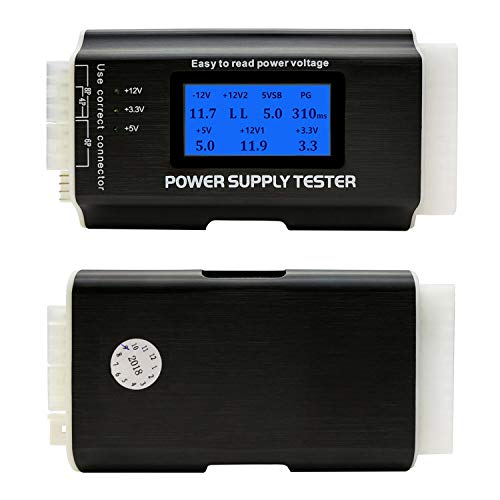
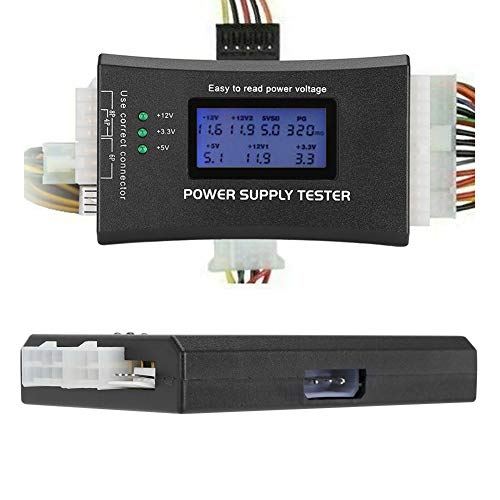
A dedicated tester removes the guesswork about pins and shows voltages on a screen. Features below come from the listing titles and the Thermaltake product page; connector coverage differs, so confirm on the listing which cables each model supports.
Thermaltake Dr. Power III Pro – the most complete check
As an Amazon Associate we earn from qualifying purchases at no extra cost to you.

Thermaltake lists voltage, continuity and Power Good checks on +12 V, +5 V, +3.3 V and +5 V standby, with the same acceptable windows as above, plus a Power Good window of 100 to 500 ms. It also detects 12+4-pin graphics power levels of 150, 300, 450 and 600 W through the sense pins, and supports power supplies up to ATX12V v3.1. It has manual and automatic modes, an audible alarm and a three-year warranty. It is the choice if you work with newer GPU cables.
Fuhengli PC power supply tester – a screen for the main connectors

The listing mentions a 1.8-inch LCD, an aluminum enclosure and connectors for ATX, ITX, IDE, HDD and SATA. A display makes the reading easier than a multimeter, and it removes the need for a jumper. The title is truncated, so confirm on the listing whether the 8-pin and PCIe leads are covered. Do not expect a 12V-2×6 check.
Comidox 20/24 pin LCD tester – simple with an alarm

This model lists 20 and 24-pin testing for ATX, BTX, ITX and TFX supplies, an LCD and a buzzer that sounds an alert. It is a straightforward bench tool for the main connector and drive leads. Check the listing to see which rails it displays, and whether it can check Power Good timing.
Generic ATX PSU tester with LCD – a basic bench option

The listing describes an ATX supply tester with a 20/24-pin LCD display. The title is cut off, so the full connector list is unclear. Treat it as a quick pass or fail on the main cable. It suits a builder who tests the odd PSU, not a repair bench.
ATX tester with 20/24, 4, 6 and 8-pin support – more connectors on one tool

This tester lists 20/24-pin plus 4, 6 and 8-pin connectors, an LCD and a buzzer. The extra CPU and graphics connectors let you check more of the PSU’s cables without a jumper. Quality and accuracy vary between unbranded testers, so cross-check any bad reading with a multimeter before you condemn the PSU.
Common Mistakes
- Shorting the wrong pin. Bridging a power wire to ground can damage the PSU. Check the pinout.
- Testing a damaged unit. Burnt, swollen or smelly PSUs should be discarded.
- Treating a spinning fan as a pass. Starting is only the first test.
- Retrying a unit that keeps shutting off. Repeated trips can stress the unit.
- Opening the PSU casing. Never do this for a paperclip test.
Questions
Is the paperclip test safe for my power supply?
It is a widely used test, and it is the same signal the motherboard sends. It is safe only if you pick the correct pins and the PSU is undamaged. Read your PSU manual too, because some makers describe their own recommended test method.
Can I use a piece of wire instead of a paperclip?
Yes, a short length of solid wire or a purpose-made jumper works if it is stiff enough to seat firmly.
Why does my PSU fan spin for a split second and then stop?
The PSU may have started and then shut down because a protection circuit tripped, or because it has an internal fault. It can also happen with a bad jumper contact. Retest once with a load connected, and replace the PSU if it repeats.
How do I identify pin 16 on a PSU with all-black cables?
Use the layout described in Step 2, and verify it against the PSU manual or a tester. Never insert the jumper based on a guess.
Is a PSU tester better than a paperclip?
For routine checks, yes. A tester shows each rail on a display and may check Power Good timing. A multimeter and a paperclip are still useful if you have no tester.
Update History
- October 20, 2026 – Updated with specification checks and a revised product comparison.
- Check the product page for current specifications and availability before buying.
Sources
- Wikipedia: ATX, 24-pin main connector pinout and signal descriptions
- Wikipedia: Power supply unit (computer), protection features and testing notes
- Thermaltake product page: Dr. Power III Pro specifications
- Product listing titles for the other listed testers