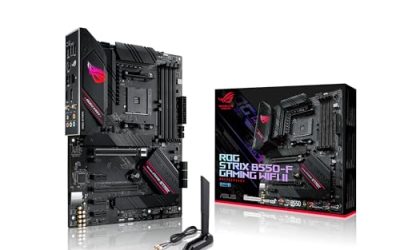
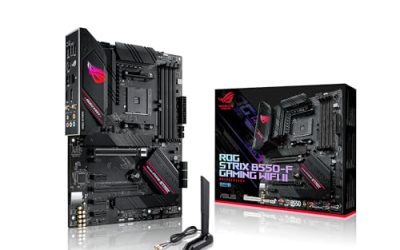
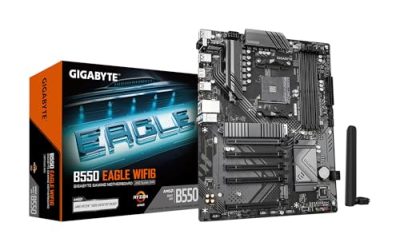
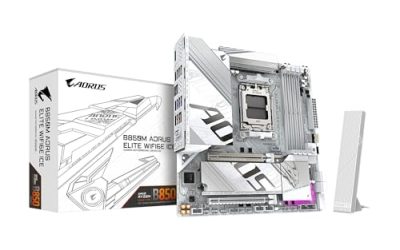
Choosing a motherboard starts with your CPU’s socket, since that’s a fixed requirement, then narrows by chipset tier, form factor, and VRM quality based on how much power your specific CPU needs to run reliably at full boost.

Our Top Picks
 GIGABYTE B550M K AMD AM4 Micro-ATX MotherboardmATX10.43 x 10.43 x 2.12 inches1.7 poundsCheck on Amazon


Top 3 picks at a glance
Start with CPU socket compatibility
Your CPU choice determines your socket, and your socket determines which motherboards are even possible candidates — this is a binary compatibility check, not a preference, so confirm it before comparing any other feature. Current AMD Ryzen desktop CPUs use the AM5 socket, while current Intel desktop CPUs use the LGA1700 socket, and these two are not interchangeable in either direction.
As an Amazon Associate we earn from qualifying purchases at no extra cost to you.


Within a socket, chipset generation matters for feature support even though the physical socket itself is compatible. AM5 boards span the B650, B650E, X670 and X670E chipsets, all supporting current Ryzen CPUs, but with different PCIe generation support and expansion capability between tiers. LGA1700 spans B760, Z790 and the older B660/Z690 boards, with similar tiered differences.
BIOS updates occasionally extend a board’s CPU support forward to a newer CPU generation on the same physical socket, which is a genuine value consideration — an AM5 board bought today may support a future Ryzen generation with just a firmware update, extending its useful life without a full platform change, though this isn’t guaranteed and depends on manufacturer commitment.
If you’re buying CPU and motherboard together rather than upgrading an existing board, check the specific board’s supported CPU list on the manufacturer’s website, since very new CPUs sometimes need a BIOS update before they’ll even boot on an otherwise-compatible board, occasionally requiring a temporarily older, compatible CPU or a manufacturer’s boot-flash service to update the firmware first.
Readers choosing CPU and motherboard as a matched pair from scratch should also check our sibling site’s best CPU for gaming guide before finalizing a board, since socket and CPU tier should be decided together rather than the motherboard search starting in isolation.
Understand chipset tiers and what they unlock
Chipset tier controls overclocking support, PCIe lane allocation, and the number of high-speed connectivity options available on a board, and picking the wrong tier either overspends on unused features or undershoots what your CPU and RAM actually need to run at their rated specs.
On AMD’s AM5 platform, B650 boards cover the mainstream tier with solid VRM options and support for CPU overclocking, while X670 and X670E step up total PCIe lane count and typically add a second full-bandwidth PCIe x16 slot alongside more USB and M.2 connectivity, aimed at builds wanting maximum expansion rather than raw gaming performance, which barely differs between tiers.
On Intel’s LGA1700 platform, B760 boards support current CPUs at their rated speeds and RAM overclocking (XMP profiles) but restrict CPU multiplier overclocking to Z-series boards specifically. Z790 boards unlock full CPU overclocking headroom and generally offer stronger VRM designs suited to pushing a K-series CPU harder.
For most gaming builds, the mainstream tier (B650 or B760) delivers essentially the same gaming performance as the higher tier, since frame rate is overwhelmingly a GPU and CPU core question rather than a chipset question — the higher tiers earn their price premium through expansion capacity and overclocking headroom, not baseline gaming speed.
Our best gaming motherboard, best motherboard for Ryzen, and best motherboard for Intel guides break specific board recommendations down by exactly this chipset logic rather than ranking on brand alone.
Pick the right form factor for your case
ATX is the standard full-size motherboard format, offering the most PCIe slots (typically two to four), the most RAM slots (usually four), and the broadest selection of models across every price point, making it the default choice unless a specific space constraint pushes you toward a smaller format.
Micro-ATX trims the format down, usually to two or three PCIe slots and often still four RAM slots, fitting into a wider range of compact and mid-tower cases while typically costing somewhat less than an equivalent-tier ATX board, making it a reasonable choice for budget builds that don’t need multiple expansion cards.
Mini-ITX is the smallest standard format, built around a single PCIe x16 slot and two RAM slots, aimed specifically at small-form-factor builds where case size is the priority. These boards carry a price premium relative to their feature set because packing full functionality into the smaller footprint is more complex engineering, not because they’re inherently higher-end.
Match form factor to your case before anything else in this category, since a case’s supported motherboard sizes are listed clearly in its specifications, and an ATX board simply won’t physically fit into a case rated for Micro-ATX or Mini-ITX only, regardless of how appealing its other features are.
Readers finalizing a case alongside their motherboard should check our best mid tower PC case guide, since mid-tower cases are the most common home for ATX and Micro-ATX boards and offer the clearance and airflow most gaming builds need without the compromises of a smaller enclosure.
VRM quality: the spec most buyers skip
The VRM (voltage regulator module) converts the 12V power from your PSU into the precise, stable voltage your CPU needs, and its quality directly affects how well a board sustains a CPU’s boost clocks under extended load — a weak VRM causes the CPU to throttle even when temperatures and power limits would otherwise allow full boost.
VRM quality is described by phase count and component grade, neither of which is prominently advertised the way clock speeds or RGB are, which is why VRM quality is the single most under-researched spec among first-time builders. A board with 8+2 or more power phases using quality chokes and capacitors generally sustains high-end CPU boost clocks more reliably than a budget board with 4+2 phases.
This matters most with higher-power CPUs — a Ryzen 7 7800X3D or Intel Core i7-14700K pushes considerably more sustained current through the VRM than a Ryzen 5 7600, and pairing a power-hungry CPU with a budget board’s weak VRM can cause thermal throttling under sustained load even in a well-cooled case, independent of CPU cooler quality.
VRM heatsink size and design also matter, since even a well-specced VRM needs adequate cooling to sustain performance during long gaming sessions or extended workloads. Boards with substantial VRM heatsinks, sometimes connected via heat pipe to a secondary heatsink, handle sustained load noticeably better than boards with minimal or decorative-only VRM cooling.
RAM support and expansion slots
Confirm your prospective board supports the RAM speed and capacity you’re planning, since maximum supported speed varies meaningfully between chipset tiers and specific board models even within the same generation, and running RAM above a board’s officially supported speed via XMP isn’t always guaranteed stable.
Current boards standardize on DDR5, though some budget boards, particularly on Intel’s platform, still offer DDR4 variants at a lower price — check which memory standard a specific board uses carefully, since DDR4 and DDR5 modules are physically incompatible and not interchangeable between board types. Our best DDR5 RAM for gaming and best RAM for gaming guides cover module selection for each platform.
RAM slot count (typically two or four) affects both maximum total capacity and future upgrade flexibility. A two-slot board maxes out sooner and requires replacing existing modules to add capacity later, while a four-slot board lets you add modules incrementally, which matters for anyone who expects to increase RAM capacity down the line rather than buying maximum capacity upfront.
M.2 slot count and configuration deserve equal attention to RAM slots, since modern gaming builds increasingly use two or more NVMe drives, and some boards share bandwidth between M.2 slots and other components (SATA ports or PCIe slots) when multiple M.2 drives are populated simultaneously — check the board’s manual for these shared-bandwidth limitations before assuming every slot works at full speed independently.
PCIe slot count and configuration matter for anyone planning to add a capture card, additional storage controller, or other expansion card beyond the graphics card itself, since budget and Micro-ATX boards sometimes include a second PCIe slot that’s electrically limited to a much narrower lane width than its physical size suggests.
Connectivity: USB, networking and audio
USB port count and type vary considerably between otherwise similar-tier boards, and it’s worth counting your actual peripheral needs — keyboard, mouse, headset, webcam, controller, external drive — against a board’s rear I/O panel before assuming “enough USB ports” without checking the specific number and speed tier.
USB-C ports, particularly higher-bandwidth USB 3.2 Gen 2×2 or Thunderbolt-compatible ports, are increasingly common on mid-to-high-tier boards and matter more than they used to for anyone using USB-C peripherals, fast external SSDs, or newer high-refresh monitors that use USB-C for both data and display.
Networking options split between standard Gigabit Ethernet, included on essentially every current board, and 2.5Gbps Ethernet, increasingly standard on mid-tier and higher boards, which matters primarily for anyone with a home network and internet connection actually capable of exceeding 1Gbps — otherwise the difference is largely theoretical.
Wi-Fi is offered as either a built-in option on premium SKUs or omitted entirely on standard SKUs of the same board model, typically at a 15-25 dollar premium for the wireless version. Skip it if your build sits near your router with easy Ethernet access; it’s worth the premium for builds in a room without convenient wired access.
Onboard audio quality varies more than most buyers expect between budget and premium boards, with higher-tier boards using better DAC chips and audio-specific PCB isolation, which matters primarily for anyone using analog headphones or speakers directly from the motherboard rather than a USB headset or dedicated external DAC that bypasses onboard audio entirely.
Budget tiers and what they typically include
| Budget | Typical chipset | What you get |
|---|---|---|
| Varies | B650 / B760 entry | Solid VRM for mid-tier CPUs, Gigabit LAN, basic I/O |
| Varies | B650 / B760 mid | Better VRM, 2.5Gbps LAN, more M.2 slots, USB-C |
| Varies | X670 / Z790 mid | Full overclocking, Wi-Fi 6E, premium audio |
| Varies | X670E / Z790 high-end | Max PCIe lanes, top-tier VRM, extensive RGB and I/O |
The jump from the entry tier to the mid tier typically delivers the largest practical improvement in VRM quality and M.2 slot count relative to price, making it the most cost-effective step up for most gaming builds pairing a mid-to-upper-tier CPU. Our best budget motherboard for gaming guide focuses specifically on that entry-to-mid range where value is strongest.
Matching motherboard tier to your CPU
Conversely, pairing a premium high-VRM board with a modest CPU like a Ryzen 5 7600 wastes money on power delivery headroom the CPU will never draw on, since a mid-power CPU simply doesn’t stress even a mid-tier board’s VRM meaningfully under any realistic gaming workload.
A reasonable rule of thumb: budget roughly 10-15 percent of total system cost on the motherboard for a mid-tier build, rising to 15-20 percent for a high-end CPU where VRM quality genuinely matters for sustained performance, and dropping to under 10 percent for a genuinely budget-focused build using a lower-power CPU throughout.
If you’re planning a same-socket CPU upgrade in the future — moving from a Ryzen 5 7600 to a Ryzen 7 7800X3D later, for example — buy motherboard VRM quality for the future CPU’s needs now, since replacing a motherboard later to accommodate a CPU upgrade defeats much of the cost savings that same-socket upgrades are meant to provide.
Common motherboard buying mistakes
Buying a board with a socket that doesn’t match your chosen CPU is a surprisingly common and completely avoidable error, usually caused by shopping for motherboard and CPU as separate decisions rather than confirming compatibility before either purchase is finalized.
Ignoring VRM quality while chasing RGB lighting or aesthetic features leads to real performance problems with higher-end CPUs specifically, as covered above — a good-looking board with a weak VRM is a worse purchase than a plain-looking board with strong power delivery for anyone running a demanding CPU.
Assuming all boards within a chipset tier are equivalent skips real differences in VRM quality, M.2 slot bandwidth sharing, and I/O count that vary considerably even among boards using the identical chipset — the chipset name is a starting filter, not the final word on a specific board’s quality.
Overbuying PCIe lanes and expansion capacity for a build that will only ever house a GPU and one or two NVMe drives wastes money that would be better spent on the GPU or CPU itself, since unused expansion capacity provides zero gaming performance benefit.
Skipping the M.2 slot bandwidth-sharing check in the manual leads to a frustrating surprise when a second NVMe drive installed later reduces SATA port availability or drops a PCIe slot to a narrower lane width, an interaction that’s documented in every board’s manual but rarely mentioned in marketing materials.
Troubleshooting: common post-purchase motherboard issues
If the system won’t post with a new CPU and motherboard combination, check whether a BIOS update is required for that specific CPU generation before assuming a hardware fault — many manufacturers offer a boot-flash service or a loaner CPU program specifically for this scenario, and it’s worth checking the board’s support page before returning either component.
If RAM won’t run at its rated XMP speed, confirm XMP (or AMD’s equivalent EXPO profile) is actually enabled in BIOS, since it’s disabled by default on most boards, and check the board’s supported RAM speed list for your specific kit, since running four RAM sticks often reduces the maximum stable speed compared to running two.
If a second M.2 drive causes SATA ports or a PCIe slot to stop working, this is very likely expected, documented bandwidth-sharing behavior rather than a fault — check your specific board’s manual for its M.2 slot sharing table, which lists exactly which ports or slots are affected by which M.2 slot being populated.
If CPU temperatures or boost clocks seem inconsistent with expectations despite adequate cooling, check VRM temperature readings in BIOS or monitoring software, since a throttling VRM produces symptoms that look like a cooling problem but actually require a different fix — better case airflow directed at the VRM heatsink area, or in persistent cases, a board upgrade.
Frequently asked questions
What’s the most important factor when choosing a motherboard?
CPU socket compatibility comes first, since it’s a hard requirement rather than a preference — an AM5 motherboard only works with Ryzen 7000/8000/9000 CPUs, and an LGA1700 board only works with 12th-14th Gen Intel chips. Once socket is confirmed, chipset tier and form factor determine which features and expansion options are actually available.
Does a more expensive motherboard make my games run faster?
Not directly. A motherboard doesn’t render frames or process game logic the way a CPU and GPU do, so spending more on a board rarely improves frame rate on its own. It does affect stability under sustained CPU boost clocks, RAM speed support, and how much your CPU can be pushed via overclocking or PBO tuning.
Do I need a Wi-Fi motherboard if I already have Ethernet?
No, a non-Wi-Fi board is fine and typically saves 15-25 dollars if your PC sits near your router and you plan to use a wired connection permanently. Wi-Fi versions are worth the premium mainly for builds in a room without easy Ethernet access or for anyone who values the flexibility of moving the PC later.
What’s the difference between ATX, Micro-ATX and Mini-ITX motherboards?
ATX is the standard full-size format with the most expansion slots and connectivity. Micro-ATX is a smaller variant with fewer PCIe and RAM slots but fits more cases and often costs less. Mini-ITX is the smallest, built for compact builds, typically with a single PCIe slot and two RAM slots, at a price premium for the engineering involved.
How long should a gaming motherboard last before needing an upgrade?
A quality mid-range board typically outlasts two CPU generations on the same socket, often five to seven years of practical use, before a platform change becomes necessary. Buying slightly above the minimum chipset tier for your current CPU gives more headroom for a same-socket CPU upgrade down the line.