A quiet home workspace or gaming setup is essential for focus, productivity, and relaxation. But nothing shatters that peace faster than a high-pitched, irritating hiss or vibration coming from your computer tower. If you have ever searched for how to fix coil whine in pc power supply units, you are not alone. This noise occurs when electrical current passes through electromagnetic coils inside the power supply unit (PSU), causing them to vibrate at a high frequency. While it is usually harmless to the hardware itself, attempting to fix it incorrectly can lead to disastrous consequences.
If you mishandle a power supply, you run the risk of voiding your manufacturer warranty, ruining expensive components like your graphics card or motherboard, or worse, receiving a lethal electrical shock. Power supply capacitors can hold high-voltage charges even after being unplugged from the wall for days. Taking a systematic, safe, and non-invasive approach ensures your PC remains whisper-quiet without putting your safety or your budget at risk.
As an Amazon Associate we earn from qualifying purchases at no extra cost to you.


Our Top Picks
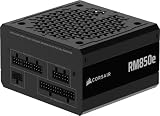
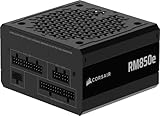
 CORSAIR RM750e ATX 3.1 PCIe 5.1 Ready 750W750 watts5.91 x 5.51 x 3.35 inches3.3 poundsCheck on Amazon

What You Need
Before attempting to quiet your system, gather these basic troubleshooting tools. Under no circumstances should you buy or use tools to open the power supply casing itself.
| Item | Why You Need It | Optional? |
|---|---|---|
| Heavy-Duty Surge Protector or UPS | Cleans up “dirty” electrical power from your wall outlet, which often exacerbates coil vibration. | No |
| Cardboard Tube (e.g., paper towel roll) | Acts as an acoustic stethoscope to isolate exactly where the high-pitched noise is originating. | No |
| Compressed Air Duster | Removes dust buildup that can cause the PSU fan to run hot and increase overall system vibration. | Yes |
| Silicone or Rubber Anti-Vibration Pads | Dampens physical vibrations between the PSU metal chassis and the PC case. | Yes |
| GPU Tweak or MSI Afterburner Software | Allows you to cap frame rates and undervolt components to reduce overall power draw. | No |
Step-by-Step
Follow these steps in order, starting with the easiest and safest software adjustments before moving on to physical adjustments.
Step 1: Isolate the Noise Source (Time: 10 minutes)
Before changing any settings, confirm that the power supply is indeed the culprit. Graphics cards and motherboards also contain inductors that produce identical high-pitched noises. Place your PC on a sturdy table at eye level. Remove the side panel of your case. Hold a cardboard tube to your ear and point the other end directly at the power supply intake at the bottom or rear of the case. Run a demanding application or game. If the whistling sound is loudest at the PSU exhaust, you have confirmed the source. If the sound is louder near the center of your motherboard or graphics card, the PSU may not be the issue.
Step 2: Plug Into a High-Quality Surge Protector or UPS (Time: 10 minutes)
Electrical feedback from your home’s wall outlets can cause components inside your PSU to vibrate violently. If your computer is plugged directly into a cheap, worn-out power strip or a direct wall outlet, try upgrading to a high-quality surge protector or an Uninterruptible Power Supply (UPS). A UPS actively conditions the incoming electrical current, smoothing out voltage fluctuations. This cleaner power delivery can immediately reduce or completely eliminate the high-frequency vibrations in the PSU’s internal copper coils.
Step 3: Enable Eco Mode or Fan Curve Adjustments (Time: 10 minutes)
Many modern power supplies feature a physical toggle switch on the back panel labeled “Eco,” “Hybrid,” or “Zero RPM Mode.” When toggled on, this mode keeps the internal cooling fan from spinning during low-to-medium power loads. Sometimes, the resonance of a spinning fan combined with the electrical frequency of the coils creates an audible whine. Toggling this switch can change the internal harmonic frequency of the unit and quiet the system down instantly.
Step 4: Cap Your Frame Rates in Software (Time: 10 minutes)
Coil whine is directly proportional to the amount of electrical current flowing through the power supply. When your computer renders menu screens or older games at 500+ frames per second (FPS), the power draw spikes rapidly, causing the coils to vibrate wildly. Open your graphics card control panel (NVIDIA Control Panel or AMD Software Adrenalin Edition). Navigate to the global settings and set a maximum frame rate limit that matches your monitor’s refresh rate (for example, 144Hz or 240Hz). Capping your FPS prevents unnecessary power spikes, lowering the load on your PSU.
Step 5: Adjust BIOS Power States (Time: 15 minutes)
Sometimes, motherboard power saving states cause rapid switching of voltage levels, triggering coil whine in the PSU. Restart your computer and repeatedly press the “Delete” or “F2” key to enter the BIOS menu. Navigate to the advanced CPU configuration settings. Look for settings labeled “C-States” (such as C1E, C3, or C6/C7) and “ErP Ready.” Try disabling these power-saving states temporarily, save your changes, and boot into Windows. Disabling these options keeps a more consistent voltage flowing through the power supply, which can stop the coils from vibrating during idle times.
Step 6: Install Dampening Pads and Tighten Screws (Time: 20 minutes)
If the whine is partially caused by the PSU chassis vibrating against the metal frame of your computer case, physical dampening can help. Shut down your PC, switch off the power supply, and unplug the power cable. Use a screwdriver to loosen the four mounting screws on the back of the case that hold the PSU in place. Slide the power supply forward slightly. Apply small, thin silicone or rubber dampening pads (often measuring around 1mm to 2mm in thickness) to the mounting brackets where the PSU rests. Slide the PSU back into place and tighten the screws firmly, but do not overtighten them. This absorbs the micro-vibrations before they transfer to your desk.
Mistakes to Avoid
- Never Open the PSU Shroud: Inside a power supply are large capacitors capable of storing lethal amounts of electricity even after the unit is unplugged. Never unscrew the outer metal shell of your PSU to apply hot glue, silicone, or nail polish to the coils.
- Avoid Cheap No-Name Power Supplies: Low-grade units often use cheap adhesive on their copper coils, making them highly susceptible to vibration. Investing in a reputable brand saves you from headaches.
- Do Not Use Excessive Force: When tightening mounting screws or applying dampening pads, do not force components. Standard ATX power supplies measure roughly 150mm wide by 86mm tall, and they should slide into your case brackets easily without forcing.
- Do Not Block Ventilation: Never attempt to muffle the sound by wrapping the power supply in foam, blankets, or soundproofing material that blocks the intake fan or rear exhaust. This will cause overheating, component degradation, and potential fire hazards.
How Often
You should not have to perform physical troubleshooting on your power supply very often. A quick inspection and dust cleaning with compressed air every six months is usually sufficient to maintain proper airflow and prevent thermal stress on the internal components. As we look ahead to 2026, modern high-draw PC components demand incredibly clean, stable power, meaning that maintaining a clean electrical environment with a surge protector is a continuous, long-term necessity.
When to Call a Pro or Replace
If you have tried software limits, power conditioning, and physical dampening, but the screeching noise persists, it may be time to replace the unit. While coil whine is not a sign of imminent failure, it can be a sign of poor manufacturing tolerances or aged components.
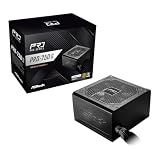
If you decide to replace your power supply, consider your system’s power needs. For budget-friendly, low-to-mid-range office or gaming PCs, a basic, reliable unit like the Thermaltake Smart 500W 80+ White Certified PSUHowever, if you are running a high-end system with a modern graphics card, you will need a more robust, silent option. The CORSAIR RM750e ATX 3.1 PCIe 5.1 Ready 750W Power Supply
FAQ
Does coil whine damage my computer?
No, coil whine does not damage your hardware. It is simply a physical vibration of the copper coils inside the inductors caused by electricity. While it can be highly annoying to listen to, it does not affect the performance, efficiency, or lifespan of your power supply or other computer components.
Can a brand-new power supply have coil whine?
Yes, brand-new power supplies can experience coil whine right out of the box. Sometimes, the varnish or adhesive used to secure the coils during manufacturing needs time to settle, or the unit may simply have a harmonic frequency that clashes with your home’s electrical wiring or your specific graphics card.
Will a higher-wattage power supply fix the issue?
It can. If your current PSU is running near its maximum capacity (for example, drawing 450 watts on a 500-watt unit), the components are under high stress, which increases coil vibration. Upgrading to a higher-capacity unit, such as a 750W model, means the PSU operates in its “sweet spot” (usually 40% to 60% load), resulting in cooler, quieter operation.
Does warranty cover coil whine?
Warranty coverage for coil whine varies by manufacturer. Some premium brands consider excessive coil whine a valid reason for a Return Merchandise Authorization (RMA) and will ship you a replacement unit. Other budget brands consider it normal operating behavior and will not cover it. Check with your specific manufacturer’s customer support team before initiating a return.