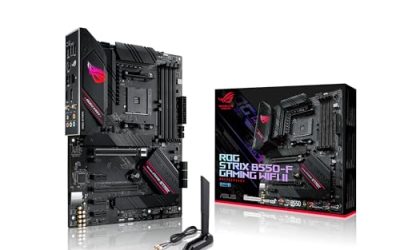
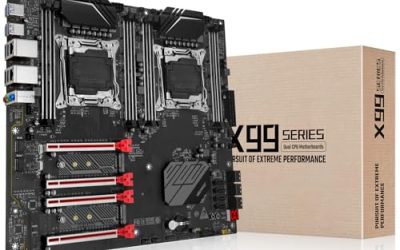
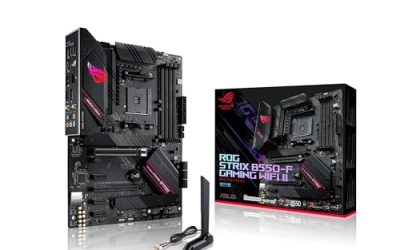
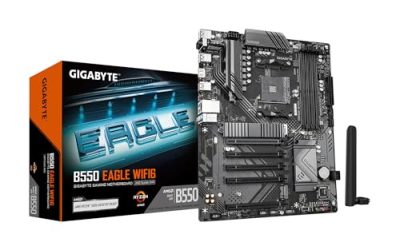
The best motherboard for a video editing build in this group is the ASUS ROG Strix X870E-E Gaming WiFi, because it combines five M.2 slots, two rear USB4 ports, 5G Ethernet and a heavy 18+2+2 power design on the long-lived AM5 platform. For an editor, the board does not render anything itself; it decides how many fast drives you can connect, how much memory you can install, and how quickly cameras and external SSDs can move footage. The Gigabyte X870E AORUS Elite is the sensible value pick, and the Intel boards suit editors who want Quick Sync.
Our Top Picks
 ASUS ROG Strix X870E-E Gaming WiFi AMD AM5X870E-E|M.2x53.4 x 14.4 x 11.1 inches5.3 poundsCheck on Amazon
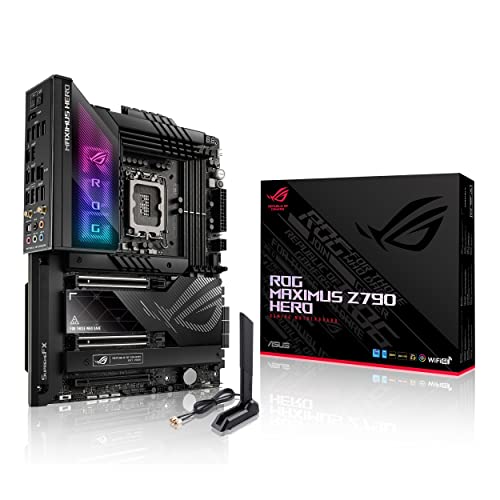 ASUS ROG Maximus Z790 Hero WiFi6E LGA 1700Z790 Hero|M.2 x5|WiFi 6E|12.2 x 4.5 x 14.6 inches9.3 PoundsCheck on Amazon


Top 3 picks at a glance
Quick List
- ASUS TUF Gaming X670E-PLUS WiFi – best for a four-drive AM5 editing machine that keeps USB4 optional
- ASUS ROG Strix X870E-E Gaming WiFi – best overall for ingest-heavy, multi-drive workstations
- GIGABYTE X870E AORUS Elite WiFi 7 – best for USB4 and 128 GB-plus memory without flagship extras
- ASUS Z790-AYW WiFi W II – best for Intel Quick Sync editing on a straightforward ATX board
- GIGABYTE Z790 Eagle AX – best for a plain Intel editing build with HDMI and DisplayPort
- ASUS ROG Maximus Z790 Hero WiFi 6E – best for Thunderbolt 4 ingest on an Intel platform
Which One Is Right for You?
| If you… | Choose |
|---|---|
| offload footage from cameras and external SSDs all day and want built-in 40 Gbps ports | ASUS ROG Strix X870E-E Gaming WiFi |
| need Thunderbolt 4 specifically for Thunderbolt docks or drives, and prefer Intel | ASUS ROG Maximus Z790 Hero WiFi 6E |
| want USB4 on AM5 without paying for a flagship board | GIGABYTE X870E AORUS Elite WiFi 7 |
| want four M.2 slots on AM5 and can add a USB4 card later | ASUS TUF Gaming X670E-PLUS WiFi |
| edit with software that uses Intel Quick Sync and want a simple ATX board | ASUS Z790-AYW WiFi W II |
| want a low-fuss Intel board with both HDMI and DisplayPort on the back panel | GIGABYTE Z790 Eagle AX |
The first split is platform. AM5 boards (X670E and X870E) belong to a socket that AMD continues to support, while the LGA 1700 boards (Z790) sit on the final socket for Intel’s 12th, 13th and 14th Generation processors. The second split is fast ports: if you ingest a lot of footage, built-in USB4 or Thunderbolt saves you an add-in card and a slot.
All 6 Picks in Detail
1. ASUS TUF Gaming X670E-PLUS WiFi – Best for a Four-Drive AM5 Build with Optional USB4
As an Amazon Associate we earn from qualifying purchases at no extra cost to you.

This was an early AM5 enthusiast board, and it still makes sense for editors who care about storage first. The listing names 16 power stages, PCIe 5.0, DDR5 and four M.2 slots, and ASUS’s specification page confirms four M.2 slots plus four SATA ports. The notable limitation is that it has no native USB4 on the rear panel; USB4 arrives only through an optional ASUS add-in card that uses the board’s dedicated header.
- AM5 socket, X670E chipset, ATX
- Four M.2 slots: one PCIe 5.0 x4 and one PCIe 4.0 x4 from the processor, plus two chipset-connected slots
- Four SATA 6 Gb/s ports; one M.2 slot shares bandwidth with two of them
- Rear USB-C at 20 Gbps (USB 3.2 Gen 2×2), plus HDMI and DisplayPort outputs
- Wi-Fi 6E and 2.5Gb Ethernet
Fit and setup notes: plan your drive layout before you install anything. Put the operating system and active project cache on the processor-connected slots, and use the chipset slots for archive or proxy files, since they share bandwidth with other devices. If you later need 40 Gbps, add the ASUS USB4 card to a free slot instead of replacing the board. Check the sharing rule in the manual, because using one chipset M.2 slot in PCIe mode disables two SATA ports.
Pros
- Four M.2 slots and four SATA ports give a lot of local storage
- The USB4 add-in card path lets you add 40 Gbps only if you need it
Cons
- No built-in USB4 or Thunderbolt on the rear panel
- Older Wi-Fi 6E and 2.5Gb Ethernet compared with the newer X870E boards
Compared with the Gigabyte X870E AORUS Elite, it offers a similar storage count but gives up built-in USB4 and Wi-Fi 7.
2. ASUS ROG Strix X870E-E Gaming WiFi – Best Overall for Ingest-Heavy Workstations

If your day involves offloading cards, moving footage to external drives and keeping several project drives online, this is the most complete board in the list. The listing names 18+2+2 power stages, WiFi 7, five M.2 slots, PCIe 5.0 and USB4. ASUS describes three PCIe 5.0 M.2 slots and two PCIe 4.0 slots, plus two rear USB4 ports, a 20 Gbps USB-C port with up to 30 W of power delivery, and a 5G Ethernet port.
- AM5 socket, X870E chipset, ATX
- 18+2+2 power stages named in the listing
- Five M.2 slots: three CPU-connected at PCIe 5.0 x4 and two chipset-connected at PCIe 4.0 x4
- Two rear USB4 (40 Gbps) Type-C ports and a 20 Gbps USB-C port
- 5G Ethernet, Wi-Fi 7 and Bluetooth 5.4
Fit and setup notes: be aware of lane sharing. When both of the second and third CPU-connected M.2 slots hold drives, the main graphics slot drops from x16 to x8, which rarely hurts editing but is worth knowing. With Ryzen 8000-series processors, the first slot runs at PCIe 4.0 and the other two Gen5 slots are not supported, so pair this board with Ryzen 9000 or 7000 processors if you want the full storage layout.
Pros
- Two USB4 ports and 5G Ethernet reduce the need for add-in cards
- Five M.2 slots with heatsinks give room for scratch, cache, proxy and archive drives
Cons
- Lane sharing between M.2 slots and the graphics slot needs attention
- Higher cost class than the other AM5 boards here
Who should skip it: editors who do not need five drives or 5G networking will find the extra capability unused. For a studio with a network storage server, multiple external drives and a camera that offloads over USB-C, however, the extra ports and slots remove the need for add-in cards altogether.
Next to the Gigabyte X870E AORUS Elite, it adds a fifth M.2 slot, faster Ethernet and a heavier power design.
3. GIGABYTE X870E AORUS Elite WiFi 7 – Best for USB4 and Big Memory Without Flagship Extras

This board gives you USB4 and Wi-Fi 7 on the current AM5 platform without moving to the most expensive tier. The listing names ATX, DDR5, four M.2 slots, PCIe 5.0, USB4, 2.5GbE and the EZ-Latch tool-free design. Gigabyte’s specification page lists four DDR5 slots with up to 256 GB total, which matters for After Effects and large timelines.
- AM5 socket, X870E chipset, ATX
- Four DDR5 slots, up to 256 GB (64 GB per module) per Gigabyte’s page
- Four M.2 slots: three PCIe 5.0 x4 and one PCIe 4.0
- Two rear USB4 Type-C ports with DisplayPort alternate mode, plus four SATA ports
- 2.5GbE and Wi-Fi 7
Fit and setup notes: Gigabyte sells more than one revision of this board with small differences, such as fan header counts and memory speed listings, so confirm the revision on the listing. Four memory modules often run at lower speeds than two, so for 64 GB consider two 32 GB modules first. The EZ-Latch design simplifies swapping M.2 drives and the graphics card, which is handy when you rearrange storage between projects.
Pros
- Built-in USB4 and four M.2 slots cover the main editing needs
- Support for large memory capacity
Cons
- 2.5GbE rather than 5G or 10G Ethernet
- Only one chipset-connected M.2 slot, and it is limited to PCIe 4.0
Who should skip it: editors who already own Thunderbolt peripherals, or who run a network storage server that benefits from faster Ethernet, may prefer a different board. For solo editors who ingest from USB-C cards and keep projects on local NVMe drives, however, it covers the workflow well, and the tool-free latches reduce the fiddly part of upgrades.
Against the ROG Strix X870E-E, it keeps the two USB4 ports and most of the storage while dropping some power headroom and the faster Ethernet.
4. ASUS Z790-AYW WiFi W II – Best for Intel Quick Sync on a Straightforward ATX Board

This is a plain, sensible Intel board for editors who want Quick Sync, the video engine built into Intel processors with integrated graphics. The listing names Z790, LGA 1700, PCIe 5.0, three M.2 slots, 12+1 DrMOS power stages, DDR5, Wi-Fi 6, 2.5Gb LAN and HDMI. ASUS’s page says the three M.2 slots are all PCIe 4.0, and the PCIe 5.0 applies only to the main graphics slot.
- Intel Z790 chipset, LGA 1700, ATX; supports 12th, 13th and 14th Generation processors per the platform
- Four DDR5 slots, up to 8000+ (OC) per ASUS
- Three M.2 slots at PCIe 4.0 x4, plus four SATA ports
- HDMI output for the integrated graphics; rear USB up to 10 Gbps
- 2.5Gb Ethernet and Wi-Fi 6
Fit and setup notes: it includes a Thunderbolt and USB4 header, but ASUS notes that an add-on card is needed to reach 40 Gbps, so confirm what is in the box. Because the socket is the last for this Intel generation, treat the board as a platform you will keep, not upgrade. Keep the BIOS current, including any microcode updates Intel released for its 13th and 14th Generation processors, before you start a large project.
Pros
- Simple, well-equipped ATX layout with a PCIe 5.0 graphics slot
- Access to Quick Sync through the HDMI-capable integrated graphics
Cons
- Wi-Fi 6 is the oldest wireless standard in the list
- No built-in 40 Gbps ports; an add-on card is needed
Next to the Gigabyte Z790 Eagle AX, it is very similar in storage but adds a Thunderbolt header and an HDMI-focused rear panel.
5. GIGABYTE Z790 Eagle AX – Best for a Low-Fuss Intel Build with Two Video Outputs

The Eagle AX is the modest Intel option: a clean ATX board that supports 14th, 13th and 12th Generation processors, DDR5 and a 12+1+1 power design, as the listing states. Gigabyte’s page confirms three M.2 slots, four SATA ports, HDMI 2.1 and DisplayPort 1.2 outputs, 2.5GbE and Wi-Fi 6E. The value is simplicity; it lacks any built-in 40 Gbps port, but it has everything an editor needs for a stable machine.
- Intel Z790 chipset, LGA 1700, ATX
- Four DDR5 slots
- Three M.2 slots at PCIe 4.0, plus four SATA ports
- HDMI 2.1 and DisplayPort 1.2 for the integrated graphics; one rear USB-C at 10 Gbps
- 2.5GbE, Wi-Fi 6E and Bluetooth 5.3
Fit and setup notes: the board provides Thunderbolt add-in card connectors but no Thunderbolt ports of its own, so a Thunderbolt workflow means buying a card. For cameras that use a USB-C cable, the rear 10 Gbps port is adequate for many drives but not for the fastest external SSDs. Use the integrated outputs only if your processor has integrated graphics; with an F-suffix processor, connect the monitor to your graphics card.
Pros
- Both HDMI and DisplayPort for the integrated graphics
- Wi-Fi 6E is more current than the ASUS Z790 sibling
Cons
- Fewer fast USB ports than the other boards
- Memory capacity is quoted differently by retailers, so confirm on listing
Who should skip it: anyone who needs Thunderbolt docks, plans to upgrade to a newer processor platform, or expects to run many drives at once. It suits a lean editing PC that is built once and left alone, where reliability and clean airflow matter more than a long port list.
Compared with the ROG Maximus Z790 Hero, it covers the basics but leaves out Thunderbolt 4, extra M.2 slots and the heavy power design.
6. ASUS ROG Maximus Z790 Hero WiFi 6E – Best for Thunderbolt 4 Ingest on Intel
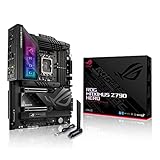
The Maximus Z790 Hero is the Intel flagship in this list. ASUS lists two Thunderbolt 4 ports, 20+1 power stages, 2.5Gb Ethernet and Wi-Fi 6E, and it supports five M.2 drives by combining three onboard slots with two on a bundled add-in card. If your cameras, docks and external drives are Thunderbolt based, this board connects them without extra hardware.
- Intel Z790 chipset, LGA 1700, ATX
- 20+1 power stages named in the listing
- Three onboard M.2 slots at PCIe 4.0 x4, plus two more on a bundled ROG Hyper M.2 card
- Two Thunderbolt 4 Type-C ports at up to 40 Gbps, plus HDMI 2.1
- Six SATA ports, Intel 2.5Gb Ethernet and Wi-Fi 6E
Fit and setup notes: the bundled add-in card occupies a PCIe slot, so check that your graphics card and other cards still fit. Thunderbolt 4 ports can also output DisplayPort video, which helps with multi-monitor edit bays. Like the other Z790 boards, this is the end of the road for the socket, so it suits editors who want the best Intel board now, not a long upgrade path.
Pros
- True Thunderbolt 4 for docks, fast drives and displays
- Six SATA ports plus five M.2 drives give extensive storage
Cons
- End-of-socket Intel platform
- Bluetooth and Wi-Fi details vary by listing, so confirm on listing
Who should skip it: editors who want a long upgrade path, because the LGA 1700 socket is the final one for these processors, and anyone who does not use Thunderbolt peripherals. If you do, the combination of two Thunderbolt 4 ports and five M.2 drives is hard to match on this platform.
Next to the ROG Strix X870E-E, it offers true Thunderbolt but sits on the older platform with 2.5Gb Ethernet.
Specs Compared
| Board | Socket / chipset | Memory slots | M.2 slots | Fast ports | Ethernet / Wi-Fi |
|---|---|---|---|---|---|
| ASUS TUF Gaming X670E-PLUS WiFi | AM5 / X670E | DDR5 (confirm slot count on listing) | 4 | 20 Gbps USB-C; USB4 via optional card | 2.5Gb / Wi-Fi 6E |
| ASUS ROG Strix X870E-E Gaming WiFi | AM5 / X870E | DDR5 (confirm slot count on listing) | 5 | 2 x USB4, 20 Gbps USB-C | 5G / Wi-Fi 7 |
| GIGABYTE X870E AORUS Elite WiFi 7 | AM5 / X870E | 4 x DDR5, up to 256 GB | 4 | 2 x USB4 | 2.5GbE / Wi-Fi 7 |
| ASUS Z790-AYW WiFi W II | LGA 1700 / Z790 | 4 x DDR5 | 3 | 10 Gbps USB-C; Thunderbolt header (card needed) | 2.5Gb / Wi-Fi 6 |
| GIGABYTE Z790 Eagle AX | LGA 1700 / Z790 | 4 x DDR5 | 3 | 10 Gbps USB-C; Thunderbolt card connectors | 2.5GbE / Wi-Fi 6E |
| ASUS ROG Maximus Z790 Hero WiFi 6E | LGA 1700 / Z790 | DDR5 (confirm slot count on listing) | 5 (3 onboard, 2 on card) | 2 x Thunderbolt 4 | 2.5Gb / Wi-Fi 6E |
How We Chose These
This list is based on the products named in the catalog, compared through manufacturer specification pages, retailer listing titles and independent hardware coverage. For video editing we prioritized the parts of a motherboard that affect an editing workflow: how many fast M.2 and SATA drives it supports, whether it has built-in USB4 or Thunderbolt for ingest, how much memory it can address, how stable the power design is for sustained loads, and how current the networking is. We did not rely on gaming-oriented features such as overclocking tools or lighting. Where a listing was ambiguous or retailers disagreed, we flagged the point instead of guessing, and we placed no product based on performance numbers we could not verify.
What to Look For
Storage Layout: Slots, Lanes and Sharing
Editors move a lot of data, so storage is the first thing to count. A typical workflow uses at least three kinds of drive: a fast system and application drive, a fast scratch and cache drive, and a larger drive for active media. Archives and proxies can sit on slower drives or SATA. Check how many M.2 slots connect directly to the processor and how many go through the chipset, because chipset slots share a single link to the processor. Also read the sharing rules in the manual: on several boards, populating certain M.2 slots disables SATA ports or reduces the graphics slot from x16 to x8. For most editing, PCIe 4.0 drives are already faster than the footage requires, so PCIe 5.0 slots are a nice extra, not a necessity.
A simple layout for a six-terabyte footage library might look like this: a 1 TB drive for the operating system and applications, a 2 TB drive for the cache and render files, and a 4 TB drive for current projects, with older projects moved to external or SATA storage. Keep the cache drive separate from the project drive when you can, because playback reads and cache writes compete for the same drive otherwise. Heatsinks matter on fast drives, since sustained writes during exports can heat a bare M.2 module enough to slow it down.
USB4, Thunderbolt and Ingest Speed
Cameras, card readers and external SSDs determine how long offloading takes. A 10 Gbps port moves roughly 1,000 megabytes per second at best, a 20 Gbps port about twice that, and a 40 Gbps USB4 or Thunderbolt port can support external NVMe enclosures at a few thousand megabytes per second. Thunderbolt 4 is a certified superset that also guarantees video output and docking support, while USB4 is a broader specification where optional features vary. If you use a Thunderbolt dock or display, choose a board with real Thunderbolt ports; otherwise built-in USB4 or an add-in card can be enough.
Memory Capacity and Platform Choice
Timeline playback, color grading and compositing all benefit from memory. A reasonable starting point is 32 GB for 4K editing, 64 GB for multi-camera work or After Effects, and more for heavy compositing. Boards with four DIMM slots give an upgrade path, but filling all four slots often lowers the speed the memory can run at, so buying two larger modules is usually better than four small ones. As for platform, AM5 is still supported by AMD, while LGA 1700 is the final socket for Intel’s 12th through 14th Generation processors. Intel processors with integrated graphics include Quick Sync, which editing software can use to accelerate decoding certain camera formats. Models with an F suffix do not include integrated graphics.
Power Delivery, Networking and a Worked Example
Rendering and exporting load the processor heavily for long periods, so a board with a solid power design runs cooler and is less likely to throttle. Higher stage counts help, but the quality of the heatsinks and airflow matters too. For networking, 2.5Gb Ethernet suits most solo editors, while a shared storage server benefits from 5G or 10G. Here is a worked example. Suppose your camera records at 400 Mbps. That is 50 megabytes per second, 3 GB per minute, or 180 GB per hour. A two-hour shoot fills 360 GB, which a 10 Gbps port copies in a few minutes. If you shoot all day and copy daily, a 20 Gbps or 40 Gbps port and a 2 TB scratch drive start paying off.
Cooling, Firmware and Long-Term Reliability
Editing workloads can run for hours at full load during exports, so look at how the board handles heat. Large VRM heatsinks, M.2 heatsinks and enough fan headers matter more than the headline stage count. Update the BIOS before installing a new processor, and keep it current afterward, because firmware revisions often improve memory compatibility and stability. For Intel 13th and 14th Generation processors, install the microcode updates Intel released for stability. Finally, leave a free PCIe slot or two for a capture card, a USB4 card or a 10G network card, and check that the graphics card does not block them.
Questions
Does the motherboard affect video editing performance?
Indirectly. The processor, graphics card and memory do the heavy work, but the board determines how many fast drives you can install, which ports you get for ingest and how well the processor is powered. A weak board can bottleneck storage or limit upgrades.
AM5 or Intel LGA 1700 for editing?
AM5 offers a longer upgrade path, while Intel boards offer Quick Sync on processors with integrated graphics. Choose based on your editing software and the processor you prefer. If you want a future upgrade without replacing the board, AM5 is the safer choice.
Do I need Thunderbolt for video editing?
Only if your gear uses it, such as a Thunderbolt dock or drive. USB4 and fast USB ports can handle most external SSDs. If you are unsure, built-in USB4 is a good compromise.
How many M.2 slots do I need?
Three is a practical minimum: one for the system, one for scratch and cache and one for active media. More slots help if you keep several projects online. SATA ports and external drives can handle archives.
How much memory should an editing PC have?
Start at 32 GB for 4K editing and consider 64 GB for multi-camera timelines or effects work. Check the board’s supported speeds when you populate all four slots, because they may be lower than with two modules.
Is Wi-Fi important on an editing board?
Not very. Wired Ethernet is more reliable for moving large files to a network drive. Wi-Fi is useful for light tasks and updates, so any listed standard from Wi-Fi 6 to Wi-Fi 7 is adequate.
Update History
- October 14, 2026 – Initial publication; product set drawn from current catalog listings.
- Check the product page for current specifications and availability before buying.
Sources
- Manufacturer product and specification pages for ASUS and GIGABYTE
- Retailer listing titles and specification fields
- Independent hardware coverage of the ASUS ROG Strix X870E-E Gaming WiFi and GIGABYTE X870E AORUS Elite, including Tom’s Hardware and KitGuru