Choosing the wrong fan splitter hub is one of the fastest ways to turn a quiet PC build into a loud, hot headache. The most common mistakes are simple: plugging five fans into a single motherboard header without checking amperage, mixing 3-pin DC fans and 4-pin PWM fans on the wrong type of splitter and wondering why speed control doesn’t work, and buying a cheap passive cable when what you actually needed was a powered SATA hub. Get any of those wrong and you risk burning out a header, running all your fans at 100%, or losing BIOS control entirely. This guide shows how to choose a fan splitter hub for motherboard headers the right way, with the specs and limits that actually matter.
Our Top Picks


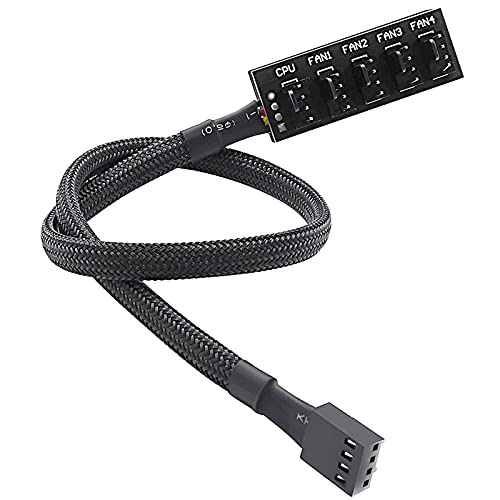

Top 3 picks at a glance
Decide These 3 Things First
Before you compare brands, answer three questions that narrow your options immediately:
As an Amazon Associate we earn from qualifying purchases at no extra cost to you.


1. How many fans do you need to run off one header? Most motherboard fan headers are rated for 1.0A to 1.5A total, with many budget boards limited to 1.0A. A typical 120mm case fan draws 0.15A to 0.30A, while high-performance 140mm fans can draw 0.25A to 0.45A. Add up your fans’ rated current (printed on the fan label). If the total exceeds 1.0A, you need a powered hub, not a passive splitter cable.
2. Do your fans use 3-pin or 4-pin connectors? 3-pin fans use voltage (DC) control. 4-pin fans use pulse-width modulation (PWM) and allow much finer speed control from 0% to 100%. A PWM hub can usually run both types, but a 3-pin fan on a PWM hub will run at full speed unless the hub and motherboard support DC mode. If you want true PWM control, all fans on that hub should be 4-pin PWM.
3. Does your motherboard header support PWM and where is it located? Check your manual for whether the header you plan to use is a 4-pin PWM header or a 3-pin DC-only header. Also measure the distance from that header to where you will mount the hub. Most splitter cables are 10 to 12 inches (25 to 30 cm) long, while hub extension cables are 15 to 24 inches (38 to 60 cm). That distance determines whether a simple Y-cable will reach or you need a mounted hub with longer leads.
Size and Form Factor: Cable Splitter vs. Mounted Hub
The physical format decides both how many fans you can connect and how clean your build will look.
Passive splitter cables are the smallest option. A 2-way or 3-way Y-cable typically measures about 10 to 12 inches long and weighs under 1 ounce (20 to 30 grams). They add no extra bulk, draw all power directly from the motherboard header, and are ideal for adding one or two extra fans. Example: a 3-way 4-pin PWM splitter cable lets you run three 120mm fans from one header, as long as their combined draw stays under 1.0A.
Compact hubs (1-to-5) are the most popular size for mid-tower cases. They are usually a small PCB board measuring 2.2 x 1.4 x 0.6 inches (55 x 35 x 15 mm) and weighing 1 to 2 ounces (30 to 50 grams). They offer five fan ports on one board and often include a single input cable for the motherboard and an optional SATA power input. They fit behind a motherboard tray or stick with adhesive.
Larger powered hubs (1-to-8 or 1-to-10) are designed for full-tower cases and high-airflow builds. These boards measure roughly 3.5 x 1.8 x 0.8 inches (90 x 45 x 20 mm) and weigh 2 to 3.5 ounces (55 to 100 grams). They almost always require SATA power and provide a dedicated PWM signal line to each port. If you need more than five fans on one header, this is the correct form factor, but you will need a flat surface and often two screw mounts near your cable routing channel.
Material and Cable Quality
Materials affect durability, heat resistance, and how easy the hub is to route in a tight case.
Look for 26 to 22 AWG wiring for the power leads. Thinner 28 AWG wires can heat up under load when running multiple fans and are more likely to develop intermittent connections after repeated bending. The main power input cable on a good hub is typically 18 to 22 AWG if it draws from SATA.
Sleeved or braided cables protect against abrasion where they pass through cable cutouts and behind sharp motherboard tray edges. Bare ribbon-style cables are cheaper and more flexible but can snag and kink. For the hub board itself, a PCB with a plastic housing or full epoxy coating resists shorts if it touches the case. Exposed bare PCB hubs are lighter and cheaper but should be mounted with non-conductive standoffs or adhesive pads, not left loose on metal.
Connector quality matters more than marketing. Genuine 4-pin PWM connectors should have four solid pins with a keyed shroud and a retention clip that clicks. Loose, wobbly pins or thin plastic shrouds are a sign of connectors that will work loose from vibration and cause fans to drop to full speed or stop reporting RPM.
Construction: Powered vs. Passive and How Control Works
This is the most decisive technical difference.
Passive hubs and splitter cables take both power (12V) and the PWM control signal from the motherboard header. They have no extra power input. That means the header’s 12W to 18W limit (1.0A to 1.5A at 12V) is your absolute ceiling. They are simple and reliable for two to three fans, and they preserve BIOS speed control perfectly, but they cannot exceed the header rating.
Powered hubs (SATA or Molex) take 12V power directly from the power supply via a SATA connector, which can deliver up to 54W (4.5A at 12V) on its 12V rail. The motherboard header only supplies the low-current PWM signal (typically under 0.01A) and RPM sensing. This lets you safely run five to ten fans from one header without risking header damage. The SATA connector should be a full 15-pin SATA power plug, not a flimsy adapter.
Also check how RPM reporting works. Most splitters and hubs only report the speed of one fan back to the motherboard — the port marked CPU, Fan 1, or the port with four wires. The other ports run at the same PWM percentage but show no individual RPM. If you need RPM readings for every fan, you need a premium hub with individual tachometer lines or you must use separate headers.
Finally, confirm 3-pin versus 4-pin compatibility. A true 4-pin PWM hub will have one four-pin input that carries the PWM signal and then all 4-pin outputs. Most will accept 3-pin fans on those 4-pin outputs, but those 3-pin fans will ignore the PWM signal and run at full 12V (100% speed) unless the motherboard header is switched to DC mode in BIOS. If your build mixes fan types, look for a hub that explicitly states 3-pin/4-pin compatibility and supports both PWM and DC control.
Performance and Control: What Affects Noise and Cooling
A good hub should not add noise or limit cooling; it should make both more controllable.
PWM control range is key. A standard 4-pin PWM signal runs at 25 kHz and should allow your motherboard to control fan speed from about 20% to 100%. Some low-cost hubs introduce voltage drop that narrows that range to 40% to 100%, which means your fans cannot spin as slowly or quietly at idle. If quiet operation matters, choose a hub that specifies full PWM support and maintains stable 12V delivery from the SATA input.
Power overhead determines stability. Leave 20% to 30% headroom on your amperage calculation. For example, if five fans are each rated 0.20A, the total is 1.0A. On a 1.0A-rated header with a passive splitter, that leaves no headroom and risks header shutdown on startup when fans draw briefly higher inrush current. On a SATA-powered hub, that same 1.0A load is only about 12W, well under SATA’s 54W limit, so startup is smooth.
Consider fan speed synchronization. On a single hub, all fans will follow the same PWM curve. That works well if all fans are the same model and size. If you mix a 120mm front intake and a 140mm exhaust with different RPM ranges (e.g., 800 to 1800 RPM vs. 600 to 1500 RPM), a 50% PWM signal will produce different absolute RPMs but the same percentage. For even airflow, group identical fans on one hub and put different sizes on a separate header.
Price Tiers: What You Get for Your Money
Pricing in this category is straightforward, and you do not need to overspend to be safe as of 2026.
Premium: $19 to $35. Premium hubs add features like individual fan speed isolation, built-in temperature probes, ARGB pass-through, fan-stop (0 RPM) support at low PWM, and full housing with magnetic mounts. They also often support both PWM and DC switching per header and provide dedicated RPM reporting. Worth it for custom loops, silent builds, or builds with eight or more fans where independent tuning matters.
Warranty and Reliability
Fan hubs are low-voltage accessories, so warranties are short but still worth checking. Budget cable splitters often have a 30-day return window and a 6-month limited warranty. Mid-range and premium hubs from established accessory brands typically offer 12 to 24 months. Keep your fan amperage labels and motherboard manual during this period — a failed header from overloading is considered user damage and is not covered by either the motherboard or hub warranty.
Reliability indicators include the rated operating temperature of the PCB (look for -10C to 60C or wider) and whether the SATA power input is soldered through-hole rather than surface-mounted, which resists cracking from cable pulls. Hubs that use solid capacitors rather than electrolytic caps tend to handle heat behind the motherboard tray better over multi-year use.
Delivery and Assembly
Installation is tool-free in most cases and takes 5 to 15 minutes. Most hubs ship as a single board or cable weighing 1 to 4 ounces, with no extra drivers or software. Delivery is typically standard parcel with no assembly required.
For assembly, plan for two steps: mount, then connect. Mount the hub within reach of both the motherboard header and a SATA power cable from your power supply. Use the included adhesive pad or screw holes on a flat surface behind the motherboard tray, at least 0.5 inches away from hot components like M.2 drives or chipset heatsinks. Then connect the single 4-pin input to the motherboard header labeled CHA_FAN or SYS_FAN, connect SATA power if your hub has it, and then plug fans into the hub. Leave at least 0.75 inches (20 mm) of bend radius on cables near the connectors to avoid stress fractures. After booting, enter BIOS and set that header to PWM mode for 4-pin fans or DC mode for 3-pin fans so the hub’s control signal is interpreted correctly.
Spec Checklist
| Spec | Budget | Mid | Premium |
|---|---|---|---|
| Ports per hub/cable | 2 to 5 ports | 5 to 10 ports | 8 to 12 ports + ARGB pass-through |
| Power source | Header only (passive) or single SATA | SATA powered, 22 AWG leads | SATA powered with filtering caps, fan-stop support |
| Max safe load | 1.0A / 12W total on header | 2.5A to 4.5A / 30W to 54W via SATA headroom | 4.5A / 54W with overload protection |
| Cable length | 10 to 15.7 inches (25 to 40 cm) | 18 to 24 inches (45 to 60 cm), braided | 20 to 28 inches (50 to 70 cm), braided + housing |
| Fan compatibility | 4-pin PWM only or mixed 3-pin/4-pin at full speed | Supports both 3-pin DC and 4-pin PWM with BIOS switching | Per-port PWM/DC auto-sense, 0 RPM mode |
| RPM reporting | One port reports (e.g., Fan 1) | One port reports, others follow same PWM% | One or more tach lines or software reporting per fan |
| Board size / weight | ~2.2 x 1.4 in, 1 to 2 oz (30 to 50 g) | ~2.8 x 1.6 in, 2 to 3 oz (55 to 85 g) | ~3.5 x 1.8 in, 2.5 to 3.5 oz (70 to 100 g) |
| Price range | Check on Amazon | Check on Amazon | Check on Amazon |
| Warranty | 30 days to 6 months | 12 months | 12 to 24 months |
Red Flags
- No amperage or wattage rating listed. If the listing does not state maximum current per port or total, assume the lowest safe value (1.0A total) and avoid for multi-fan use. Reputable hubs list 1.0A per port and a total like 4.5A via SATA.
- Claims to power six or more fans from the header alone. Any 1-to-8 or 1-to-10 hub without a SATA or Molex input is unsafe — it will overload the header on startup.
- Mismatched pin counts without explanation. A hub with a 3-pin input and 4-pin outputs cannot pass PWM control. You will lose speed control and fans will run at 100%.
- Extremely thin or unsleeved power wires on a powered hub. 28 AWG power leads or loose SATA adapters that do not click firmly are prone to voltage drop and intermittent fan stops.
- Only one fan wire on all ports except one. Some ultra-cheap splitters literally wire only one port for RPM. That is normal to expect, but if no port is marked as the RPM port, the motherboard may read 0 RPM and trigger a CPU fan error at boot.
- No mounting solution. A bare hub with no adhesive pad, screw holes, or standoff suggests it was not designed to be secured. A loose board touching the case can short and fail.
FAQ
Can I plug 3-pin fans into a 4-pin PWM fan splitter hub?
Yes, physically, but with limits. A 3-pin fan will fit on a 4-pin header and will run, but it cannot use the PWM signal pin. On a PWM-controlled header, that 3-pin fan will run at full speed (12V, 100% RPM). To control its speed, go into BIOS and change that specific motherboard header from PWM to DC (voltage) mode. If you mix 3-pin and 4-pin fans on the same hub, keep them on separate hubs or accept that they will not all follow the same curve accurately.
How many fans can I safely connect to one motherboard header?
Add up the rated current printed on each fan. For example, three fans at 0.22A each total 0.66A, which is safe on a 1.0A header with a passive splitter. Five fans at 0.25A each total 1.25A, which exceeds a 1.0A header and requires a SATA-powered hub. Even with a powered hub, stay under the hub’s total rating, usually 4.5A via SATA, and keep 20% headroom for startup current.
Do I need a SATA-powered hub or will a simple cable work?
Use a simple passive cable if you have two to three fans whose combined draw stays under 1.0A and your cables can reach. Use a SATA-powered hub if you have four or more fans, any fans that draw over 0.30A each, or if your header is in a hard-to-reach spot and you want cleaner cable routing. Powered hubs eliminate the risk of header overload because they draw power from the power supply, not the motherboard.
Why does my motherboard only show one fan speed when I use a hub?
That is normal. Most hubs have only one tachometer (RPM) wire that reports back to the motherboard, usually marked as CPU, FAN1, or with a different color wire. All fans on the hub receive the same PWM control signal and run at the same percentage, but only one port’s speed is reported. The other fans are running correctly, you just cannot see their individual RPMs. This does not affect control or safety as long as the PWM signal is reaching all ports.