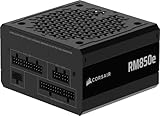
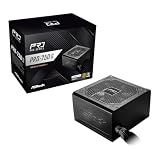
Our Top Picks


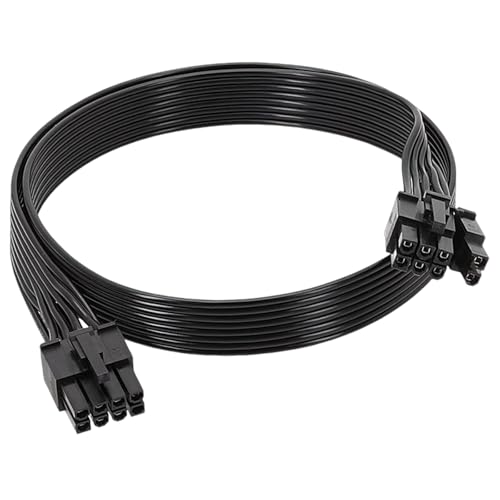
Top 3 picks at a glance
The Short Answer
The number of PCIe cables you need for your power supply depends entirely on the power draw (wattage) and the physical power connectors of your graphics card (GPU). As a general rule of thumb, you will need one dedicated PCIe cable for every 150 watts of power your GPU requires beyond the first 75 watts provided directly by the motherboard’s PCIe slot.
For low-end and budget-friendly graphics cards (under 225W), you will need exactly one PCIe cable (typically an 8-pin or a 6+2 pin connector). For mid-to-high-range graphics cards (225W to 375W), you will need two separate PCIe cables. For ultra-high-end enthusiast graphics cards (over 375W), you will need three to four individual PCIe cables, or a single specialized 12VHPWR (12+4 pin) cable designed for modern high-wattage power supplies.
As an Amazon Associate we earn from qualifying purchases at no extra cost to you.


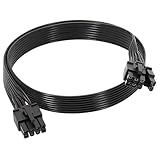

To ensure system stability, prevent cable melting, and maintain a clean aesthetic in your workspace, always prioritize using separate, individual cables from your power supply unit (PSU) to your graphics card rather than relying on the daisy-chained “pigtail” connectors found on a single cable.
Standard Sizes
PCIe cables come in relatively standardized lengths to accommodate various computer chassis sizes, from compact desktop setups to massive workspace towers. Understanding these physical dimensions helps you plan your cable routing and interior organization.
| Cable Type & Configuration | Length (Inches) | Length (Centimeters) | Max Safe Power Delivery | Typical Price Range (Single/Pack) |
|---|---|---|---|---|
| Standard 8-Pin to 6+2 Pin (Single) | 24″ – 25″ | 60 cm – 63 cm | 150W | Varies |
| Premium Sleeved 8-Pin (Single) | 24″ – 26″ | 60 cm – 66 cm | 150W | Varies |
| Standard Dual-Pack (8-Pin to 6+2) | 25″ | 63 cm | 300W (Combined) | Varies |
| Extension Cables (Female to Male) | 8″ – 12″ | 20 cm – 30 cm | Matches Source Cable | Varies |
| 12VHPWR (16-Pin) ATX 3.0 Cable | 24″ – 27″ | 60 cm – 68 cm | 600W | Varies |
Most replacement and extension cables, such as those from Cable Matters or specialized brand-specific options for Corsair and EVGA, hover right around the 24-to-25-inch mark. This length is optimized to reach from a bottom-mounted power supply shroud, up behind the motherboard tray for clean cable management, and back out to the graphics card.
How to Measure Your Space
Before purchasing replacement PCIe cables, you must measure your computer case to ensure the cables are long enough to route cleanly without putting physical tension on your hardware ports. Follow these steps to measure your interior space:
- Locate Your Power Supply Unit (PSU): Identify where your PSU is mounted (typically in a basement shroud at the bottom of the case or mounted at the top). Locate the specific 8-pin PCIe output ports on modular power supplies.
- Trace the Cable Path: Do not measure in a straight, diagonal line. To keep your system looking neat and professional, trace the path the cable will actually take. This usually runs from the PSU, through the nearest cable routing grommet to the back of the motherboard tray, up to the level of the graphics card, and then back through a grommet to the front of the case.
- Use the String Method: Take a piece of household string or a flexible measuring tape. Hold one end at the PSU output port, lay it along your intended routing path, and bring the other end to the power input ports on your graphics card.
- Add Slack for Bend Radius: Mark the string at the connection point. Measure the string with a ruler, then add 2 to 3 inches (5 to 8 cm) to that measurement. This extra length accounts for the “bend radius” of the cable near the connectors, ensuring you do not bend the wires too sharply, which can cause electrical resistance or physical damage.
- Verify Side Panel Clearance: Measure the distance from the face of your graphics card’s power ports to the glass side panel of your case. Standard PCIe connectors require at least 1.5 to 2 inches of clearance to bend safely without pressing hard against the glass panel.
By Room or Use Case
How you configure your PCIe cables depends heavily on where your computer is located in your home and how you intend to use the system. Cable routing affects thermal performance, dust accumulation, and visual acoustics.
The Minimalist Home Office
For a clean, quiet home office desk, you are likely running a productivity-focused system or a entry-level creative workstation. These setups typically use lower-power graphics cards (such as the NVIDIA RTX 4060 or AMD RX 7600) requiring under 200W of power. For this setup, you only need one standard 25-inch PCIe cable. Because visual clutter is the enemy of a peaceful workspace, routing a single cable behind the motherboard tray keeps the interior looking pristine, quiet, and professional.
The Dedicated Gaming & Creative Studio
In high-performance gaming rooms or professional video-editing studios, systems demand immense power to drive high-end GPUs. High-wattage cards (such as the RTX 4080 or RX 7900 XTX) can pull 350W to 450W under full load. As we design workspaces for 2026, these high-draw systems require three separate 8-pin PCIe cables plugged directly into individual ports on the power supply. Using separate cables prevents any single wire from overheating, which keeps your high-performance studio safe from electrical faults and system crashes during long rendering sessions.
The Living Room Media Center (HTPC)
Home theater PCs (HTPCs) and small-form-factor (SFF) builds are designed to sit discreetly in living room media consoles or TV stands. Because space inside these compact cases is incredibly tight, standard 25-inch PCIe cables are actually too long and will choke the system’s airflow, leading to loud fan noise during movie playback. For these living room setups, look for shorter, specialized 8-to-12-inch PCIe cables or high-quality ribbon cables. You will generally need one or two cables, carefully folded to maximize airflow and keep the living room environment whisper-quiet.
Common Sizing Mistakes
- Mixing Power Supply Brands: This is the most dangerous mistake a builder can make. While the 6+2 pin end of a PCIe cable that plugs into your graphics card is standardized, the 8-pin end that plugs into your power supply is not. Using a Corsair-compatible PCIe cable (like the SZSDMY or Corsair-specific cables) on an EVGA power supply (which requires a dedicated EVGA pinout like the YEZriler cable) can cause an electrical short, instantly destroying your graphics card, power supply, or both. Always check brand compatibility explicitly.
- Using Daisy-Chained “Pigtail” Connectors for High-Power Cards: Many PCIe cables come with a second “pigtail” connector branching off the main line. While it is tempting to plug both connectors from a single cable into a 300W graphics card, a single cable is only rated to safely carry 150W of power. Overloading a single cable can cause the wires to get hot to the touch, melt plastic connectors, and cause sudden system blackouts under heavy loads.
- Ignoring Cable Stiffness and Side Panel Clearance: Premium sleeved cables look beautiful, but they are significantly stiffer than standard flat black ribbons. Forcing a stiff PCIe cable to bend sharply against a tempered glass side panel can damage the power socket on your expensive graphics card. Always ensure you have adequate lateral clearance before selecting thick, sleeved options.
- Buying Extension Cables Instead of Direct Replacements: Cable extensions (like those from Cable Matters) are designed to plug into your existing PSU cables to add length and aesthetic appeal. They cannot be plugged directly into your modular power supply unit. Plugging an extension cable directly into a PSU port will result in a physical mismatch or an electrical failure.
FAQ
Can I use a 6-pin PCIe cable in an 8-pin GPU slot?
No, you should not attempt to plug a standard 6-pin PCIe cable directly into an 8-pin slot. The extra two pins on an 8-pin connector act as ground/sense wires that signal to the graphics card that the cable is capable of safely delivering up to 150W of power. If these pins are empty, the graphics card will either refuse to boot entirely or will fail to run under 3D workloads. Always use a 6+2 pin or a dedicated 8-pin cable for 8-pin slots.
What is the difference between a CPU power cable and a PCIe power cable?
Although both are 8-pin connectors, they are electrically and physically incompatible. CPU power cables (often labeled EPS) split into a 4+4 configuration, while PCIe cables split into a 6+2 configuration. Additionally, the square and rounded plastic keying on the connectors is completely different to prevent you from plugging them into the wrong sockets. Forcing a CPU cable into a GPU socket will damage your hardware.
Is it safe to use third-party PCIe cables?
Yes, it is perfectly safe to use third-party PCIe cables, provided you verify that the cable is certified compatible with your exact brand and model of power supply. Reputable manufacturers design replacement cables to match the specific electrical pinout of major PSU brands like EVGA, Corsair, and Thermaltake. Never buy generic “universal” cables that do not list specific power supply compatibility.
How many PCIe cables do I need for an NVIDIA RTX 40-series graphics card?
Modern high-end NVIDIA RTX 40-series cards use a new 12VHPWR (12+4 pin) connector. If you have an older ATX 2.0 power supply, you will need to use the adapter included in the GPU box, which requires three to four separate 8-pin PCIe cables plugged into it. If you have a modern ATX 3.0 power supply, you only need one dedicated 12VHPWR cable, which can safely deliver up to 600W through a single connection.