Buy a solid-state drive for your operating system and the games you play most, and add a hard drive only if you need cheap bulk space for the rest of the library. If you can afford just one drive and play modern titles, the SSD is the better choice almost every time.
The real question is not which technology is faster, because that is settled, but how much the speed gap changes your daily play compared with what it costs you per terabyte. This guide walks through where each drive type earns its place in a gaming desktop, so you can split your budget sensibly in 2026 rather than overspending on one tier or choking another.
What Actually Differs Between the Two
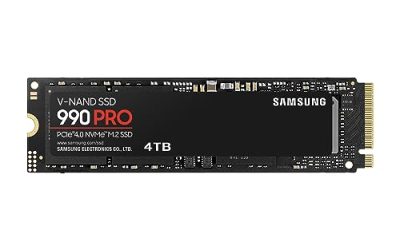
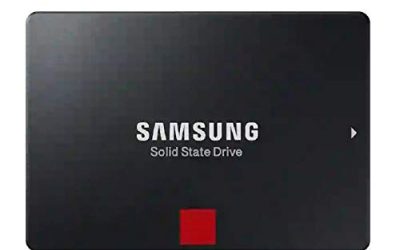
A hard drive stores data on spinning magnetic platters and reads it with a moving head, so every access involves physical movement. A solid-state drive stores data in flash memory chips with no moving parts, which is why it responds almost instantly and makes no noise.
That single difference explains nearly everything else: faster starts, quicker loading, lower heat and more resistance to knocks on one side, and a higher cost per terabyte on the other. Hard drives still win on how much space a given budget buys.
Where the Speed Difference Shows Up in Games
Boot and launch times
Windows starts noticeably faster from a solid-state drive, and so do launchers, anti-cheat services and overlays. This is the single most visible change you will feel if you move an operating system off a hard drive.
Level and map loading
Large open-world and multiplayer titles read a lot of assets when a level starts. On a solid-state drive those loading screens are shorter, and on fast NVMe models they can shrink further, although the improvement over a SATA drive is smaller than the jump from a hard drive.
Texture streaming and stutter
Many recent games stream textures and geometry from storage as you move. On a hard drive this can produce pop-in, late textures or brief stalls when the head is busy elsewhere. A solid-state drive keeps up with streaming far more reliably.
Frame rates themselves
Storage rarely changes average frame rates, since those depend on the graphics card and processor. What storage affects is how smoothly the game loads and how rarely it hitches, not how many frames the GPU can draw.
SSD vs HDD Side by Side
| Factor | Solid-state drive | Hard drive |
|---|---|---|
| Load and boot speed | Fast, NVMe fastest | Slowest of the options |
| Cost per terabyte | Higher | Lower |
| Capacity at the top end | Large but costly | Very large and affordable |
| Noise and vibration | None | Audible spinning and seeking |
| Durability against knocks | Better, no moving parts | More fragile when moved |
| Best role | OS and active games | Archive and rarely played titles |
SATA vs NVMe Within the SSD Category
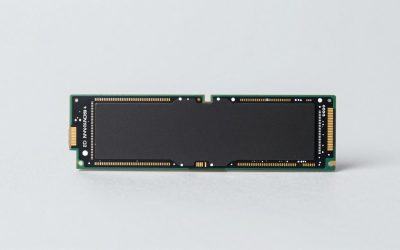
Not every solid-state drive is equal. A SATA model uses the same interface as a hard drive and tops out around the 550 MB per second range. An NVMe model connects through an M.2 slot or a PCIe card and can be several times faster on paper. For loading screens the difference between the two is small compared with the jump from a hard drive, so a SATA drive is a reasonable choice if your motherboard lacks spare M.2 slots or your budget is tight.
If you want to be ready for games that make heavier use of fast storage, NVMe is the future-friendly option, but do not pay a large premium for the very fastest tier. Sustained speeds, cooling and capacity matter more than headline numbers.
Smart Ways to Combine Both
- One solid-state drive for the operating system, launchers and your current favorites, plus a hard drive for the backlog.
- A larger solid-state drive only, if your library is modest and you uninstall finished games.
- A hard drive as the home for screenshots, clips, installers and backups, with games kept on solid-state storage.
- A second solid-state drive added later, rather than a hard drive, if you find yourself juggling installs.
Before You Buy Checklist
- Total up the size of the games you actually play and add headroom for patches.
- Check how many M.2 slots and SATA ports your motherboard offers.
- Decide whether you want one drive that does everything or a fast drive plus a bulk one.
- Look at endurance and warranty details on solid-state models, not just speed.
- For hard drives, confirm the recording type if you plan to write to it heavily.
- Back up saves and screenshots no matter which drive you choose.
Matching the Choice to Your Budget Tier
Tight budget
Put the operating system and your two or three favorite games on a modest solid-state drive and park everything else on a hard drive you already own. This single change delivers most of the noticeable improvement, because boot time and your most frequent loads become quick.
Mid-range budget
Buy a larger solid-state drive, ideally NVMe if you have a free M.2 slot, and use it for everything you actively play. Keep a hard drive only for archived titles, recordings and installers. You get quick loading and decent capacity without paying for the very fastest tier.
Premium budget
Choose a high-capacity NVMe drive for games and consider a second solid-state drive for projects, capture files or a separate scratch space. At this point a hard drive is optional, serving mainly as a cheap backup destination.
Mistakes to Avoid
- Installing the operating system on a hard drive and the games on a solid-state drive, which leaves the machine slow to boot and respond.
- Filling a solid-state drive to the brim, which can reduce sustained write speeds on many models.
- Paying extra for peak speed numbers that sit far beyond what loading screens can use.
- Forgetting that M.2 slots may share bandwidth with SATA ports on some motherboards, so check the manual before filling every connector.
Capacity Planning for a Modern Library
Game installs keep growing, and a handful of large titles can fill a drive faster than you expect. Before you buy, list the games you play weekly, add a margin for patches and for the operating system, and leave a fifth or so of the drive free so it can work comfortably. If your list does not fit, you have two options: buy a bigger solid-state drive, or accept a hard drive for the games you open only now and then.
Think in tiers rather than a single drive. The tier you touch daily deserves speed. The tier you touch monthly deserves cheap space. A third tier, the games you have finished, probably deserves uninstalling, since most platforms let you re-download them whenever the mood strikes.
Handling cloud saves and reinstalls
Because digital storefronts keep your library on their servers, moving a game between drives is usually just a matter of reinstalling or using the launcher’s move option. That makes it easy to start small on a solid-state drive and shuffle titles as your habits change.
Related guides
- How To Set Up Computer Speakers For Better Sound At Your Desk
- How To Check Whether Your Ram Is Running At Its Rated Speed
- How To Choose The Right Monitor Riser Height For Your Desk
Frequently Asked Questions
Will an SSD increase my FPS?
Not directly. Frame rates come from your graphics card and processor. A solid-state drive improves loading times and cuts texture-streaming stutter, which can make a game feel smoother.
Is a 1TB SSD enough for gaming?
For many players it is a sensible starting point, especially if you rotate games in and out. If your library holds several very large titles at once, plan for a larger drive or add a second one.
Can I install the operating system on an SSD and games on an HDD?
Yes, and it is a common setup. Expect longer loads for games installed on the hard drive, so keep your most-played titles on the solid-state drive.
Do solid-state drives wear out too quickly for gaming?
Gaming mostly reads data, so wear is rarely a concern. Check the endurance rating and warranty on any model you consider and keep backups of important files.
Related guides
More from Amazon
Programs that pair well with the guide above. Offers and eligibility are set by Amazon and may change.
Free shipping on eligible items, Prime Video and more. Eligible new members can start with a free trial.
Start a Prime free trialAd-free music streaming. Eligible new subscribers can start with a free trial.
Try Music Unlimited freeA Prime membership for ages 18-24 with a trial period. Eligibility is set by Amazon.
See Prime for Young AdultsAudiobooks and podcasts to listen to on the go. Eligible new members can start with a free trial.
Try Audible freeAs an Amazon Associate we earn from qualifying purchases.