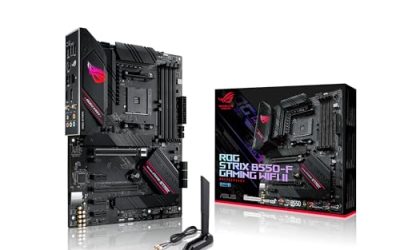
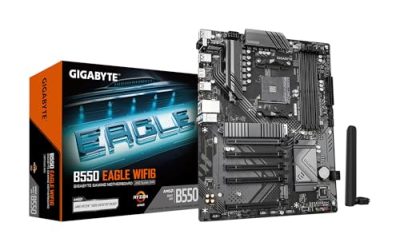
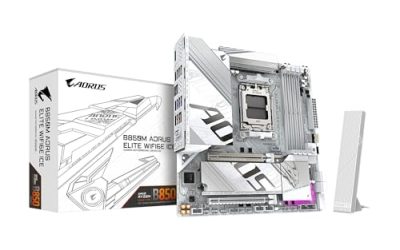
To update a BIOS, download the exact version for your motherboard model from the manufacturer’s support page, check the release notes, copy the file to a FAT32 USB drive, and flash it with the board’s built-in tool or its USB Flashback feature while the system is on stable power. Do not interrupt it. Most updates take a few minutes, and a failed flash is rare, but the consequences are serious enough to justify a slow, careful process. The sections below compare the main methods, list what to prepare, and explain what to do if something goes wrong.
Flashing methods compared
| Method | Needs working CPU and RAM | Needs OS running | Risk level | Best for |
|---|---|---|---|---|
| Built-in UEFI flash tool | Yes | No | Low | Most users, routine updates |
| USB Flashback (button on board) | No | No | Low | New CPU not yet supported, dead POST |
| Windows-based updater | Yes | Yes | Higher | Convenience, though many guides avoid it |
| Dual BIOS switch | Yes | No | Lowest | Boards with a backup chip |
The built-in tool and the Flashback feature are the two methods most people should choose. A Windows-based updater runs while the operating system, antivirus and background tasks are active, and any one of those can interfere. If you have a choice, flash from the firmware environment instead.
Before you start: requirements and constraints
Preparation matters more than the flash itself. Work through this list before you download anything.
- Exact model name and revision. Read the printing on the board itself, because many models have revision numbers and a file for the wrong one can cause problems.
- Current BIOS version. You can find it in the firmware setup screen or by opening System Information in Windows and checking the BIOS Version field.
- Release notes. Look for required intermediate versions, processor support changes and warnings about settings being reset.
- A USB drive formatted FAT32, ideally a small, plain one. Some boards are picky about large or unusual drives.
- Stable power. A desktop on a surge protector or uninterruptible power supply; a laptop plugged in with a charged battery.
- Your settings written down. Photograph the boot order, memory profile, fan curves and any overclock settings. The flash often resets them.
- Encryption keys. If your drive uses device encryption, save the recovery key, since a firmware change can trigger a recovery prompt.
Also check whether you need the update at all. If the machine is stable and the notes do not mention anything relevant to your hardware or a security issue, waiting costs you nothing. After a firmware change, some fan-controlled parts behave differently; see our notes on AIO radiator fans not spinning after a BIOS update for one common aftermath.
How to update using the built-in UEFI tool
- Download the BIOS file from the manufacturer’s support page for your exact board. Unzip it if it comes in an archive.
- Copy the BIOS file to the root folder of the FAT32 USB drive. Do not rename it unless the instructions say to.
- Restart and press the setup key (often Delete or F2) to enter the firmware settings.
- Find the flash utility. It may be called Instant Flash, EZ Flash, M-Flash, Q-Flash or similar, usually in an advanced or tools menu.
- Select the file on the USB drive and confirm. Read the version number on screen to make sure it matches what you downloaded.
- Wait. The screen may go blank, the system may restart more than once and the fans may spin loudly. Do not turn off the power or press keys during this stage.
- When the board returns to setup or Windows, open the firmware screen and load the optimized defaults before restoring your own settings.
The most common surprise is a long black screen after the first restart while the board rebuilds memory training. Give it several minutes before assuming something is wrong, and check the debug LED or codes on boards that have them.
How to use USB BIOS Flashback
This feature lets you flash with no CPU, no memory and no display, using only standby power from the power supply. It is the answer when a new processor will not boot on an older BIOS, or when a previous flash has left the board unresponsive. The naming varies (Flashback, Q-Flash Plus, BIOS FlashBack) but the process is similar.
- Format a USB drive as FAT32 and copy the BIOS file to its root.
- Rename the file exactly as the manual states. Many manufacturers provide a small renaming utility with the download.
- Switch the power supply on but leave the PC off (standby power only).
- Insert the drive into the specific port marked for flashing, usually on the rear panel.
- Press and hold the Flashback button for the stated time, usually a few seconds.
- Watch the indicator LED. A blinking light usually means progress; it turns solid or off when finished. The time varies, often three to ten minutes, so check your manual.
- Do not unplug anything until the LED indicates completion.
If the light blinks quickly and then stays that way, it can indicate that the file name, format or drive is not accepted. Recheck each of them before trying a different drive.
Post-update verification checklist
- Enter setup and confirm the new version number matches the release.
- Load optimized defaults, save, and restart once.
- Re-enable the memory profile (XMP, EXPO or similar) if you used one, and confirm the rated speed.
- Restore the boot order and confirm the correct drive boots.
- Re-create custom fan curves. For a comparison of where to set them, see fan curves in the BIOS versus software.
- Check that all USB ports, network and audio devices appear in the operating system.
- Run a normal workload for an hour and watch for restarts or freezes.
If the temperatures look different from before, review the thermal options; our overview of BIOS settings that affect thermal throttling lists what to check.
Troubleshooting a failed or problematic flash
| Symptom | Likely cause | What to try |
|---|---|---|
| No display after flash, fans spin | Memory training running or settings mismatch | Wait 5 to 10 minutes, then clear CMOS |
| Boot loops repeatedly | Old settings clash with new firmware | Clear CMOS, load defaults, re-enter settings |
| Board will not POST at all | Corrupted flash or interrupted write | Use USB Flashback or a dual BIOS switch |
| Flash tool says file invalid | Wrong model, bad download or format | Redownload, recheck model and FAT32 |
| Pump or fan not detected after | Header defaults changed | Reset header mode, see AIO pump not detected fix |
| Windows asks for recovery key | Firmware change affects encryption check | Enter the saved key, then resume protection |
To clear CMOS, power off, unplug the supply, remove the coin cell for about a minute or use the clear-CMOS jumper or button according to your manual, and then reassemble. If none of this works, stop and contact the manufacturer’s support rather than repeatedly attempting flashes. Repeated failed attempts do not improve the odds, and a warranty service may be cheaper than a damaged chip.
Never flash with a battery that is nearly empty, a power strip shared with heavy appliances, or a drive of uncertain origin. These simple precautions remove most of the realistic danger.
A quick decision flow: flash now, or leave it?
Use these questions in order to decide whether an update is worth the risk.
- Is the release note fix aimed at a problem you actually see (crashes, a missing USB device, memory instability)? If yes, update.
- Are you installing a processor that the current BIOS version does not list as supported? If yes, update before you swap the CPU, or use Flashback afterward.
- Does the note describe a security fix for the platform? If yes, update at a time when you can give the process your full attention.
- None of the above and the PC is stable? Leave it alone and recheck in a few months.
When to stop and ask for help: if the board shows no sign of life after a clear-CMOS attempt and a Flashback try, if the Flashback light never stops blinking, or if you are unsure which revision your board is, contact the board maker’s support before doing anything else. A short email costs far less than a replacement board.
Frequently asked questions
Should I update my BIOS if everything works?
Usually not. If the system is stable and you do not need a fix or feature, leaving the BIOS alone avoids risk. Update when the release notes name a problem you have, add support for a CPU you plan to install, or fix a security issue. A flash interrupted by a power cut is the main danger, so only do it when you have a reason.
Can I update the BIOS without a CPU or RAM installed?
On boards with a USB BIOS Flashback or similar button, yes. You copy the renamed file to a FAT32 USB drive, plug it into the marked port and press the button, and the board flashes itself from standby power. Boards without this feature need a supported CPU and memory installed to flash through the normal tool.
What happens if the power goes out during a BIOS update?
The board may fail to start, and recovery depends on the model. Some boards have dual BIOS chips or a recovery mode that reflashes from USB, while others need the chip reprogrammed or the board replaced. A surge protector or uninterruptible power supply on a desktop, and a charged battery on a laptop, lower the risk considerably.
Do I need to update the BIOS one version at a time?
Sometimes. Some manufacturers require an intermediate version before a major jump, particularly for processor support changes, and say so in the release notes. If the notes list a required step, follow them exactly. If nothing is stated, flashing directly to the version recommended by the maker is normally acceptable, but read the notes first.
Will updating the BIOS erase my files?
No, the BIOS lives on a chip on the motherboard and your drives are untouched. Your BIOS settings, however, are often reset to defaults, which can change boot order, memory profile and fan curves. Write down or photograph your custom settings first, and if you use drive encryption, have your recovery key available before you flash.