The best budget monitor for photo editing in 2026 is the ASUS ProArt PA278QV for affordable, accurate sRGB work, while the ASUS ProArt PA279CRV is the better upgrade for 4K detail and wide-gamut Adobe RGB editing.
As an Amazon Associate we earn from qualifying purchases at no extra cost to you.



Our Top Picks
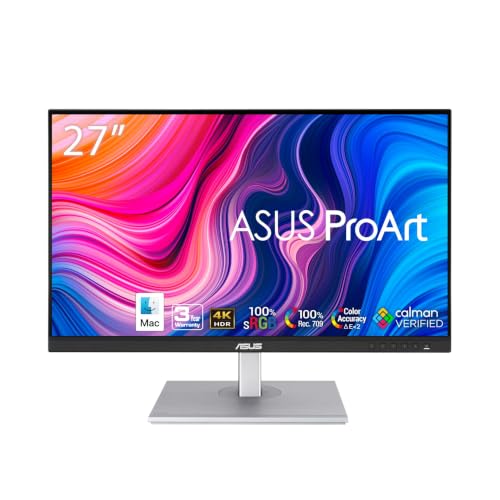


Top 3 picks at a glance
Best budget monitors for photo editing: ranked
Photo editing monitors should be judged by more than resolution. Color coverage determines which colors the display can show, factory accuracy affects how trustworthy the image looks before calibration, and calibration support determines whether you can maintain that accuracy over time. The rankings below prioritize IPS or IPS Black panels, reliable sRGB performance, useful factory calibration, and realistic market prices rather than gaming speed.
| Rank | Monitor | Panel and resolution | Color coverage | Brightness | Typical market range |
|---|---|---|---|---|---|
| 1 | ASUS ProArt PA278QV | 27-inch IPS, 2560 × 1440 | 100% sRGB, 100% Rec. 709 | 350 nits | Varies |
| 2 | BenQ PD2705Q | 27-inch IPS, 2560 × 1440 | 100% sRGB, 100% Rec. 709 | 300 nits | Varies |
| 3 | ASUS ProArt PA279CRV | 27-inch IPS, 3840 × 2160 | 100% sRGB, 99% Adobe RGB, 99% DCI-P3 | 400 nits | Varies |
| 4 | Dell UltraSharp U2724D | 27-inch IPS Black, 2560 × 1440 | 100% sRGB, approximately 98% DCI-P3 | 350 nits | Varies |
| 5 | LG 27UP650-W | 27-inch IPS, 3840 × 2160 | Approximately 95% DCI-P3 | 400 nits | Varies |
1. ASUS ProArt PA278QV: best overall budget photo-editing monitor
The PA278QV is the strongest choice for photographers who publish mainly to websites, social media, and standard consumer displays. Its 27-inch 2560 × 1440 IPS panel gives a useful balance of workspace, sharpness, and price. ASUS rates it for full sRGB and Rec. 709 coverage, and ProArt models commonly include a factory calibration report with a Delta E target below 2.
The 350-nit brightness is more than enough for a normally lit room, although editing at maximum brightness can make prints and exported images look too dark. The monitor also provides dedicated sRGB, Rec. 709, and user modes, plus six-axis color controls and gamma options. That makes it easier to create a sensible baseline without immediately buying a colorimeter.
Its limitation is gamut. It is an excellent sRGB monitor, not a true wide-gamut display for demanding Adobe RGB print workflows. Choose it when accurate web and general-purpose color matter more than 4K resolution or expanded greens and cyans.
2. BenQ PD2705Q: best for a controlled sRGB workflow
The BenQ PD2705Q is a practical alternative to the PA278QV. Its 27-inch QHD IPS panel covers 100% sRGB and Rec. 709, making it well suited to Lightroom, Photoshop, web photography, and video projects mastered for standard dynamic range. BenQ includes factory calibration information, and its uniformity and color modes are designed for creative applications rather than gaming.
Useful features include a dedicated sRGB mode, a darkroom mode, hardware controls for brightness and color temperature, and USB connectivity. The factory brightness is around 300 nits, which is sufficient for indoor work but gives less headroom against reflections than the ASUS.
The PD2705Q is a particularly sensible purchase if your computer has limited graphics bandwidth. QHD is easier to drive than 4K, and photo-editing software still has enough workspace for large tool panels at 100% scaling. It does not offer hardware LUT calibration or the wide-gamut range of more expensive professional displays, so serious print soft-proofing may justify moving up the range.
3. ASUS ProArt PA279CRV: best affordable 4K and wide-gamut option
The PA279CRV is the most capable monitor in this group for photographers who need both fine detail and broad color coverage. Its 27-inch 4K IPS panel provides 163 pixels per inch, allowing you to inspect a high-resolution image more closely than on a QHD screen. ASUS specifies 100% sRGB, 99% Adobe RGB, and 99% DCI-P3 coverage, along with factory-calibrated color performance aimed at Delta E below 2.
It is a much better fit for print photographers, product photographers, and anyone working with Adobe RGB files than a basic sRGB monitor. ProArt Calibration support also makes it possible to adjust the display with a compatible colorimeter and save more controlled settings. Check the exact software and operating-system support before purchase, because calibration workflows can differ by connection and operating system.
The main compromise is cost and scaling. At 27 inches, 4K often works best at 125% or 150% operating-system scaling. This preserves readable menus while retaining a sharper image, but it reduces the amount of interface space compared with running QHD at 100%.
4. Dell UltraSharp U2724D: best contrast and office versatility
The U2724D uses Dell’s IPS Black technology, which produces deeper blacks and higher contrast than a conventional IPS panel while retaining wide viewing angles. That benefits photographers who edit in a dimmer room or work on images with substantial shadow detail. It also has a 27-inch QHD resolution, 350-nit brightness, a factory report, and strong sRGB performance.
Its approximately 98% DCI-P3 coverage is useful for modern video and wide-gamut workflows, but it is not the right pick if your priority is near-complete Adobe RGB coverage for print. The monitor’s ergonomic stand, USB hub, and business-oriented connectivity also make it convenient as a primary workstation display.
Choose the Dell over the ASUS PA278QV when black-level performance, desk ergonomics, and general computer use matter almost as much as color accuracy. Choose the ASUS instead if you want more explicit creator-focused controls and a lower price.
5. LG 27UP650-W: best low-cost 4K detail
The LG 27UP650-W is worth considering when resolution is more important than advanced calibration. Its 27-inch 4K IPS panel is sharp enough to inspect fine texture, dust, hair, and focus errors, while its approximately 95% DCI-P3 coverage gives it a wider gamut than a basic sRGB monitor. The rated 400-nit brightness is useful in a bright room, though brightness alone does not guarantee accurate color.
LG includes an sRGB mode and factory calibration support, but its creator controls and calibration ecosystem are less specialized than ASUS ProArt’s. Uniformity can also vary between individual units, as it can with many affordable displays. A colorimeter is particularly valuable with this model because wide-gamut screens can make ordinary sRGB photographs appear oversaturated when the wrong mode is selected.
Which monitor fits your workflow?
| Your situation | Best choice | Why |
|---|---|---|
| Web photography and social media | ASUS ProArt PA278QV | Accurate sRGB coverage at a low cost |
| Photos plus office or video work | BenQ PD2705Q | Reliable Rec. 709 and sRGB workflow with manageable QHD resolution |
| Large RAW files and close detail inspection | ASUS ProArt PA279CRV | 4K sharpness and broad Adobe RGB/DCI-P3 coverage |
| Editing in a dim room with shadow-heavy images | Dell U2724D | IPS Black contrast improves perceived shadow depth |
| Lowest-cost route to 4K | LG 27UP650-W | High pixel density and wide-gamut capability for the money |
Settings to use after installing a budget editing monitor
- Warm up the display for at least 30 minutes. Backlights and panel electronics can change slightly as they reach operating temperature.
- Select the correct color mode. Use sRGB for web images and normal consumer delivery. Use Adobe RGB or a calibrated wide-gamut mode only when your files, applications, and output process are color-managed.
- Set brightness to about 100–140 cd/m². This is a useful starting point for indoor editing. If the screen looks much brighter than a sheet of white paper beside it, lower brightness; excessive brightness is a common reason prints appear too dark.
- Use a 6500K white point and gamma 2.2. These are appropriate starting values for most web and general photographic work. A print-specific workflow may use a warmer white point, such as D50, but only when the viewing booth and software are designed for it.
- Calibrate with a colorimeter when possible. A factory report describes the monitor when it left production; calibration corrects the individual panel, room lighting, and aging backlight. Recalibrate every few months or whenever the lighting setup changes substantially.
- Enable soft proofing for print. In color-managed software, choose the printer-and-paper ICC profile, enable paper-color simulation if appropriate, and inspect out-of-gamut warnings. Do not judge a print solely by switching the monitor into an extremely bright HDR mode.
How much graphics bandwidth does 4K photo editing need?
Still-image editing does not require a powerful gaming GPU, but the connection must support the display mode. Uncompressed 3840 × 2160 output at 60Hz contains 3840 × 2160 × 60 = 497.7 million pixels per second. With 24 bits per pixel, that is roughly 11.9 gigabits per second before blanking and transmission overhead. DisplayPort 1.2 and HDMI 2.0 can generally handle 4K at 60Hz with the appropriate implementation, while older HDMI 1.4 connections may be limited to 4K at 30Hz.
For photo editing, 60Hz is normally sufficient. Prioritize a compatible DisplayPort or HDMI output, enough system memory for large RAW files, and a calibrated color pipeline over a high-refresh-rate gaming specification.
Frequently asked questions
Do I need a colorimeter for one of these monitors?
A colorimeter is useful but not immediately essential for every monitor. The PA278QV and PA279CRV include factory-calibration information, which provides a sensible starting point. Calibration still corrects for the individual panel, room lighting, and backlight aging. It is particularly valuable with the LG 27UP650-W, because selecting the wrong mode on a wide-gamut screen can make ordinary sRGB photographs appear oversaturated.
Should I choose 4K or QHD for photo editing?
Choose 4K if inspecting fine detail is more important than interface space, and choose QHD if manageable scaling and lower graphics demands matter more. A 27-inch 4K display provides sharper detail, but it often works best at 125% or 150% operating-system scaling. QHD can provide enough workspace for large editing tool panels at 100% scaling.
What color mode should I use for web photography?
Use sRGB for web images and normal consumer delivery. The ASUS ProArt PA278QV, BenQ PD2705Q, and Dell UltraSharp U2724D are suited to strong sRGB workflows, while the PA279CRV and LG 27UP650-W also offer wider-gamut capability. Use a calibrated wide-gamut mode only when your files, applications, and output process are color-managed.
Why can a monitor make printed photos look too dark?
A monitor set too brightly can make the on-screen image appear lighter than the eventual print, causing prints to look too dark. Set brightness to about 100–140 cd/m² as a starting point for indoor editing, and compare the display with a sheet of white paper. Editing at maximum brightness can also contribute to this mismatch.
Which monitor is best for Adobe RGB files?
The ASUS ProArt PA279CRV is the best fit among these monitors for Adobe RGB files because ASUS specifies 99% Adobe RGB coverage and factory-calibrated performance aimed at Delta E below 2. Its 4K panel also supports close detail inspection. The PA278QV and BenQ PD2705Q are excellent sRGB displays but are not true wide-gamut options for demanding Adobe RGB print workflows.
Final recommendation
Buy the ASUS ProArt PA278QV if you want the safest value for accurate sRGB photo editing. Pick the BenQ PD2705Q for a similarly focused QHD workflow with strong creative presets. Spend more on the ASUS ProArt PA279CRV when 4K detail, Adobe RGB coverage, and calibration support will directly improve your print or professional work. The Dell U2724D is the best hybrid office-and-photo option, while the LG 27UP650-W is the budget 4K choice for buyers willing to do more calibration themselves.