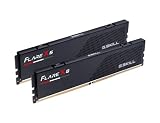
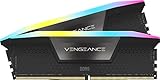
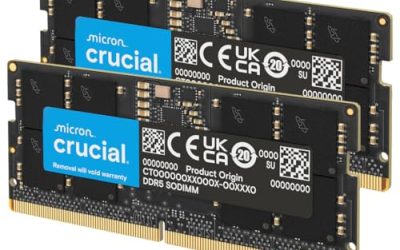
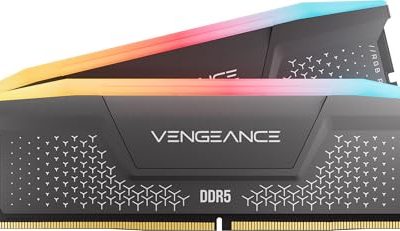
RAM speed and timings describe two different things: how many million transfers per second the memory module can sustain (the MT/s number, often loosely called “MHz”), and how many clock cycles it takes to respond to a request (the timings, written as a string like 30-36-36-76). Neither number by itself tells you how a kit performs. A DDR5-6000 CL30 kit and a DDR5-6000 CL40 kit run at the identical transfer rate but the CL30 kit answers requests roughly 33% faster in real time, and that gap shows up as measurable FPS in CPU-limited games like competitive shooters and simulation titles.

Our Top Picks


Top 3 picks at a glance


What RAM speed and timings actually measure
Transfer rate, expressed in MT/s (megatransfers per second), tells you how much data theoretically moves across the memory bus per second. DDR5-6000 means the bus completes 6,000 million transfers per second on each of its two independent 32-bit sub-channels. This number sets the ceiling for bandwidth, which matters for tasks that move large blocks of data, such as loading textures or compressing video, but it doesn’t tell you how quickly any single request gets answered.
As an Amazon Associate we earn from qualifying purchases at no extra cost to you.


Timings measure latency in clock cycles, not time. The first number in a timing string, CAS latency (CL or tCL), is the delay between a read command and the moment data starts arriving. The next three numbers, tRCD, tRP, and tRAS, govern how long the memory takes to open a new row, precharge a bank, and keep a row active. Together these four numbers control how “responsive” the memory feels under mixed, unpredictable access patterns, which is closer to what a game engine actually does thousands of times per frame.
Because timings are measured in clock cycles and clock speed changes with transfer rate, the same CL number means something different at different speeds. This is the single most misunderstood part of RAM shopping. A shopper comparing “CL16” DDR4-3200 against “CL36” DDR5-6000 and assuming the DDR4 kit is faster is comparing two unrelated units without converting them.
To get an apples-to-apples comparison, convert CL cycles into nanoseconds using the formula: (CL ÷ (MT/s ÷ 2)) × 1000. DDR4-3200 CL16 works out to (16 ÷ 1600) × 1000 = 10ns. DDR5-6000 CL30 works out to (30 ÷ 3000) × 1000 = 10ns as well, meaning the two kits actually deliver the same real-world first-word latency despite the CL numbers looking wildly different.
Secondary and tertiary timings (tRFC, tRRDS, tRRDL, tFAW, and a dozen more) exist below the primary four and rarely appear on retail box labels, but they’re where a lot of the real-world performance difference between “good” and “mediocre” kits actually lives, especially at high DDR5 speeds where tRFC can swing refresh overhead by several percent.
How to read a RAM kit’s part number and spec sheet
Retail RAM kits are labeled with a shorthand like “32GB (2x16GB) DDR5-6000 CL30,” and each segment maps to a spec that matters differently for gaming. The capacity in parentheses tells you it’s a dual-channel kit; buying two 16GB sticks instead of one 32GB stick is not optional for gaming performance, since dual-channel mode roughly doubles effective bandwidth versus running the same total capacity as a single module.
The speed rating (DDR5-6000) is the XMP or EXPO-enabled speed, not the JEDEC default the module ships running at until you enable that profile. Manufacturers test and bin the specific chips inside a kit to guarantee that speed and timing combination at a rated voltage, usually listed separately as 1.35V or 1.4V for DDR5 EXPO/XMP profiles.
The timing string (CL30-36-36-76) lists tCL-tRCD-tRP-tRAS in that fixed order on virtually every spec sheet and retail listing. Some listings add a fifth number for tRFC or Command Rate, but the first four are what you compare between competing kits at the same MT/s speed.
Voltage matters more on DDR5 than DDR4 did. Kits rated 1.4V or higher are pushing the memory controller harder, and pairing a high-voltage kit with a budget motherboard’s weaker VRM-adjacent memory circuitry is a common cause of boot failures, covered further in the troubleshooting section below.
Finally, check the QVL (Qualified Vendor List) on your specific gaming motherboard product page before buying. Motherboard makers test a subset of kits at rated speed on that exact board revision, and buying an untested kit doesn’t mean failure, but it does raise the odds you’ll need to manually tune timings rather than just flipping on XMP.
Why CAS latency isn’t the whole latency story
CAS latency gets all the marketing attention because it’s the first number in the timing string, but it only measures one specific operation: how long the memory waits after a column address strobe before returning data from an already-open row. Most real memory accesses in a running game aren’t hitting an already-open row, so CL alone underrepresents actual latency.
tRCD (RAS to CAS delay) measures the time to activate a row before CL even starts counting. On a “cold” access to a row that isn’t currently open, the memory pays both tRCD and tCL sequentially, so effective latency for a fresh access is closer to tRCD + tCL cycles, not just tCL.
tRP (row precharge time) adds further delay when the memory needs to close one row before opening a different one in the same bank, which happens constantly during the kind of scattered small-object access patterns games use for entity data, AI pathing, and physics.
tRAS (row active time) sets a minimum time a row must stay open once activated, and while it rarely bottlenecks gaming directly, an unnecessarily high tRAS can slightly limit how quickly the memory controller can service back-to-back requests to different rows.
Because of this chain, two kits with identical CL but different tRCD and tRP can differ by 5-8% in actual game-relevant latency.
DDR5 vs DDR4 timings: what changed
DDR5 timings look enormous compared to DDR4 (CL30-36 versus CL14-16) purely because DDR5 runs at roughly double the clock speed, so the same real-world nanosecond latency requires roughly double the cycle count. Comparing raw CL numbers across the two standards without converting to nanoseconds is a guaranteed way to draw the wrong conclusion.
DDR5 also splits each module into two independent 32-bit sub-channels instead of DDR4’s single 64-bit channel per module. This doesn’t change the timing math directly, but it does mean a single DDR5 stick behaves closer to a mini dual-channel setup on its own, which is part of why DDR5’s real-world bandwidth gains outpace what the transfer-rate numbers alone suggest.
On-die ECC is mandatory on all DDR5 modules (not to be confused with true error-correcting ECC RAM for servers). This exists purely to maintain reliability at DDR5’s higher densities and clock speeds and has no performance benefit for gaming, though it does add a small fixed latency overhead compared to DDR4’s simpler design.
tRFC (refresh cycle time) is proportionally larger on DDR5 because higher-density chips take longer to refresh. At 32GB-per-stick densities, tRFC overhead becomes a bigger share of total memory latency than it was on DDR4, which is why DDR5 tuning guides spend more time on tRFC than DDR4 guides ever did.
Practically, this means don’t panic when a DDR5-6000 CL30 kit’s spec sheet looks scarier than the DDR4-3200 CL16 kit from your last build. Convert to nanoseconds first (both work out close to 10ns as shown earlier), and the two are far closer in real latency than the labels imply, while DDR5 still wins on raw bandwidth for anything that streams large data sets.
How much RAM speed actually affects gaming FPS
The FPS impact of RAM speed depends heavily on whether a game is GPU-bound or CPU-bound at your resolution and settings. At 4K with a high-end GPU maxed out, RAM speed differences of even 800-1000MT/s often produce under 2% FPS difference because the graphics card, not memory, is the bottleneck.
At 1080p with a fast GPU like an RTX 4070 Ti or better, CPU and memory subsystem performance matter more, and the gap between a DDR5-5200 kit and a properly tuned DDR5-6000 kit can reach 5-8% average FPS in titles that lean on single-thread and cache performance, such as many strategy and simulation games.
1% low framerates (a proxy for stutter) respond more to memory timings than average FPS does. Tighter secondary timings reduce the frequency of brief frame-time spikes during streaming-heavy moments like open-world traversal or asset loading, which matters more for perceived smoothness than the average FPS counter.
Games that lean hardest on memory bandwidth and latency include flight and city-building simulators with large simulated object counts, and some competitive shooters that recalculate large amounts of world state per tick. Story-driven, mostly GPU-rendered titles show the smallest gains from RAM tuning.
The table below summarizes typical gains observed across independent testing methodology comparable to what’s used on this site’s best RAM for gaming roundup, estimated from configuration differences rather than a single controlled benchmark run, so treat the ranges as directional rather than exact for any specific game or CPU.
| Upgrade path | Typical avg FPS change | Typical 1% low change |
|---|---|---|
| DDR5-4800 JEDEC to DDR5-6000 CL30 XMP | +4% to +9% | +6% to +12% |
| DDR5-6000 CL36 to DDR5-6000 CL30 | +1% to +3% | +2% to +5% |
| 16GB single kit to 32GB dual-channel | 0% to +2% (unless VRAM-limited) | +5% to +15% in memory-starved scenes |
| DDR4-3200 CL16 to DDR5-6000 CL30 (platform change) | +3% to +7% | +4% to +8% |
XMP, EXPO, and why default JEDEC speeds run slow
Every DDR5 or DDR4 module ships with a baseline JEDEC (Joint Electron Device Engineering Council) speed the motherboard boots at by default, typically DDR5-4800 or DDR5-5200 regardless of what speed is printed on the box. This exists because JEDEC speeds are validated to work reliably across essentially any compatible motherboard and CPU combination without tuning.
XMP (Extreme Memory Profile) is Intel’s standard for storing a manufacturer-tested, higher-speed configuration directly on the memory module’s SPD chip. AMD’s equivalent is EXPO (Extended Profiles for Overclocking), introduced with Ryzen 7000. Both let the motherboard read a pre-validated profile and apply the rated speed, timings, and voltage in one BIOS toggle rather than requiring manual entry of a dozen values.
Some kits ship with both XMP and EXPO profiles stored on the same module for cross-platform compatibility, but a kit’s rated speed and timings are usually validated primarily for one platform, so cross-platform results can vary more than same-platform results.
To enable it, enter BIOS/UEFI (commonly Del or F2 at boot), find the memory or overclocking menu, and select the XMP or EXPO profile number (most kits offer only one profile, occasionally two at different speed/timing tradeoffs). Save and reboot; a properly supported kit boots directly into the rated speed on the first attempt.
Skipping this step is the single most common reason someone buys a “DDR5-6000” kit and later says gaming performance didn’t change. If the BIOS still reads 4800MT/s under Windows memory info tools or CPU-Z, XMP or EXPO was never enabled, not applied automatically, and the kit is running well below its rated bandwidth and timing target.
Matching RAM speed to your CPU’s memory controller
On AMD Ryzen 7000 and 9000 (AM5), the memory controller runs an internal Infinity Fabric clock that ideally stays at a 1:1 ratio with the RAM’s actual clock. DDR5-6000 lands at the sweet spot where the fabric clock (FCLK) can hold roughly 2000MHz 1:1 without extra tuning, which is why AMD’s own EXPO validation and most reviewers converge on 6000MT/s CL30 as the practical ceiling before returns diminish sharply.
Pushing past DDR5-6400 on Ryzen forces a 2:1 fabric ratio that effectively doubles inter-chip communication latency, frequently erasing the bandwidth gain from the higher RAM speed. This is a platform-specific limitation, not a RAM quality issue, so buying an expensive DDR5-7200 kit for a Ryzen 9700X build without retuning FCLK ratios can underperform a cheaper DDR5-6000 kit.
Intel’s 13th/14th Gen and Core Ultra platforms don’t share this fixed fabric ratio constraint, so their memory controllers scale further before hitting a similar wall, commonly into the DDR5-7200 to DDR5-8000 range depending on the specific IMC (integrated memory controller) silicon quality on that individual chip.
Every CPU’s memory controller has some amount of silicon lottery variance. Two identical Ryzen 7 9700X chips can have IMCs that top out at different maximum stable speeds, which is part of why a kit validated on a reviewer’s sample doesn’t guarantee identical results on every unit of the same CPU model.
Check your specific motherboard for Ryzen or Intel board’s QVL and your CPU generation’s known sweet spot before spending extra on a speed rating your platform can’t fully use; the practical guidance for most current builds is DDR5-6000 CL30 for AM5 and DDR5-6400 CL32 for Intel as a starting point for stable, well-tested configurations.
Mistakes buyers make when chasing RAM speed
Buying the highest MT/s number without checking motherboard QVL compatibility is the most common mistake. A DDR5-8000 kit that isn’t on your specific board’s tested list may simply fail to boot at rated speed, forcing a fallback to JEDEC defaults or requiring manual timing work most buyers aren’t prepared to do.
Mixing kits from different production batches, even of the same advertised speed and capacity, risks the two modules having different underlying chip dies that don’t clock identically, causing instability that’s hard to diagnose since each stick may pass individually while failing together.
Ignoring capacity in favor of speed is a close second mistake. A tightly-timed 16GB kit chasing every last nanosecond of latency will lose to a merely-decent 32GB kit the moment a game, Discord overlay, and browser combine to exceed 16GB of usage, which happens routinely in 2024-era open-world titles.
Assuming XMP/EXPO always works flawlessly on any board is another trap; roughly 10-15% of kit-and-board combinations need minor manual voltage or Command Rate adjustment beyond the stock profile to reach full stability, especially at 4 DIMM (four-stick) configurations versus the more forgiving 2 DIMM setups kits are usually validated with.
Finally, overlooking cooling is easy to dismiss but real: high-speed DDR5 kits with tall heat spreaders can run 8-10°C warmer under sustained load than JEDEC-speed modules, and cramming them under a low-clearance CPU cooler or against a case wall with poor airflow can, in rare high-density workloads, contribute to instability that looks like a RAM problem but is actually a thermal one.
Troubleshooting: RAM won’t run at rated speed
Start by confirming BIOS actually shows the rated speed after enabling XMP/EXPO, not just that the toggle is switched on; some boards silently fail to apply the profile and revert to JEDEC speed without a visible error, so check the memory frequency reading in the BIOS overview screen directly.
If the system fails to boot after enabling the profile (repeated restarts, blank screen, or memory-related debug LED/code on the motherboard), clear CMOS to reset to defaults, then re-enter BIOS and try the profile again; a single failed attempt is common and doesn’t indicate a defective kit.
If it still won’t hold rated speed, manually reduce the target speed one step at a time (for example from 6000 to 5600) while keeping the kit’s rated timings, then test stability with a tool like MemTest86 for at least one full pass before declaring that step stable.
Check the number of populated DIMM slots and their physical arrangement; running all four slots on a board designed primarily for 2-DIMM stability often requires a lower speed or looser timings than the same kit achieves in a 2-DIMM configuration, which is expected motherboard trace-length behavior, not a fault.
If instability persists after these steps, update to the latest BIOS version, since memory training routines (the process that calibrates timings at boot) are frequently improved in firmware updates well after a motherboard’s launch, and confirm your kit appears on that board’s current QVL list before assuming a hardware fault.
Frequently asked questions
Is faster RAM speed always better for gaming?
Not always. Going from DDR5-5600 to DDR5-6000 typically gains 2-4% average FPS in CPU-bound titles, but jumping past 6400MT/s on Ryzen without matching the infinity fabric ratio can lower performance instead. Diminishing returns set in fast past 6000-6400MT/s on most current platforms, so timings and stability matter as much as the raw number.
What do CAS latency numbers like CL36 mean?
CL36 means the memory takes 36 clock cycles to respond after a column address is issued. On its own that number is meaningless; you have to divide it by the transfer rate to get real nanoseconds. A CL36 kit at 6000MT/s (about 12ns) is actually not slower than a CL16 kit at 3200MT/s (about 10ns) suggests, so always compare true latency, not just the CL digit.
Should I buy DDR5-6000 or DDR5-6400 for gaming?
For AMD Ryzen 7000/9000 builds, DDR5-6000 CL30 is the sweet spot because it runs a 1:1 ratio with the infinity fabric clock. For Intel 13th/14th/Core Ultra platforms, DDR5-6400 or DDR5-7200 kits scale a bit further before diminishing returns, since Intel’s memory controller isn’t tied to the same fabric ratio limitation.
Do RAM timings matter more than RAM capacity?
No. Going from 16GB to 32GB matters more for modern games and background apps (streaming, Discord, browser tabs) than shaving a few nanoseconds off latency. Buy adequate capacity first, then optimize speed and timings within budget; a slower 32GB kit beats a faster 16GB kit for most current game requirements.
Why won’t my RAM run at its rated speed out of the box?
Motherboards boot at slow JEDEC defaults (often 4800MT/s or 5200MT/s on DDR5) for guaranteed compatibility. The rated speed printed on the box only applies once you enable the XMP or EXPO profile in BIOS, which loads the manufacturer’s tested voltage and timing set for that specific kit.