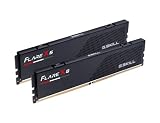
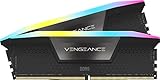
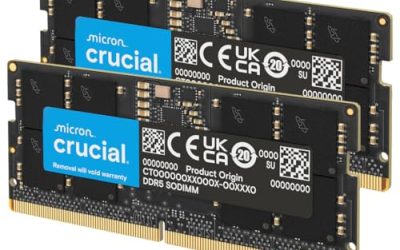
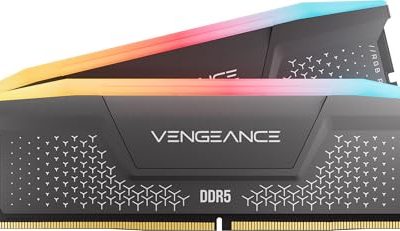
16GB of RAM is the comfortable standard for gaming today, 32GB adds real headroom for streaming or heavy multitasking, and 8GB is now a genuine bottleneck in current titles that older recommendations don’t reflect.

Our Top Picks



Top 3 picks at a glance
RAM capacity requirements by use case
8GB was a reasonable gaming standard several years ago but is now a genuine constraint in current titles, particularly at 1440p and above or in games with detailed open worlds, where background system processes alone can consume 3-4GB before a game even launches, leaving little room before hitting the ceiling.
As an Amazon Associate we earn from qualifying purchases at no extra cost to you.




16GB is comfortable for the overwhelming majority of current games at any resolution, since most titles use 8-12GB of system RAM even at maximum settings, and this capacity leaves reasonable headroom for a browser, chat app, and typical background processes running alongside the game.
32GB moves from “needed for gaming” to “needed for gaming plus other demanding tasks simultaneously” — streaming with OBS running alongside a game, video editing between gaming sessions, running virtual machines, or heavy browser multitasking with dozens of tabs open are the scenarios where 32GB provides a real, noticeable benefit over 16GB.
64GB and above serves specialized cases well outside typical gaming: professional content creation, large-scale 3D rendering, or running multiple resource-heavy applications simultaneously alongside gaming. Very few gaming-only use cases benefit meaningfully from capacity this high, and buyers should be honest about whether they actually need it versus simply wanting a large number on a spec sheet.
Our best RAM for gaming and best DDR5 RAM for gaming guides break specific kit recommendations down by exactly these capacity tiers, matched against current pricing for each.
How games actually use system RAM
Games load level data, texture references, AI and physics state, and audio assets into system RAM as you play, separate from the VRAM your graphics card uses for the same textures once they’re actively being rendered — these are two distinct memory pools serving different roles, and running short on either produces different symptoms.
Open-world games with large, continuously streamed environments tend to use more system RAM than linear, level-based games, since they’re constantly loading nearby area data in the background to prevent loading screens during exploration, a design pattern that trades RAM usage for smoother traversal.
Background asset caching is a deliberate technique many current game engines use, keeping recently used or nearby data in RAM even after it’s no longer immediately needed, on the assumption you might return to that area soon — this is why RAM usage in a game climbs steadily during a long session even without a memory leak, and it’s a designed behavior rather than a bug.
When available RAM runs low, Windows falls back to using the page file (a portion of your storage drive treated as overflow RAM), which is dramatically slower than physical RAM. This fallback is what causes the severe stutter associated with running out of RAM, distinct from the milder slowdown of simply having a slow drive.
Task Manager’s Performance tab shows real-time RAM usage and is the simplest way to check your own headroom during actual gameplay — if usage regularly sits within 1-2GB of your total installed capacity during normal play, that’s a clear signal more RAM would provide a real, measurable benefit rather than a theoretical one.
RAM speed: how much it actually matters
RAM speed, measured in MT/s (often loosely called MHz), affects how quickly data moves between RAM and the CPU, and its real-world impact on gaming frame rate is smaller than capacity’s impact but still measurable, particularly on certain CPU architectures more sensitive to memory speed than others.
On AMD’s Ryzen platform, memory speed has an outsized effect compared to Intel because Ryzen’s Infinity Fabric interconnect, which links CPU cores and cache, runs synchronized with memory speed up to a certain point. Faster RAM, within the platform’s supported sweet spot, directly improves this interconnect’s bandwidth, translating to a more noticeable frame rate gain than the same speed increase provides on Intel.
On Intel’s platform, memory speed still helps but with smaller, more inconsistent gains across different games, since Intel’s architecture doesn’t share the same direct synchronization between memory speed and core interconnect that Ryzen has, making the speed-to-performance relationship less pronounced.
Diminishing returns set in past a certain speed tier on both platforms — going from DDR5-5200 to DDR5-6000 typically shows a modest, measurable gain in CPU-bound scenarios, while going from DDR5-6000 to DDR5-7200 shows a much smaller additional gain that’s often within margin of error in real gameplay, despite a larger price jump between those two speed tiers.
For most gaming builds, DDR5-5600 to DDR5-6000 represents the practical sweet spot balancing price and performance, with higher speeds worth chasing mainly for enthusiasts specifically optimizing a Ryzen build for maximum CPU-bound frame rate in competitive titles.
Dual-channel vs single-channel configuration
Running two RAM sticks in a motherboard’s matched dual-channel slots effectively doubles the memory bandwidth available compared to a single stick of the same total capacity, and this bandwidth difference produces a real, sometimes substantial frame rate improvement in games, particularly those using integrated graphics or that are otherwise memory-bandwidth sensitive.
Buying a single large stick (say, one 32GB module) instead of two matched 16GB sticks is a common and costly mistake, since it runs in single-channel mode and leaves meaningful performance on the table compared to the dual-channel configuration at a similar total capacity and price.
Always buy RAM as a matched kit of two (or four) sticks specifically marketed and tested together, rather than buying individual sticks separately and hoping they work together, since even nominally identical specifications from different manufacturing batches can have subtle differences that prevent stable dual-channel operation at rated speeds.
Slot placement on the motherboard matters for achieving dual-channel mode correctly — most boards require populating alternating slots (typically slots 2 and 4, counting from the CPU) rather than adjacent slots for two-stick configurations, and installing sticks in the wrong slots silently falls back to single-channel or unstable operation without necessarily throwing an obvious error.
Check your motherboard’s manual for the correct slot configuration for your specific number of sticks before installation, since this detail is easy to get wrong and the performance cost of getting it wrong is significant enough to be worth the extra minute of checking.
Two sticks vs four sticks
Two sticks is the standard recommendation for most gaming builds, since it reliably achieves dual-channel mode and, on many platforms, allows higher stable speeds than an equivalent four-stick configuration, due to increased electrical load on the memory controller when more sticks are populated.
Four sticks becomes relevant primarily when total desired capacity exceeds what’s practical with two large sticks — 64GB from four 16GB sticks is currently more common and often more affordable than 64GB from two 32GB sticks, though this pricing relationship shifts over time as manufacturing costs change.
Running four sticks typically requires a modest speed reduction from a board’s maximum rated two-stick speed, since the added electrical load makes the highest advertised speeds harder to maintain stably — check your motherboard’s QVL (qualified vendor list) or specification sheet for its rated maximum speed specifically at four-stick population, which is usually lower than the two-stick maximum.
Future upgrade flexibility favors starting with two sticks on a four-slot board, leaving room to add two more sticks later for a capacity increase, rather than starting with four sticks already installed and needing to replace the entire kit to change capacity, since mixing kits from different production batches risks compatibility issues.
For the large majority of gaming builds targeting 16GB or 32GB total capacity, two matched sticks remains the simpler, often faster, and more cost-effective choice, with four sticks reserved for buyers specifically chasing capacity above what two large sticks conveniently provide.
DDR4 vs DDR5: do you need to upgrade?
DDR5 is now standard on new motherboard platforms for both AMD and Intel, offering higher peak bandwidth and improved power efficiency over DDR4, though DDR4 remains available on some budget boards and represents a meaningfully cheaper option for anyone building on a tighter budget or upgrading an existing DDR4 platform.
In real gaming benchmarks, the DDR4-to-DDR5 difference is smaller than the marketing numbers suggest at matched capacity and reasonable speed tiers on both standards, since games are more sensitive to latency and overall system balance than to peak theoretical bandwidth alone.
DDR5’s advantage grows more apparent at higher speed tiers that DDR4 simply can’t reach — DDR5 kits routinely hit 6000-7200 MT/s and beyond, well past DDR4’s practical ceiling around 3600-4000 MT/s for stable, affordable kits, which matters most for Ryzen builds specifically chasing the platform’s memory-speed sensitivity discussed earlier.
If you’re building a new system from scratch on a current platform, DDR5 is effectively the only option anyway, since current AM5 and most current LGA1700 boards use DDR5 exclusively or as the primary supported standard. The DDR4-vs-DDR5 decision mainly applies to buyers choosing between a current-generation platform and a slightly older, cheaper DDR4-based platform.
Upgrading an existing, otherwise satisfactory DDR4 system to DDR5 purely for the memory standard, without also needing a CPU or motherboard upgrade, rarely justifies the cost on gaming performance alone — it makes more sense as part of a broader platform upgrade than as an isolated RAM swap.
How to enable and verify XMP or EXPO
RAM kits are sold with an advertised speed that requires manually enabling a stored profile in BIOS to actually achieve — without this step, RAM defaults to a much more conservative JEDEC standard speed, often 2400-3200 MT/s regardless of what speed you paid for on the box.
On Intel platforms, this profile is called XMP (Extreme Memory Profile); on AMD platforms, it’s called EXPO, though many AMD boards also support reading XMP profiles with an automatic conversion. Both are found in the BIOS, usually on a main overview page or under a dedicated memory/overclocking section, and enabling one is typically a single toggle rather than a complex manual configuration.
After enabling XMP or EXPO and rebooting, verify the change actually applied by checking RAM speed in Task Manager’s Performance tab or a tool like CPU-Z, rather than assuming the BIOS toggle alone guarantees success — some RAM and motherboard combinations need a secondary manual speed selection if the automatic profile doesn’t apply cleanly.
If a system becomes unstable after enabling XMP or EXPO, particularly with four sticks installed or with RAM rated well above the motherboard’s baseline supported speed, a small manual voltage or timing adjustment sometimes resolves it, though the simplest fix for most home builders is dropping to the next-lower speed profile if the kit or board offers a step-down XMP option.
Confirm total capacity is also correctly recognized after enabling the profile — Windows’ System settings should show the full installed capacity, and a mismatch here (showing less than installed) usually points to a stick not properly seated rather than an XMP-related issue specifically.
RAM capacity and speed by budget tier
| Budget | Typical config | Best for |
|---|---|---|
| Varies | 16GB (2x8GB) DDR5-5200 | 1080p/1440p gaming only |
| Varies | 32GB (2x16GB) DDR5-6000 | Gaming plus streaming or multitasking |
| Varies | 32GB (2x16GB) DDR5-6400+ | Ryzen builds chasing max frame rate |
| Varies | 64GB (2x32GB or 4x16GB) | Gaming plus content creation |
Speed tier above roughly DDR5-6400 mainly benefits Ryzen builds and delivers little additional value on Intel platforms, so Intel-based buyers can generally redirect that budget toward a faster CPU or GPU instead, while Ryzen-based buyers chasing maximum CPU-bound frame rate in competitive titles may find the premium worthwhile.
Common RAM buying mistakes
Buying a single large stick instead of a matched dual-channel kit, discussed above, is the most performance-costly common mistake, since it silently leaves significant bandwidth on the table without necessarily producing any obvious error message or warning during use.
Forgetting to enable XMP or EXPO after installation means running expensive, high-speed RAM at a fraction of its rated speed indefinitely, a mistake that’s invisible unless you specifically check Task Manager or a monitoring tool, since the system otherwise works normally, just slower than it should.
Mixing RAM kits from different purchases, even with matching advertised specs, risks subtle incompatibilities that prevent stable operation at rated speed, since manufacturing variation between production batches isn’t always caught by matching model numbers alone.
Overbuying capacity for gaming-only use, without accounting for whether you’ll actually stream, edit video, or heavily multitask, spends money that could go toward a faster CPU or GPU, both of which have a more direct and immediate effect on gaming performance than RAM capacity beyond the comfortable 16-32GB range.
Underbuying capacity for a build meant to last several years is the opposite and arguably more costly mistake, since RAM usage trends have climbed alongside game complexity, and a system that’s exactly adequate today may feel constrained within just a couple of years as game requirements continue rising.
Troubleshooting: RAM not running at expected speed or capacity
If installed RAM doesn’t show its full capacity in Windows, reseat each stick individually, confirming each clicks fully into place, and check that you’re using the correct slots for your stick count per the motherboard manual, since incorrect slot population can cause a stick to go unrecognized even when physically seated.
If RAM runs at a much lower speed than advertised, open BIOS and confirm XMP or EXPO is enabled — this is disabled by default on essentially every motherboard, and it’s the single most common cause of RAM underperforming its rated speed after a fresh build.
If the system is unstable specifically after enabling XMP or EXPO, particularly crashing under gaming load rather than at idle, try the next-lower speed step if your kit or board offers one, or check for a BIOS update, since memory compatibility improvements are common in motherboard firmware updates for newer RAM kits.
If four-stick configurations won’t run at the same speed that worked fine with two sticks, this is expected behavior on many boards due to increased electrical load — check your motherboard’s four-stick maximum rated speed specifically, which is often meaningfully lower than the two-stick rating for the same board.
Related guides
- Air Cooling Vs Liquid Cooling Compared
- How To Apply Thermal Paste Correctly
- Budget Motherboard For Gaming
Frequently asked questions
Is 16GB of RAM enough for gaming?
Yes, 16GB is comfortable for the large majority of current games at any resolution, since most titles use 8-12GB of system RAM even at max settings. It becomes tight if you’re also running a browser with many tabs, Discord, and a recording tool simultaneously, where the combined background load can push total usage close to the ceiling.
Does RAM speed matter more than capacity for gaming?
Capacity matters more up to the point where you have enough; below that point, running out of RAM causes far worse stutter than any speed difference would. Once capacity is sufficient, speed becomes the secondary factor, and it matters more on AMD Ryzen platforms than on Intel platforms due to how each architecture’s memory controller interacts with the CPU cache.
Should I buy two RAM sticks or four?
Two sticks running in dual-channel mode is the standard, cost-effective configuration for most gaming builds and typically achieves higher stable speeds than four sticks on the same board. Four sticks make sense mainly when you need more total capacity than two large sticks conveniently provide, or want future upgrade flexibility on a four-slot board.
Do I need 32GB of RAM for gaming?
Only if you’re streaming, recording, running virtual machines, or heavily multitasking alongside gaming. For gaming alone without heavy background use, 16GB remains sufficient for the current game library, and 32GB is more of a comfort and longevity buy than a strict current-day requirement.
What is XMP and do I need to enable it?
XMP (Extreme Memory Profile) is a stored configuration in your RAM that lets the motherboard run it at its rated speed instead of a slower default. It’s disabled by default on most boards and needs to be manually enabled in BIOS — without it, RAM marketed at a specific high speed often runs at a much slower default speed instead.