The quickest way to see your GPU temperature on Windows is Task Manager: press Ctrl+Shift+Esc, open the Performance tab and click your graphics card. If no temperature is shown, use your card maker’s software or a free monitoring tool. The reading means little until you compare it with the card’s rated limit and with how it behaves under a long gaming session, so this guide covers both the how and the what-it-means.
Method One: Windows Task Manager
Task Manager is already on your PC, which makes it the best first stop. Open it, choose Performance and select the entry labelled GPU with your graphics card model. On recent versions of Windows the right-hand panel shows a temperature figure for dedicated cards, next to utilization and memory use. If you have both integrated and dedicated graphics, you will see two GPU entries, and the dedicated one is the one to read.
The limits are worth knowing. The figure is a single number, usually the main core reading, so you will not see hotspot or memory temperatures. It refreshes only while Task Manager is open, which means you cannot read it from inside a full-screen game unless you switch windows. For a quick idle or light-load check, it is perfect. For game sessions, it is not enough.
Method Two: Vendor Software and In-Game Overlays
All three major graphics makers ship software that reports temperature. Nvidia cards work with the Nvidia app and its performance overlay, AMD cards with the performance metrics panel in AMD Software, and Intel Arc cards with Intel’s graphics software. These tools can show temperature, clock speed, fan speed and power on top of a running game, so you see how the card behaves in real time.
Turn the overlay on, start the game you want to evaluate, and play for at least fifteen to twenty minutes. Heat builds slowly as the case warms and the fans ramp up, so the reading after two minutes tells you far less than the reading after twenty. Make a note of the highest temperature and the typical level during play, not only the first reading.
If your card comes from a partner brand, there may also be a brand utility with fan curves and lighting. These are fine for monitoring, but be cautious about changing settings you do not understand.
Method Three: Dedicated Monitoring Tools
Free third-party tools show more than the built-in options. HWiNFO in sensors mode lists core, hotspot, memory junction and fan data, with minimum, maximum and average columns. GPU-Z offers a compact sensor tab and logs to a file. MSI Afterburner paired with its on-screen display component can draw a temperature graph over your game. All of these read the same sensors the driver exposes, so differences between them are small.
For command-line fans, Nvidia’s own nvidia-smi tool reports temperature for Nvidia cards, and on Linux the same data appears through standard sensor utilities. Download monitoring software only from the developer’s official site, and be wary of lookalike installers, since system-monitoring tools need deep access to your hardware.
| Method | Shows hotspot? | Works during full-screen games? | Best use |
|---|---|---|---|
| Task Manager | No | No | Quick idle or light-load check |
| Vendor software overlay | Sometimes | Yes | Simple in-game monitoring |
| HWiNFO sensors | Yes | Via logging | Full sensor list, min and max |
| GPU-Z | Yes on supported cards | Via logging | Compact readout and file logs |
| Afterburner with overlay | Yes | Yes | Graphs over a real session |
Reference Table: What Different Readings Usually Mean
There is no single correct number, because designs differ, but the ranges below are common rules of thumb for air-cooled desktop cards. They are general guidance, not a specification. Your card’s maker lists the true maximum, often in the high 80s or low 90s degrees Celsius for the core, and the card will lower its clocks before it reaches the limit.
| Condition | Typical core reading | What it usually means | Action |
|---|---|---|---|
| Idle at desktop | 30s to 50s °C | Normal; fans may be stopped on some cards | None |
| Light use, video playback | 40s to 60s °C | Normal | None |
| Sustained gaming | 60s to low 80s °C | Usual range for air cooling | Monitor trend |
| Sustained gaming, upper 80s °C | Near the limit for many cards | Cooling has little margin | Clean, improve airflow |
| 90 °C and above for long periods | Throttling likely | Fans, contact or airflow problem | Investigate promptly |
| Hotspot more than about 25 °C above core | Large gap | Possible mounting or paste issue | Compare with maker guidance |
A related point: understanding the two sensors helps. Our explainer on GPU hotspot vs edge temperature covers why they differ and what a normal gap looks like.
Diagnosing Abnormal Temperatures
Start with the easy causes. Dust on the fans and heatsink fins is the most common reason temperatures climb over months, and a blast of compressed air with the fans held still (so they do not spin up) often helps. Check that every fan on the card spins during load and that the case fans are not blocked by cables or filters clogged with dust.
Next, look at airflow. A case with few intake fans, a front panel with restricted mesh or a card pressed against another component can trap hot air. Ambient room temperature also matters; a warm room can lift every reading by a few degrees, as our piece on how room temperature affects CPU and GPU temps explains. If the case is the problem, adjusting the fan curve helps: see how to set a case fan curve based on GPU temperature.
If the basics are fine and a card is still hot, consider software causes: a game uncapped at very high frame rates, an aggressive overclock, or a high power limit. Capping frame rate or lowering the power limit a little often cuts temperature with a small loss in performance. Repasting or replacing thermal pads is possible but can void warranties, so check the terms first and contact the maker if the card is under warranty.
A Worked Example You Can Copy
Suppose you want a clean baseline for a card. Use a monitoring tool such as HWiNFO, restart the PC, wait five minutes at the desktop and note the idle core reading. Then play your most demanding game for twenty minutes with the overlay running. Assume the following results, which are example numbers, not a measurement of any real card: idle 38 °C, gaming core 74 °C, hotspot 90 °C, fans at 55 percent.
| Reading | Example value | Verdict |
|---|---|---|
| Idle core | 38 °C | Normal |
| Gaming core after 20 minutes | 74 °C | Normal for air cooling |
| Hotspot | 90 °C | Gap of 16 °C, within the common range |
| Fan speed | 55 percent | Headroom remains |
In this example the card is healthy, and the fans have room to speed up if the room gets warmer. If the core read 86 °C with the fans at 100 percent, the sensible next steps would be cleaning, improving airflow and comparing against the maker’s maximum. Save your baseline, because it is the best evidence of a change later.
Thermal Verification Checklist
- Note the idle temperature after the PC has been on for five minutes.
- Run a demanding game for at least twenty minutes with an overlay or logging active.
- Record the highest core temperature, hotspot, and fan speed.
- Compare the core maximum with the limit on your card maker’s specification page.
- Check the gap between hotspot and core.
- Confirm the clock speed holds steady rather than dropping as heat builds, which would suggest throttling.
- If a reading is unusual, repeat after cleaning dust and re-checking cable routing.
Stop and shut the PC down if you smell burning, see a fan that has stopped under load, or the system crashes repeatedly with high temperatures. If the card is under warranty, contact the maker rather than opening the cooler. For readers with larger cards, a quick look at GPU thickness and slot clearance can also reveal why airflow is cramped.
Laptops, Small Cases and Water Cooling
Everything above applies to laptops with a few changes. Laptop graphics chips are designed to run warmer, and readings in the 80s under load are common in thin machines. Fan noise is often a better clue than the number itself: if the fans are screaming at full speed and the clocks still fall, the cooling is saturated. Raising the back of the laptop for airflow, cleaning the vents and using a performance profile in the maker’s software are the first steps.
Small-form-factor cases behave differently as well. A compact case with a dense card may reach higher readings because there is simply less air to move, and a slim card in a cramped chassis may have fans that run hard just to keep up. In such builds, aim for the lowest fan noise that keeps the card under its throttle point rather than chasing a particular number.
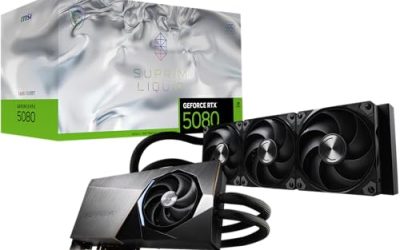
Liquid-cooled cards are a special case. A card with a water block or an all-in-one loop usually posts lower core readings than an air cooler, with a smaller gap to the hotspot, but pump failure or trapped air can make temperatures spike suddenly. If you are weighing the two approaches, see the comparison of a GPU water block and an air cooler, and for hardware options, the list of best GPU waterblocks.
Whatever the cooling, remember that a temperature reading is a diagnostic tool, not a score. A card that stays under its limit, holds its clock speed and keeps fan noise tolerable is doing its job.
Frequently Asked Questions
What is a normal GPU temperature while gaming?
Many air-cooled graphics cards settle somewhere between the 60s and low 80s in degrees Celsius under a sustained game load, with idle readings often in the 30s to 50s. Exact figures vary by model, case airflow and room temperature. The reliable limit is the maximum temperature your card’s maker publishes on the product specification page.
Is 90 degrees too hot for a GPU?
It is close to or beyond the comfort zone for many cards. Some are designed to run hot and throttle near their limit, but sustained readings that high usually mean the cooling can be improved. Check the maker’s maximum rating, clean the dust, check fan behavior and improve airflow before assuming the card is at fault.
What is the difference between GPU temperature and hotspot?
The main temperature is an average or edge reading across the chip, while hotspot reports the hottest sensor point on it. Hotspot is always higher. A moderate gap is normal, but a very large and growing gap can point to poor contact between the cooler and the chip, which is worth investigating.
Does Task Manager show GPU temperature?
In recent Windows versions, yes, for a dedicated graphics card: open Task Manager, go to Performance, select the GPU and look for the temperature reading. Integrated graphics and older drivers may not show it. If the field is missing, use the vendor software or a monitoring tool instead.
How often should I check my GPU temperature?
Check after installing a new card, after changing fans or cases, and when you notice louder fans or lower performance. A short monitoring session during your most demanding game is enough. Continuous monitoring is optional; an overlay is helpful during setup and troubleshooting but unnecessary for everyday play.