To back up game saves and PC files to external storage, connect an external drive, copy your save folders and personal files to it on a schedule, and keep at least one more copy somewhere else. The key is to automate the copying and to confirm now and then that you can actually restore from the backup.
Losing a drive is rarely dramatic. It is usually a quiet failure, a bad update or a cleanup gone wrong, and the first sign is a missing save file you spent two hundred hours building. This guide covers what to back up, where those files hide, and how to set up a routine that does not depend on your memory.
What Actually Needs Backing Up
Game installs themselves are replaceable because a launcher can download them again. What cannot be downloaded is your personal data: save files, configuration and keybinding profiles, mod folders you assembled by hand, screenshots, recorded clips, documents, photos and project files. Back those up first and treat installed game files as optional.
Many launchers sync saves to the cloud, which is useful but not a complete plan. Cloud sync only covers games that support it, can lag behind a recent session, and sometimes overwrites the wrong version when two devices disagree. A local copy on external storage fills those gaps.
Where Game Saves Hide on a Windows PC
User Folders
Many games write saves under the Documents folder, often in a subfolder named after the game or its publisher. Check Documents and its My Games folder first, since this is the most common location for older and mid-era titles.
Application Data Folders
Plenty of modern games store saves and settings inside hidden application data folders within your user profile, in the Local, LocalLow and Roaming areas. Turn on hidden items in File Explorer to see them. Configuration files and shader caches also live here, though caches can be regenerated and are not worth saving.
Launcher Folders
Some launchers keep a local copy of cloud saves or profile data inside their own installation directory. Look for a folder named for the launcher with a userdata or saves subfolder. Those are worth including in your backup set.
Game Install Folders
A few titles, especially older or indie ones, save right next to the executable. If a game lets you pick its install location, it is worth knowing whether its saves would be lost if you wiped that folder.
Choosing the Right External Storage
For a backup target you have three realistic choices, and each fits a different habit.
| Option | Strength | Weakness | Best for |
|---|---|---|---|
| External hard drive | Large capacity for the money | Moving parts; sensitive to drops | Full-system and media backups kept on a shelf |
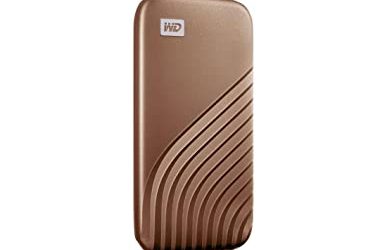
| Portable solid-state drive | Fast, compact, no moving parts | Costs more per gigabyte | Frequent backups and carrying files between PCs |
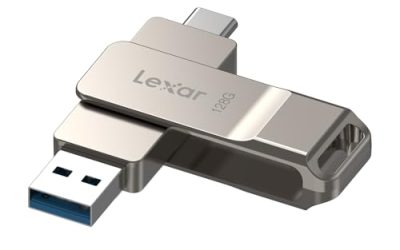
| USB flash drive | Very small and simple | Easy to lose; slower sustained writes | Saves and settings only, not large libraries |
Size the drive to your data, then add room. If you keep recorded footage and photos, plan for several times the size of the files you are protecting so older versions can be kept. Look for a model with a USB connection your PC supports, and format it with a file system that suits you. NTFS works well on Windows, while exFAT is a better choice if you also plug the drive into other operating systems.
A Simple Backup Routine That Holds Up
You do not need special software to start. Follow these steps once, then repeat them on a schedule.
- Make a backup folder: on the external drive, create one folder for game saves and another for documents and media.
- Copy the save locations: paste each save folder you identified into the game saves folder, keeping the game names in the folder titles.
- Use the built-in history tool: Windows includes file history and backup features that can copy chosen folders automatically whenever the drive is connected.
- Add a mirroring tool if you want precision: command-line copy utilities and free sync programs can mirror folders and skip unchanged files, which keeps repeat backups fast.
- Keep versions: do not overwrite the same copy forever. Keeping a few dated versions means a corrupted save does not replace your only good one.
The widely used rule of thumb is three copies of important data, on two different kinds of media, with one copy stored away from the PC. For gamers, that can mean the original on your internal drive, a copy on an external drive, and the launcher cloud sync as the third.
Before You Start Checklist
- Close the game and the launcher so no save is mid-write when you copy it.
- Turn on hidden items in File Explorer to reach application data folders.
- Confirm the external drive has more free space than the data you are copying.
- Check that the drive is healthy and shows the capacity it should.
- Decide how often you will back up, such as weekly or after every long session.
- Store the drive disconnected between backups, away from heat and moisture.
- Plan a restore check once so you know the files open correctly.
Restoring and Verifying Your Backups
A backup you have never opened is only a hope. Every few months, pick a save from the external drive and copy it into a scratch folder to confirm it opens. If the game has a cloud sync, you can also confirm that the local and cloud versions match before overwriting anything.
When you do restore, close the game first, keep a copy of the current save in a separate folder, and then paste the older file into the original location. That order protects you from replacing a good save with a worse one by accident. Remember that some games check file timestamps or cloud versions, so you may be asked which save to keep the next time you launch.
Protecting the Backup Itself
An external drive on your desk next to the PC protects against a failed internal drive, but not against theft, fire, water damage or a power surge that hits everything on the same outlet. That is why the third copy matters. Cloud storage, a second drive kept at a relative’s home, or a drive in a fireproof box all serve that role. In 2026 most people combine two of these rather than relying on one.
Encryption deserves a thought if the drive holds personal documents. Windows offers drive encryption for external drives, and the trade-off is that you must keep the recovery key somewhere safe. Losing that key is the same as losing the data, so store it in a password manager or on paper in a separate place.
Drive health also changes over time. External hard drives can develop bad sectors, and solid-state drives can lose data if left unpowered for a long period. Plug your backup drives in at least a few times a year, open a few files, and run the built-in error check. If the drive reports problems, copy everything off immediately and replace it rather than hoping it holds on.
Label each drive with the date of its last full backup. It sounds trivial, but a piece of tape with a date saves guesswork when something goes wrong and you need to decide which copy is freshest. If you rotate two drives, alternate them each time so one is always disconnected and safe from whatever just happened to the other.
Lastly, keep a plain text note listing the save locations for your favorite games. When you set up a new PC, that note turns a long hunt through hidden folders into a few minutes of copying.
Related guides
- How To Set Up Computer Speakers For Better Sound At Your Desk
- How To Check Whether Your Ram Is Running At Its Rated Speed
- How To Choose The Right Monitor Riser Height For Your Desk
Frequently Asked Questions
Is cloud sync enough to protect my saves?
It helps, but it only works for games that support it and it can sync a bad or empty save over a good one. A local copy on external storage gives you an independent version you control.
How often should I back up game saves?
Weekly is a reasonable default for active players. If you are in the middle of a long single-player campaign, copy the save folder after each major session because those files are the hardest to rebuild.
Should I back up the whole game install?
Usually no, because launchers can redownload installs. The exception is a heavily modded setup or an older game that is no longer sold, where a copy of the whole folder saves a lot of effort later.
Can I leave the external drive plugged in all the time?
You can, and it makes automatic backups easier. The tradeoff is that a power surge, malware or accidental deletion can reach the backup too, so keep an occasional disconnected copy as well.
Related guides
More from Amazon
Programs that pair well with the guide above. Offers and eligibility are set by Amazon and may change.
Free shipping on eligible items, Prime Video and more. Eligible new members can start with a free trial.
Start a Prime free trialAd-free music streaming. Eligible new subscribers can start with a free trial.
Try Music Unlimited freeA Prime membership for ages 18-24 with a trial period. Eligibility is set by Amazon.
See Prime for Young AdultsAudiobooks and podcasts to listen to on the go. Eligible new members can start with a free trial.
Try Audible freeAs an Amazon Associate we earn from qualifying purchases.