The X870 chipset landed as the mainstream AM5 platform, and choosing between boards has become genuinely difficult. You are not picking between a good board and a bad one at most price points anymore. You are deciding whether to spend an extra thirty or fifty dollars for a better VRM, a faster network port, or a more convenient cable layout. The buyer who gets burned is the one who focuses only on aesthetics and misses that a board with weaker power stages will throttle a Ryzen 9 under sustained all-core loads.
What separates the best X870 motherboards from merely adequate ones in 2026 comes down to three things: power delivery headroom, I/O breadth without adapter dongles, and whether the storage layout actually fits your build. USB4 on the rear panel is no longer a luxury on this chipset, Wi-Fi 7 radios are standard, and PCIe 5.0 M.2 slots are expected. The real differentiators are the details below the spec sheet.
As an Amazon Associate we earn from qualifying purchases at no extra cost to you.


Our Top Picks
 ASUS TUF Gaming X870-PLUS WiFi AMD AM5 X870ATX|M.2x4|WiFi72.7 x 13.9 x 10.8 inches2 poundsCheck on Amazon
 MSI MAG X870 Tomahawk WiFi Gaming Motherboard13.4"L x 10.9"W x 3"H13.46 x 10.55 x 2.76 inches4 poundsCheck on Amazon
 GIGABYTE X870 AORUS Stealth Reverse-Connect ATX MotherboardATX-Back-Connector12.01 x 9.61 x 1.77 inches9.7 PoundsCheck on Amazon


Top 3 picks at a glance
Quick Picks
| Product | Best for | Price |
|---|---|---|
| ASUS TUF Gaming X870-PLUS WiFi | Value-minded builders who want USB4 and Wi-Fi 7 without premium pricing | Check on Amazon |
| MSI MAG X870 Tomahawk WiFi | Builders who prioritize a 5GbE LAN port and clean rear I/O | Check on Amazon |
| ASUS ROG Strix X870-A Gaming WiFi | Overclockers and AI-assisted tuning enthusiasts | Check on Amazon |
| GIGABYTE X870 AORUS Elite WiFi7 ICE | White-themed builds with no performance compromise | Check on Amazon |
| GIGABYTE X870 Eagle WiFi7 | Aggressive budget builds that still need USB4 and four M.2 slots | Check on Amazon |
| GIGABYTE X870 AORUS Stealth Reverse-Connect | Builders who want all rear-facing cables hidden behind the tray | Check on Amazon |
| ASUS ROG Strix X870-I Gaming WiFi | Small-form-factor rigs with no overclocking ambition sacrificed | Check on Amazon |
| GIGABYTE X870E AORUS Elite WiFi7 | Builders who want X870E lane counts without the flagship tax | Check on Amazon |
How We Compared
We evaluated these boards on four criteria: VRM quality relative to price (ampere rating, stage count, and thermal solution), rear and front-panel I/O completeness (USB4 presence, Ethernet speed, audio output), storage and expansion layout (number and generation of M.2 slots, PCIe lane allocation), and software tuning tools that actually help beyond stock BIOS. Price brackets were considered, but a board that forces you to buy a separate USB4 adapter or run without front-panel Type-C loses points regardless of sticker price.
The 8 Best X870 Motherboards in 2026
ASUS TUF Gaming X870-PLUS WiFi
The 16+2+1 stage design with 80A SPS MOSFETs handles a Ryzen 9 9950X without thermal drama during extended workloads, and the four M.2 slots cover every storage need from boot drive to archival SSD. USB4 at 40Gbps on the rear panel means one cable to a modern dock. The Wi-Fi 7 radio and 2.5Gb Ethernet are both solid. The con is that the I/O shield is separate rather than pre-installed, which adds a small annoyance during assembly. Skip this if you need a 5GbE port or want a white aesthetic without aftermarket shrouds.
- Pro: 80A power stages with four M.2 slots at this price point.
- Pro: USB4 and Wi-Fi 7 without any premium markup.
- Con: Loose I/O shield adds assembly friction.
MSI MAG X870 Tomahawk WiFi
The Tomahawk line has long occupied the “just add a GPU” sweet spot, and this generation continues that tradition with a 5GbE LAN port that most competitors leave behind. Bluetooth 5.4 and HDMI plus DisplayPort on the rear give you flexible display output for integrated-graphics testing or headless server builds. The VRM is strong enough for sustained Ryzen 9 loads without throttling. Four M.2 slots are present, though the layout requires checking clearance with triple-slot GPUs. Skip this if you plan to use a Thunderbolt or USB4 dock as your primary connectivity hub.
- Pro: 5GbE LAN with Wi-Fi 7 and Bluetooth 5.4.
- Pro: Dual display output (HDMI and DP) for flexible testing.
- Con: No USB4 on the rear panel despite the price.
ASUS ROG Strix X870-A Gaming WiFi
This board targets the enthusiast who wants more than stock clocks. The 16+2+2 power stage design gives extra headroom for manual voltage and frequency tuning, and ASUS’s Dynamic OC Switcher automatically toggles between single-core boost and all-core profiles, which simplifies stability testing. Core Flex provides granular thermal throttling control per subsystem, and AI-based overclocking offers a safe starting point for newcomers. Four M.2 slots and USB4 round out the connectivity. The white PCB and Q-Release Slim PCIe latch are genuinely useful for maintenance. Skip this if you will never touch overclocking features and want to save fifty dollars.
- Pro: Dynamic OC Switcher and Core Flex offer meaningful tuning flexibility.
- Pro: Q-Release Slim removes GPU without unlatching by hand.
- Con: Premium over the TUF for features many users never activate.
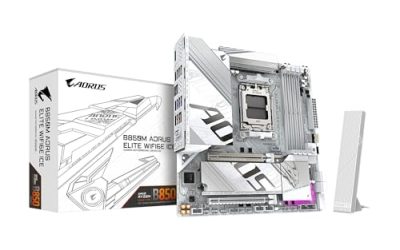
GIGABYTE X870 AORUS Elite WiFi7 ICE
The ICE variant delivers white heatsinks and a matching PCB without the performance penalty that some aesthetic boards carry. EZ-Latch on the M.2 slots means no screwdriver for drive swaps. GIGABYTE backs it with a five-year warranty, which is longer than most competitors offer. The VRM is adequate but does not match the 80A stages on the TUF for extreme sustained loads. Skip this if your primary use is heavy multi-threaded workstation tasks that stress power delivery beyond typical gaming.
- Pro: White aesthetic at standard X870 pricing with full feature set.
- Pro: Five-year warranty exceeds most competitors in this bracket.
- Con: VRM is adequate rather than class-leading.
GIGABYTE X870 Eagle WiFi7
For Ryzen 5 and Ryzen 7 builds that do not push the VRM hard, it handles everything without issue. EZ-Latch M.2 tooling and a five-year warranty punch above the price. The VRM is the obvious compromise here: fewer power stages and a lighter heatsink mean this board is not your friend during extended Cinebench runs on a 9950X. Skip this if you pair it with a flagship processor or run sustained all-core workloads; the price savings are not worth the thermal risk.
- Pro: Five-year warranty at a budget price.
- Con: VRM will throttle under sustained Ryzen 9 loads.
GIGABYTE X870 AORUS Stealth Reverse-Connect
This board flips the entire I/O panel to the back of the motherboard, so every cable exits away from the viewer. For showcase builds or SFF-adjacent ATX cases where front visibility matters, it eliminates cable clutter entirely. The 16+2+2 stage design handles high-end chips without issue, and 5GbE plus Wi-Fi 7 cover networking. USB4 is present. EZ-Latch Plus extends the tool-free design to both PCIe and M.2. The trade-off is that you need a compatible case with a rear cutout, which limits your chassis options. Skip this if your case does not support reverse-connect layouts or if you prefer the flexibility of standard ATX mounting.
- Pro: Reverse I/O keeps all cables hidden from the viewing panel.
- Pro: 5GbE and 16+2+2 VRM handle flagship CPUs without drama.
- Con: Requires a compatible case, narrowing your build options.
ASUS ROG Strix X870-I Gaming WiFi
The only Mini ITX option in this roundup, and it costs the most. That premium buys you a 10+2+1 stage VRM, USB4, Wi-Fi 7, Dynamic OC Switcher, Core Flex, and Q-Release Slim on the single PCIe slot. Two M.2 slots are the ITX limitation, but for a compact gaming or content-creation rig that still needs AM5 features, there is no cheaper full-USB4 option. The board does not support four drives, so plan storage accordingly.
- Pro: Full X870 feature set including USB4 and AI overclocking in ITX.
- Pro: Dynamic OC Switcher brings enthusiast tuning to small builds.
- Con: Only two M.2 slots at the highest price in this group.
GIGABYTE X870E AORUS Elite WiFi7
This is the only X870E board in the list, which means additional CPU-attached PCIe lanes for a second Gen5 M.2 or a second Gen4 slot without chipset routing. Four M.2 slots, USB4, Wi-Fi 7, and EZ-Latch are all present. For users who need extra lane flexibility for storage arrays or multi-NVMe RAID, X870E is the correct platform. The VRM is solid for sustained loads. Skip this if your storage plan fits within four M.2 drives and you do not need the extra CPU-direct lanes; the TUF or ICE variants save money with no practical loss.
- Pro: X870E lane count for dual Gen5 storage or multi-NVMe configurations.
- Pro: Strong VRM and USB4 at a reasonable premium over standard X870.
- Con: Extra lanes are wasted if you do not need them, making cheaper boards more rational.
Buying Guide
Power Delivery and Sustained Load Stability
The single most consequential spec on an X870 board is how many amperes the VRM can deliver before the MOSFETs hit their thermal limit. Stage count and amp rating (80A SPS versus lower-rated components) determine whether a Ryzen 9 9950X sustains boost clocks through a thirty-minute render or drops frequency after two minutes. For Ryzen 5 and 7 parts, a mid-tier VRM is fine. Pair the board to the chip you actually run, not the one you might upgrade to later.
USB4 and Rear-Panel I/O Strategy
USB4 at 40Gbps is the connectivity differentiator on X870. If your workflow involves a single-cable monitor or docking station, confirm the board exposes USB4 on the rear rather than only as a front-panel header. Some boards include it; others rely on the front panel, which defeats the convenience. Also check Ethernet speed: 2.5GbE is the floor, 5GbE is a meaningful upgrade for NAS-heavy setups, and the difference is invisible if you never exceed gigabit throughput.
M.2 Slot Count and Lane Allocation
Four M.2 slots are standard on X870 ATX boards, but their generation and CPU-direct versus chipset routing differ. On standard X870, only one slot typically runs PCIe 5.0 from the CPU; the others share bandwidth through the chipset. On X870E, two CPU-direct slots are available. If you plan to run multiple fast NVMe drives simultaneously without contention, the chipset tier matters more than the slot count suggests.
Our Verdict
The ASUS TUF Gaming X870-PLUS WiFi is the top pick for most builders: 80A power stages, USB4, Wi-Fi 7, four M.2 slots, and a price that leaves room for better silicon in the rest of the system. The GIGABYTE X870 Eagle WiFi7However, if your build demands a 5GbE network port and you do not need USB4, the MSI MAG X870 Tomahawk WiFi becomes the better choice at its price point.
FAQ
Do I need X870 over X670 for a Ryzen 9000 build?
Not strictly. X670 boards support Ryzen 9000 after a BIOS update and offer similar PCIe lane counts. X870 adds mandatory USB4 and Wi-Fi 7 on the platform level, so if you value those features, the newer board simplifies compatibility.
Is the X870E chipset worth the extra cost?
Only if you need two CPU-direct PCIe 5.0 slots simultaneously. For typical single-GPU, single-boot-drive builds, standard X870 handles everything without a lane bottleneck.
Can I use X870 motherboards with DDR4 memory?
No. The AM5 platform exclusively supports DDR5. X870 boards will not accept DDR4 DIMMs, and there is no backward-compatible slot configuration.
Does USB4 on X870 support Thunderbolt devices?
USB4 and Thunderbolt use the same physical connector, but full Thunderbolt protocol support requires Intel’s implementation layer. Most AMD X870 boards expose USB4 compatibility, which covers display output and docking for USB4-certified devices but not Thunderbolt-exclusive hardware.