The StarTech 5-Port USB 10Gbps PCIe Card (PS4C3IA3-USB-C-CARD) is the best PCIe USB expansion card in this group for most PC builders: it adds four USB-C ports and one internal USB-A port at 10 Gbps over a PCIe x4 connection, and it comes from a brand that publishes full specifications. If you simply need many ports for peripherals, the seven- and eight-port cards give more connectors for less. A PCIe USB expansion card is a board that plugs into a motherboard slot and adds extra USB ports when the board’s own ports run out or are too slow.
Our Top Picks
Top 3 picks at a glance
Quick List
- 7-Port USB 3.0 Card (5 Type-A, 2 USB-C) – best for the most ports on a 5 Gbps class card
- StarTech PS4C3IA3 5-Port 10Gbps – best overall for fast USB-C devices and external SSDs
- ELUTENG 8-Port USB 3.2 Card – best for a mix of six USB-A and two USB-C ports
- 7-Port USB 3.2 Gen 2 Card (4 Type-A, 3 USB-C) – best for a balanced mix at 10 Gbps per port class
- ELUTENG 7-Port USB 3.0 Card – best for keyboards, mice, hubs and other everyday peripherals
- 8-Port USB 3.2 Gen 2 Card (4 Type-A, 4 USB-C) – best for many fast USB-C devices at once
Which One Is Right for You?
| If you… | Choose |
|---|---|
| Connect fast external SSDs or USB-C docks | StarTech PS4C3IA3 5-Port 10Gbps |
| Need many ports for VR, capture cards and peripherals | 8-Port USB 3.2 Gen 2 Card (4 Type-A, 4 USB-C) |
| Want a balance of USB-A and USB-C at Gen 2 speed | 7-Port USB 3.2 Gen 2 Card (4 Type-A, 3 USB-C) |
| Need lots of USB-A for older devices | ELUTENG 8-Port USB 3.2 Card |
| Only need extra ports for keyboards, mice and flash drives | ELUTENG 7-Port USB 3.0 Card |
| Want five USB-A ports plus two USB-C on 5 Gbps | 7-Port USB 3.0 Card (5 Type-A, 2 USB-C) |
Count the devices you plan to plug in and note how fast each one needs to be. A mouse needs almost nothing, while an external NVMe SSD can use a full 10 Gbps link. Cards with many ports usually share the card’s bandwidth, so more ports does not mean more speed for each device. The right pick depends on whether you value port count or per-port speed.
All 6 Picks in Detail
1. 7-Port USB 3.0 Card (5 Type-A, 2 USB-C) – Best for port count on 5 Gbps
As an Amazon Associate we earn from qualifying purchases at no extra cost to you.
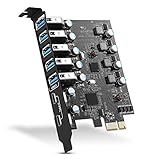
This card offers seven ports, five Type-A and two USB-C, in a USB 3.0 5 Gbps class. The listing calls it a SuperSpeed PCI Express hub controller adapter for PCs. It is a straightforward way to add a lot of connectors for peripherals such as keyboards, game controllers, webcams and flash drives. Because the interface is 5 Gbps, it does not target the fastest external SSDs, but it is sufficient for typical accessories.
Confirm the power connector on the product page. Cards with many ports often include a SATA or 4-pin power input for the ports, and that connector should be attached for stable operation with power-hungry devices.
- 7 ports: 5 USB-A and 2 USB-C, per the listing
- USB 3.0 / 5 Gbps class
- PCI Express interface; slot width: confirm on the product page
- Controller and power connector: confirm on the product page
- Designed for desktop PCs
Because this is a 5 Gbps class card, each external drive will be limited well below what a fast SSD can do, but that matters little for a gamepad, headset dongle or webcam. The two USB-C ports are useful for modern phones and accessories that no longer ship with a Type-A cable.
Pros:
- Plenty of USB-A ports
- Adds USB-C without a new motherboard
Cons:
- Shared 5 Gbps bandwidth across all ports
- Limited published details on the controller
Compared with the ELUTENG 7-port card, it swaps a few USB-A ports for USB-C connectors.
2. StarTech PS4C3IA3 5-Port 10Gbps – Best overall

The StarTech PS4C3IA3-USB-C-CARD adds four external USB-C ports and one internal USB-A port, all rated at 10 Gbps. Retailer and manufacturer-style listings describe an ASMedia ASM3142 controller, a PCI Express 3.0 x4 connection and optional SATA power for extra current to the ports. That x4 link is why this card can actually deliver 10 Gbps to its ports, rather than being held back by a narrower slot.
It is the pick for external SSD users, docking stations and fast USB-C devices. It does not support DisplayPort Alt Mode or USB Power Delivery, so it will not charge a laptop at high wattage or carry a video signal.
- 4 USB-C ports plus 1 internal USB-A port, per the listing
- USB 3.2 Gen 2, 10 Gbps
- PCI Express x4 connection; works in x4, x8 and x16 slots per StarTech
- Optional SATA power connector for additional port current
- Full-profile and low-profile brackets are listed as included; confirm on the product page
The internal USB-A port is a useful extra for a Bluetooth or Wi-Fi adapter or a license dongle that you want to keep inside the case. Since the card has only five ports, pair it with a small hub if you need more connectors, but remember that hub devices share the same 10 Gbps link.
Pros:
- Well-documented controller and slot requirements
- True 10 Gbps class across USB-C ports
Cons:
- Only five ports
- Needs a free x4 or larger slot
It trades the port count of the 8-port cards for a more predictable, brand-supported design.
3. ELUTENG 8-Port USB 3.2 Card – Best for six USB-A and two USB-C

This ELUTENG card offers eight ports, six USB and two Type-C, on a USB 3.2 PCIe interface, with the listing indicating independent channels. It is the choice for someone who has a lot of USB-A devices and only a couple of USB-C ones. The listing wording suggests that groups of ports have their own controller bandwidth, which would help when several devices are active, but you should confirm the exact controller layout and speed on the product page.
An eight-port card is also a good solution for a streaming or content-creation desk with a microphone, camera, capture card and several peripherals.
- 8 ports: 6 USB-A and 2 USB-C, per the listing
- USB 3.2 class; per-port speed: confirm on the product page
- Independent channel layout indicated; confirm details on the listing
- PCI Express interface; slot width: confirm
- Power connector: confirm on the product page
If you plan to use several storage devices at once, ask whether the independent channels apply to groups of ports and how many ports share each channel. Spreading fast devices across different channels, when the layout allows, helps keep transfer speeds up.
Pros:
- Many ports for a mixed desk
- Channel layout may spread bandwidth better
Cons:
- Specifications are less clearly stated
- Only two USB-C connectors
Against the other 8-port card, it has more USB-A and fewer USB-C ports.
4. 7-Port USB 3.2 Gen 2 Card (4 Type-A, 3 USB-C) – Best balanced Gen 2 mix

This card is listed as a PCIe to USB 3.2 Gen 2 card with 20 Gbps of bandwidth and seven ports, four Type-A and three Type-C. In USB terms, Gen 2 means 10 Gbps per port, so the 20 Gbps figure most likely refers to the total across the card, for example two 10 Gbps controllers. True single-port 20 Gbps would be USB 3.2 Gen 2×2, which is a different standard. Confirm how the listing divides its bandwidth.
The mix of four Type-A and three Type-C ports is a practical balance for a modern desk, which usually has both kinds of device.
- 7 ports: 4 USB-A and 3 USB-C, per the listing
- USB 3.2 Gen 2 (10 Gbps per port class)
- 20 Gbps total bandwidth is stated in the listing; confirm how it is split
- PCI Express interface; slot width: confirm on the product page
- Designed for desktop PCs
When shopping, compare the claimed 20 Gbps with the port speed. Two 10 Gbps controllers can deliver 20 Gbps in total, which is helpful when two fast drives work at once, but a single drive would still be limited to 10 Gbps. That is still a good result for most external storage.
Pros:
- Good mix of connector types
- Gen 2 speed class
Cons:
- Bandwidth layout needs confirming
- Unbranded, so documentation may be thin
It sits between the StarTech and the 8-port Gen 2 card in port count.
5. ELUTENG 7-Port USB 3.0 Card – Best for everyday peripherals

The ELUTENG 7-port card is a USB 3.0 5 Gbps expansion card with a hub controller, with Windows 11, 10, 8 and 7 compatibility listed in its title. It is a low-fuss way to add connectors for everyday gear such as keyboards, mice, printers, flash drives and webcams. It is not designed for fast SSDs, but for most peripherals 5 Gbps is plenty.
If your motherboard already has some free USB ports, this card is mainly about adding capacity rather than speed.
- 7 ports, USB 3.0, 5 Gbps class, per the listing
- Compatible with Windows 11, 10, 8 and 7, per the listing
- Port types: confirm the split between Type-A and Type-C
- PCI Express interface; slot width: confirm on the product page
- Power connector: confirm on the product page
If your motherboard has a spare x1 slot, a card like this is a natural fit, since 5 Gbps ports do not need a wide slot. Check the number of USB-C ports against your needs, because listings with seven ports vary in how they split Type-A and Type-C.
Pros:
- Plenty of ports for everyday devices
- Broad Windows compatibility listed
Cons:
- 5 Gbps is slow for external SSDs
- Few published controller details
It is a simpler, slower sibling of the ELUTENG 8-port card.
6. 8-Port USB 3.2 Gen 2 Card (4 Type-A, 4 USB-C) – Best for many fast ports

This card offers eight ports, four Type-A and four USB-C, in a 10 Gbps USB 3.2/3.1 Gen 2 class. It has the largest number of USB-C ports in the group, which makes it attractive for a desk full of modern accessories. As with any many-port card, 10 Gbps is the class of the interface, and bandwidth may be shared across several ports, so heavy simultaneous use of fast SSDs is better handled by a card with fewer ports.
Check the power connector and the slot width on the listing, since eight ports and 10 Gbps speeds need a suitable PCIe link.
- 8 ports: 4 USB-A and 4 USB-C, per the listing
- USB 3.2/3.1 Gen 2, 10 Gbps class
- PCI Express interface; slot width: confirm
- Controller and power connector: confirm on the product page
- Designed for desktop PCs
For a desk with several USB-C accessories, such as a docking station, an external SSD, a capture device and a headset dongle, the four USB-C ports remove the need for adapters. Make sure the slot you plan to use matches the card’s lane requirement, since an x1 slot would limit throughput.
Pros:
- Most USB-C ports in the group
- Fast Gen 2 interface class
Cons:
- Bandwidth is shared across many ports
- Less documented than the StarTech
Compared with the StarTech, it has more ports but less published detail.
Specs Compared
| Card | Ports | USB speed class | Slot | Controller / power |
|---|---|---|---|---|
| 7-Port USB 3.0 Card (5 Type-A, 2 USB-C) | 5 USB-A, 2 USB-C | USB 3.0, 5 Gbps | PCIe; confirm on listing | Confirm on listing |
| StarTech PS4C3IA3 | 4 USB-C, 1 internal USB-A | USB 3.2 Gen 2, 10 Gbps | PCIe x4 | ASM3142 per retailers; optional SATA power |
| ELUTENG 8-Port USB 3.2 | 6 USB-A, 2 USB-C | USB 3.2; confirm speed | PCIe; confirm on listing | Confirm on listing |
| 7-Port USB 3.2 Gen 2 | 4 USB-A, 3 USB-C | Gen 2, 20 Gbps total per listing | PCIe; confirm on listing | Confirm on listing |
| ELUTENG 7-Port USB 3.0 | 7 ports; split confirm on listing | USB 3.0, 5 Gbps | PCIe; confirm on listing | Confirm on listing |
| 8-Port USB 3.2 Gen 2 | 4 USB-A, 4 USB-C | Gen 2, 10 Gbps | PCIe; confirm on listing | Confirm on listing |
How We Chose These
We started with the six cards named in current catalog listings and compared the stated port counts, USB speed class and interface details. For the StarTech card we also referred to manufacturer-style specification fields and retailer data for the controller, slot and power connector. For generic cards, the listings often leave out the controller and slot width, so we flag those as values to confirm. We ranked cards by how clearly their specifications support real 10 Gbps use, then by port flexibility. We did not install these cards or run transfer measurements.
What to Look For
Match the USB Speed Class
USB 3.0 and USB 3.2 Gen 1 both mean 5 Gbps, which is plenty for keyboards, headsets, webcams and flash drives. USB 3.2 Gen 2 means 10 Gbps and suits external SSDs and fast docks. USB 3.2 Gen 2×2 is 20 Gbps over a single USB-C port and needs a card that explicitly says so. Be careful with listings that quote a large total, such as 20 Gbps, because that is often the sum across controllers rather than speed for a single port.
PCIe Slot Width Sets the Ceiling
The slot link limits how much data the card can pass. A PCIe 2.0 x1 link carries about 500 MB/s, roughly 4 Gbps, while PCIe 3.0 x1 carries about 985 MB/s, roughly 7.9 Gbps. A PCIe 3.0 x4 link carries about 3.9 GB/s, enough for several 10 Gbps ports. As a worked example, two 10 Gbps external SSDs running at once would want about 2 GB/s, so a x4 Gen 3 card fits and an x1 card will not. Check that your motherboard has a free slot of the required width, and note that some x4 slots share lanes with M.2 drives.
Ports, Controllers and Power
Many-port cards usually divide one or two controllers across all ports, so bandwidth is shared. Independent controllers or channels help when several devices are busy at once. Cards with extra power inputs, typically a SATA or 4-pin connector, give the ports more current; connect that cable if you plan to use bus-powered drives or charge devices. Before installing, shut down, switch off the power supply and unplug it, touch the case to discharge static, and seat the card firmly in the slot before screwing the bracket in place.
Drivers, Compatibility and Extras
Cards with well-known controllers such as ASMedia typically work with built-in Windows, macOS and Linux drivers, while less common controllers may need a driver download. Look for a low-profile bracket if you have a small case, an internal USB-A connector if you want to attach a Bluetooth module inside the case, and Windows versions listed in the title. Remember that a PCIe USB card does not add video output or fast charging unless it states DisplayPort Alt Mode or USB Power Delivery.
Checking Your Motherboard Before You Order
Open your motherboard manual and note which PCIe slots are free, how many lanes each provides and whether using one disables an M.2 or SATA port. Look at the case too: a tall card can collide with a large GPU or a CPU cooler, and a full-height bracket will not fit a small-form-factor case unless a low-profile bracket is included. If you have a graphics card that covers the neighboring slot, plan which slot gets the USB card so airflow to the GPU is not blocked.
Which Devices Need Which Port
Sort your devices by how much bandwidth they use. Keyboards, mice, controllers, headsets and webcams need only a small fraction of 5 Gbps, so Type-A ports on any card will do. External SSDs, capture cards and docking stations benefit from 10 Gbps, so put them on Gen 2 USB-C ports, ideally on a card with a x4 link. VR headsets and some capture devices can be fussy about controllers, so check the device maker’s guidance on supported chipsets before you rely on an add-in card for them. When in doubt, use the motherboard’s own rear ports for the most demanding device and the card for the rest.
Questions
Do PCIe USB cards slow down my devices?
Not if the card’s link and controller match the devices. Cards share bandwidth across ports, so several fast drives on one card can each run slower than a single drive.
Can I use a PCIe x16 slot for an x4 card?
Yes, a smaller card works in a larger slot. The card will use only the lanes it needs.
Do I need to connect the SATA power cable?
Connect it if the card has one and you plan to use power-hungry or bus-powered devices. It supplies extra current that the slot alone may not provide.
Are low-cost USB expansion cards safe to use?
Cards with clear specifications and proper power input are generally fine. Avoid overloading ports with high-current devices and use quality cables.
Will a PCIe USB card fix a motherboard that lacks USB-C?
Yes, it can add USB-C ports. It will not add DisplayPort video or charging power unless the product states it.
Is USB 3.0 the same as USB 3.2 Gen 1?
Yes, both refer to 5 Gbps. The renaming happened in the USB specification, so listings may use either name.
Update History
- October 20, 2026 – Initial publication; product set drawn from current catalog listings.
- Check the product page for current specifications and availability before buying.
Sources
- Manufacturer-style product and specification fields for StarTech
- Retailer listing titles and specification fields