The RubiPro HDMI KVM switch is the best overall pick for a dual-PC, dual-monitor desk: its listing states 8K at 60 Hz and 4K at 120 Hz, a four-port USB 3.0 hub at 5 Gbps and a wired remote, which together cover the features most dual-PC users actually need. A KVM switch lets two computers share one keyboard, mouse and set of monitors, and with two screens it must carry four video signals, so the video ratings and cables matter more than the brand name.
Our Top Picks


Top 3 picks at a glance
Quick List
- 8K HDMI dual-monitor KVM (4K@120Hz, USB 3.0) – best for high-refresh gaming on one PC while the other stays on work duty
- UGREEN HDMI dual-monitor KVM (4K@60Hz) – best for office and creative work at 60 Hz with four USB ports
- 8K@60Hz 2-port KVM with 4-port USB 3.0 hub – best for a desk that wants a 4K@120Hz-rated switch with extended display support
- HDMI + DisplayPort dual-monitor KVM (4K@60Hz) – best for mixed HDMI and DisplayPort source machines
- 4K@120Hz HDMI and DisplayPort 2-port KVM – best for high refresh rates on a mixed-connection desk
- RubiPro HDMI KVM (8K@60Hz, 4K@120Hz) – best overall for a dual-PC desk with a wired remote
Which One Is Right for You?
| If you… | Choose |
|---|---|
| want a wired remote on the desk and a four-port USB 3.0 hub | RubiPro HDMI KVM |
| work at 60 Hz and care more about a known brand than a high-refresh rating | UGREEN HDMI dual-monitor KVM |
| game at 4K and 120 Hz on both HDMI 2.1 monitors | 8K HDMI dual-monitor KVM (4K@120Hz, USB 3.0) |
| need extended display mode with a four-port USB 3.0 hub on a 120 Hz setup | 8K@60Hz 2-port KVM with 4-port USB 3.0 hub |
| have one PC with DisplayPort and another with HDMI | HDMI + DisplayPort dual-monitor KVM |
| want 120 Hz and both HDMI and DisplayPort connections on a two-computer desk | 4K@120Hz HDMI and DisplayPort 2-port KVM |
Check three things before comparing anything else: the maximum resolution and refresh rate at your monitor count, the type of video ports on your computers and monitors, and the USB 3.0 hub’s speed. A KVM that handles 4K at 120 Hz on one monitor does not always do so on both at once.
All 6 Picks in Detail
1. 8K HDMI dual-monitor KVM (4K@120Hz, USB 3.0) – Best for high-refresh gaming and work on one desk
As an Amazon Associate we earn from qualifying purchases at no extra cost to you.

This unbranded HDMI switch advertises two monitors, two computers, USB 3.0 and 4K at 120 Hz, with an 8K label on the headline. It lets you share a keyboard, mouse and other USB devices. The 8K figure is a marketing rating that matters little unless you own an 8K display, so focus on whether the 4K@120Hz claim applies to both monitor outputs at once and whether your monitors accept HDMI 2.1.
Who should buy it: a gamer who keeps a gaming rig and a work laptop on the same pair of 120 Hz monitors. Who should skip it: anyone whose monitors only accept HDMI 2.0, because the extra rating then goes unused. Use short HDMI 2.1 certified cables and set the refresh rate manually in your graphics settings after the first switch.
- Two HDMI monitor outputs, two computer inputs
- Rated for 4K at 120 Hz in the listing
- USB 3.0 for shared peripherals
- Shares keyboard, mouse and USB devices
- EDID emulation and hotkeys: confirm on listing
Because the headline rating is ambitious, start by connecting only one monitor at the highest mode, confirm it holds 120 Hz, and then add the second monitor to see whether the claim holds for both.
Pros
- High refresh rate rating for gaming monitors
- Shares USB devices as well as the keyboard and mouse
Cons
- Brand and specification detail are limited
- Resolution and refresh claims need checking for dual-monitor use
It is the closest rival to the RubiPro, and the RubiPro lists a wired remote and 5 Gbps hub details this model does not.
2. UGREEN HDMI dual-monitor KVM (4K@60Hz) – Best for office and creative work at 60 Hz

The UGREEN switch is the most modest in this list: HDMI, two monitors, two computers and 4K at 60 Hz, with four USB 3.0 ports for a keyboard, mouse, printer and webcam. At 60 Hz, HDMI 2.0 bandwidth is enough, so the cables and monitors are easy to find. It suits spreadsheets, coding, editing and video calls rather than high-refresh gaming.
Who should buy it: remote workers who move between a personal desktop and a work laptop and want a printer or webcam to follow the active machine. Who should skip it: anyone with a 144 Hz or 120 Hz monitor, since the switch tops out at 60 Hz. Mac users should confirm extended display behavior with the maker before buying.
- HDMI inputs and outputs for two monitors
- 4K at 60 Hz
- Four USB 3.0 ports
- Designed to share a keyboard, mouse, printer and webcam
- EDID emulation: confirm on listing, since some summaries suggest it is absent
Windows laptops with a USB-C display output will also need an adapter or dock to connect, so count your ports before you choose a switch with only HDMI inputs.
Pros
- Known brand with straightforward setup
- Four USB ports for a complete desk
Cons
- Capped at 60 Hz
- Windows may rearrange windows when you switch if EDID emulation is missing
It is the sensible work-oriented alternative to the 120 Hz-rated switches here.
3. 8K@60Hz 2-port KVM with 4-port USB 3.0 hub – Best for extended display and a USB hub

This model lists dual-monitor extended display support, 8K at 60 Hz and 4K at 120 Hz, a two-port design and a four-port USB 3.0 hub. The listing name is truncated at the controller description, so confirm what remote or button control comes with it. Extended display mode matters because you want each monitor to show a separate part of one desktop, not a mirrored copy.
Who should buy it: people who need both monitors to act as one wide desktop and who want a four-port hub for a keyboard, mouse and two other devices. Who should skip it: buyers who need a clear remote or button layout, since the listing name does not spell it out. Ask the seller or read the manual before purchase.
- Two-port KVM for two computers
- Extended display for dual monitors
- Rated 8K at 60 Hz and 4K at 120 Hz
- Four-port USB 3.0 hub
- Controller type and EDID emulation: confirm on listing
Look for the manual or the full spec sheet to see how the switch reacts to sleep, hotkeys and extended mode, since those details are not in the listing name.
Pros
- High refresh-rate rating and four USB ports
- Extended display support is stated
Cons
- Limited brand information
- Controller details are unclear in the listing
It is comparable to the RubiPro on paper, but the RubiPro states the wired remote and the 5 Gbps hub speed.
4. HDMI + DisplayPort dual-monitor KVM (4K@60Hz) – Best for mixed-connection source machines

This switch combines HDMI and DisplayPort connections in its name, for sharing two monitors across two computers at 4K and 60 Hz, with four USB 3.0 ports and support for extended and mirrored displays. It suits people whose two computers do not use the same video connector, for example a desktop with DisplayPort and a laptop with HDMI. Check which cables go where, since the mix of inputs is the reason to buy it.
Who should buy it: owners of one HDMI-only laptop and one desktop with DisplayPort outputs, who otherwise need adapters. Who should skip it: anyone running a single connector type, because a pure HDMI model is simpler. Label your cables so you can tell which port is an input and which is an output.
- HDMI and DisplayPort connections, per the listing
- 4K at 60 Hz
- Four USB 3.0 ports
- Supports extended and mirrored display modes
- Which ports are inputs and which are outputs: confirm on listing
Because it lists extended and mirrored modes, check that your operating systems expose the second monitor properly after each switch, and update your graphics drivers before you begin.
Pros
- Flexible with different source machines
- Extended display support
Cons
- 60 Hz limit
- Wiring can be confusing with mixed port types
Compared with the UGREEN, it trades brand familiarity for port flexibility.
5. 4K@120Hz HDMI and DisplayPort 2-port KVM – Best for 120 Hz on a mixed desk

This two-port KVM lists 4K at 120 Hz with 8K HDMI and DisplayPort support for two monitors and two computers, sharing a mouse, keyboard and both screens. It is the 120 Hz counterpart to the mixed-connector model above. Because high refresh rates need HDMI 2.1 or DisplayPort 1.4 class bandwidth and good cables, this is the model where cable quality matters most.
Who should buy it: a competitive gamer or video editor with two high-refresh monitors and mixed ports on the source machines. Who should skip it: shoppers who need a documented USB hub speed. Set aside time to try each cable, because one weak cable is the usual reason a 120 Hz mode falls back to 60 Hz.
- Two computers sharing two monitors
- 4K at 120 Hz in the listing
- HDMI and DisplayPort support
- Shares keyboard and mouse
- USB hub speed and EDID emulation: confirm on listing
With a model like this, confirm the HDMI version and the DisplayPort version in the manual, because a 4K at 120 Hz result depends on both the switch and the graphics card output.
Pros
- High refresh-rate rating with mixed ports
- Simple two-port design
Cons
- Few details in the listing about USB speed
- Needs high-quality certified cables to hold 120 Hz
It sits between the 60 Hz mixed-port model and the RubiPro in features.
6. RubiPro HDMI KVM (8K@60Hz, 4K@120Hz) – Best overall for a dual-PC desk with a wired remote
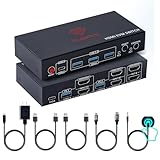
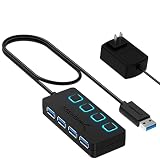
The RubiPro lists two monitors, two computers, 8K at 60 Hz, 4K at 120 Hz, a four-port USB 3.0 hub at 5 Gbps, a wired remote and plug-and-play operation for Windows, Mac and Linux. The remote puts the input switch within reach of your hand, and the hub lets you share a webcam, headset or drive. The 5 Gbps hub is shared by both computers, so heavy file transfers are better done on a direct connection.
Who should buy it: users with two HDMI 2.1 monitors who want a remote button for quick changes and a hub to share a webcam and headset. Who should skip it: people who must connect DisplayPort-only sources. As with every switch here, check the full resolution and refresh rate on both screens during your return window.
- Two monitors, two computers over HDMI
- 8K at 60 Hz and 4K at 120 Hz in the listing
- Four-port USB 3.0 hub, 5 Gbps
- Wired remote for switching
- EDID emulation: confirm on listing
The remote cable length also matters on a large desk, so check the cable reach before you decide where to place the switch box.
Pros
- Clearly stated hub speed and remote
- Works with several operating systems
Cons
- HDMI-only, so mixed DisplayPort machines need adapters
- 120 Hz on both monitors depends on cables and displays
Choose it over the mixed-port models unless you need native DisplayPort input.
Specs Compared
| KVM | Computers / monitors | Video ports | Max rating in listing | USB hub | Control |
|---|---|---|---|---|---|
| 8K HDMI dual-monitor KVM (4K@120Hz) | 2 / 2 | HDMI | 4K at 120 Hz | USB 3.0 | confirm on listing |
| UGREEN HDMI dual-monitor KVM | 2 / 2 | HDMI | 4K at 60 Hz | 4 x USB 3.0 | confirm on listing |
| 8K@60Hz 2-port KVM with USB 3.0 hub | 2 / 2 | HDMI | 8K at 60 Hz, 4K at 120 Hz | 4 x USB 3.0 | confirm on listing |
| HDMI + DisplayPort dual-monitor KVM | 2 / 2 | HDMI and DisplayPort | 4K at 60 Hz | 4 x USB 3.0 | confirm on listing |
| 4K@120Hz HDMI and DisplayPort 2-port KVM | 2 / 2 | HDMI and DisplayPort | 4K at 120 Hz | confirm on listing | confirm on listing |
| RubiPro HDMI KVM | 2 / 2 | HDMI | 8K at 60 Hz, 4K at 120 Hz | 4 x USB 3.0 (5 Gbps) | Wired remote |
How We Chose These
We gathered the dual-monitor, two-computer KVM switches in the current catalog and compared their listing fields: video connection types, stated resolution and refresh rate, USB hub size and speed, and the type of control. We read the manufacturer or vendor description where available and checked how each rating applies to a dual-monitor setup. Products with clearly stated hub speeds and controls ranked higher, and products whose listings left key specifications unstated were flagged for confirmation. This is a research-based comparison drawn from published product information. We paid particular attention to whether a stated refresh rate is likely to apply to two monitors at once, and to whether features such as EDID emulation and a USB hub speed are documented, since those details decide how a dual-monitor desk behaves.
What to Look For
Video bandwidth and refresh rate
A single 4K stream at 60 Hz with 8-bit color carries roughly 12 Gbps of raw pixel data, which fits inside HDMI 2.0’s 18 Gbps limit. At 120 Hz the raw figure is about 24 Gbps, which exceeds HDMI 2.0 and calls for HDMI 2.1, DisplayPort 1.4 with compression, or similar. Two monitors double the demand on the KVM’s internal chips, so a “4K@120Hz” label deserves a closer look: ask whether it applies to both outputs simultaneously. The “8K” in many titles is rarely relevant to desks that use 4K monitors.
Cables, ports and what goes where
Each computer needs two video cables, one for each monitor, plus one USB cable that sends keyboard and mouse data to the switch. That is six cables for two computers, plus two for the monitors. Use short, certified cables for 4K at 120 Hz, since long or cheap cables cause flicker and black screens. Match the video ports: an HDMI KVM needs HDMI on every computer and monitor, or adapters, while a mixed HDMI plus DisplayPort model accepts both. If your GPU only has one HDMI output, you will need a DisplayPort adapter for the second monitor.
EDID emulation and window behavior
When you switch away from a computer, that computer may think the monitors have been unplugged and rearrange its windows. EDID emulation tells each computer that the monitors are still connected, so your layout stays put. The feature is important for dual-monitor setups and is not always listed. Check for it on the product page, and if it is missing, expect some window shuffling on each switch.
USB hub speed, hotkeys and remotes
A USB 3.0 hub runs at 5 Gbps, but a keyboard and mouse use a tiny fraction of that. The hub matters when you share a webcam, a headset or an external drive. Because the hub is shared between computers, only the active one sees the devices. A wired remote or hotkeys let you switch without reaching behind the desk, and a remote is handier in dual-monitor setups where the switch is tucked away.
Switching behavior, hotkeys and sleep
Most dual-monitor KVMs switch with a front button, a remote or a keyboard hotkey such as double-tapping Scroll Lock. Look at how the switch behaves with sleeping computers: some wake a sleeping machine when you select it, while others show a blank screen until you press a key. If you use a mixed Mac and Windows desk, remember that Windows and macOS handle monitor detection differently, so check your layout on both. Also decide whether you want audio sharing, because many dual-monitor models pass only video and USB, not speaker output.
Quick compatibility checklist. Write down each computer’s video outputs, each monitor’s inputs, the refresh rate you want and the USB devices you plan to share. Compare that list to the listing line by line. Worked example: two gaming PCs, each with two DisplayPort outputs, and two HDMI 2.1 monitors would need either a DisplayPort-input KVM or adapters, and the cable count is 4 video plus 2 USB for the computers and 2 video for the monitors.
Questions
Can a KVM switch run two monitors at 4K and 120 Hz?
Some are rated for it, but the rating must be checked. Both monitors need HDMI 2.1 or equivalent inputs, the cables must be certified, and the KVM must support the full rating on both outputs at the same time.
Do I need EDID emulation?
If you want your windows to stay in place when you switch computers, yes. Without it, a computer may treat the screens as unplugged and move windows to a single display.
Will a KVM reduce picture quality?
It can if the KVM or cables cannot carry the full bandwidth, which shows up as flicker, lower refresh or dropped color depth. Use the shortest high-quality cables and match the rating to your monitors.
Can I share a printer or webcam through the USB hub?
Yes, the USB hub passes those devices to the active computer. Heavy transfers, such as backing up an external drive, are better done with a direct connection, since the hub is shared.
Does a KVM work with a Mac and a Windows PC together?
Most do, because keyboards and mice use standard drivers. Some Macs limit extended display behavior through certain switches, so check the listing for Mac support before you buy.
What is the difference between a KVM and a monitor input switch?
A monitor input switch changes only the video source. A KVM also shares the keyboard, mouse and USB devices, so you do not have to move cables when you switch between computers.
Update History
- October 20, 2026 – Initial publication; product set drawn from current catalog listings.
- Check the product page for current specifications and availability before buying.
Sources
- Retailer listing titles and specification fields for each switch
- Vendor product pages and published descriptions for dual-monitor KVM switches
- Published KVM buying guides and vendor specification summaries covering EDID emulation, cabling and refresh-rate requirements