Our Top Picks


Top 3 picks at a glance


Best Cricut Machines for Beginners
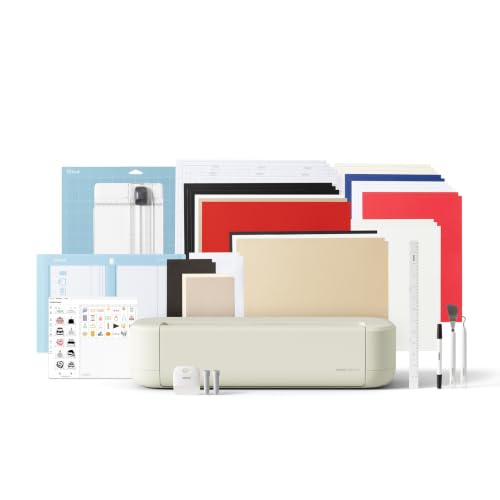
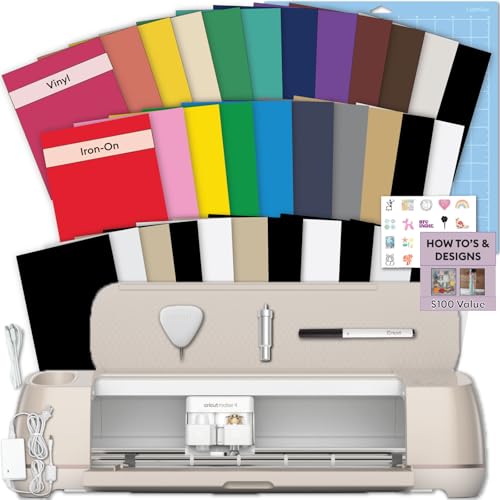
The best Cricut machine for beginners is the Cricut Explore 4 for most people, while the Cricut Joy Xtra suits small, simple projects and the Cricut Maker 4 is the better long-term choice if you expect to work with fabric, leather, wood, or many specialty materials.
All three use Cricut Design Space, the company’s free design software for Windows, macOS, iOS, and Android. The main differences are not just cutting speed: they affect setup difficulty, maximum material size, tool choice, material compatibility, and how quickly a beginner can move from a first sticker or card to more advanced projects.
As an Amazon Associate we earn from qualifying purchases at no extra cost to you.

Quick comparison
| Machine | Best for | Maximum material width | Tool system | Beginner difficulty | Typical market range |
|---|---|---|---|---|---|
| Cricut Joy Xtra | Stickers, labels, cards, small apparel designs | 9.5 inches | Compact Joy Xtra tools | Lowest | Varies |
| Cricut Explore 4 | General-purpose home crafting | 11.5 inches | Explore-compatible tools | Low | Varies |
| Cricut Maker 4 | Fabric, leather, thicker materials, ambitious projects | 11.5 inches | Broad Maker tool ecosystem | Moderate | Varies |
These are practical size limits for the machine families rather than guaranteed finished-project dimensions. Mat size, material margins, and whether you use Smart Materials can reduce the usable area.
1. Cricut Joy Xtra: the easiest starting point
The Joy Xtra is the best Cricut machine for beginners who want a compact device for stickers, labels, greeting cards, iron-on names, and small signs. It is less intimidating than a full-size machine because it has fewer tool choices and takes up less desk space.
Setup difficulty and software learning curve
Physical setup is usually the quickest of the three. Install Design Space, connect the machine through Bluetooth or USB, insert the blade housing, and follow the calibration and test-cut prompts. A first-time user can normally get from unboxing to a basic cut in roughly 15–25 minutes, assuming the software and machine firmware update without interruption.
Design Space itself is still the main learning curve. Beginners need to understand canvas sizing, “Make It,” mat previews, material selection, and the difference between Basic Cut, Draw, and Foil. Start with Cricut’s simple built-in projects rather than importing a complicated multi-layer SVG.
Supported materials
- Adhesive vinyl and removable vinyl
- Printable sticker paper and printable vinyl, used with the machine’s Print Then Cut workflow
- Cardstock and insert-card materials
- Iron-on and other heat-transfer materials
- Lightweight craft paper and similar thin materials
The Joy Xtra is not the right choice for thick leather, heavy chipboard, dense basswood, or serious fabric cutting. Its compact ecosystem also makes it less flexible if you later want rotary-blade or knife-blade work.
Best first projects
- One-color labels: Use removable vinyl, a simple sans-serif font, and a 2–3 inch label.
- Small sticker sheet: Print several designs on one sheet, then use Print Then Cut.
- Iron-on name: Keep the design under 6 inches wide and remember to mirror the artwork before cutting.
Choose the Joy Xtra when portability, low cost, and uncomplicated projects matter more than future expansion.
2. Cricut Explore 4: the best all-rounder for most beginners
The Cricut Explore 4 is the strongest default recommendation because it handles the projects most households actually make without introducing the full complexity of the Maker platform. It is a good fit for decals, labels, cards, wall quotes, T-shirts, party decorations, and standard paper crafts.
Setup difficulty and materials
Setup is still beginner-friendly, but there are more possibilities to configure: different mats, pen adapters, scoring tools, and material settings. Allow about 20–35 minutes for initial setup, including a test cut and basic calibration.
The Explore 4 can cut hundreds of materials in the light-to-medium range, including paper, cardstock, vinyl, iron-on, poster board, adhesive-backed paper, and some specialty craft sheets. It can also draw with compatible Cricut pens and score selected materials with a scoring tool. The practical limitation is force: it is designed for common craft materials, not the thickest or most demanding substrates.
Why the Explore 4 is easier to live with
The 11.5-inch working width is large enough for common 12-inch scrapbook paper, standard vinyl rolls, and shirt graphics without making the machine unusually bulky. It also gives you room to grow from small labels to larger wall decals and multi-piece party decorations.
For a first project, choose a one-layer vinyl decal. In Design Space, set the finished width to 4–6 inches, select the exact vinyl type, and use a fine-point blade. Weed the excess vinyl after cutting, apply transfer tape, and burnish the design from the center outward. This teaches sizing, mat loading, cutting pressure, weeding, and transfer in one manageable project.
Best starter projects
- Kitchen and storage labels using removable or permanent vinyl
- Personalized cotton T-shirts using standard iron-on
- Layered birthday cards with cardstock and a pen-drawn message
- Cake toppers and party banners
- Simple Print Then Cut sticker sheets
Pick the Explore 4 if you are unsure what you will make. It avoids paying for Maker-specific tools while offering substantially more room than the Joy Xtra.
3. Cricut Maker 4: best for beginners who plan to advance
The Cricut Maker 4 is the best Cricut machine for beginners who already know they want to work with fabric, leather, felt, chipboard, craft wood, or specialty materials. It costs more and has a steeper learning curve, but buying it first can be cheaper than replacing an entry-level machine later.
Setup and tool learning curve
Initial connection is similar to the Explore 4, but expect roughly 30–45 minutes to become comfortable with the tool system. The Maker platform supports more blade and accessory types, including tools intended for thicker materials and fabric. That flexibility means you must select the correct tool, mat, pressure setting, and material orientation more carefully.
Do not begin with a complicated knife-blade project. Start with cardstock or vinyl, then try fabric only after learning how to stabilize it. A fabric stabilizer or bonded fabric helps prevent fibers from lifting and reduces the chance of ragged cuts.
Supported materials
- Everything commonly used with Explore-class machines, including paper, vinyl, iron-on, and cardstock
- Fabric and bonded fabric with the appropriate blade
- Felt, faux leather, and selected genuine leather
- Chipboard and some heavier craft materials with the correct tool and settings
- Selected basswood and other thin wood sheets, depending on thickness and material guidance
Material compatibility is not the same as guaranteed success. Thickness, density, grain direction, adhesive backing, and mat condition all affect the cut. Always check Cricut’s material setting and perform a small test cut before committing to a large sheet.
Best starter projects
- A cardstock gift box, which teaches scoring, folding, and assembly
- A simple fabric bookmark or felt ornament
- A layered cardstock sign before attempting wood
- A small leather key fob after testing the material on a scrap
Choose the Maker 4 when the extra tool capability is a planned requirement, not merely a specification you may never use.
Which Cricut should you buy?
| Your situation | Best choice | Reason |
|---|---|---|
| You have limited desk space and want stickers or labels | Joy Xtra | Small footprint and simple workflow |
| You want shirts, cards, decals, and party crafts | Explore 4 | Best balance of size, price, and learning curve |
| You want to cut fabric, leather, chipboard, or thin wood | Maker 4 | Broader tool and material support |
| You are buying for a child or occasional user | Joy Xtra | Fewer controls and easier storage |
| You expect to sell varied handmade products | Maker 4 | More room to expand into different product types |
A beginner workflow that prevents wasted material
- Measure the finished object first. Set the design width in Design Space before choosing material. A 5-inch decal and a 10-inch decal may use the same artwork but require very different weeding effort.
- Use a scrap test. Cut a small shape, such as a 1-inch triangle, before using a full sheet. This checks blade depth, pressure, mat grip, and material behavior.
- Match the mat to the material. Light paper usually needs a LightGrip mat; thicker cardstock and fabric may need stronger grip. A dirty or worn mat can cause shifting that looks like a blade problem.
- Keep the first design single-layer. Layering adds alignment, adhesive, and color-order problems. Learn one operation at a time.
- Save successful settings. Record the material brand, blade, pressure, mat, and whether a second pass was needed. This is more useful than relying on a generic material name.
Frequently asked questions
Do all three Cricut machines use the same software?
Yes. All three machines use Cricut Design Space, Cricut’s free design software for Windows, macOS, iOS, and Android. Beginners use it to size designs, select materials, preview mats, and choose operations such as Basic Cut, Draw, or Foil. The software is part of the learning curve regardless of which machine you choose.
Can these Cricut machines cut and draw?
Yes. The machines can perform cutting workflows, and the Explore 4 can also draw with compatible Cricut pens and score selected materials with a scoring tool. In Design Space, beginners need to understand the difference between Basic Cut, Draw, and Foil. The available tools and compatible materials vary by machine family.
Can I make stickers with a Cricut machine?
Yes. The Joy Xtra, Explore 4, and Maker 4 can be used for sticker projects, including Print Then Cut workflows. You can print designs on printable sticker paper or printable vinyl, then use the machine to cut them. The Joy Xtra is specifically suited to small sticker sheets, while the larger machines offer more room for other projects.
Do I need to mirror every design before cutting it?
No. You need to mirror artwork before cutting iron-on or other heat-transfer designs, such as an iron-on name. Mirroring is not described as necessary for ordinary adhesive-vinyl labels, decals, cards, or sticker sheets. Always consider the project material and workflow in Design Space before cutting.
What should I do before cutting a full sheet of material?
Cut a small test shape first, such as a 1-inch triangle, before using a full sheet. This checks blade depth, pressure, mat grip, and how the material behaves. For thicker or specialty materials, also check Cricut’s material setting and test on a scrap, because thickness, density, grain direction, and mat condition can affect results.
Final verdict
For most first-time buyers, the Cricut Explore 4 is the safest recommendation: it is wide enough for common home projects, easier to learn than the Maker 4, and more versatile than the Joy Xtra. Select the Joy Xtra for compact sticker, label, and card making. Select the Maker 4 when fabric, leather, chipboard, or wood is part of your plan rather than a possibility.