As an Amazon Associate we earn from qualifying purchases.
Choosing a 75-keyboard is really a decision about which keys you refuse to give up. The layout keeps the function row, dedicated arrow keys and a small navigation column while dropping the number pad, so you gain mouse room and a narrower footprint without losing the keys that games, spreadsheets and shortcuts depend on. The trade-off is density: every key sits close to its neighbour, and a board that squeezes the right Shift or moves Delete to an odd spot can slow you down for weeks.
This guide serves competitive gamers who want function keys within reach, office workers and writers fitting a full-feeling keyboard onto a small desk, and anyone who carries one board between home and work. It walks through layout, switches, connection types and build quality in plain terms, so you can match a board to the way you actually type and play instead of buying on looks alone.
How to Choose
Layout and Key Count
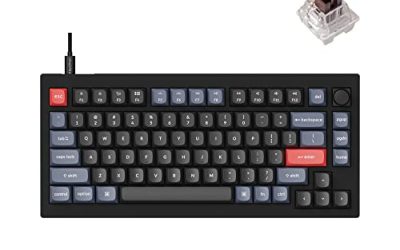
A true 75-keyboard has around 82 to 84 keys: a full function row, a number row, dedicated arrows and a slim navigation column with keys such as Delete, Home, End and Page Up. Compare that with a 65-keyboard, which drops the function row, and a tenkeyless board, which keeps a wider gap cluster and takes up more desk. Before buying, study the product photos closely. Check whether the right Shift is full size or shortened to fit an arrow, where Delete sits, and whether the function row is spaced in groups of four. A layout that matches your current board needs no relearning, while a clever-looking arrangement can cost you missed keystrokes in games and documents alike.
Switches and Typing Feel
Switches decide how a board feels under your fingers, so treat them as the second decision after layout. Linear switches travel down with no bump and suit fast presses in games. Tactile switches add a bump you can feel without a loud click, which typists prefer for long documents. Clicky switches add a sharp sound on top of that bump and can wear out a shared room quickly. A hot-swappable board lets you pull switches out and press new ones in without soldering, and check the listed actuation force: lighter switches tire your fingers less, while heavier ones resist accidental presses. A switch tester with three or four types is the fastest way to learn what your hands like.
Connection and Compatibility
Wired, 2.4 GHz wireless and Bluetooth each suit a different desk. A wired board gives the most consistent response and never needs charging, which is why many competitive players still plug in. A 2.4 GHz dongle keeps the cable off the desk while staying close to wired response, which suits a living-room or laptop setup. Bluetooth suits people who switch between a laptop, a tablet and a phone, since many boards pair with three devices and jump between them with a keystroke. Check the listed polling rate if you play fast games, confirm the board ships with keycaps for both Windows and Mac, and make sure any configuration software runs on your operating system before you buy.
Build, Keycaps and Sound
The case and mounting style shape both the sound and the feel. Aluminium cases feel solid and stay put during heated games, while plastic cases cost less and travel better in a bag. Gasket-mounted boards suspend the plate on soft strips, which usually gives a softer landing and a deeper sound, while tray-mounted boards feel firmer and more direct. Keycaps matter just as much: double-shot PBT caps resist shine and keep their legends, while thin ABS caps can turn glossy within months. Check the stabilisers under the space bar and Enter key, since rattling stabilisers ruin an otherwise good board, and read whether the board ships with foam layers, which tame hollow echoes in plastic cases.
Which One Fits Your Situation
You Play Competitive Games on a Small Desk
Pick a wired board or a 2.4 GHz model with linear switches and a high polling rate, so fast presses register the same way every time. Make sure the function row is easy to reach for buy menus, ability hotkeys and screenshots, and that the arrows sit where your thumb expects them during menu navigation. A standard bottom row keeps replacement keycap sets simple, and a board without a bulky volume knob leaves more room for wide mouse sweeps.
You Type All Day for Work
Pick a board with light tactile switches, double-shot PBT keycaps and Bluetooth pairing for two devices, so you can move between a work laptop and a personal machine without replugging. A quiet switch keeps calls and shared rooms calm, and a volume knob or mute key saves you reaching for on-screen controls. Check that the legends include both Windows and Mac symbols if your desk mixes systems, and favour a heavier case that will not slide while you type.
You Want One Board for Gaming and the Office
Pick a tri-mode board that runs wired, over 2.4 GHz and over Bluetooth, with hot-swappable sockets so you can change switches when your routine changes. Linear switches suit evening games, while a light tactile set suits daytime typing, and swapping between them takes minutes on a hot-swappable board. An understated colour scheme looks at home in a meeting room, and a knob for volume is the one extra worth having, since it works in games, calls and music alike.
You Are Building Your First Custom Keyboard
Pick a barebones kit with a standard 75-keyboard layout, hot-swappable sockets and QMK or VIA support, so every part stays under your control. A standard layout matters most here: it accepts the widest range of keycap sets and leaves no odd-sized keys to hunt down. Start with one switch type you already know you like, add stabilisers that arrive pre-lubed or plan to lube them yourself, and keep the first build simple before chasing exotic plates and foam.
Common Mistakes
- Buying a 65-keyboard by mistake. The two layouts look alike in a thumbnail, and the only reliable difference is the function row. A 65-keyboard drops F1 through F12 entirely and forces you onto a function layer for volume, brightness and game menus, which is fine if you already live on layers but frustrating if you expect dedicated keys. Before ordering, count the rows in the product photos and confirm the listing names a 75-keyboard layout or shows 82 to 84 keys. If the listing only says compact or small, read the full specification table and look for a function row in the images. Sellers sometimes label a 65-keyboard as a 75-keyboard to catch search traffic, and the return trip costs you a week of waiting. A minute spent checking the layout saves a rebuild of your muscle memory later.
- Ignoring the shortened right Shift and cramped arrows. The 75-keyboard layout only works because makers squeeze keys into the right-hand column, and the squeeze lands in different places on different boards. Some shrink the right Shift to make room for an arrow, some move Delete above Backspace, and some stack Page Up and Page Down into a single column that your fingers keep missing. These details rarely appear in a bullet list, so open the largest product photo and trace the keys your fingers use most. Type a few imaginary sentences and picture where Enter, Shift and the arrows fall. If you play games that lean on right Shift for sprinting or crouching, a shortened Shift will punish you every session. A board that looks tidy in a photo can still fight your hands for months.
- Choosing clicky switches for a shared room. Clicky switches sound satisfying in a solo video and exhausting in a shared office, a library corner or a late-night gaming session next to a sleeping household. The sharp click carries through thin walls and across open-plan desks, and it also bleeds into voice calls and recordings. If anyone else shares your space, start with linear or light tactile switches, which keep the feel without the noise. If you already own a clicky board and love it, keep it for a private room and use a quieter board where other people work or sleep. Switch choice is not only about your fingers; it is about everyone within earshot.
- Assuming any switch or keycap set will fit. Hot-swappable does not mean universal. Some boards accept only three-pin switches while others take five-pin, some sockets are soldered despite a listing that hints at swapping, and north-facing LED sockets can clash with certain Cherry-profile keycaps so the caps strike the switch housing before they bottom out. The bottom row is another trap: a nonstandard width on the space bar, Control or Alt keys blocks most aftermarket keycap sets and leaves you stuck with the stock caps. Check the socket type, the LED orientation and the bottom-row widths in the specification table before buying extras. Ordering a keycap set first and discovering it does not fit is an expensive lesson.
- Paying for wireless and software features you will never use. Tri-mode boards, long battery claims and companion apps look good on a listing, but they only earn their keep if they match your desk. A board that never leaves your desk gains nothing from Bluetooth, and a board you only use on one machine gains nothing from three-device pairing. Worse, some configuration software only runs on Windows, so Mac and Linux users lose remapping, macros and lighting control entirely. Decide how the board will connect on day one, confirm the software supports your operating system, and spend the difference on better switches or keycaps instead. A simple wired board with good stabilisers often types better than a feature-packed board with rattling keys.
Frequently Asked Questions
What is a 75-keyboard?
A 75-keyboard is a compact layout with around 82 to 84 keys, keeping the function row, dedicated arrow keys and a small navigation column while dropping the number pad. It sits between a 65-keyboard, which loses the function row, and a tenkeyless board, which keeps a wider layout and takes up more desk space. The layout suits people who want full-size function without a full-size footprint.
Is a 75-keyboard good for gaming?
Yes, for most players it is an excellent fit. The function row stays within reach for buy menus, abilities and screenshots, the arrows handle menu navigation, and the narrower frame leaves more room for mouse movement at low sensitivity. Competitive players should favour a wired or 2.4 GHz connection with a high polling rate and linear switches, and check that the right Shift and arrow placement match their grip.
Can I swap the switches and keycaps on a 75-keyboard?
It depends on the board. Hot-swappable models let you pull switches out and press new ones in without soldering, while soldered boards need tools and patience to change anything. Before buying extras, check whether the sockets take three-pin or five-pin switches, whether the LEDs face north or south, and whether the bottom row uses standard widths, since nonstandard rows block most aftermarket keycap sets.
Will a 75-keyboard work with both Mac and Windows?
Most modern boards work with both, but the details matter. Look for keycaps printed with both Windows and Mac legends, a physical switch or key combination that changes the layout mode, and configuration software that runs on your system. Bluetooth models often pair with several devices at once, which makes switching between a Mac laptop and a Windows desktop as simple as one keystroke.
Related guides
More from Amazon
Programs that pair well with the guide above. Offers and eligibility are set by Amazon and may change.
Free shipping on eligible items, Prime Video and more. Eligible new members can start with a free trial.
Start a Prime free trialAd-free music streaming. Eligible new subscribers can start with a free trial.
Try Music Unlimited freeA Prime membership for ages 18-24 with a trial period. Eligibility is set by Amazon.
See Prime for Young AdultsAudiobooks and podcasts to listen to on the go. Eligible new members can start with a free trial.
Try Audible freeAs an Amazon Associate we earn from qualifying purchases.