Upgrading your CPU cooler is one of the most effective ways to quiet a noisy home office PC or keep a high-performance system running at peak efficiency. However, the prospect of installing a new CPU cooler backplate can feel daunting—especially if your motherboard is already secured inside the computer case. Many builders assume they have to dismantle the entire system, unplugging dozens of delicate cables and removing the motherboard completely just to access the underside of the processor socket.
Fortunately, you can install a backplate on an already-installed motherboard if you use the right technique. But doing this job poorly carries significant risks. If the backplate is misaligned, or if you apply uneven pressure during installation, you can flex the delicate multi-layered fiberglass motherboard. Furthermore, failing to insulate the metal backplate from the motherboard’s solder joints can cause an immediate electrical short-circuit, potentially frying your CPU, RAM, or power supply the moment you press the power button. This guide will walk you through the process safely, cleanly, and without requiring a full system teardown.
As an Amazon Associate we earn from qualifying purchases at no extra cost to you.
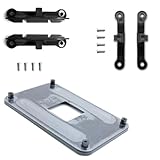

Our Top Picks
 ECKDZMY AM5 AM4 CPU Cooler Mounting Bracket Backplate3.94 x 2.64 x 0.12 inches0.2 poundsCheck on Amazon

What You Need
Before you begin, gather the necessary tools and replacement parts. Having everything laid out on your workspace prevents you from having to reach inside a dark PC case mid-installation.
| Item | Why You Need It | Optional? |
|---|---|---|
| Replacement Backplate Kit | Provides the threaded anchor points for your specific CPU socket. | No |
| Magnetic Phillips #2 Screwdriver | Secures the standoffs and mounting brackets. The magnetic tip is crucial for preventing loose steel screws from falling behind the motherboard tray. | No |
| Painter’s Tape or Masking Tape | The “secret weapon” for this job. It temporarily holds the loose backplate against the rear of the motherboard from the outside while you screw in the standoffs from the front. | No (Highly Recommended) |
| 90%+ Isopropyl Alcohol & Microfiber Cloth | Used to clean off old, dried thermal paste from the CPU integrated heat spreader (IHS) before mounting the new cooler. | No |
| High-Quality Thermal Paste | Fills microscopic air gaps between the CPU and the cooler block. | No |
| Anti-Static Wrist Strap | Grounds your body to prevent electrostatic discharge (ESD) from damaging sensitive motherboard surface-mount devices (SMDs). | Yes (but recommended if working on carpet) |
Step-by-Step Installation Guide
This entire process should take approximately 30 to 45 minutes. Work slowly, patiently, and never force a screw that feels cross-threaded.
Step 1: Preparation, Safety, and Workspace Setup
Estimated Time: 5 minutes
Shut down your computer completely. Flip the physical rocker switch on the back of your power supply unit (PSU) to the “Off” (O) position, and unplug the main AC power cable from the wall. Press and hold the PC’s front power button for 10 to 15 seconds; this drains any residual electrical charge stored in the motherboard’s capacitors. Lay the PC tower flat on a sturdy, non-conductive wooden or plastic table. Avoid working on carpets to prevent static buildup.
Step 2: Open the Side Panels
Estimated Time: 5 minutes
Most modern PC cases feature a motherboard tray cutout designed specifically for backplate access. Remove the main left-side panel (usually tempered glass or steel) to access the main chamber where your components live. Next, remove the right-side panel (the solid metal sheet behind the motherboard). Look through the cutout in the chassis frame. You should clearly see the underside of your CPU socket and the existing backplate or mounting holes. If your case does not have this cutout, you will have to uninstall the motherboard entirely.
Step 3: Remove the Old Cooler and Clean the CPU
Estimated Time: 10 minutes
Unscrew the existing CPU cooler in a cross-pattern (loosening each screw slightly in turns to distribute tension evenly). Unplug the CPU fan or AIO pump cable from the motherboard header. Gently twist the cooler slightly clockwise and counter-clockwise to break the suction of the old thermal paste, then lift it away. Dampen your microfiber cloth with 90%+ isopropyl alcohol and gently wipe the old thermal paste off the CPU surface until the metal IHS is clean and shiny. Let it dry for two minutes.
Step 4: Secure the New Backplate (The Tape Trick)
Estimated Time: 10 minutes
If you are using a standard replacement bracket (such as a 90x54mm AMD AM4 backplate), align the plastic insulating layer of the backplate with the holes on the rear of the motherboard. Ensure that the metal parts of the backplate do not directly touch any exposed solder points or electrical traces on the motherboard.
Because you are working on an installed motherboard, gravity will cause the backplate to fall out of the back when you try to screw components into the front. To solve this, take two strips of low-tack painter’s tape or masking tape. Securely tape the backplate to the rear of the motherboard tray from the backside of the case. This holds the backplate perfectly flush against the motherboard, freeing up both of your hands to work on the front side of the system.
Step 5: Install Standoffs and Mounting Brackets
Estimated Time: 5 minutes
Flip your attention back to the front chamber of the PC. The threaded screw holes of your newly taped backplate should be protruding slightly through the four mounting holes surrounding the CPU socket. Thread your cooler kit’s plastic or rubber spacers/washers over these holes first—these prevent the metal brackets from scratching the motherboard surface. Hand-thread the metal standoffs (included in kits like the ECKDZMY AM5/AM4 bracket set) into the backplate. Once threaded by hand, use your screwdriver to tighten them until they are snug. Do not over-tighten; a firm finger-tight turn is all that is required.
Step 6: Apply Thermal Paste and Mount the Cooler
Estimated Time: 5 minutes
Apply a small, pea-sized drop (approximately 0.2 to 0.3 grams) of high-quality thermal paste directly to the center of the clean CPU surface. Carefully lower your new CPU cooler heatsink or water block onto the standoffs. Tighten the mounting screws in an “X” pattern: turn screw A two rotations, then screw B (diagonally opposite) two rotations, then C, then D. Repeat this sequence until all screws stop spinning naturally. This ensures even pressure distribution across the CPU silicon die, preventing thermal hotspots.
Step 7: Final Inspection and Boot Test
Estimated Time: 5 minutes
Peel the painter’s tape off the rear backplate through the motherboard tray cutout. Ensure no tape residue remains. Reconnect the CPU fan or pump power cable to the designated “CPU_FAN” or “AIO_PUMP” header on the motherboard. Reinstall both side panels, plug the power cable back in, and flip the power supply switch to “On” (I). Boot the computer and immediately enter the BIOS/UEFI screen to monitor the CPU idle temperature. It should stabilize comfortably between 30°C and 45°C.
Mistakes to Avoid
- Forgetting the Insulating Washers: Most backplate kits come with non-conductive plastic or rubber washers. Failing to place these between the motherboard PCB and the metal standoffs or backplate can scrape the board’s protective coating, cutting traces and destroying the motherboard.
- Uneven Screw Tensioning: Never tighten one screw completely before starting the others. This tilts the cooler block, squeezing thermal paste out of one side and leaving a massive air gap on the other, which will cause your CPU to immediately overheat and thermal throttle.
- Over-tightening: Motherboard PCBs are made of layers of fiberglass and copper. Excessive torque can crack these internal layers or strip the threads on your budget backplate, rendering it useless. Tighten screws until you meet firm resistance, then stop.
- Overusing Thermal Paste: Applying too much thermal paste (more than a pea-sized amount) can squeeze out onto the motherboard socket. While non-conductive pastes won’t cause shorts, they are incredibly messy and difficult to clean out of tiny socket pins.
How Often Should You Do This?
Under normal circumstances, you only need to install or replace a CPU cooler backplate when you are upgrading to a brand-new CPU socket standard or switching to a completely different brand of CPU cooler. As we look ahead to 2026, newer socket architectures continue to transition to heavier, more robust cooling requirements, making high-quality backplate installation a crucial skill for system longevity.
Standard plastic mounting brackets that come pre-installed on some older motherboards can become brittle over three to five years due to constant thermal cycling (heating up to 80°C and cooling back down to room temperature). Inspect these brackets during your annual dust-cleaning routine; if you notice any hairline cracks or warping in the plastic, replace them immediately with a metal backplate kit.
When to Call a Pro or Replace
While this is a highly achievable DIY task, there are times when you should step back. If your PC case lacks a motherboard tray cutout, you must remove the entire motherboard to access the rear.
Additionally, if you hear an audible “crack” sound while tightening your mounting hardware, stop immediately. Do not power on the system. Inspect the motherboard around the screw holes under a bright light for any visible fractures. If the board is cracked, it must be replaced, as running electricity through damaged internal traces can ruin your expensive CPU or graphics card.
FAQ
Can I reuse my old backplate with a new CPU cooler?
It depends on the cooler brand and socket type. Many aftermarket coolers use proprietary mounting systems that require their own custom-designed backplate. However, some coolers are specifically engineered to hook directly onto stock motherboard brackets, such as standard AMD AM4/AM5 frames. Always check the cooler’s manual before purchasing a replacement backplate.
What should I do if a standoff screw is spinning but not tightening?
This indicates that the threads on either the standoff screw or the backplate itself have stripped. Do not attempt to use glue or tape to hold it down. You must replace the stripped component. Budget-friendly replacement kits like the AMD AM4 Backplate or the ECKDZMY kit are widely available and will resolve this issue safely.
Is a metal backplate always better than a plastic one?
Yes. Metal backplates (typically steel or aluminum with a non-conductive plastic backing) offer far superior structural rigidity than plastic alternatives. They prevent the motherboard from warping under the weight of heavy dual-tower air coolers or liquid cooling blocks, ensuring consistent thermal contact over years of use.
How do I know if my backplate is installed backwards?
Most backplates are asymmetrical or have specific cutouts to clear screw heads on the rear of the motherboard socket itself. If the backplate does not sit perfectly flat against the back of the motherboard PCB, or if it is rocking back and forth, it is likely upside down or rotated 90 degrees. Flip or rotate it until it rests completely flush against the board.