Anti-vibration fan mounts help when the noise you hear is a low buzz or hum that the case amplifies, and they do very little for the rushing sound of moving air. They are small silicone or rubber parts that replace metal fan screws, so the fan no longer shakes the chassis directly. Think of them as a cheap, low-risk finishing step: worthwhile on fast or ball-bearing fans and thin panels, not worth chasing if your fans are already quiet and smooth.
Our Top Picks


Top 3 picks at a glance
Quick Answer
- What they fix: structure-borne noise, meaning fan vibration that travels into thin metal panels and turns into hum or buzz.
- What they do not fix: air noise from blades, which dominates at moderate to high fan speeds, and electrical coil whine.
- Fit check: standard case-fan mounting holes measure 5.5 mm across on 60 mm through 140 mm fans, and silicone push-pin mounts are made for those holes.
- Install rule: use all four corners, especially on intake fans and fans above about 1,500 RPM, and do not overtighten or compress silicone mounts.
- Best order: lower fan speed first, then isolate vibration, then consider other damping. Soft-mounting is one of the last steps in quiet-PC building.
What You Need
- A set of anti-vibration mounts, rivets or pads that matches your fan thickness. Most case fans are 25 mm thick; slim fans need mounts designed for them.
- A fan with standard corner holes. Fan frames with closed corners need mounts that can grip a closed corner; some pins suit only open-corner frames.
- A small screwdriver and, for push-pins, a pair of pliers to hold the pointed end while you pull the pin through.
- A fan-speed control method (BIOS curve or software) so you can find the speeds where the case rings.
- Patience: pins can be fiddly to seat, and you may need to retry one or two corners.
Why Fans Make Noise Through the Case
A spinning fan is never perfectly balanced. Small forces from the blades, bearing and motor push on the frame, and the frame pushes on the case through the screws. Thin steel panels then act like a speaker cone, so a tiny vibration becomes an audible hum. Retailer descriptions and quiet-PC reviewers describe the same chain: vibration from the fan motor travels into the chassis and is amplified when the fan is bolted tightly to it.
Anti-vibration mounts break that chain. A soft silicone or rubber piece sits between the fan and the panel, so the vibration is absorbed instead of transmitted. Because the interface is soft, the mount also needs to be uncompressed to work: a quiet-PC review of vibration dampers notes that silicone damps best when it is not squeezed by overtightened screws.
Types of Mount Compared
| Type | How it works | Strengths | Watch out for |
|---|---|---|---|
| Push-through silicone pins or rivets | Replace the screws; a pin passes through the fan frame and case hole and locks by its head | No tools needed; fits the same 5.5 mm holes; strong vibration isolation | Fiddly to seat; fan can sag when mounted sideways or angled |
| Flush single-sided mounts | Pushed into the case hole first, then pulled through the fan frame | Clean look from outside; tear-resistant silicone in Noctua’s design | Check the pawl size for your fan thickness |
| Silicone pads or dampers | Soft pads between the fan frame and panel, kept with screws | Keeps screws for security; works on many sizes | Tightening compresses the pad; stop when snug |
| Standard screws with no isolation | Rigid metal connection | Most secure; zero sag | Transmits fan vibration into the panel |
How to Install Mounts Properly
Push-Pin or Rivet Mounts
- Power off and unplug the PC. Let the fans stop completely before touching anything.
- Remove the existing screws and take the fan out. Note the airflow arrow on the frame, because the fan has to go back the same way.
- Seat the fan against its mounting position with the cable side facing a cable-friendly direction.
- Push the blunt end of a pin through the case hole until the post sticks out on the fan side. Hold the pointed end with pliers so it does not pop through the other side.
- Pull the pointed end through the fan frame hole, working gently, until the head locks against the case or frame.
- Repeat at all four corners. Two corners can hold a fan, but four spread the load evenly and avoid vibration from a loose frame.
- Press on the fan lightly. It should wiggle slightly but stay in place. If it sags, add a pad or return to screws for that position.
- Reconnect the cable and run the fan. Listen for contact between blades and any loose wire.
Push-pin mounts take roughly ten seconds per corner once you have the technique. They suit flat mounting positions such as a front or rear panel better than side- or top-mounted fans, where gravity works on the fan.
Pads or Dampers With Screws
- Place a pad at each corner between the fan frame and the case.
- Start all four screws halfway so the fan sits in its final position.
- Tighten each screw until the pad makes firm contact and the fan no longer moves, then stop. Noctua’s installation advice uses this snug-not-tight rule for its own pads.
- Check that every screw is the same length so the frame does not twist.
Find the Real Source of the Buzz First
Mounts only help if the fan is the source. A short diagnosis saves money and effort.
- Set the fans to a fixed, low speed and slowly raise them in small steps. Most buzzing appears in a narrow speed band where the case resonates.
- Note the speed range where the buzz peaks. If it moves when you change a particular fan’s speed, that fan is involved.
- With the system running and fans spinning, press lightly on the side panel and top panel with a flat hand, keeping fingers away from any grilles. If the buzz changes, the panel is amplifying something.
- Check the other usual suspects: a mechanical hard drive, a graphics card fan, the power supply fan and cables touching blades.
- If the sound is a high-pitched whine that tracks graphics load rather than fan speed, it is probably coil whine, and mounts will not help.
| Symptom | Likely source | What to try |
|---|---|---|
| Low hum at certain fan speeds | Panel resonance driven by a fan | Mounts, plus a fan curve that skips the resonant band |
| Rattle or tick | Cable on blades, loose screw or loose filter | Re-route cables, tighten parts |
| Rushing air noise | Fan speed too high or restricted intake | Lower speed, clean filters, check airflow |
| Whine that follows GPU load | Coil whine | Frame cap or power limit; mounts do not help |
| Rhythmic clicking | Hard drive or bearing failing | Back up data, replace the part |
Do They Actually Help?
The honest answer is yes, in specific cases, with limited published measurements behind it. Manufacturers and retailers describe rubber mounts as reducing vibration and case resonance, and one quiet-PC review quoted by a mount maker called ultra-soft mounts very effective with a high-speed CPU fan. We did not find an independent decibel comparison of rubber mounts versus screws, so claims of specific reductions should be taken with caution.
Silent PC forum users add a useful nuance: well-behaved, low-speed fans need nothing special, while high-speed or ball-bearing fans are the cases where it pays to abandon rigid screws. Another forum voice calls foam and mounts a finishing touch once fan speed and bigger fixes are done. That matches the physics: if air noise already dominates, removing a small vibration path will not change what you hear.
When to Skip Them
- Your fans are already low-speed and smooth, and you cannot hear a hum.
- The fan is mounted on a side or top panel where sag would be a problem.
- You move the PC often and need rigid fan retention.
- The fan is hanging from a radiator, where mounts could loosen the clamp.
If It Does Not Work
- The buzz is unchanged: the fan was not the source. Compare the sound with the side panel removed, and re-run the fan-speed sweep with one fan group at a time held steady.
- The fan sags or tilts: use all four mounts, switch to pads with screws, or return that position to screws.
- A pin keeps popping out: make sure the head seats against the metal, and replace pins that have stretched.
- The fan now rattles: a loose fan can tap the frame. Add a fourth mount or reduce the fan’s maximum speed.
- A radiator fan leaks vibration: mounts can interfere with radiator screws; use manufacturer-approved hardware.
Gear That Helps
Noctua NA-SAV4 – flush mounts that look tidy
As an Amazon Associate we earn from qualifying purchases at no extra cost to you.

This kit holds 16 extra-soft, tear-resistant silicone mounts with a flat case-side end, so they sit flush with the panel. Five numbered pawls accommodate fans from 10 to 25 mm thick, including closed-corner frames, and Noctua says they suit its own fans and many third-party ones. Noctua’s datasheet and retailer listings differ on how many fans a kit covers; at four mounts per fan, 16 mounts handle four fans, so confirm on listing. It carries a 6-year warranty. It is the neatest option here.
uxcell 20-Piece Silicone Mounting Pins – budget rivets with a stated length

The title lists a 9 mm by 22.7 mm silicone pin for PC chassis fans, 20 pieces to a pack, enough for five fans. Check that the pin length suits a 25 mm-thick fan plus your panel, as the listing does not make that clear. Pins like this install without tools and fit the same 5.5 mm holes as screws, but they offer less sag resistance than screws. Fine for front and rear flat mounts.
Honbay 20-Piece Silicone Anti-Noise Screws and Rivets – a simple value pack
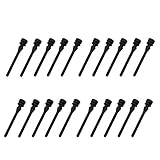
Honbay sells twenty silicone anti-vibration rivets for case or CPU fans. At four mounts per fan, a pack covers five fans, which suits a typical build with a few spare. Exact dimensions are not stated in the title, so confirm the rivet length and hole size on the listing. As with every push-pin design, use all four corners and avoid pulling the head through the frame.
AUEAR 50-Pack Case Fan Silicone Rivets – lots of spares

Fifty silicone rivets will mount about twelve fans, which is far more than one PC needs. The bulk quantity suits a builder who swaps fans often or services several machines. Silicone quality and exact sizing are not described in the title, so confirm on listing, and keep a few spares because small pins do wear. For one build, a smaller pack is enough.
Easycargo 16-Pack Fan Anti-Vibration Pads – dampers for many fan sizes

These silicone pads are listed for 80, 92, 120 and 140 mm fans in a black 16-pack, which is four pads for each of four fans. They sit between the fan and the case and keep the screws, so the fan stays secure while vibration is cushioned. Tighten only until the pad makes contact. They reduce vibration less aggressively than full push-pin isolation; confirm pad thickness on the listing.
Common Mistakes
- Overtightening the screws. Compressed silicone no longer damps well; stop when the fan is snug.
- Expecting them to fix air noise. If the fan is simply loud, lower its speed or choose a quieter model.
- Using only two corners. Two mounts can hold a fan, but four distribute the load and prevent a new rattle.
- Using sagging pins on side-mounted fans. Gravity pulls the fan, so use pads with screws for angled positions.
- Misreading the source. Hard drives, graphics cards and cables cause many “fan” buzzes.
- Mounting the fan backwards. Check the airflow arrow before pulling pins through; undoing four pins is annoying.
Questions
Do anti-vibration mounts reduce fan noise a lot?
They reduce one kind of noise: vibration that the case turns into hum or buzz. Published measurements are scarce, so expect a modest, situational improvement rather than a dramatic change. Air noise from the blades is unaffected.
Are they worth it if my fans are already good?
Often not. Low-speed fans with well-balanced bearings transmit little vibration. They matter most for high-speed fans, thin panels, and builds where you can clearly hear a hum.
Can I use them on radiator fans?
Be careful. Radiator mounting uses longer screws that clamp the fan to the radiator, and soft mounts can loosen the connection. Use the hardware the radiator maker recommends, or pads that are designed for that job.
Will silicone pins hold a fan securely?
They hold well in flat front and rear mounts but are less suited to side- or top-mounted fans, where the fan’s weight can make it sag. Use all four corners and consider pads with screws for angled positions.
Do the pins fit every fan?
They fit standard 5.5 mm corner holes found on common fan sizes from 60 to 140 mm. Slim fans and closed-corner frames need mounts with matching pawls, so check the thickness and corner type first.
Can mounts replace buying quieter fans?
No. They only remove one noise path. A quieter fan lowers both air noise and vibration, while mounts address vibration alone.
Update History
- October 20, 2026 – Updated with specification checks and a revised product comparison.
- Check the product page for current specifications and availability before buying.
Sources
- Noctua NA-SAV4 datasheet
- Noctua fan-installation FAQ as summarized in search results
- SunbeamTech case fan screw and fan-mounting guides
- Silent PC Review vibration damper and damping kit articles
- Silent PC Review and AnandTech forum discussions on rubber grommets versus screws
- Retailer product listings for the five mounting products