Picking a Z790 board in 2026 is less about chasing the newest socket and more about choosing the last great stop on a mature one. LGA 1700 carries 12th, 13th and 14th Gen Intel Core chips, and every board in this guide pairs that socket with DDR5 memory and PCIe 5.0. That means the decision is no longer “will it work” but “which feature set will I still be glad to have when I swap the processor or add a third SSD”.
This guide is for builders who already know they want an unlocked Intel platform and need to separate the boards that spend their budget on power delivery from the ones that spend it on connectivity. We read the listed specs side by side: VRM phase counts, M.2 slot counts, LAN speed, Wi-Fi generation and the USB-C options each title mentions. A budget board with three M.2 slots can beat a premium one for a storage-heavy build, while a K-series Core i9 owner may care far more about the power stage than the Wi-Fi badge.
Our Top Picks
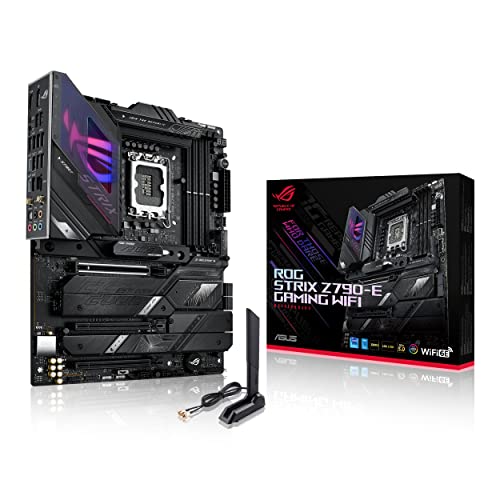 ASUS ROG Strix Z790-E Gaming WiFi 6E LGAZ790-E|M.2 x5|WiFi 6E|ATX10.75 x 3.03 x 13.5 inches0.7 PoundsCheck on Amazon


Top 3 picks at a glance
Quick Picks
As an Amazon Associate we earn from qualifying purchases at no extra cost to you.



| Product | Best for | Key spec from the title |
|---|---|---|
| GIGABYTE Z790 Eagle AX | Balanced mid-range builds | 12+1+1 power phase, 3x M.2, WiFi 6E |
| ASUS Z790-AYW WiFi W II | Clean everyday builds with fast ports | 12+1 DrMOS, 3x M.2, 2.5Gb LAN |
| MSI Z790 Gaming Plus WiFi | Budget gaming rigs | PCIe 5.0, 2.5Gbps LAN, DDR5 |
| MSI PRO Z790-A WiFi II | Heavy CPUs and memory tuning | 80A SPS VRM, DDR5 7800+ MT/s OC |
| ASUS ROG Strix Z790-E Gaming WiFi 6E | Premium flagship-CPU builds | 18+1 power stages, Thunderbolt, WiFi 6E |
| MSI PRO Z790-P WiFi | Lean productivity builds | 2.5Gbps LAN, USB 3.2 Gen2, PCIe 5.0 |
The 6 Best Options
GIGABYTE Z790 Eagle AX
The Eagle AX is the board for a builder who wants the broadest middle of the spec sheet without paying for a flagship badge. The title lists LGA 1700, ATX size, support for 14th, 13th and 12th Gen Core chips, DDR5, a 12+1+1 power phase design, three M.2 slots, PCIe 5.0, a USB-C 3.2 port and WiFi 6E. That is a complete modern feature list for a board that sits below the enthusiast tier, and it is the one most likely to suit a buyer who cannot yet say whether the next processor will be an i5 or an i7.
Strengths
- Three M.2 slots leave room for a boot drive, a game library drive and a scratch drive for projects.
- The 12+1+1 phase layout is a sensible match for a Core i7 class processor.
- WiFi 6E is built in, so a desktop without a cable run still gets a modern wireless link.
Trade-offs
- The listing does not mention Thunderbolt, so docks and fast external storage are limited to USB-C 3.2 speeds.
- The phase count is lower than the flagship picks, so it is a weaker partner for a heavily overclocked top-end chip.
In practice this reads as the safe default for a PC that may change roles over the years: a gaming machine today, a content-creation box later. Nothing in the title forces a compromise on storage or wireless, and the single area where it gives ground is the high-end tuning that only a small share of buyers ever attempt.
Skip it if you plan a Core i9 with sustained all-core workloads and want headroom beyond the mid tier. Compared with the ASUS Z790-AYW next in line, the Eagle AX puts its emphasis on wireless generation and an extra power-stage entry, while the ASUS leans toward wired speed and a fast USB-C port.
ASUS Z790-AYW WiFi W II
This ASUS board targets builders who want a tidy, no-nonsense Z790 build. The title shows the Intel Z790 chipset, LGA 1700, ATX form factor, PCIe 5.0, three M.2 slots, 12+1 DrMOS power stages, DDR5, WiFi 6, 2.5Gb LAN, HDMI and a 10Gbps USB Type-C port. It reads like a board designed around practical connectivity rather than showy extras, which suits a family workstation, a streaming PC or a gaming rig that will not be pushed to extreme clocks.
Strengths
- A 10Gbps USB-C port is mentioned, handy for fast external SSDs and quick backups.
- 2.5Gb LAN covers faster home networks and large file transfers to a NAS.
- DrMOS power stages are named, which is a good sign for stable delivery to mid-range CPUs.
Trade-offs
- WiFi 6 rather than 6E means no access to the 6 GHz band.
- The 12+1 stage count is modest for an unlocked flagship chip pushed hard.
The mention of HDMI on the board is a small but practical detail for anyone running a processor with integrated graphics while waiting for a new graphics card to arrive. Together with the fast USB-C port, it makes this a good fit for a creator who moves files to and from external drives all day.
Skip it if wireless speed on a crowded network matters, because the Eagle AX before it ships with the newer WiFi 6E generation. Against the MSI Z790 Gaming Plus that follows, the ASUS appears to put more of its title into power stages and ports, while the MSI keeps its headline simpler.
MSI Z790 Gaming Plus WiFi
The Gaming Plus is the pick for a first Z790 build where the plan is a mid-range processor, a single graphics card and one or two SSDs. The title confirms support for 14th, 13th and 12th Gen Intel processors, LGA 1700, DDR5, PCIe 5.0, M.2 slots, 2.5Gbps LAN and USB 3.2 ports, along with built-in Wi-Fi in the name. It does not state the board size or phase count, so check the full product page for those before you order a case or pair it with a demanding chip.
Strengths
- PCIe 5.0 and DDR5 are both listed, so the platform is ready for current graphics cards and fast memory kits.
- 2.5Gbps LAN and Wi-Fi give you two solid networking options.
- It is the simplest listing here, which usually translates to a lean, easy-to-read layout for a first-time builder.
Trade-offs
- No power-stage figure appears in the title, so VRM strength is unverified from the listing alone.
- The title does not list Thunderbolt or a 10Gbps USB-C port.
Think of it as the board for someone who values a familiar brand layout and a straightforward feature list over a long spec table. If the plan is a Core i5 and a mid-range graphics card, the missing numbers matter far less than they would on a flagship chip.
Skip it if you want documented VRM numbers up front. The next pick, the MSI PRO Z790-A WiFi II, answers that exact gap with an 80A SPS VRM and explicit memory overclocking support, which makes it the more transparent choice for a power-hungry chip.
MSI PRO Z790-A WiFi II
For a builder with a Core i7 or i9 and a plan to tune memory, this MSI is the most spec-forward board outside the ROG tier. The title lists ATX size, support for 14th, 13th and 12th Gen processors, LGA 1700, an 80A SPS VRM and DDR5 Memory Boost with 7800+ MT/s overclock support. Naming the amperage of the power stages is useful because it gives you a number to compare directly against other boards rather than a vague marketing claim.
Strengths
- 80A SPS power stages are a clear signal that the board is meant for demanding CPUs.
- 7800+ MT/s memory overclock support suits builders chasing faster DDR5 kits.
- The “II” revision and WiFi branding indicate a refreshed board in the PRO line.
Trade-offs
- Memory overclock claims depend on the processor and kit, so a supported speed is not guaranteed on every combination.
- The visible title text does not confirm M.2 slot count or LAN speed, so verify those on the full page.
This is the board to look at when the processor is the expensive part of the build and you want the motherboard to stay out of its way. The explicit amperage and memory speed in the title make it easy to line up against a cooler and a memory kit before you buy anything.
Skip it if you only need a basic office or light gaming build, since the power delivery would go underused. Compared with the ROG Strix Z790-E next, the PRO Z790-A trades a lower stage count and fewer premium extras for a calmer, more focused layout.
ASUS ROG Strix Z790-E Gaming WiFi 6E
The Strix Z790-E is the flagship-class choice for buyers who expect to run a Core i9 and keep the board across several upgrades. The title lists LGA 1700 with 14th, 13th and 12th Gen support, ATX form factor, PCIe 5.0, DDR5, 18+1 power stages, 2.5 Gb LAN, Thunderbolt and WiFi 6E. The 18+1 stage count is the highest on this page, and Thunderbolt is the feature that no other listed board in this group mentions.
Strengths
- 18+1 power stages offer the most headroom for unlocked processors under sustained load.
- Thunderbolt support opens up docks, displays and very fast external drives.
- WiFi 6E and 2.5 Gb LAN give you strong networking choices on either side.
Trade-offs
- It sits in the premium tier, which is more motherboard than a mid-range processor can justify.
- On a modest gaming build, the budget is better spent on the graphics card or cooler.
Buyers who edit video, run virtual machines or connect high-speed external storage will use the extra connectivity more than a pure gamer would. For a gamer, the main appeal is simply knowing that a future processor swap will not outgrow the power delivery.
Skip it if your processor is a mid-range Core i5, because the spare VRM capacity will never be used. Compared with the MSI PRO Z790-P WiFi that closes the list, it sits at the opposite end of the range: the Strix pays for features, the PRO Z790-P pays only for the essentials.
MSI PRO Z790-P WiFi
This is the lean, practical Z790 choice. The title confirms the ProSeries branding, support for 12th, 13th and 14th Gen Intel processors, LGA 1700, DDR5, PCIe 5.0, M.2 storage, 2.5Gbps LAN, USB 3.2 Gen2 and HDMI output. It covers the fundamentals for a work-focused desktop or a straightforward gaming rig, and it is the board that most clearly says “no extras, just the platform”.
Strengths
- It keeps the modern basics: DDR5, PCIe 5.0 and 2.5Gbps LAN.
- HDMI output on the board is useful for troubleshooting with integrated graphics.
- USB 3.2 Gen2 provides fast ports for external storage.
Trade-offs
- No power-stage figure is visible in the title, so heavy overclocking is not the obvious use case.
- The listing does not highlight Thunderbolt or extra M.2 slots.
A build around this board works well when most of the money goes to the graphics card and storage. Pair it with a Core i5 or a lower-power i7, keep the case airflow decent, and the board will quietly do its job for years without needing a firmware fight.
Skip it if you want a showpiece build or plan a heavily tuned Core i9. Among the six, it is the sensible budget-minded option, closing a lineup that opens with the mid-range Eagle AX and ends with the most economical spec sheet.
Who Needs a Z790 Board Instead of Something Cheaper
The Z790 chipset exists mainly for people who want to adjust CPU multipliers and push memory further than lower chipsets allow. If your processor is locked, you may be paying for features you cannot use. The boards here still make sense in those cases when the extra M.2 slots, USB ports and PCIe lanes help, but it is worth being honest about that trade before you commit to a higher tier.
Unlocked K-series owners
Anyone running a K-series chip from the 12th, 13th or 14th generation gets the clearest benefit. These processors can draw serious power under sustained load, and a board with documented power stages like the PRO Z790-A or the ROG Strix keeps voltage steady while you adjust multipliers, power limits and memory timings. If you never open the BIOS tuning pages, a simpler board is enough.
Storage-heavy builders
Video editors, photographers and game collectors often need three or four drives. Boards with three M.2 slots, such as the Eagle AX and the ASUS Z790-AYW, make that possible without adapter cards, and they keep the cable count low in a case with a glass side panel.
Upgraders staying on DDR5
If you want to avoid another platform change when a faster processor arrives, an LGA 1700 board with DDR5 and PCIe 5.0 gives a long runway. It is also a good home for a graphics card upgrade, since the primary slot generation will not hold back a current card. Buyers moving from a 12th Gen chip to a 14th Gen chip on the same board can keep their memory and cooler.
How to Choose a Z790 Motherboard
Match the VRM to the processor
A Core i5 draws far less than a Core i9, so a 12+1 stage design is plenty for mid-range chips. Step up to 12+1+1, 80A SPS or 18+1 stages when you buy an unlocked i7 or i9, especially if you run long renders, compile jobs or sustained gaming sessions. Look for named parts such as DrMOS or SPS rather than a bare phase count, because the quality of each stage matters as much as the number. A board with a heatsink covering the VRM area is a good sign; a bare strip of components under a thin plate is not.
As a rough rule, treat a mid-range Core i5 as comfortable on any board here, a Core i7 as comfortable on the 12+1+1 and 80A SPS designs, and a Core i9 as the case where the 18+1 Strix and the 80A PRO Z790-A earn their place. Case airflow and cooler choice change the picture as much as the board does.
Count M.2 slots, not just PCIe 5.0 labels
PCIe 5.0 on the graphics slot is nice, but most users end up needing more drive slots than lanes. Three M.2 slots is a good target for a gaming or editing build. Check whether the top slot connects directly to the CPU, because that slot usually gets the fastest link, and read the manual for slots that disable SATA ports when populated. Look for M.2 heatsinks as well, since fast drives throttle when they run hot.
Plan the layout before buying: a long graphics card can cover the upper M.2 slot, and a second drive installed under it may run warm. Keeping the busiest drive in the slot with the best airflow is a free improvement that needs no extra parts.
Check networking and USB-C
2.5Gb LAN is now a baseline and appears across the boards here. WiFi 6E adds the 6 GHz band, while WiFi 6 is fine for a wired desktop. A 10Gbps USB-C port or Thunderbolt matters only if you actually own fast external drives or docks. Count the rear USB ports against your keyboard, headset, capture card and webcam needs, because front-panel USB-C headers also depend on your case.
Verify CPU and BIOS support
Titles for these boards list 12th, 13th and 14th Gen support, but a board on a shelf may ship with an older BIOS. Intel has also released microcode updates for 13th and 14th Gen chips, so plan to update the BIOS soon after the build is running. A flash-back button or a spare older chip makes first boot less stressful, and the manufacturer support page lists the exact BIOS version needed for each processor. Do not interrupt a firmware update once it has begun, and use a stable power source while it runs.
Choose memory with the board’s limits in mind
All six boards use DDR5. Check the validated memory speed on the manufacturer page and avoid assuming that a headline overclock figure applies to every kit. Two modules are easier to run at higher speeds than four, and a capacity of 32 GB is a comfortable level for gaming and light editing, with 64 GB reserved for large projects and virtual machines.
Where budget boards cut corners
Entry boards typically trim power stages, heatsink coverage, M.2 heatsinks, rear I/O and extra fan headers. None of these cuts matter with a mid-range chip, but they add up in a hot case with a high-end processor. Ignore RGB claims and packaging language, and focus on the numbers in the listing. Also ignore a long list of “gaming” badges that do not map to a measurable spec such as stage count, slot count or LAN speed.
Z790 vs B760: The Comparison Most Buyers Face
Many shoppers looking at this page are really deciding between a Z790 board and a cheaper B760 board. The chipset names differ, but what you give up in practice comes down to a short list. The table below sums up the differences that affect a typical gaming or productivity build.
| Factor | Z790 | B760 |
|---|---|---|
| CPU multiplier overclocking | Supported on K-series chips | Not supported |
| Memory overclocking | Supported | Supported on many boards |
| Chipset lanes and USB ports | More available | Fewer available |
| Typical power delivery | Stronger on mid and high boards | Lighter on most boards |
| Best match | Unlocked i7 and i9, storage-heavy builds | Locked i5 and i3, simple builds |
When Z790 earns its place
Choose Z790 if you own a K-series chip and intend to adjust it, or if you need many drives and fast USB ports. The extra connectivity helps even without overclocking, and boards like the Eagle AX keep that connectivity at a mid-range level. Z790 also makes sense when you want the stronger power delivery that mid and high boards in this group list, such as the 80A SPS VRM on the PRO Z790-A.
When B760 is the smarter move
If your processor is locked and your storage needs are simple, B760 saves money that can go toward a better graphics card or cooler. A B760 board with DDR5 and a couple of M.2 slots is enough for most gaming rigs. Compare the cost gap against the features you would truly use before deciding, and remember that in a game, the graphics card usually matters more than the chipset. Another question to ask is how long you plan to keep the board, since a longer horizon favors the extra slots and ports that Z790 offers.
Setup, Compatibility and Upgrade Tips
What to check before buying
Confirm the case supports ATX, confirm the cooler mounts on LGA 1700, and confirm your memory is DDR5. The MSI Z790 Gaming Plus title does not state its board size, so verify that before ordering a compact case. Also confirm that the board supports your exact processor generation out of the box, and check that your power supply has an 8-pin CPU connector, with a second one for the heavier boards.
What to upgrade first
Update the BIOS right after the first successful boot, then enable the XMP or EXPO profile for your memory. Next, set a sensible power limit in the BIOS for your processor and make sure the fan curves match your cooler. These changes cost nothing and often matter more than a pricier board, and they reduce heat in a small case.
Common compatibility traps
The biggest trap is mixing DDR4 memory or older coolers from a previous platform. DDR5 modules are not interchangeable with DDR4, and an older cooler may need a different bracket. Another is filling every M.2 slot without reading the manual, since some slots share bandwidth with SATA ports. Finally, check that your power supply has the right connectors for a modern graphics card and that the board leaves room above the first slot for your CPU cooler fans. Tall memory heatsinks can also collide with large air coolers, so compare clearance figures before you commit to either part.
Which One Fits Your Situation
You have a Core i9 and want room to push it
The ASUS ROG Strix Z790-E Gaming WiFi 6E is the natural choice, with 18+1 power stages and Thunderbolt for docks and fast external drives. Match it with a strong cooler and a power supply sized for the chip, and the board will not be the limiting part.
You want strong power delivery without flagship spending
The MSI PRO Z790-A WiFi II fits, thanks to its 80A SPS VRM and DDR5 Memory Boost support for faster kits. It suits someone with a Core i7 who wants documented power numbers and a path to tune memory.
You are building a first gaming PC on a tight budget
The MSI PRO Z790-P WiFi or the MSI Z790 Gaming Plus WiFi give you DDR5, PCIe 5.0 and 2.5Gbps LAN without extras you may not use. Put the savings into the graphics card and an SSD with enough capacity.
You need lots of storage and balanced connectivity
The GIGABYTE Z790 Eagle AX with three M.2 slots and WiFi 6E suits you, and the ASUS Z790-AYW WiFi W II is a close alternative if a 10Gbps USB-C port matters more. Both give you room to grow storage over time.
Common Mistakes
- Buying a Z790 board for a locked processor and never using the overclocking features.
- Ignoring VRM quality and pairing a high-power Core i9 with a bare-minimum power design.
- Assuming DDR4 memory or old coolers will carry over to an LGA 1700 DDR5 board.
- Skipping the BIOS update, which leaves the build on older microcode.
- Filling every M.2 slot without checking which ones share bandwidth with SATA ports.
- Paying for Thunderbolt or WiFi 6E when the build is wired and has no matching devices.
Related guides
- Sustainable Gaming Pc Power Supply Efficiency Guide
- Noctua Nh-D15 Vs Thermalright Peerless Assassin 120
- Thermal Paste Application Method For Lga1851
Frequently Asked Questions
Do all of these boards support 14th Gen Intel Core processors?
The titles for all six list support for 12th, 13th and 14th Gen processors. Boards can ship with older firmware, so plan for a BIOS update during setup.
Is DDR5 required on Z790 boards?
The boards in this guide all list DDR5, and DDR5 modules do not fit DDR4 slots. Some Z790 boards exist with DDR4, but those are not part of this roundup.
How many M.2 slots do I need?
Three is a comfortable target for a gaming or editing build, giving you a system drive plus two for storage. The Eagle AX and ASUS Z790-AYW both list three.
Is WiFi 6E worth it on a desktop?
WiFi 6E helps if your router supports the 6 GHz band and you have no easy cable path. If you can plug in the 2.5Gb LAN port, WiFi matters much less.
Which board suits an overclocked Core i9?
Look to the ASUS ROG Strix Z790-E with 18+1 power stages, or the MSI PRO Z790-A with an 80A SPS VRM. Pair either with a strong cooler.
Can I use PCIe 5.0 storage and graphics today?
The boards list PCIe 5.0 support, which future-proofs graphics and storage options. Many current cards and drives run at PCIe 4.0, which works fine on these boards.
Final Words
The right Z790 board comes down to three questions: how hard will you push the processor, how many drives will you add, and how much connectivity do you truly use. The ROG Strix Z790-E and the MSI PRO Z790-A cover demanding chips, the Eagle AX and the ASUS Z790-AYW suit balanced builds, and the two MSI budget boards handle simple rigs well. Check the full listing for the details missing from each title, update the BIOS on day one, and match the board to the processor you already own. Spend extra only on the features you will actually plug something into.