You expect noise from CPU and case fans, but a high-pitched whine coming from a tiny fan low on the motherboard catches many people off guard. That is the chipset fan, found mostly on higher-end AMD X570 and some X670/X870 and workstation boards, and when it gets loud there are a handful of usual causes and fixes.
As an Amazon Associate we earn from qualifying purchases at no extra cost to you.
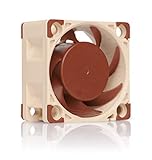
What the chipset fan is and why it exists
The chipset is a controller hub that manages connectivity like PCIe lanes, USB, and storage. Most chipsets are passively cooled with just a heatsink, but the more power-hungry ones, notably AMD’s X570 with PCIe 4.0, run hot enough that manufacturers added a small active fan. Because these fans are tiny, often 40mm or so, they spin fast to move enough air, and small high-RPM fans are inherently whiny. That is why the chipset fan is often the most annoying noise source in an otherwise quiet build.
Common reasons it gets loud
A chipset fan turns loud for predictable reasons. Dust clogs the tiny blades and bearing, an aggressive stock fan curve spins it high even when cool, the small bearing wears out and starts buzzing or clicking, or the fan ramps because the chipset genuinely runs warm due to heavy storage and PCIe activity.
| Cause | Symptom | Fix difficulty |
|---|---|---|
| Dust buildup | Gradual worsening whine | Easy |
| Aggressive fan curve | Loud even at idle | Easy (BIOS) |
| Worn bearing | Rattle, click, grind | Moderate (replace) |
| High chipset load/heat | Ramps under disk/PCIe use | Airflow tuning |
How to quiet it down
Start with the easy wins. Blow the dust out of the little fan with compressed air, since even a small amount of grime dramatically raises noise on a tiny high-RPM fan. Then check your BIOS for a chipset fan curve setting; many boards let you set it to a quieter or silent profile that only spins the fan up when the chipset actually heats up. Lowering the curve while keeping temperatures safe is often all it takes.
When to replace or bypass it
If the bearing is worn, no curve tweak will silence a fan that has started to grind or rattle, and it will only get worse. The fix is replacement. Some enthusiasts swap the noisy stock chipset fan for a quieter aftermarket cooler or a small passive heatsink solution, or improve case airflow so a lower fan speed keeps the chipset cool. Ensure good airflow near the lower PCIe area, since a well-ventilated case lets the chipset fan idle low or stay off entirely.
| Step | Action |
|---|---|
| 1 | Clean dust with compressed air |
| 2 | Set a quieter chipset fan curve in BIOS |
| 3 | Improve airflow over the lower board |
| 4 | Replace worn fan or fit aftermarket cooler |
FAQ
Is it safe to slow down or stop my chipset fan?
You can safely lower the fan curve as long as you watch chipset temperatures, which many boards report. Keeping the chipset comfortably cool at a quieter speed is fine. Fully disabling the fan risks overheating under heavy PCIe or storage load, so only do that with a proper passive replacement and good airflow.
Do all motherboards have a chipset fan?
No. Most boards cool the chipset passively with a heatsink and make no noise. Active chipset fans appear mainly on higher-end platforms with hotter chipsets, such as AMD X570. If your board has one and it is loud, the causes and fixes above apply.
Preventing the noise from coming back
Once you have quieted the fan, keep it that way with a little upkeep. Because the chipset fan is tiny and low in the case, it collects dust quickly, so include it in your regular cleaning and give it a blast of compressed air every few weeks. Ensure the lower PCIe area has some airflow, since a fan that stays cool spins slower and quieter, and a graphics card sitting directly above can choke it. If your board lets you, set a gentle curve that keeps the fan near silent until the chipset genuinely warms under heavy storage or PCIe activity.
Bottom line
A loud chipset fan is almost always dust, an overly aggressive stock fan curve, or a worn bearing on the tiny high-RPM fan found on hotter chipsets like X570. Clean it, set a quieter curve in BIOS while monitoring temps, and improve airflow near the lower board. If it has started to grind, replace it or fit an aftermarket cooler, and your build goes back to quiet.