Open Armoury Crate, click Fan Xpert, run Auto Tuning once, then switch a fan to Smart Mode and drag the red points on the curve until the fan stays near its minimum below about 50 degrees C and climbs steadily after that. This guide covers desktop ASUS and ROG motherboards, where Fan Xpert sits inside Armoury Crate, and it explains temperature sources, smoothing, AI Cooling and what to do when a curve refuses to stick.
Our Top Picks


Top 3 picks at a glance
Quick Answer
- Menu path: Start menu, Armoury Crate, Fan Xpert. The preset modes (Silent, Standard, Turbo, Full Speed) are also reachable from the Fan Speed module in the Control Panel section.
- First step: click Auto Tuning so the software learns the minimum and maximum speed of every fan on the board’s headers. Extreme Quiet Mode cannot be switched on until this has been done.
- Curve style: use Smart Mode and drag the red points. A gentle S-shape works for most cases: flat and quiet at low temperatures, a steeper climb through the 60s and 70s, then full speed near the top.
- Temperature source: click the temperature source icon on each fan. You can pick up to three sources and the fan follows the hottest one.
- Smoothing: raise the Fan Acceleration Time and Fan Deceleration Time so short load spikes do not make the fans surge.
What You Need
- A supported board. ASUS states that Fan Xpert inside Armoury Crate is supported on Intel 600 series and AMD AM5 series motherboards and newer. Older boards use the separate Fan Xpert 4 utility instead, so the screens in this guide will look different there.
- Armoury Crate installed and current. It needs Windows 10 RS3 or later and a steady network connection for the initial install and updates.
- Fans plugged into the motherboard. Fan Xpert only controls fans on the board’s own headers (CPU_FAN, CHA_FAN and similar). Fans wired to a separate hub, an RGB controller or a GPU are outside its reach.
- The right connector type. A 4-pin PWM fan changes speed through a control signal. A 3-pin fan changes speed through voltage, so the header has to be set to DC mode for it. Mismatched modes are the most common reason a fan sits at one speed.
- Header current limits. Check the amp rating in your board manual before using a splitter. The Thermalright TL-C12C series lists 0.20 A per fan, so five draw roughly 1.0 A together.
Step-by-Step Fan Curve Setup in Armoury Crate
1. Open Fan Xpert and run Auto Tuning
- Open the Start menu and launch Armoury Crate.
- Click Fan Xpert. The fans detected on your headers are listed, each with its current speed.
- Click Auto Tuning. The system spins the fans through their range automatically and shows a completion message. Expect the fans to get loud for a short time.
- If you only want a quick result, choose one of the four presets afterwards: Silent, Standard, Turbo or Full Speed.
Auto Tuning matters because the lowest speed a fan can hold varies from model to model. For example, one 1,700 RPM model lists a minimum around 450 RPM, about 26 percent of its maximum, so a 15 percent point on the graph cannot be honored by that fan.
2. Choose the temperature source for each fan
Click the temperature source icon next to a fan. A menu lists the available sensors, and ASUS says you can select a maximum of three, with the fan speed following the highest temperature among them. This is more useful than it sounds:
- Front intake fans: pick a GPU-related sensor if your board exposes one, plus the CPU.
- Rear and top exhaust fans: pick the CPU sensor and a motherboard or VRM sensor so the exhaust ramps when heat builds anywhere in the case.
- Radiator or CPU cooler fans: use the CPU sensor on its own, so they respond directly to the heat they are removing.
Third-party guides note that chassis headers on many ASUS boards default to the motherboard sensor, so open the menu and check what is ticked. Sensor names vary by board and BIOS version.
3. Draw the curve in Smart Mode
Select Smart Mode for the fan. The graph shows temperature along the bottom and fan power up the side. ASUS describes the control simply: click and drag the red button to adjust the power at which the fan runs at different temperatures. Use the table below as a starting point, then adjust after watching real temperatures.
| Goal | Around 40 C | Around 60 C | Around 75 C | Around 85 C |
|---|---|---|---|---|
| Quiet desktop and office work | Lowest stable speed | 35 to 40 percent | 65 percent | 100 percent |
| Balanced daily use and gaming | 25 to 30 percent | 45 to 55 percent | 75 percent | 100 percent |
| Cooling first, noise second | 35 percent | 60 percent | 85 percent | 100 percent |
These are suggested starting values rather than manufacturer limits. Different CPUs and graphics cards tolerate different temperatures, so check your own processor’s published maximum and keep the top of the curve well below it.
4. Smooth the response
In Smart Mode, the Fan Acceleration Time and Fan Deceleration Time settings stretch out how quickly the speed changes. ASUS includes them to prevent drastic fan speed changes in a short period. Longer times remove the rising and falling whine when a loading screen briefly pushes the CPU hot. If the fans react too slowly during a long render, shorten the acceleration time.
5. Decide on AI Cooling, Extreme Quiet Mode and Fan Stop
- AI Cooling: ASUS says enabling it reduces the speed of all fans to lower system noise without affecting current performance once the system reaches a stable load state. It also overrides Extreme Quiet Mode, so choose one or the other.
- Extreme Quiet Mode: lowers fan speed to cut noise, and only becomes available after Fan Tuning has run.
- Fan Stop: with Extreme Quiet Mode on, this stops a fan automatically when its speed would be very low. It is fine for case fans in a cool room, but leave the CPU cooler running unless your cooler is designed for passive operation.
- Fixed RPM: drag the arrow to hold one constant value, the right choice for a pump or a fan that must never pause.
6. Save, then check under load
- Apply the profile and leave Armoury Crate open while you run a CPU-heavy task and a game for 15 to 20 minutes.
- If the live marker on the graph sits on a steep section of the curve, flatten that section to stop constant speed changes.
- Reboot, then confirm the same curve is active. A curve that disappears at restart is a sign of the problems listed below.
BIOS Q-Fan as a Backup
You can also set the curves in the UEFI. Enter the BIOS with Delete or F2 at startup, switch to Advanced Mode (F7), and open the Q-Fan configuration under the Monitor section. The exact labels depend on the board generation. A few facts from ASUS BIOS manuals are worth knowing:
- Q-Fan Tuning detects the lowest speed of each fan and sets the minimum duty cycle, much like Auto Tuning in Armoury Crate.
- The CPU fan control mode can be Auto, PWM Mode (for 4-pin fans) or DC Mode (for 3-pin fans).
- Fan Speed Low Limit is only a warning threshold. The options are Ignore, 200, 300, 400, 500 and 600 RPM. It does not set a speed.
When Armoury Crate is installed and running, user reports on ASUS and Steam forums say it takes over from the BIOS profile. If you want the BIOS curve to rule, set Armoury Crate’s profile back to default or remove the software with the official uninstaller tool from the ASUS support page for your board.
If It Does Not Work
- Fan Xpert is missing or the fan list is empty. Confirm your board is in the supported list and update Armoury Crate and the BIOS. Users also point to the ASUS System Control Interface driver being absent when the fan tab does not appear.
- A fan runs at full speed no matter what. Check that the header mode matches the fan: PWM for 4-pin, DC for 3-pin. Also check that the fan is not plugged into a header that is set to Full Speed in a preset.
- The fan will not go below a certain speed. That is the stall limit found by Auto Tuning. Do not fight it. Fans such as the Arctic P12 PWM PST list a 0 RPM state below 5 percent PWM, but most fans keep spinning at their minimum.
- A POST warning about fan speed appears. Lower the Fan Speed Low Limit or set it to Ignore in the BIOS, because a quiet profile can fall under a warning threshold.
- Curves reset after a reboot. Make sure Armoury Crate starts with Windows, re-save the profile, and check whether Fast Startup is interfering. Several forum threads describe profiles not saving.
Gear That Helps
New fans are optional, but old or bargain fans are often the reason a curve sounds bad: a poor bearing or a high minimum speed limits how quiet you can go. Specs below come from the makers’ pages; confirm the exact version and pack size on the listing.
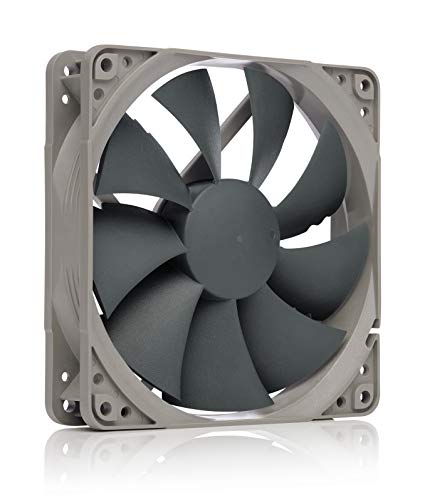
Noctua NF-P12 redux-1700 PWM – a quiet all-rounder
As an Amazon Associate we earn from qualifying purchases at no extra cost to you.

A 120 mm, 25 mm thick, 4-pin PWM fan with an SSO bearing. Noctua lists a top speed of 1,700 RPM, 25.1 dB(A) at maximum and 2.83 mm H2O of static pressure, which suits radiators and dust filters. A retailer lists a minimum around 450 RPM, and an independent write-up found it keeps spinning at 0 percent PWM, so do not expect a Fan Stop state. Sources disagree on airflow figures, so confirm on the listing.
ARCTIC P12 5-pack – budget quiet airflow for a whole case

The P12 PWM PST is a pressure-optimised 120 mm fan with a stated range of 200 to 1,800 RPM, 56.3 CFM, 2.2 mm H2O and a fluid dynamic bearing. It can drop to a standstill below 5 percent PWM, which pairs well with Fan Stop. The PST cable lets several fans share one header’s control signal. Check that the five-pack you buy is the PWM version.
Thermalright TL-C12C X3 – a low-cost PWM option

Thermalright lists 1,550 RPM at plus or minus 10 percent, 66.17 CFM, 1.53 mm H2O, 25.6 dBA, 0.20 A and an S-FDB bearing in a 120 by 25 mm frame. It is a 3-pack, so it suits a full intake or exhaust set. Its pressure is lower than the Noctua or Arctic, so it fits open mesh fronts better than dense radiators. Retailer pages sometimes quote 1,500 RPM, so confirm on the listing.
Thermalright TL-C12C X5 – the five-pack unlit version

The same fan family without lighting, sold five to a pack, with the same listed specifications as the X3. Skipping lighting avoids an extra cable and header. One parts-listing site mixes this model with the ARGB variant, so check the images and title before ordering.
Thermalright TL-C12C-S 5-pack ARGB – if you want lighting too

This is the ARGB variant with the same 4-pin PWM fan plus a separate 3-pin 5V addressable lighting connector. Fan Xpert only governs speed, so the lighting needs a compatible ARGB header and its own software or BIOS setting. Do not plug the lighting lead into a 12V RGB header. Confirm connector types on the listing.
Common Mistakes
- Skipping Auto Tuning. Without it the graph can promise speeds the fans cannot hold.
- Setting a tiny gap between curve points. Points a few degrees apart make the fan hunt up and down. Spread them out and add acceleration time.
- Putting a pump on a temperature curve. Pumps and AIO fans belong on a fixed or very flat setting. A pump that stops is a cooling failure.
- Running both BIOS and Armoury Crate profiles. Pick one controller and leave the other at default.
- Forgetting header mode. A 3-pin fan on a PWM-only setting often runs flat out.
Questions
Does Armoury Crate need to run in the background for the curve to work?
ASUS’s documentation does not say how settings persist when the software is closed. In practice, user reports suggest the profile is applied by the Armoury Crate software and services after Windows loads, and that the BIOS profile applies before that. Keep it installed and set to start with Windows, then confirm after a reboot.
Why will my fan not go below a certain speed?
Each fan has a minimum speed where it can still turn reliably. Auto Tuning in Fan Xpert and Q-Fan Tuning in the BIOS both look for that point. Models with a stop feature, like the Arctic P12 PWM PST, can go lower, but most fans cannot.
Will a custom fan curve void my warranty?
Changing fan curves inside the supported ASUS software is a normal feature and is not an overclock. Warranty terms differ by region and seller, so read the terms for your board rather than trusting a blanket claim.
Is Fan Stop a good idea?
For case fans in a cool room it is quiet and reasonable. Avoid it on CPU coolers, radiators and fans that feed a hot graphics card.
Which is better, the BIOS curve or Armoury Crate?
The BIOS curve loads before Windows and needs no software. Armoury Crate is easier to edit and shows live temperatures. If the two conflict, choose one controller.
Update History
- October 20, 2026 – Updated with specification checks and a revised product comparison.
- Check the product page for current specifications and availability before buying.
Sources
- ASUS support: Introduction to Fan Xpert 4 in Armoury Crate
- ASUS support: Armoury Crate (Ver 5.0) introduction
- ASUS PRIME Z490-A BIOS manual, Q-Fan Configuration section
- Noctua NF-P12 redux-1700 PWM specifications page
- ARCTIC P12 PWM PST product specifications
- Thermalright TL-C12C X3 and X5 product pages
- ROG forum, Steam community and TechSpot user threads on Armoury Crate fan control behavior