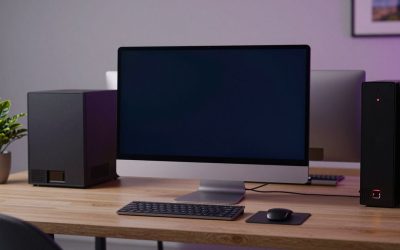
Picture a 4K timeline with color grading, noise reduction and a few overlays: that job needs a CPU with plenty of cores, a graphics card with real video memory, 64GB of RAM and a fast NVMe drive. The two CPU Solutions towers are the listings that match that profile most directly, the HP Envy with a Core i9-14900K is the high-clock alternative, and the rest are lighter, cheaper or older machines that suit proxy workflows and HD projects. Prices move daily, so check the listing for the current figure and for what is actually in the box. Specs below are the sellers’ own claims, and several titles leave out key details.
Our Top Picks
 HP Workstation PC Desktop Computer3.7 x 11.4 x 11.5 inches11.4 x 3.7 x 11.5 Inches11.57 PoundsCheck on Amazon
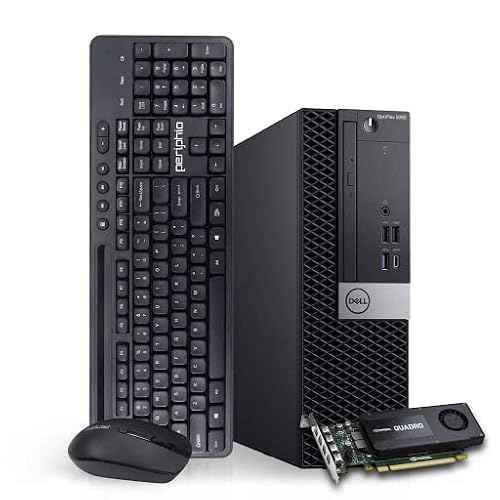 Dell Workstation PC Desktop Computercore i5 | 16GB RAM3.6 x 11.5 x 11.4 inches11.6 poundsCheck on Amazon
Top 3 picks at a glance
Quick picks
As an Amazon Associate we earn from qualifying purchases at no extra cost to you.


- CPU Solutions VidCore (Core Ultra 9 285K) – best for heavy 4K and 8K timelines
- CPU Solutions Express (Ryzen 9 9950X) – best compact tower with 16GB of video memory
- HP Envy (Core i9-14900K, 4TB SSD) – best for storage-hungry projects, GPU model unclear
- HP Tower (Core i5-12500, 64GB) – best low-cost RAM-rich box for proxy editing
- Dell Tower (Core i5-12500, 64GB) – the Dell twin of the HP, same trade-offs
- STGAubron Gaming PC (GTX 1660S) – best entry GPU-assisted option for HD and light 4K
- Dell OptiPlex 7050 SFF (i7-7700, renewed) – best bargain for simple HD cuts
- HP Workstation (Quadro K1200, renewed) – best for large footage libraries on a budget
Side by side
| Model | Type | Key specs as stated in the title | Best for |
|---|---|---|---|
| CPU Solutions VidCore | Tower | Core Ultra 9 285K, 24-core, 64GB, 2TB NVMe, Quadro RTX 2000 ADA | 4K and 8K timelines |
| CPU Solutions Express | Mini tower | Ryzen 9 9950X 16-core, 64GB DDR5, 2TB NVMe, RTX 2000 Ada 16GB, Windows 11 Pro | 4K editing, compact |
| HP Envy Desktop | Consumer tower | Core i9-14900K, 64GB, 4TB SSD, RTX 8GB GDDR6 (model unnamed), Windows 11 Pro | Big project storage |
| HP Tower Desktop | Business tower | Core i5-12500, 64GB DDR4, 1TB SSD, Windows 11 Home; no GPU named | Proxy editing, HD |
| Dell Tower Desktop | Business tower | Core i5-12500, 64GB DDR4, 1TB SSD, Windows 11 Home; no GPU named | Proxy editing, HD |
| STGAubron Gaming PC | Gaming tower | Core i7 (model unnamed), GTX 1660S 6GB, 32GB, 1TB SSD, Windows 11 Home | HD and light 4K |
| Dell OptiPlex 7050 SFF | Renewed small desktop | Core i7-7700 4-core, 32GB DDR4, 1TB SSD, Windows 11 Pro | Simple HD cuts |
| HP Workstation (K1200) | Renewed desktop | Core i5, 32GB DDR4, 1TB SSD + 4TB HDD, Quadro K1200 4GB | Footage libraries |
The eight desktops in detail
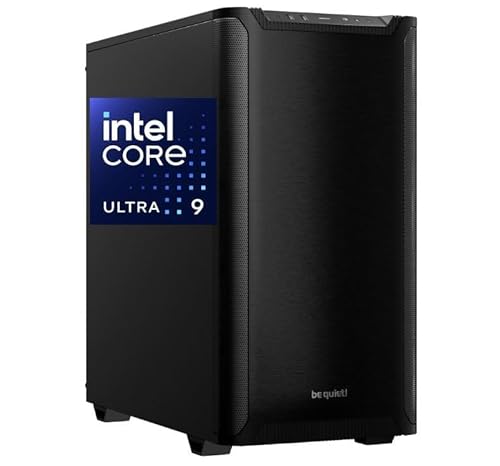
CPU Solutions VidCore Core Ultra 9 Video Editing PC
Built and named for editing: a Core Ultra 9 285K (the title says 24 cores and up to 5.7GHz), 64GB of RAM, a 2TB NVMe drive and a Quadro RTX 2000 ADA. The title pitches it at HD, 4K and 8K editing and 3D modeling. A 24-core processor is the best fit here for software that scales across cores, such as encoding and multi-layer effects, and the professional-class card brings drivers aimed at editing and design software.
The title does not name the RAM type, the video memory of the card or the operating system, so confirm all three on the listing. At this level a 64GB, 2TB package is a comfortable starting point rather than a ceiling; heavy 8K work or After Effects-style compositing would benefit from more RAM later.
Pros
- 24-core CPU suits exports and heavy timelines
- Pro-class graphics card with editing-oriented drivers
- 2TB NVMe for active projects
Cons
- RAM type, VRAM and operating system are not stated
- Specialist builder, so check warranty terms
Who it’s for: professional editors on 4K and 8K timelines who want a ready-built machine.
Who should skip it: casual editors, or anyone on a tight budget.
CPU Solutions Express 4K Video Editing PC (Ryzen 9 9950X)
The Express pairs a 16-core Ryzen 9 9950X (listed at 5.7GHz) with 64GB of DDR5, a 2TB NVMe drive, Windows 11 Pro and a Quadro RTX 2000 Ada with 16GB of video memory, in a mini tower. Sixteen gigabytes of VRAM is useful headroom for 4K color grading with several nodes and GPU-accelerated noise reduction.
Compared with the VidCore, it has fewer cores but a clearer spec sheet: DDR5, a stated VRAM figure and an operating system edition. A mini tower is easier to place than a full tower, but check the power supply and cooling, since a 16-core chip at full clock produces heat in a small case. Storage is 2TB; archive footage will need an external or second drive. Ask whether the free slots allow a second NVMe drive.
Pros
- 16GB of video memory is generous for color work
- DDR5 and Windows 11 Pro stated
- Compact mini tower
Cons
- Small case limits upgrades and cooling headroom
- 2TB fills quickly with 4K footage
Who it’s for: editors and colorists who want a tidy, complete 4K machine.
Who should skip it: those who want the most cores or lots of internal drives.
HP Envy Desktop with Core i9-14900K and 4TB SSD
A consumer-line HP Envy desktop with a Core i9-14900K (the title gives 3.20GHz with turbo to 6.00GHz), 64GB of RAM, a 4TB SSD, Windows 11 Pro and an “NVIDIA GeForce RTX 8GB GDDR6”. That graphics description names no model, so we do not know whether it is a recent or older card; confirm before relying on it. The title also calls it a “Business Computer”, which is an odd label for a consumer line.
The 14900K is a high-clock chip, great for timeline responsiveness and exports, but it runs hot, so cooling and power supply quality matter; the listing says nothing about either. Four terabytes of SSD is a standout for footage-heavy projects. This is also a third-party configuration, so ask who stands behind the warranty.
Pros
- 4TB SSD holds a lot of footage
- High-clock processor, 64GB of RAM
- Windows 11 Pro installed
Cons
- GPU model not named
- Cooling and power supply not described
- Consumer chassis, confusing title wording
Who it’s for: editors with storage-heavy projects who can verify the GPU before buying.
Who should skip it: colorists or effects artists who need a known professional card.
HP Tower Desktop with Core i5-12500 and 64GB RAM
Marketed for office work, coding, remote work and video and photo editing: a Core i5-12500, 64GB of DDR4, a 1TB SSD and Windows 11 Home. No discrete graphics card is named, so assume the processor’s integrated graphics. Intel’s integrated graphics include Quick Sync video hardware, which some editing programs use to decode H.264 and HEVC footage, so check that your editor supports it.
The 64GB of RAM is generous for the price tier, but the six-core chip and integrated graphics will struggle with heavy 4K effects and noise reduction. It is best as a proxy-editing or HD workstation where you work on small stand-in files and render the final output. Windows 11 Home also lacks some Pro features, which matters if you plan remote administration.
Pros
- 64GB of RAM at a low-cost tier
- Quick Sync hardware may help with some footage
- 1TB SSD for active projects
Cons
- No discrete GPU named
- Windows 11 Home, not Pro
- Limited for heavy 4K effects
Who it’s for: beginners and students editing HD or proxy 4K.
Who should skip it: colorists, effects artists and anyone working natively with demanding footage.
Dell Tower Desktop with Core i5-12500 and 64GB RAM
The Dell version has the same headline spec as the HP above: a Core i5-12500, 64GB of DDR4, a 1TB SSD and Windows 11 Home, again with no graphics card named. The two titles share the same office-and-editing wording, so treat them as sibling listings from the same seller style rather than distinct designs.
What differs is the brand’s chassis and service: Dell and HP towers vary in drive bays, power supply size and upgrade options, none of which the titles describe. If you plan to add a graphics card later, check the power supply wattage and connectors first. Choose between them on the warranty and return terms on each listing. Because neither title names a graphics card, a buyer who wants GPU effects should budget for one, and a quick look at the power supply label or the seller’s photos can save a return.
Pros
- 64GB of RAM
- 1TB SSD
- Familiar business-class tower format
Cons
- No discrete GPU named
- Chassis and power supply details missing
- Windows 11 Home
Who it’s for: buyers who prefer Dell and want a RAM-rich base to upgrade.
Who should skip it: anyone who needs a graphics card built in.
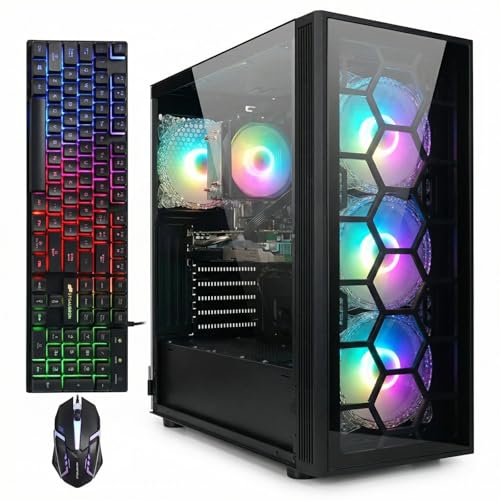
STGAubron Gaming PC with GTX 1660S and 32GB RAM
A gaming tower marketed for streaming and video editing: a Core i7 (the model is not given, only “up to 3.9G”), a GTX 1660S with 6GB, 32GB of RAM, a 1TB SSD, ARGB fans, Wi-Fi, Bluetooth 5.0 and Windows 11 Home. If “1660S” means the GTX 1660 Super, that card has Nvidia’s Turing hardware encoder, which helps exports in some applications, but 6GB of video memory is small for 4K color work.
An unnamed i7 is the main gap; the generation decides how fast it exports and whether Windows 11 is supported. Gaming cases focus on lighting rather than quiet or dust control, which can matter during long exports. It makes sense for HD editing, short-form video and learning, not for demanding 4K projects. Ask the seller for the exact processor model and check whether the 32GB is two matched modules, since a single module would run slower.
Pros
- Dedicated GPU at a low price
- 32GB of RAM and 1TB SSD
- Wi-Fi and Bluetooth included
Cons
- Core i7 model not named
- 6GB of video memory is limiting for 4K
- Windows 11 Home
Who it’s for: creators making HD and short-form videos who also game.
Who should skip it: colorists and 4K editors.
Dell OptiPlex 7050 SFF with Core i7-7700 (Renewed)
A renewed small-form-factor business PC with a four-core Core i7-7700 at 3.60GHz, 32GB of DDR4, a 1TB SSD, Wi-Fi, Bluetooth, HDMI, dual monitor support and Windows 11 Pro. “Excellent Condition” is the seller’s claim, not a guarantee. The i7-7700 is a seventh-generation chip, and generally older than Microsoft’s Windows 11 support list, so verify the licensing and update status.
This is the weakest editing machine on the list: four cores, integrated graphics and a small chassis that limits upgrades. It can handle simple HD cuts, proxy workflows and a basic editing course. Do not expect smooth 4K playback, and avoid heavy effects. Small-form-factor business PCs like this usually accept only low-profile graphics cards, so a meaningful GPU upgrade is unlikely. If you do buy it, create low-resolution proxies of your footage so the timeline stays responsive, and keep the project on the SSD. Check the renewed grading and the seller’s return window before you commit.
Pros
- Low entry cost
- 32GB of RAM and 1TB SSD
- Compact footprint, dual monitor support
Cons
- Seventh-generation processor
- Integrated graphics only
- Windows 11 eligibility questionable
Who it’s for: students and hobbyists cutting simple HD videos.
Who should skip it: any 4K work or effects-heavy editing.
HP Workstation PC with Quadro K1200 (Renewed, 32GB, 1TB SSD + 4TB HDD)
A renewed HP workstation listed with a Quadro K1200 4GB, an Intel Core i5 (generation unspecified), 32GB of DDR4, a 1TB SSD plus a 4TB hard drive, Wi-Fi, Bluetooth and Windows 11 Pro. The K1200 is an older professional card, and the missing processor generation is a real gap, since it decides export speed.
The storage layout is the sensible part: SSD for the active project and cache, hard drive for the footage library. Treat the listing as a basic HD machine until the seller names the exact CPU, ask about the renewed grade and return period, and confirm Windows 11 eligibility. The Quadro name suggests professional drivers aimed at design applications, but editors lean more on decoding and effects, where an older entry-level card gives little help. Pair it with proxy files and expect to render rather than scrub native 4K footage.
Pros
- SSD plus a 4TB hard drive for libraries
- 32GB of RAM and a Pro-edition OS
- Low cost
Cons
- Processor generation not stated
- Older entry-level GPU
- Renewed unit, warranty varies
Who it’s for: editors who need to keep large amounts of footage near the project.
Who should skip it: anyone editing native 4K.
How we picked these
We started from the product listings supplied for this keyword and kept the eight that are actually desktop computers, ranked by how well each handles editing: cores, RAM, graphics and storage. One listing, a G.SKILL DDR4 memory kit, is a component rather than a desktop, so it was left out. The basis is published specifications, manufacturer documentation and buyer reviews, and nothing more. Nobody on the team used or measured these units. A second renewed Dell tower was set aside as a near-duplicate. Titles are seller claims, so unnamed processors and mixed specs are flagged rather than guessed.
Choosing a desktop for editing: what matters most
What your footage actually stresses
Different footage stresses different parts. Long-GOP formats such as H.264 and HEVC from cameras and phones lean on hardware decoding, which a graphics card or integrated video engine provides. Intermediate and RAW formats are heavy on storage throughput. Effects, color grading and noise reduction lean on the GPU. The table maps footage to the parts that matter.
| Footage or task | Main stress | Spec to check | Listings above that fit |
|---|---|---|---|
| Phone and camera H.264 or HEVC, 1080p | Decode | Integrated or discrete video engine | HP Tower, Dell Tower, STGAubron |
| 4K long-GOP with color grading | GPU and VRAM | GPU model and video memory | VidCore, Express |
| ProRes or RAW | Storage speed | NVMe drive, free bays | HP Envy, VidCore |
| Exports and multi-layer effects | CPU cores | Core count, cooling | VidCore, Express, HP Envy |
| Proxy-based HD editing | RAM, simple GPU | RAM size and SSD | HP Tower, Dell OptiPlex |
CPU and GPU: who does what
The CPU handles timeline logic, decoding where there is no hardware help, and software encodes. The GPU accelerates effects, scaling and color work, and often hardware encoding. For 4K projects, cores and video memory are both worth paying for. If the listing hides the GPU model, as the HP Envy does, treat that as a missing spec rather than a good surprise. For an explanation of graphics choices, our guide on how to choose a 4K video editing graphics card and the best 4K video editing GPUs roundup go through the details. In short, buy enough video memory for your timeline resolution first, then worry about the generation of the card.
RAM and storage layout
Thirty-two gigabytes works for HD and light 4K, 64GB is the sensible target for 4K with effects, and above that, After Effects-style compositing benefits. Storage should be tiered: a fast NVMe system drive, a second fast drive or partition for cache and active projects, and bulk storage for finished work. Several listings here pair a 1TB SSD with a hard drive; keep the hard drive for archives, not live timelines. A worked example: a 30-minute 4K interview at a high-quality codec can occupy hundreds of gigabytes once proxies and cache are included, so a single 1TB drive fills after a few projects. Tiering the drives early avoids a painful migration later.
Cooling, power and noise
A long export holds the CPU and GPU at full load for many minutes. Look for a case with good airflow and a power supply that is named and adequately sized. High-clock chips such as the 14900K and 285K draw a lot of power, and small cases limit cooling. If you edit in the same room you record in, noise matters too, and a gaming-style case with many small fans can be louder under load than a business tower with one large fan.
Ports, Windows 11 and upgrades
Check for USB 3 or USB-C ports for card readers and drives, DisplayPort or HDMI for a grading monitor, and free memory and drive slots. Windows 11 needs a supported processor, so older chips such as the i7-7700 may be unsupported. If you plan to rebuild around a better board later, our motherboards for video editing builds comparison shows what to look for.
A first-week checklist for any editing desktop
- Confirm the processor, GPU and RAM against the listing in System Information.
- Copy a real 4K project onto the NVMe drive and scrub the timeline with your usual effects.
- Run one full export and watch temperatures and fan noise.
- Check Windows activation and driver versions.
- Decide on keeping or returning the machine before the return window closes.
Common editing-PC mistakes
Buying on RAM alone. Both 64GB towers with the i5-12500 look generous, yet a six-core chip with integrated graphics is the bottleneck for heavy 4K.
Accepting an unnamed GPU. “NVIDIA GeForce RTX 8GB” can mean very different cards. Ask for the model.
Ignoring the processor generation. Titles that say only “Core i7” or “Core i5” hide a wide gap in speed and Windows 11 support.
Putting live projects on a hard drive. Spinning disks are fine for archives but slow for timelines and caches.
Skipping cooling. A powerful chip in a small case throttles during long exports.
Trusting a gaming label for creative work. RGB lighting says nothing about video memory, drive layout or power quality. Read the parts, not the branding, and ask for the exact model of anything the title leaves vague.
Forgetting backups. A single internal drive is a single point of failure. Budget for an external drive for finished projects.
Verdict
For demanding 4K work, the CPU Solutions VidCore is the strongest all-round listing on paper, with the Express the tidier option when you want 16GB of video memory in a smaller case. The HP Envy fits storage-heavy projects once the GPU is confirmed. The HP and Dell towers are cheap RAM-rich bases for proxy editing, the STGAubron suits HD and short-form work, and the renewed OptiPlex and K1200 workstation are for simple projects. Verify every spec on the listing before you buy, and budget separately for a graphics card if the listing names none. The HP and Dell twins are a close call, so choose on warranty and price.
Related guides
- Sustainable Gaming Pc Power Supply Efficiency Guide
- Thermal Paste Application Method For Lga1851
- Low Profile Graphics Card For Dell Optiplex
Frequently asked questions
How much RAM does video editing need?
Thirty-two gigabytes handles HD and light 4K projects. Sixty-four gigabytes is the sensible target for 4K with effects and color grading. Heavier compositing, 8K footage and multi-application workflows can use more. Also check whether the memory is upgradable and whether free slots remain, because buying a smaller kit now and adding later is cheaper only if slots are free.
Is the CPU or the GPU more important for video editing?
It depends on your software and footage. CPUs drive decoding, exports and timeline logic, while GPUs accelerate effects, scaling, color and hardware encoding. For 4K work with effects you want both, and video memory on the card matters for color grading. Check how your editing application uses each, since some programs lean harder on the GPU than others.
Can an office PC with 64GB of RAM edit video?
It can, for HD footage and proxy workflows, particularly if it supports hardware decoding. Without a discrete graphics card, effects and 4K playback will be slow. More RAM does not fix a limited processor or integrated graphics, so check cores and GPU first, and consider proxy files if you must use such a machine for 4K projects.
Is a gaming PC good for video editing?
Often yes, because gaming cards accelerate effects and encoding. The caveats are video memory, which can be small on older cards, and cooling. A gaming PC with a modern GPU and 32 to 64GB of RAM can edit well; an older card with 6GB limits 4K work, and a case built for lighting rather than airflow can throttle in long exports.
Are renewed desktops a good choice for editing?
Renewed desktops can work for HD editing and learning at a low cost, but older processors limit performance and Windows 11 support. Check the return window, warranty and exact processor before ordering, and avoid them for native 4K or effects-heavy work, where a newer processor and a modern graphics card make a visible difference.