For most desktops, the best SSD is a PCIe 4.0 NVMe drive in the M.2 2280 size: it uses most of what current boards and games can feed, without the extra heat of PCIe 5.0. This guide covers ten M.2 2280 NVMe drives from the listings we pulled, nine at 2TB and one at 1TB, running from a Gen3 value drive to a Gen5 flagship. It suits builders replacing a boot drive, creators who want a fast scratch disk, and anyone retiring a hard drive. Every speed below is the seller’s “up to” claim.
Our Top Picks
Top 3 picks at a glance
Quick picks
As an Amazon Associate we earn from qualifying purchases at no extra cost to you.





- Samsung 990 PRO 2TB – best for a full-speed Gen4 boot and project drive
- Samsung 9100 PRO 2TB – best for a Gen5 slot with good cooling
- SanDisk Optimus 5100 2TB – best for balanced Gen4 reads and writes
- BIWIN Black Opal NV7400 2TB – best for a Gen4 alternative to the big names
- KLEVV CRAS C910 2TB – best for a board with no spare heatsink
- Kingston NV3 2TB – best for a plain Gen4 upgrade
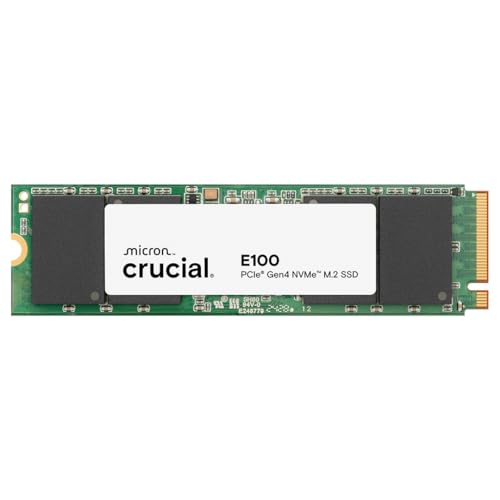
- Crucial E100 2TB – best for a modest-speed Gen4 drive from a known brand
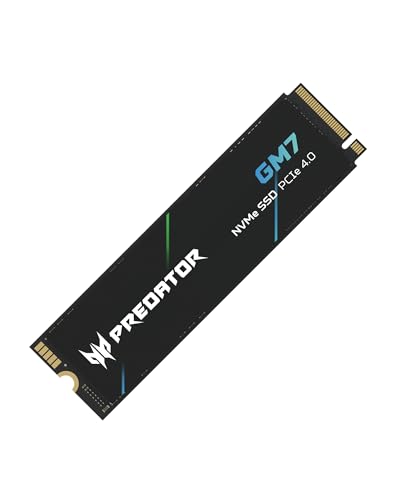
- Acer Predator GM7 1TB – best for a smaller second drive
- Silicon Power 2TB Gen3x4 – best for an older Gen3 board
- WD Green SN350 2TB – best for light storage only
All ten drives side by side
| Model | Interface | Capacity | Claimed read | Best for |
|---|---|---|---|---|
| Samsung 990 PRO | PCIe 4.0 NVMe | 2TB | 7,450 MB/s | Boot and projects |
| Samsung 9100 PRO | PCIe 5.0 x4 NVMe | 2TB | 14,700 MB/s | Gen5 slot, cooled |
| Silicon Power SP002TBP34A60M28 | PCIe Gen3x4 NVMe | 2TB | Check the listing | Older boards |
| SanDisk Optimus 5100 | PCIe 4.0 NVMe | 2TB | 7,100 MB/s (write 6,700) | Balanced use |
| BIWIN Black Opal NV7400 | Gen4x4 NVMe | 2TB | 7,450 MB/s | Gen4 alternative |
| Crucial E100 | PCIe Gen4 NVMe | 2TB | 5,000 MB/s | Everyday Gen4 |
| KLEVV CRAS C910 | Gen4x4 NVMe, heatsink | 2TB | 5,200 MB/s | Bundled heatsink |
| Acer Predator GM7 | Gen 4 x4 NVMe 2.0 | 1TB | 7,400 MB/s | Second drive |
| Kingston NV3 | PCIe 4.0 Gen 4×4 NVMe | 2TB | 6,000 MB/s | Plain upgrade |
| WD Green SN350 | Gen3 PCIe, QLC | 2TB | 3,200 MB/s | Light storage |
The ten drives in detail
Samsung SSD 990 PRO 2TB
The listing places this drive at the top of the Gen4 range: PCIe 4.0, M.2 2280, a 7,450 MB/s read claim that sits at the practical ceiling of a x4 Gen4 link. Other drives here quote the same figure, so it works as the yardstick. Endurance rating, cache design and the warranty term are not in the title, so read them on the listing page. The title also names heavy-duty workstation use and carries the model code MZ-V9P2T0B/AM, which helps you confirm you are looking at the retail kit rather than a lookalike listing. In a typical desktop this is the drive you would put in the first M.2 slot, nearest the CPU, because that slot is usually wired for the full Gen4 link and sits under the board’s own cover. Remember that a flagship speed claim only pays off if your workload actually moves big files.
- Pro: top-of-class Gen4 speed claim
- Pro: 2TB holds an OS plus projects
- Con: no heatsink mentioned in the title
- Con: sits at the dear end of the Gen4 group
Who it’s for: builders with a free Gen4 slot who want one drive for boot, projects and games. Who should skip it: anyone on a Gen3 board, where the extra speed goes unused.
Samsung SSD 9100 PRO 2TB
This is the only PCIe 5.0 x4 drive in the group, with a 14,700 MB/s read claim, roughly double the Gen4 flagship figure. The title markets it for AI computing, gaming and workstations; treat that as seller language. Gen5 drives need a Gen5-capable M.2 slot and tend to run hot, so plan for a heatsink or the board’s cover. Pair it with a board whose manual explicitly lists a PCIe 5.0 M.2 slot; on some boards the Gen5 slot shares lanes with the graphics slot or a second drive, which can cut the speed you paid for. The model code MZ VAP2T0B/AM appears in the title with a gap in it, so match the code on the box when it arrives. If your board lacks Gen5, this drive still runs, but at Gen4 speed.
- Pro: highest sequential claim in this guide
- Pro: future-proof if your board has a Gen5 slot
- Con: needs a compatible slot and good cooling
- Con: everyday tasks rarely show the gap over Gen4
Who it’s for: large-file editors moving big video or dataset files who already own a Gen5 board. Who should skip it: gamers and office users, who gain little from Gen5.
SanDisk Optimus 5100 2TB
The title gives both directions: up to 7,100 MB/s reads and up to 6,700 MB/s writes on PCIe 4.0 in M.2 2280. Quoting the write figure matters for copy-heavy work, since many listings only advertise reads. As with the others, sustained write speed after any cache fills is not stated, so treat 6,700 as a burst number. The model code SDSP51200TAN is in the title, which makes it easy to cross-check against the maker’s page. Because the title gives a 6,700 MB/s write figure, it suits people who copy camera cards, game installs or project folders regularly. Since sustained behavior is not stated, treat it as a promising spec to verify through buyer comments rather than a guarantee for long transfers.
- Pro: strong write claim for a Gen4 drive
- Pro: 2TB capacity
- Con: no heatsink or endurance detail in the title
- Con: newer model, so check the listing for buyer feedback
Who it’s for: people who copy large folders often and want a balanced Gen4 drive. Who should skip it: buyers who want a long track record behind the model name.
BIWIN Black Opal NV7400 2TB
BIWIN lists this as Gen4x4 with reads up to 7,450 MB/s, in M.2 2280, and says it fits laptop, desktop and PS5. That PS5 mention is the seller’s compatibility claim; a console slot has its own clearance and cooling rules, so check them if you plan that. The brand is less familiar to many US buyers than Samsung or Kingston. Because it is a smaller name, read the warranty terms and the seller identity on the listing before ordering, and keep your order record. Prices for lesser-known brands can undercut the big three, which is the main reason to consider it. On specification alone it lines up with the Samsung 990 PRO and the Acer Predator GM7, so it is a fair candidate if one of those is out of stock.
- Pro: Gen4 speed claim matching the flagship figure
- Pro: 2TB capacity
- Con: lesser-known brand, so check warranty handling
- Con: no heatsink stated in the title
Who it’s for: shoppers comparing Gen4 drives on specification. Who should skip it: anyone who wants a first-party support desk they already know.
KLEVV CRAS C910 2TB
The distinguishing line here is “Heatsink Included”. The drive is Gen4x4, M.2 2280, up to 5,200 MB/s, so it trades peak speed for a bundled cooler. That helps boards with no M.2 cover, though a bundled heatsink can foul a graphics card or a board shield, so measure the clearance before ordering. A bundled heatsink is not automatically better than a motherboard cover: if your board already ships a shield for that slot, you may need to remove the shield and fit the drive’s own cooler, or run without it. The model code K02TBM2SP0-C91 is in the title for matching. For an add-in second slot with no cover, the included part saves a separate purchase and a trip to measure clearances.
- Pro: heatsink bundled
- Pro: Gen4 interface at 2TB
- Con: slower claim than the 7,000 MB/s class
- Con: heatsink height may not fit under every board cover
Who it’s for: builders adding a drive to a board without a spare cooler. Who should skip it: boards with a built-in M.2 shield that already covers the slot.
Kingston NV3 2TB
The NV3 is listed as PCIe 4.0 Gen 4×4, M.2 2280, up to 6,000 MB/s. That sits between the 7,000 class and the 5,000 class here. The title does not say whether the drive uses a particular controller or flash type, and that detail can change between production runs, so use it as a plain, reasonably priced upgrade rather than a performance pick. The model code SNV3S/2000G is in the title. The 6,000 MB/s read figure is a claim about a best case, and daily performance will depend on the file mix, so avoid reading too much into it. Kingston is widely stocked in the US, which tends to make returns and warranty claims more straightforward than with an unfamiliar maker, though terms are on the listing, not in the title.
- Pro: simple, widely stocked brand
- Pro: 2TB at a mid-range Gen4 claim
- Con: no heatsink mentioned
- Con: sustained-write behavior is not described
Who it’s for: upgraders replacing a slow SATA drive without paying for flagship speed. Who should skip it: workloads that write large files nonstop.
Crucial E100 2TB
Crucial lists this as M.2 NVMe PCIe Gen4, up to 5,000 MB/s, compatible with laptop and desktop. The 5,000 figure is the lowest Gen4 claim in the group, which suggests a drive aimed at value rather than records. Capacity matters more than speed for a game library, and 2TB suits that job. The model code CT2000E100SSD8 appears in the title. A drive with a lower headline speed can still feel identical to a faster one in a game library, since load times depend on the CPU and the game engine as much as on the disk. If your goal is simply to stop deleting games to make room, this is the kind of drive that solves that problem without paying for speed you will not notice.
- Pro: known brand with a plain Gen4 spec
- Pro: 2TB capacity
- Con: lowest Gen4 speed claim here
- Con: no heatsink or endurance detail in the title
Who it’s for: game-library and everyday-storage buyers. Who should skip it: editors who want the fastest scratch disk.
Acer Predator GM7 1TB
This is the one 1TB drive: PCIe Gen 4 x4, NVMe 2.0, M.2 2280, reads up to 7,400 MB/s, listed for laptop, desktop and PS5. Its capacity is half the others, so compare it per terabyte on the listing, not by headline. One terabyte suits a boot drive; it fills fast as a game library. The title also cites the model code BL.9BWWR.118. Because it is 1TB, it is the natural pick for a boot drive paired with a larger secondary drive, or for a system with two slots where you want the capacity split. Remember that two 1TB drives cost more than one 2TB drive per terabyte in most lineups, so decide whether you need separate drives or one large volume.
- Pro: high Gen4 read claim
- Pro: NVMe 2.0 stated in the title
- Con: 1TB is tight for a modern game library
- Con: capacity is not directly comparable to the 2TB drives
Who it’s for: a speedy OS drive or second slot. Who should skip it: anyone who wants a single large drive.
Silicon Power 2TB NVMe Gen3x4 (SP002TBP34A60M28)
The only plain Gen3 drive besides the WD: PCIe Gen3x4, M.2 2280, 2TB. The title gives no speed figure at all, so check the listing. Gen3 drives are limited by their interface and do not benefit from a Gen4 slot, but they work in one and still beat a hard drive by a wide margin. The model code SP002TBP34A60M28 is in the title, and the brand text reads SP Silicon Power in the listing data. Without a quoted speed, assume a typical Gen3 ceiling and verify on the listing page. It is a reasonable upgrade over a hard drive or an old SATA SSD in a Gen3 machine, and a poor one if you can fit a Gen4 drive for a little more.
- Pro: works in older Gen3 boards
- Pro: 2TB capacity
- Con: no speed claim in the title
- Con: slower than every Gen4 drive here
Who it’s for: older desktops that only have Gen3 M.2. Who should skip it: any board with a Gen4 slot and a budget for one.
Western Digital WD Green SN350 2TB
The title says Gen3 PCIe, QLC, M.2 2280, up to 3,200 MB/s. QLC flash stores more bits per cell, which generally means lower sustained write speed and endurance than TLC once a cache fills. It is a sensible archive drive, not a scratch disk. The model code WDS200T3G0C is in the title. The Green line is positioned by Western Digital as an entry tier, so expect modest speeds under sustained load and a shorter endurance rating than the premium drives here. If you add it as a second drive for installed games and media, the weak points rarely show up, and the large capacity is the real benefit.
- Pro: 2TB in a simple M.2 format
- Pro: honest about being QLC and Gen3
- Con: slowest claim here
- Con: QLC is a poor match for constant large writes
Who it’s for: bulk storage of documents, media and installed games. Who should skip it: video editors and anyone running a scratch folder.
How we picked these
We selected ten M.2 2280 NVMe drives from the listings gathered for this guide and wrote each entry from the product title alone: interface, capacity, claimed speed and any extras such as a bundled heatsink. Where a title was silent, we say “check the listing”. Our basis is published specifications, manufacturer documentation and buyer reviews. Nobody on the team used or measured these units, and the speeds are sellers’ claims, so we avoid ranking drives on figures the titles do not give. Where two listings looked like variants of one product, we note it. Capacity differences, such as the single 1TB drive, are flagged rather than hidden.
What to look for in a desktop SSD
Choosing a drive is mostly a matching exercise between the slot on your motherboard, the work you do and the heat your case can shed. Speed headlines matter least.
Check the slot before the drive
Open your motherboard manual and find each M.2 slot: its length (2280 means 22 mm wide, 80 mm long), its PCIe generation and whether it shares lanes with SATA ports. On many boards, filling one M.2 slot disables a SATA port. A Gen4 drive in a Gen3 slot still works but runs at Gen3 speed, and a Gen5 drive in a Gen4 slot runs at Gen4. Update the motherboard BIOS first if your board is a few years old, since early firmware sometimes misreads newer drives. Only NVMe drives fit this guide: M.2 SATA drives share the connector shape but use a different protocol, and some boards do not accept them.
What the generation number really buys
Gen3 x4 tops out around 3,500 MB/s, Gen4 x4 around 7,000-7,500 MB/s, Gen5 x4 around 14,000 MB/s. Everyday work such as booting, loading games and opening documents is limited by latency and the CPU, not these ceilings, so the jump from Gen3 to Gen4 is smaller in practice than the numbers imply. Large sequential copies, such as 4K video files or database exports, show most of the difference.
Flash type and endurance
Drives use TLC or QLC flash. QLC packs more data per cell, costing less per terabyte but slowing down more once the fast cache fills. Look for a terabytes-written (TBW) rating and a warranty length on the listing page; five years is common on premium drives, and shorter terms are worth noticing. A scratch disk that is rewritten daily needs a higher TBW than a game library.
Heat and heatsinks
NVMe drives slow themselves down when they overheat. Many motherboards ship with M.2 covers, which handle Gen3 and most Gen4 drives. Gen5 drives are the usual case where a larger heatsink and some case airflow become necessary. A bundled heatsink can collide with a long graphics card or a board shield, so check height clearance. If you add your own, the thermal pad and heatsink guides on this site cover fit and thickness.
Warranty and the seller
An SSD warranty is usually counted in years and capped by terabytes written, whichever comes first. The listing page, not the title, carries those numbers, so read them. Also check who ships the drive: a marketplace seller without brand authorization can leave you arguing about proof of purchase if the drive fails. Keep the order record, and register the drive with the maker if it offers that.
Capacity and what to do with it
Size the drive to the job. The table below matches common roles to a sensible priority; it is general guidance, not a claim about any one model.
| Role | Capacity to aim for | Prioritize |
|---|---|---|
| Windows boot drive | 1TB | Low latency, Gen4 is plenty |
| Game library | 2TB | Capacity over peak speed |
| Video scratch disk | 2TB or more | Sustained write speed, TBW |
| Archive or backups | 2TB or more | Capacity and warranty, not speed |
For off-desk backups, a USB-C SSD keeps a copy outside the case, and a dedicated NVMe heatsink is the first fix if a drive throttles.
Mistakes buyers make
The first mistake is buying on the headline number. A 14,700 MB/s drive in a Gen4 slot runs at about half that, and most daily tasks look the same on a 7,000 MB/s drive. The second is ignoring the slot: boards with only one Gen4 slot and one Gen3 slot send the wrong drive to the wrong place, and disabled SATA ports surprise people later. The third is skipping thermals on a Gen5 drive. The fourth is treating all 2TB drives as equals; QLC drives like the WD Green slow down on long writes. The fifth is forgetting the clone: back up, then clone or reinstall, before swapping the boot drive. Finally, check that the listing is sold and shipped by the brand or its authorized seller, and keep the receipt for any warranty claim.
Verdict
For a typical desktop, a Gen4 drive such as the Samsung 990 PRO is the safe all-rounder, and the SanDisk Optimus 5100 is a strong balanced alternative. Pick the Samsung 9100 PRO only if your board has a Gen5 slot and you move large files daily. For a tight budget or a game library, the Crucial E100 or Kingston NV3 does the job. Choose the KLEVV if you need a bundled heatsink, and keep the Gen3 drives for older boards.
Related guides
- Sustainable Gaming Pc Power Supply Efficiency Guide
- Thermal Paste Application Method For Lga1851
- Low Profile Graphics Card For Dell Optiplex
Frequently asked questions
Is a Gen5 SSD worth it for a desktop?
Only for specific work. Gen5 doubles the sequential speed ceiling of Gen4, which helps when you move very large video or dataset files all day. Booting and loading games change little. Gen5 drives also run hotter and need a Gen5 slot, so for most builders a good Gen4 drive is the better value.
Does a Gen4 SSD work in a Gen3 slot?
Yes. PCIe is backward compatible, so the drive works but runs at Gen3 speed, roughly 3,500 MB/s at best. If your board only has Gen3 slots, a Gen4 drive is a poor use of money unless you plan to move it to a newer system later.
Does an NVMe SSD need a heatsink?
Often your motherboard already includes one for the main slot. Gen3 and many Gen4 drives are fine under a standard board cover with normal case airflow. Gen5 drives usually need a larger heatsink. Check the drive listing, since some, like the KLEVV here, bundle one.
Is QLC flash bad for a desktop?
Not bad, just different. QLC drives cost less per terabyte but write more slowly once their fast cache fills and generally have lower endurance ratings than TLC. They suit game libraries and archives. They are a weak match for scratch disks that are rewritten daily.
Will these SSDs work in a laptop or PS5?
Several listings name laptop or PS5 compatibility, but that is the seller’s claim. Laptops need the right M.2 length and may be single-sided only, and a console has its own clearance and cooling rules. Verify against your device’s documentation before ordering.