The best USB-C drive for PC backups in this group is the SanDisk 2TB Extreme Portable SSD: it pairs a 2TB capacity, an advertised speed of up to 2000MB/s, and an IP65 dust and water rating, so full-system backups finish quickly and the drive survives a bag. If you need far more room and own a Thunderbolt port, the Sabrent Rocket Nano XTRM 4TB is the capacity leader. USB-C here means the connector on the drive; the real speed depends on the port behind it. Two spinning hard drives sit in this list as runners-up because they are not SSDs.
Our Top Picks


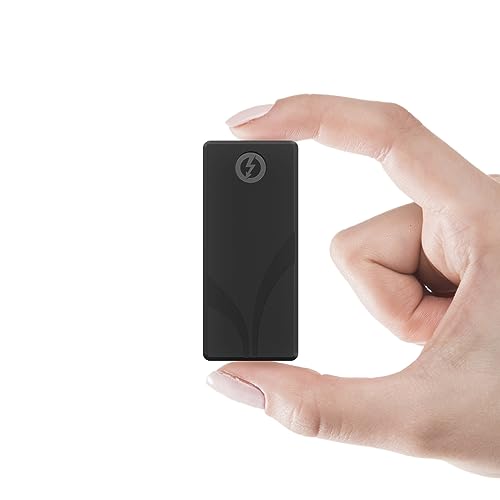
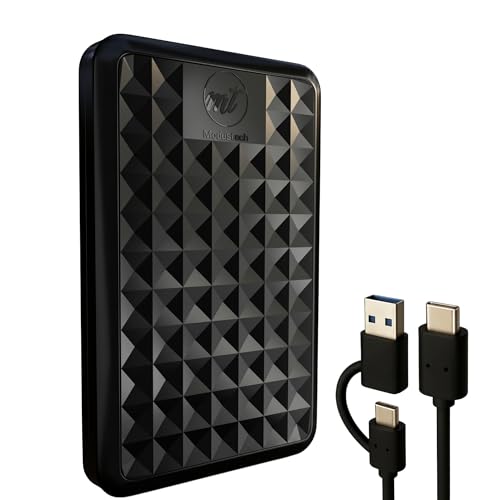

Top 3 picks at a glance
Quick List
- SanDisk 2TB Extreme Portable SSD – best overall for fast, rugged full-system backups
- Sabrent Rocket Nano XTRM 4TB – best for maximum capacity and Thunderbolt speed
- SSK 1TB Portable SSD – best for a simple, pocketable SATA-class backup drive
- SSK 1TB Dual USB-C and USB-A Drive – best for carrying selected files between PCs and phones
- WD 2TB My Passport (hard drive) – runner-up for large, scheduled backups with built-in encryption software
- ModusTech Facet 500GB (hard drive) – runner-up for light document and photo backups
Which One Is Right for You?
| If you… | Choose |
|---|---|
| want quick, full-disk backups in a rugged body | SanDisk 2TB Extreme Portable SSD |
| need 4TB and have a Thunderbolt 3 or 4 port | Sabrent Rocket Nano XTRM 4TB |
| want a hard drive with scheduled backup software and password protection | WD 2TB My Passport |
| back up a modest set of documents on a tight plan | ModusTech Facet 500GB |
| want a small SSD with an activity light and TRIM and SMART support | SSK 1TB Portable SSD |
| move files between a PC, a laptop and a USB-C phone | SSK 1TB Dual USB-C and USB-A Drive |
Decide on capacity first: a backup drive should hold at least twice the data you are protecting, so it can keep more than one version. Then decide whether speed matters. Hard drives win on capacity for the money, while SSDs finish backups faster and handle bumps better.
All 6 Picks in Detail
1. SanDisk 2TB Extreme Portable SSD – Best for fast, rugged full-system backups
As an Amazon Associate we earn from qualifying purchases at no extra cost to you.

This is the new-generation Extreme Portable SSD, advertised at up to 2000MB/s with an IP65 rating. It suits anyone backing up a whole PC image or a large photo and video library who wants the job done in minutes and the drive protected against dust, splashes and drops. SanDisk’s own data sheet lists a USB 3.2 Gen 2×2 (20Gbps) interface, but some retailers label it Gen 2, so confirm the interface on the listing before you count on the top speed.
- Capacity: 2TB
- Advertised speed: up to 2000MB/s (SanDisk notes write speed is lower than read)
- Interface: USB-C; SanDisk’s data sheet says USB 3.2 Gen 2×2
- Durability: IP65 dust and water resistance; drop protection up to 3 m per the listing
- Security: the listing mentions 256-bit AES encryption
Fit note: this drive is built for people who treat backups as a routine, not an event. Point your backup tool at it, let a full image run, and move on. If your PC only has a 10Gbps USB-C port, you still get a fast drive, just not the maximum speed, so check your motherboard or laptop manual for the port’s rating before you count on the headline number.
Who should skip it: anyone with only older 5Gbps ports and no plan to upgrade, since you would pay for speed the port cannot deliver, and anyone who only backs up a few documents. For a full PC image the speed is a real benefit, because the first backup is the longest one. Use a short, good-quality cable that matches the drive’s rating, enable encryption in the drive’s software if you carry personal files, and eject the drive from the operating system before unplugging it. Because the listing and SanDisk’s data sheet differ on the interface, treat the Gen 2×2 note as something to confirm, not a guarantee.
Pros
- Fastest advertised speed in this group
- Rugged build suits travel
Cons
- Full speed needs a 20Gbps USB port; on a 10Gbps port the link caps well below 2000MB/s
- Interface labeling differs between sources
Compared with the Sabrent, it is easier to use on ordinary PCs, but it tops out at 2TB.
2. WD 2TB My Passport – Best for large, scheduled backups with encryption (hard drive runner-up)

The My Passport is a 2.5-inch portable hard drive, not an SSD, so it does not match this guide’s SSD focus and sits here as a runner-up. It suits people who want dependable room for scheduled backups and prefer included software over command-line tools. Retailer specifications describe a USB 3.2 Gen 1 (5Gbps) interface, 256-bit AES hardware encryption, and WD Backup and WD Security utilities, with the listing noting it works with USB-C and USB-A.
- Capacity: 2TB
- Type: 2.5-inch hard drive, 5,400 rpm per retailer specs
- Interface: USB 3.2 Gen 1 (5Gbps); confirm the connector and cables on the listing
- Security: password protection with 256-bit AES hardware encryption
- Software: WD Backup, WD Security and WD Discovery; some features are Windows only
Fit note: because this is a hard drive, plan around its limits. Keep it flat and still while it is running, and let it finish writing before you unplug it. The advantage is capacity: a 2TB drive gives a typical PC room for a full image and several later versions, which is exactly what a scheduled backup tool will fill over time.
Who should skip it: anyone who wants fast restores, who carries the drive in a bag every day, or who works on a Mac without reformatting. A restore from a hard drive is slower than from any SSD in this list, and an impact while it is running can cause damage. It makes the most sense as a desk drive that sits beside a PC and runs a scheduled backup overnight. Windows users get a tidy workflow from the included software, and the password protection helps if the drive is ever lost. Plan to keep a second copy elsewhere, since a single hard drive is both slow to replace and easy to damage.
Pros
- Backup scheduling software included
- Hardware encryption for sensitive files
Cons
- Slower than any SSD here, and spinning parts dislike drops
- Ships formatted NTFS, so a Mac needs a driver or reformatting
Next to the SanDisk SSD, it trades speed and toughness for easy software and plenty of space.
3. SSK 1TB Portable SSD – Best for a simple, pocketable backup drive

This is a small portable SSD with an advertised speed of up to 550MB/s, which is the real-world ceiling of SATA-class flash and plenty for file-level backups of documents, photos and project folders. It suits anyone who wants an SSD without paying for a 10Gbps-plus interface. Listings mention a USB-C cable, an LED activity light, TRIM, and SMART support; confirm the cable set and any USB-A adapter on the page.
- Capacity: 1TB
- Advertised speed: up to 550MB/s
- Interface: USB 3.2 Gen 2 per the listing title; confirm on the page
- Features: LED light, TRIM and SMART support
- Compatibility: Windows, Mac and Android per the listing
Fit note: an SSD of this class is a comfortable step up from a hard drive for file-level backups. Copy your Documents, Pictures and project folders to it and the job finishes in a fraction of the time. For a full-system image on a large drive, expect the write speed to be lower than the read speed once the drive’s cache fills, which is normal for this class of flash storage.
Who should skip it: people who need full-system images of a very large drive in a hurry, or who want an IP rating for outdoor use. The 550MB/s ceiling is a good match for file-level backups, but it will not use the speed of a modern 10Gbps or faster port. This drive works well as a household backup disk: plug it in once a week, run File History or a similar tool, and eject it. Check that the cable that comes in the box fits your ports, and use a USB-A adapter only if the listing says one is included. Format it as exFAT if you share it between Windows and macOS.
Pros
- Much faster and more shock tolerant than a hard drive
- Small and light
Cons
- Not a rugged IP-rated drive
- Write speed drops once any fast cache fills on very large backups
It is a step below the SanDisk in speed and durability, but a step above the hard drives for daily use.
4. Sabrent Rocket Nano XTRM 4TB – Best for maximum capacity and Thunderbolt speed
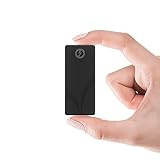
The Rocket Nano XTRM is a compact aluminum drive that runs at up to 2700MB/s over Thunderbolt 3 and up to 900MB/s over USB 3.2 Gen 2, according to the listing. It suits creators and power users with a Thunderbolt-capable PC who need 4TB in a pocketable shell for full-disk images and large libraries. If your PC has only a regular USB-C port, the drive still works at the lower USB speed.
- Capacity: 4TB
- Thunderbolt 3 speed: up to 2700MB/s
- USB 3.2 Gen 2 speed: up to 900MB/s
- Build: aluminum body with SMART and temperature monitoring per Sabrent
- In the box: Thunderbolt and USB-C to USB-A cables
Fit note: the main condition is the port. Plug it into a Thunderbolt 3 or 4 port with the Thunderbolt cable to reach the top speed, and into any USB-C or USB-A port with the other cable if you need it to work on an older PC. Because the same drive then serves both kinds of machines, it is a good choice for people who use more than one computer.
Who should skip it: anyone without Thunderbolt who would be paying for capacity they do not need. If your PC lacks a Thunderbolt port, the 900MB/s USB speed is still quick, but a lower-capacity drive would do the same job. It is a strong fit for video editors, photographers with large libraries, and anyone who keeps a full-disk image plus several versions of a project. Use the Thunderbolt cable for the top speed, keep the drive away from soft surfaces that trap heat during long copies, and watch the temperature readout where Sabrent’s software supports it. Confirm the exact Thunderbolt generation your computer offers before buying.
Pros
- Largest capacity in the list
- Both cables included
Cons
- Most PCs lack Thunderbolt, so you will often see only USB speeds
- The 4TB size is more than a light backup user needs
Compared with the SanDisk, it holds twice as much but costs you a more specialized port requirement.
5. ModusTech Facet 500GB – Best for light document and photo backups (hard drive runner-up)

The Facet is a slim 2.5-inch external hard drive, so like the WD it is a runner-up in an SSD guide. At 500GB it fits a small set of documents, photos and a few project folders rather than a whole PC image. The seller describes a USB-C connection with a USB-A adapter and USB 3.1 Gen 1 (5Gbps) transfers, with real-world speeds around 100MB/s.
- Capacity: 500GB
- Type: 2.5-inch hard drive; listings disagree on rpm, so confirm on the page
- Interface: USB-C with USB-A adapter, USB 3.1 Gen 1 (5Gbps)
- Format: preformatted exFAT per the seller, which works on Windows and macOS
- Setup: plug and play, no software
Fit note: use this drive for what it does well, which is holding a copy of the files you cannot replace, such as tax records, family photos and key documents. Pair it with a second copy elsewhere. A 500GB drive fills quickly if you try to back up a game library or video footage, so check the size of your data before you start.
Who should skip it: anyone with more than a few hundred gigabytes to protect, anyone who travels with the drive, and anyone who needs a fast restore. The roughly 100MB/s real-world figure means that even 100GB takes a quarter of an hour or more. It is best as a simple second copy of important documents, tax files and family photos, kept in a drawer and refreshed on a schedule. Because it needs no software, it also works as a basic transfer disk between a PC and a Mac in exFAT. Eject it before unplugging, set it on a stable surface while it runs, and consider adding a second copy elsewhere.
Pros
- Works with Windows and macOS out of the box
- Slim and light
Cons
- Too small for full-system images
- Spinning disk is sensitive to impact while running
Against the WD My Passport, it is smaller and simpler, with no included backup software.
6. SSK 1TB Dual USB-C and USB-A Drive – Best for carrying selected files between devices

This is a thumb-drive-style SSD with both USB-C and USB-A connectors on one body and an advertised speed of up to 550MB/s. It suits people who want to move chosen folders between a desktop, a laptop and a USB-C phone, or keep a small second copy of important files. For full-system backups, the drives above are better choices because a stick-style body is more exposed to bumps, bends and heat.
- Capacity: 1TB
- Advertised speed: up to 550MB/s
- Interface: USB 3.2 Gen 2 with dual USB-C and USB-A connectors
- Extras: OTG support for phones per the listing
- Form factor: flash-drive style
Fit note: this drive shines when you are moving between machines, for example copying a folder from a desktop to a laptop or offloading photos from a USB-C phone. For a critical backup, plug it in only when needed and eject it properly afterward, since a stick left in a port is easy to knock out or lose.
Who should skip it: anyone whose main goal is a full-system image, or anyone who leaves drives plugged in all day. Stick-style SSDs tend to run warm under long writes, and the connector takes the strain of every bump. Use it as a courier for selected folders, as a travel copy of key documents, or as a way to offload photos from a USB-C phone. Eject it before unplugging, keep the cap or cover in place if one is included, and do not rely on it as the only copy of anything. If you want a scheduled nightly backup, the SSK portable SSD or one of the larger drives above is the safer choice.
Pros
- Fits both USB-A and USB-C ports without an adapter
- Extremely portable
Cons
- Stick-style body offers less protection than a rugged portable drive
- Easy to lose or leave plugged in
It is the most portable pick, but the SSK portable SSD is the better choice for scheduled backups.
Specs Compared
| Product | Type | Capacity | Interface | Advertised speed | Notes |
|---|---|---|---|---|---|
| SanDisk 2TB Extreme Portable SSD | SSD | 2TB | USB-C; Gen 2×2 per SanDisk, confirm on listing | up to 2000MB/s | IP65 |
| Sabrent Rocket Nano XTRM 4TB | SSD | 4TB | Thunderbolt 3 and USB 3.2 Gen 2 | 2700MB/s TB3; 900MB/s USB | aluminum, both cables |
| SSK 1TB Portable SSD | SSD | 1TB | USB 3.2 Gen 2, confirm on listing | up to 550MB/s | LED, TRIM, SMART |
| SSK 1TB Dual USB-C and USB-A | SSD stick | 1TB | USB 3.2 Gen 2, dual connector | up to 550MB/s | OTG |
| WD 2TB My Passport | HDD | 2TB | USB 3.2 Gen 1 | confirm on listing | 256-bit AES, backup software |
| ModusTech Facet 500GB | HDD | 500GB | USB 3.1 Gen 1, USB-C with adapter | about 100MB/s real-world per seller | exFAT preformatted |
How We Chose These
This ranking comes from research, not bench testing. We read each listing name, the manufacturer product pages where they were available, and independent reviews of the Sabrent line. We weighted capacity, interface, durability and backup-specific features such as encryption and included software. Drives that are hard disks rather than SSDs were kept in the list but placed as runners-up, and we flagged every place where retailers disagree on a spec. Speed figures are manufacturer “up to” claims, not our measurements. We also noted where a listing and the manufacturer disagree, such as the SanDisk interface label, and we kept the list to the products named, with no outside additions. Check the product page before you buy.
What to Look For
Capacity and the backup rule of thumb
Backups need more space than the data they protect. A good rule is to buy a drive at least twice the size of what you are backing up, so you can keep several versions. Worked example: if your PC holds 600GB of files, a 1TB drive holds one full copy plus a few increments, while 1.2TB of data calls for 2TB or more. Pair that with the 3-2-1 habit: three copies, on two kinds of storage, with one stored away from your desk. A single external drive is a copy, not a complete plan.
Interface and real speed
USB-C is only the plug. Behind it, USB 3.2 Gen 1 runs at 5Gbps, Gen 2 at 10Gbps and Gen 2×2 at 20Gbps, and the slowest link in the chain sets your speed. A drive rated at 2000MB/s needs a 20Gbps port and a matching cable; on a 10Gbps port you will see roughly half of that at best. Thunderbolt drives need a Thunderbolt port. Hard drives are limited by the disk to roughly 100MB/s or so, no matter the port.
SSD or hard drive for backups
SSDs are faster, silent and tolerate bumps, which makes them a good choice for a drive that travels. Hard drives offer more capacity and a lower cost per terabyte, which makes them useful for a large archive that sits in a drawer. Whichever you choose, power an SSD on occasionally, because flash can lose data if left unpowered for very long periods.
A quick sizing and speed example
Suppose your PC holds 900GB of files and you want three versions of your documents plus one full image. A 2TB drive covers that with room to spare, while a 1TB drive would force you to delete older versions quickly. At a real-world 400MB/s, a first 900GB copy takes roughly 40 minutes, and later incremental backups take only minutes because they copy changes. A hard drive at around 100MB/s would need about two and a half hours for the same first copy, which is why people often run the first backup overnight.
Software, formatting and security
Windows has built-in File History and system image tools, and macOS has Time Machine. Check the file system: NTFS suits Windows only, exFAT works on both Windows and macOS, and Time Machine wants a Mac-native format. If the backup contains personal files, use a drive with hardware encryption or enable BitLocker or FileVault. Open a few files from the backup now and then to confirm a restore would work, because an unchecked backup is only a hope.
Drive health and when to replace a backup drive
No backup drive lasts forever. Hard drives wear out through moving parts and can fail suddenly, and flash drives wear through write cycles and can lose data if left unpowered for very long periods. Check the drive’s SMART status with a utility from time to time where the drive supports it, and plan to replace a backup drive every few years. When a drive starts to show errors, copy its data off right away rather than waiting for the next scheduled backup.
Cables, adapters and ports
The cable matters more than most people expect. A short, good-quality USB-C cable rated for the drive’s speed prevents dropouts and keeps speeds up, while a long or worn cable can make a fast drive crawl or disconnect. If the drive ships with a USB-A adapter or cable, use the right one for the port you have, and avoid unpowered hubs for large backups because they can limit speed and power.
Matching a drive to your backup size
The table below applies the twice-the-data rule to common situations, using only drives from this list. Capacities are rounded, and a drive’s usable space is a little lower than its label after formatting.
| Data you protect | Minimum drive size | Drive from this list to consider |
|---|---|---|
| Under 200GB of documents and photos | 500GB | ModusTech Facet 500GB (hard drive) |
| 300GB to 500GB, file-level backups | 1TB | SSK 1TB Portable SSD |
| 600GB to 900GB with versions | 2TB | SanDisk 2TB Extreme Portable SSD or WD 2TB My Passport |
| 1.5TB or more, or several computers | 4TB | Sabrent Rocket Nano XTRM 4TB |
Full image, file-level and incremental backups
A full-image backup copies the entire system drive, including Windows, programs and settings, so you can restore a dead PC to a working state. It is large and slow the first time, which is where a fast SSD pays off. A file-level backup copies only your chosen folders and is far smaller. Incremental backups copy only what changed since the last run, so after the first pass they finish in minutes. A good plan combines them: one full image every few months, file-level or incremental copies every week or day, and one copy stored away from your desk. Choose the drive size around the full image, because that is the biggest item.
Questions
Is an SSD or a hard drive better for PC backups?
An SSD is faster and more durable, so it suits frequent backups and travel. A hard drive is better when you need lots of capacity for the least money and the drive stays at home.
Will a 2000MB/s drive run that fast on my PC?
Only if your port supports 20Gbps USB or Thunderbolt and you use a matching cable. On common 10Gbps USB-C ports the speed is limited to about half of the headline figure.
How much capacity do I need?
Buy at least double the data you are backing up, so the drive can store more than one version. For a 600GB PC, 1TB is a sensible minimum; for 1TB or more of data, step up to 2TB or larger.
Can I use the same drive with a Mac and a PC?
Yes, if you format it as exFAT, which both systems can read and write. Drives formatted NTFS need extra software to write on a Mac.
Should I encrypt my backup drive?
Yes, if it holds personal or work files and might be lost or stolen. Use the drive’s hardware encryption, or turn on BitLocker in Windows or FileVault on a Mac.
Is one external drive enough?
One drive is a start, but it is still a single point of failure. Keep a second copy elsewhere, such as another drive stored off-site or an online backup.
How often should I back up my PC?
Back up as often as the cost of losing new work would hurt. Daily incremental backups suit people who create files every day, while weekly runs are enough for a mostly static family PC. Automating the schedule matters more than the interval, because manual backups are the ones that get forgotten.
Can I plug a USB-C drive into an older USB-A port?
Yes, if the drive ships with a USB-A cable or adapter, or you buy one that matches its speed rating. The port then sets the speed, so a fast drive on a 5Gbps USB-A port will run at that port’s limit. Confirm the box contents on the listing before you buy.
Will a backup drive work with a game console?
Some do for extra storage, but a backup drive is not the same as a console-approved game drive, and rules differ by console. Check your console’s documentation for supported formats and interfaces before you plan to use one for games.
Update History
- October 14, 2026 – Initial publication; product set drawn from current catalog listings.
- Check the product page for current specifications and availability before buying.
Sources
- Manufacturer product and specification pages and data sheets for SanDisk, Sabrent, WD, SSK and ModusTech
- Retailer listing titles and specification fields
- Independent storage review coverage of the Sabrent Rocket Nano XTRM line