Choosing a hard drive for Time Machine is a different decision from buying extra storage. The drive will hold every version of your files, so it needs enough room for your Mac today plus months of changes, and it needs to stay connected long enough for hourly backups to finish. A drive that is too small fills up fast and starts deleting old snapshots, while a drive with the wrong format will not work with Time Machine at all.
This guide is for Mac owners who want a dependable Time Machine drive, whether you back up a MacBook on the move or a desktop Mac that never leaves your desk. It also suits first-time Mac buyers who need a straightforward backup plan. The four drives below were chosen from the names and specifications on their Amazon product pages, with capacity, interface, formatting, and included software checked against what Time Machine needs.
Our Top Picks
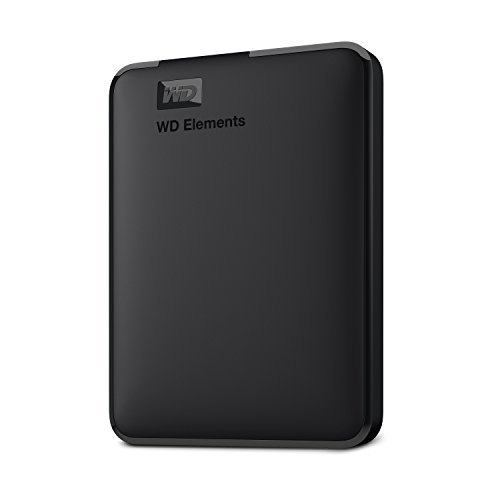 Western Digital WD 5TB Elements Portable External Hard5TB4.35 x 3.23 x 0.82 inches0.52 poundsCheck on Amazon
Top 3 picks at a glance

Quick Picks
As an Amazon Associate we earn from qualifying purchases.
| Product | Best for | Key spec from title |
|---|---|---|
| WD My Passport 5TB | Protected backups with software | 5TB portable external hard drive |
| WD Elements 5TB | Simple plug-and-play capacity | 5TB portable external hard drive |
| Seagate Backup Plus Slim 2TB | Slim everyday Mac backups | 2TB portable external hard drive |
| Toshiba Canvio Advance 2TB | Compact backup with password software | 2TB portable external hard drive |
How to Choose
Capacity vs Backup History
Time Machine keeps hourly backups for a day, daily backups for a month, and weekly backups until the drive fills up, so capacity decides how far back you can go. A drive that matches your Mac storage holds one copy with little room for older versions. A drive twice the size of your Mac storage gives Time Machine room to keep months of history, which matters when you delete a file and only notice weeks later. For a Mac with 512GB of storage, a 2TB drive covers a backup plus a history, while a Mac with 1TB or more of photos and video benefits from a 5TB drive. Buy the largest capacity you can justify, because backup history grows.
Drive Type and Interface
Every drive in this guide is a portable hard drive with a spinning disk, which is the right match for Time Machine. Hard drives hold far more backup history per dollar than flash storage, and Time Machine runs in the background, so top transfer speed matters less than capacity and reliability. All four drives connect over USB 3.0 or faster, with transfer rates up to 5Gbps on the USB connection, which keeps the first full backup moving at a reasonable pace. Check your Mac ports before buying: newer MacBooks have USB-C ports only, so you may need a USB-C adapter or a cable with a USB-C end to connect a drive that ships with a USB-A cable.
Formatting for Time Machine
Time Machine only backs up to a drive formatted as APFS or Mac OS Extended, so formatting is the first setup step for almost every new drive. Most portable hard drives arrive formatted for Windows, which macOS can read but Time Machine cannot use as a backup destination. Open Disk Utility, select the drive, choose Erase, and pick APFS as the format before opening Time Machine settings. The erase step deletes everything on the drive, so do it before you copy files onto it. If you also need the drive on a Windows PC, keep a separate drive for Time Machine rather than splitting one drive, because sharing complicates backups and risks accidental erasure.
Desktop vs Portable Use
A portable drive suits a MacBook, because it draws power from the USB cable and travels with the laptop. Keep it plugged in during backup sessions, and plug it in once a week if you carry it around, so Time Machine can catch up. A desktop Mac that stays in one place is better served by a drive that lives on the desk and stays connected, since Time Machine backs up hourly while the drive is attached. All four drives here are portable, so pick the slimmest one for travel and the largest capacity for a desk setup. Whichever you choose, leave the drive connected overnight after the first backup, because the copy takes the longest.
The 4 Best Options
WD My Passport 5TB Portable External Hard Drive
The WD My Passport 5TB is the most complete backup drive in this group, pairing large capacity with password protection and backup software. Its 5TB of space holds a full copy of a filled Mac plus a long run of hourly and daily snapshots, so old versions stay available for months. The drive connects over USB 3.1 and USB 3.0, draws power from the USB cable, and measures 4.22 by 2.95 by 0.75 inches, so it fits in a laptop bag without a power adapter. Hardware encryption and password protection keep the backup private if the drive is lost, and the included backup software can schedule copies in the background.
Specs
- Digital storage capacity: 5TB
- Hardware interface: USB 3.1 and USB 3.0
- Form factor: 2.5-inch portable external hard drive
- Dimensions: 4.22 x 2.95 x 0.75 inches
- Weight: 7.4 ounces
- Password protection and 256-bit AES hardware encryption
- Backup software with defense against ransomware
- SuperSpeed USB-A cable (5Gbps) included
- Warranty: 3-year limited warranty
Best for: Mac owners who want large capacity plus password protection and scheduled backup software in one portable drive.
Watch out for: The drive arrives formatted for Windows, so reformat it to APFS in Disk Utility before selecting it in Time Machine.
WD Elements 5TB Portable External Hard Drive
The WD Elements 5TB takes the simplest approach in this group: a large portable drive with no extra software to learn. Its 5TB capacity matches the My Passport for room, so it holds a full Mac backup plus months of older versions without needing attention. The drive uses a USB 3.2 Gen 1 connection, works with USB 3.0 and USB 2.0 ports, and runs from USB power alone. At 4.35 by 3.23 by 0.94 inches and 0.52 pounds, it is slightly larger than the My Passport but still easy to carry. It is the pick when you want capacity first and plan to let Time Machine handle the backup schedule.
Specs
- Digital storage capacity: 5TB
- Hardware interface: USB 3.2 Gen 1 and USB 3.0
- Form factor: 2.5-inch portable external hard drive
- Dimensions: 4.35 x 3.23 x 0.94 inches
- Weight: 0.52 pounds
- Plug-and-play setup with no software to install
- SuperSpeed USB-A cable (5Gbps) included
- Formatted for Windows; compatible with Mac after reformatting
- Warranty: 2-year limited warranty
Best for: Mac owners who want maximum capacity in a simple plug-and-play drive and are happy to let Time Machine manage backups.
Watch out for: No backup software or encryption is included, so confirm you are comfortable relying on Time Machine and macOS alone.
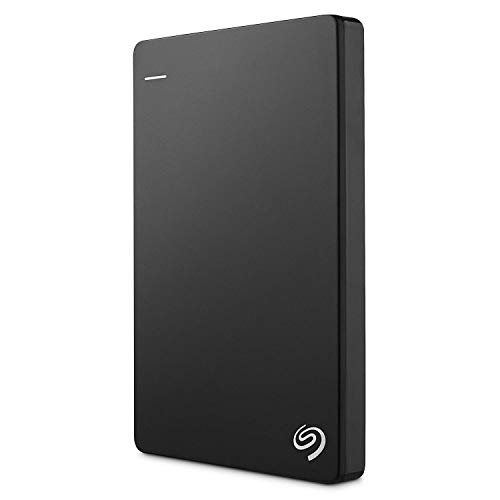
Seagate Backup Plus Slim 2TB Portable External Hard Drive
The Seagate Backup Plus Slim 2TB is the slimmest drive in this group, built for MacBook owners who carry their backup drive everywhere. At 4.52 by 3.07 by 0.46 inches and 0.28 pounds, it slides into a laptop sleeve beside the Mac it protects. Its 2TB capacity suits a Mac with 512GB of storage or less, holding a full backup plus a useful history of older versions. The drive connects over USB 3.0, runs from USB power, and includes downloadable Toolkit software for scheduled backups, plus a two-month Adobe Creative Cloud Photography plan. Seagate notes that reformatting may be required before Time Machine can use the drive.
Specs
- Digital storage capacity: 2TB
- Hardware interface: USB 3.0
- Form factor: 2.5-inch portable external hard drive
- Dimensions: 4.52 x 3.07 x 0.46 inches
- Weight: 0.28 pounds (126 g)
- Read speed: 120 MB/s
- Data transfer rate: 625 MB/s
- Downloadable Toolkit backup software included
- 18-inch USB 3.0 cable included
- 2-month Adobe Creative Cloud Photography plan included
- Warranty: 2-year limited warranty
Best for: MacBook owners who want the thinnest backup drive to carry with the laptop it protects.
Watch out for: At 2TB it suits smaller Macs best, so check your Mac storage size first and confirm the drive is reformatted to APFS before the first backup.
Toshiba Canvio Advance 2TB Portable External Hard Drive

The Toshiba Canvio Advance 2TB is a compact backup drive with a textured finish and downloadable backup and password software for Windows. Its 2TB capacity fits a Mac with 512GB of storage or less, leaving room for a full backup and a history of earlier versions. The drive connects over USB 3.0, works with USB 2.0 ports, and measures 4.3 by 3.1 by 0.55 inches at 0.33 pounds, so it travels easily in a bag. The automatic backup and password tools are Windows-only downloads, which matters less for Time Machine users, since macOS handles the backup schedule once the drive is reformatted to APFS.
Specs
- Digital storage capacity: 2TB
- Hardware interface: USB 3.0
- Form factor: 2.5-inch portable external hard drive
- Dimensions: 4.3 x 3.1 x 0.55 inches
- Weight: 0.33 pounds (149.69 g)
- Automatic backup software available as a free download for Windows PC
- Password protection software available as a free download for Windows PC
- Textured finish in a choice of colors
- Compatible with Mac after reformatting
- Warranty: 2-year limited warranty
Best for: Mac owners who want a light, compact 2TB drive for everyday backups on the move.
Watch out for: The bundled backup and password software works on Windows only, and the drive needs reformatting to APFS before Time Machine can use it.
Which One Fits Your Situation
You back up a MacBook that travels with you
Pick the Seagate Backup Plus Slim 2TB. At 0.46 inches thick and 0.28 pounds, it is the thinnest drive here and fits in a laptop sleeve without adding noticeable bulk. Its 2TB capacity suits a MacBook with 512GB of storage or less, and its USB power means no adapter to pack. Plug it in when you sit down to work and Time Machine will catch up on its own.
You want years of backup history from one desktop Mac
Pick the WD My Passport 5TB. Its 5TB capacity holds a full backup of a well-filled Mac plus months of hourly and daily snapshots, so you can recover files you deleted long ago. Password protection and hardware encryption keep that history private, and the included backup software can schedule copies in the background. Reformat it to APFS once, leave it on the desk, and let Time Machine run every hour.
You want the simplest setup possible
Pick the WD Elements 5TB. It is a plug-and-play drive with no extra software to install or learn, so setup is just reformatting to APFS and selecting the drive in Time Machine. Its 5TB capacity gives you plenty of room for a full backup plus a long history, and it runs from USB power alone. If you want backups to simply happen without managing another app, this is the straightforward choice.
You back up a family Mac with photos and video
Pick the WD Elements 5TB or the WD My Passport 5TB. A family Mac fills up fast with photos and video, and both drives hold a full backup plus months of older versions. Choose the Elements when you want the simplest drive, and the My Passport when password protection matters because the drive holds the whole family history. Either way, check that the drive is at least twice the size of your Mac storage.
Common Mistakes
- Buying a drive the same size as your Mac storage, then losing old backup versions as soon as Time Machine fills it.
- Skipping the reformat step and wondering why Time Machine refuses a drive that works fine for dragging files onto.
- Unplugging the drive in the middle of the first backup, which forces Time Machine to start the full copy again.
- Using one drive for both Time Machine and Windows file storage, then erasing the backup by accident during a reformat.
- Storing the only backup drive in the same bag as the Mac, so a lost bag takes both the computer and its backup.
Frequently Asked Questions
Does Time Machine work with any external hard drive?
Yes, with one condition: the drive must be formatted as APFS or Mac OS Extended. Almost any USB external hard drive works once it is formatted correctly, including all four drives in this guide. The drive should also stay connected regularly, since Time Machine backs up every hour while the drive is attached and catches up when you plug it back in.
Do I need to reformat a new hard drive for Time Machine?
Usually, yes. Most portable hard drives arrive formatted for Windows, which Time Machine cannot use as a backup destination. Open Disk Utility, select the drive, choose Erase, and pick APFS as the format. The erase step deletes everything on the drive, so reformat it before you copy any files onto it or start your first backup.
How large should a Time Machine drive be?
Pick a drive at least twice the size of your Mac storage. That leaves room for one full backup plus months of older versions, so you can recover files you deleted weeks ago. A 2TB drive suits a Mac with 512GB of storage or less, while a Mac with 1TB of storage or more deserves a 5TB drive. Larger is better, because backup history only grows over time.
Can I use the same drive for Time Machine and regular file storage?
You can, but it is not a good idea. Time Machine fills the drive with backup snapshots over time, which leaves less room for your files and can force old backups to be deleted early. A shared drive also risks accidental erasure when you reformat it for another computer. Keep one drive for Time Machine and a separate drive for extra file storage.
A good Time Machine drive is one you set up once and then forget about, so pick by capacity first, reformat it to APFS, and leave it connected whenever your Mac is on your desk. Any of the four drives above will do the job; the right one is the one that fits your Mac storage, your bag, and the way you work.
Related guides
More from Amazon
Programs that pair well with the guide above. Offers and eligibility are set by Amazon and may change.
Free shipping on eligible items, Prime Video and more. Eligible new members can start with a free trial.
Start a Prime free trialAd-free music streaming. Eligible new subscribers can start with a free trial.
Try Music Unlimited freeA Prime membership for ages 18-24 with a trial period. Eligibility is set by Amazon.
See Prime for Young AdultsAudiobooks and podcasts to listen to on the go. Eligible new members can start with a free trial.
Try Audible freeAs an Amazon Associate we earn from qualifying purchases.