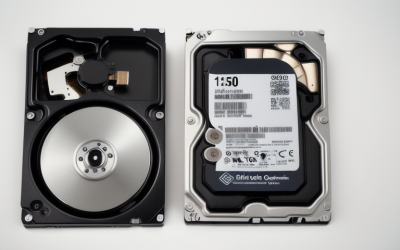
The best CMR hard drive for a desktop PC is one whose manufacturer data sheet says conventional magnetic recording, matches your capacity needs, and fits your workload, whether that is a game library, a backup target or a busy media folder. Because many store listings never mention the recording method, the skill that matters most is confirming it yourself before you buy.
This guide explains what CMR means, when it makes a real difference on a desktop, and how to read a data sheet so you do not end up with the wrong kind of drive. It deliberately avoids naming specific models, since lineups change and the same brand name can cover both recording types. Use it as a checklist you can apply to any hard drive in 2026.
What CMR Means and Why It Matters
CMR stands for conventional magnetic recording. Each data track on the platter sits side by side without overlapping, so a drive can rewrite one spot without touching its neighbors. The alternative, SMR or shingled magnetic recording, overlaps tracks like roof shingles to pack more data onto each platter. That raises capacity for the money, but changing data in the middle of a shingled zone means rewriting the zone around it.
On a desktop, that difference shows up mostly during long or random writes. Reading files is similar on both types, and many people never notice the gap. The trouble appears when a shingled drive has to reshuffle data in the background: transfer speeds can fall sharply, and the drive may seem to freeze for a moment. CMR drives avoid that behavior, so their write speeds stay steadier under load.
When a CMR Drive Is Worth Choosing
Drives That Receive Frequent Writes
If the drive holds a download folder, a video editing scratch area, a database, or a cache that changes all day, steady write behavior matters. Constant small rewrites are the exact pattern that makes shingled drives struggle, so CMR is the safer choice here.
RAID Arrays and Storage Pools
Software RAID, mirrored pairs and pooled storage need every drive to respond predictably. A drive that stalls while rewriting zones can be dropped from an array or slow a rebuild to a crawl. Anyone building a multi-drive setup in a desktop should treat CMR as a requirement, not a bonus.
Large Backups and Rebuilds
Copying hundreds of gigabytes at once pushes any drive to its limits. CMR keeps the transfer rate more consistent after internal cache fills up. For write-once archives that you rarely modify, however, a shingled drive can be a perfectly reasonable way to save money.
Game Libraries and Media Storage
A library of games or videos that you install once and read often is mostly a read workload, which suits either type. CMR still helps during big patches and installs, but it is not essential. Note that a hard drive will load levels slower than a solid-state drive regardless of recording method.
How to Verify the Recording Type
Product titles often list capacity, RPM and cache but skip the recording method. The reliable source is the manufacturer’s data sheet or specification page for the exact model number, where the recording technology is usually stated. If you cannot find it, check the maker’s published list of drive models by recording type, or contact their support before purchase.
Be careful with assumptions based on brand, price or product line. Lines aimed at network storage, workstations or enterprise use more often rely on CMR, but the safest habit is to confirm the model number each time. A drive family can switch recording methods between revisions, so an old review may not describe the model currently on sale. Match the full model string, not just the capacity and brand. Third-party sellers sometimes list older or refurbished stock under a newer title, so compare the model number printed on the label with the one on the data sheet when the drive arrives.
When a data sheet is silent about recording technology, treat that as a warning rather than a pass. A maker that uses CMR usually has no reason to hide it, and the absence of the term, combined with a low cost per terabyte at high capacity, often points toward a shingled design. Ask the seller or the manufacturer directly if the answer is not published.
Other Specs That Affect a Desktop Drive
| Spec | What it affects | What to look for |
|---|---|---|
| Spindle speed | Seek and transfer speed, noise | Faster speeds help with active data; slower speeds run quieter and cooler |
| Cache size | Short bursts of read and write activity | A larger cache smooths small transfers but does not fix sustained write limits |
| Capacity | How much you can store | Pick a size that leaves room to grow, since fuller drives slow down |
| Workload rating | Intended daily use | Higher ratings suit heavy use; basic desktop lines suit light use |
| Warranty | Support if the drive fails | A longer term signals the maker’s confidence, but it is no substitute for backups |
| Interface | Connection to the motherboard | SATA is standard; confirm you have a free port and a power connector |
Fitting a Hard Drive Into a Desktop Build
Check your case for 3.5-inch bays, and make sure the power supply has a spare SATA power connector. Mount the drive away from heat-producing parts such as a graphics card, and give it airflow, since hard drives dislike sustained warmth. Vibration from loud fans can also shorten life and add noise, so use rubber grommets or vibration-damped bays if your case provides them.
Keep your operating system and active programs on a solid-state drive and use the hard drive for bulk storage. That pairing gives you quick startup times and low cost per terabyte at once. Treat any hard drive as a likely failure point over time: keep a second copy of anything important on another drive or an offline backup.
Noise, Heat and Everyday Habits
Faster spinning drives tend to be louder and warmer, which matters in a quiet room or a small case. A slower drive may be the better pick for a bedroom PC that holds mostly archives. If you are sensitive to noise, mount the drive on a rubber-damped bracket and keep it away from the case panel, which can amplify vibration into a hum.
Habits matter as much as hardware. Avoid moving the PC while the drive is spinning, leave a little free space instead of filling it to the brim, and keep an eye on the drive’s health reports in your operating system or a monitoring tool. A rising count of reallocated or pending sectors is a signal to copy your data off promptly rather than wait for a failure.
Finally, remember what CMR does not do. It does not make a drive immune to failure, and it does not turn a hard drive into a fast one. It only keeps write behavior predictable, which is exactly why it suits backups, arrays and busy folders better than a shingled design. If your workload is light, spending extra to get CMR is a choice, not an obligation.
Before You Buy
- Find the exact model number and read the manufacturer’s data sheet for the recording type.
- Decide the main job: backup, game storage, editing scratch space or RAID.
- Confirm the case has a free 3.5-inch bay and the PSU has a spare SATA power cable.
- Pick a capacity with room to grow so the drive never runs near full.
- Plan a separate backup, because no single drive is safe storage.
- Read the warranty terms and keep the purchase record.
Frequently Asked Questions
Is CMR always faster than SMR?
Not for everything. Sequential reads and large one-time writes look similar on both. CMR pulls ahead during sustained or random rewrites, where shingled drives must reorganize data in the background.
Do I need CMR for a gaming PC?
Usually not for a simple game library, which is mostly reads. It helps if the drive also handles heavy downloads, patching or recording, because steadier writes reduce stalls.
Can I tell the recording type from the price or brand?
No. Cost and brand are poor signals, and a single product family can change over time. Always confirm the exact model number against the manufacturer’s published specifications.
Should I use a hard drive or an SSD?
Use an SSD for your operating system and favorite programs, and a CMR hard drive for large files that you do not need instantly. The combination balances speed and cost per terabyte.
Related guides
More from Amazon
Programs that pair well with the guide above. Offers and eligibility are set by Amazon and may change.
Free shipping on eligible items, Prime Video and more. Eligible new members can start with a free trial.
Start a Prime free trialAd-free music streaming. Eligible new subscribers can start with a free trial.
Try Music Unlimited freeA Prime membership for ages 18-24 with a trial period. Eligibility is set by Amazon.
See Prime for Young AdultsAudiobooks and podcasts to listen to on the go. Eligible new members can start with a free trial.
Try Audible freeAs an Amazon Associate we earn from qualifying purchases.