As an Amazon Associate we earn from qualifying purchases.
For a graphic designer, the real question is not how fast a graphics card runs a game. It is whether the card keeps a layered poster file smooth while you drag masks across it, whether it holds a 4K canvas in Illustrator without lag, and whether it feeds a calibrated monitor the clean color signal your print work depends on. A card built for high frame rates can still stumble here, because design software leans on video memory, driver stability, and display output quality far more than it leans on raw rendering speed.
This guide is written for print designers, photo retouchers, illustrators, and layout artists who spend their days in Photoshop, Illustrator, InDesign, Affinity, or similar tools. It walks through the specifications that actually change design work, explains how to match a card to your monitor and your software, and ends with clear picks by situation, so you can buy once and stop thinking about your graphics card.
How to Choose
Start with VRAM, not the model name
Video memory is the first number to check, because it decides how large a file your card can hold without swapping data back and forth. A poster with dozens of layers, a photo book with embedded smart objects, or a packaging mockup with high-resolution textures all eat video memory quickly, and once it runs out, brushes lag and previews stutter. For everyday print and layout work, 8 GB is a workable floor. For large-format print, heavy photo compositing, or working at 4K, 12 GB or 16 GB gives you real headroom. Ignore the model number until you know the memory figure, because two cards sharing a family name can ship with very different amounts.
Match the card to your software, not the other way around
Design applications use the graphics card in different ways, so the right card depends on what you actually open each morning. Photoshop leans on the GPU for canvas rotation, smart sharpening, and neural filters, while Illustrator uses it for smooth zooming and complex vector previews. InDesign barely touches the GPU at all, which means a modest card is plenty for layout-heavy days. If your work also crosses into motion graphics or 3D rendering, look for a card with hardware acceleration support in those tools, and confirm that your exact application version lists the card family as supported. A card that your software cannot use properly is wasted money, however strong it looks on paper.
Check display outputs and color support before you buy
A graphics card is only as useful as the monitor it drives, and design work punishes a weak display chain. Count the outputs on the card and compare them with your monitor inputs, remembering that a wide-gamut display often needs DisplayPort to reach its full color range at high resolution. Check that the card supports 10-bit color output if your monitor and software can use it, because 8-bit output can band smooth gradients in skies and skin tones. Confirm the maximum resolution per output as well, since a card that drives one 4K display comfortably may struggle with two. Count your monitors too, and make sure the card has enough outputs for all of them.
Size the card, the cooling, and the power supply together
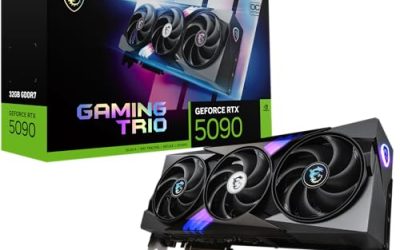
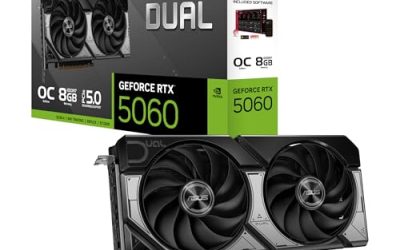
A graphics card is a physical object before it is a specification, and design workstations often live in cases that were never built for long, hot cards. Measure the free length inside your case and compare it with the card dimensions, leaving room for cables. Check the card thickness in slots as well, because a thick cooler can block the slot below it. Look at the cooler design: a card with two or three large fans usually runs quieter under sustained load than a small single-fan model, which matters when you edit for eight hours a day. Then confirm your power supply has the right connectors and enough wattage headroom for the card plus the rest of the system.
Which One Fits Your Situation
Print and layout work with large files
Pick a mid-range card with at least 12 GB of video memory and a quiet dual-fan cooler. Print files grow fast once bleeds, embedded images, and linked assets pile up, and the extra memory keeps panning and zooming smooth in InDesign and Illustrator. You do not need the fastest chip on the market, so put the rest of your budget toward a second monitor. Check the card length against your case before ordering.
Photo retouching on a calibrated wide-gamut monitor
Pick a card with 12 GB or 16 GB of video memory, DisplayPort output, and 10-bit color support. Retouching leans on smooth brush response and clean gradient rendering, and both suffer when video memory runs short or the display chain drops to 8-bit color. A quiet cooler matters here too, since retouching sessions run long. Confirm your monitor cable matches the card output before you buy.
Illustration and vector work in a small or quiet room
Pick a compact dual-fan card with 8 GB or more of video memory. Vector work is light on the GPU, so a modest card keeps zooming and previewing smooth without filling a small room with fan noise or heat. Measure your case first, because short cards fit the compact cases illustrators often use. Save the rest of your budget for a good drawing tablet and a comfortable chair.
Motion graphics and 3D rendering alongside still design
Pick the strongest card your power supply and case can hold, with 16 GB of video memory if you can find it. Motion graphics and 3D previews use the GPU far harder than still design, and larger memory holds bigger scenes without swapping. Check that your rendering software lists the card family as supported, and confirm your power supply has the right connectors. A quiet cooler is worth seeking out for long renders.
Common Mistakes
-
Buying for gaming frame rates instead of design needs. Many buyers start by comparing gaming frame rates, then pick the card that wins a benchmark chart. That number tells you almost nothing about design work. A card built to push high refresh rates in games can still ship with modest video memory, a loud cooler, and only two display outputs, which are exactly the weaknesses that slow down a designer. What matters instead is how much video memory the card carries, how quietly its cooler runs under a sustained load, how many monitors it drives, and whether its drivers are stable in your applications. A mid-range card with generous memory and a quiet cooler will serve a designer better than a faster card that runs hot and loud. Before you compare any two cards, write down what your software actually asks of the GPU, then judge each card against that list.
-
Choosing too little video memory for large files. Video memory is the easiest specification to underestimate, because small test files never show the problem. A designer opens a layered poster, a photo book with embedded smart objects, or a packaging file full of high-resolution textures, and suddenly brushes lag, previews stutter, and zooming feels sticky. The fix is not a faster chip but more memory, because once the card runs out, it shuffles data back and forth instead of working. Buyers who plan to work at 4K, handle large-format print, or composite many photos should treat 12 GB as a sensible starting point and 16 GB as comfortable headroom. Check the memory figure on the listing before you look at anything else, and remember that two cards in the same family can carry very different amounts. A card with too little memory will frustrate you every day, while a card with more memory than you need simply lasts longer.
-
Ignoring the monitor and the display connection. The monitor is half of a design workstation, yet many buyers choose a graphics card without checking how it connects to their display. A wide-gamut monitor often needs DisplayPort to reach its full color range at high resolution, and a card with only HDMI outputs may never show you the colors your print work depends on. The same applies to 10-bit color: if your monitor and software support it but your card or cable does not, smooth gradients can band in skies and skin tones. Count your monitors before you buy, and match each one to an output on the card, including any second display you use for tool panels or reference images. Check the maximum resolution each output supports as well, because a card that drives one 4K display easily may struggle with two. A short check of outputs and cables before ordering saves a return and a week of waiting.
-
Forgetting to measure the case and check the power supply. A graphics card that does not fit is a wasted afternoon, yet buyers often order before measuring. Modern cards are long, and many design workstations live in compact cases or prebuilt towers with limited clearance at the front. Measure the free length inside your case, then compare it with the card dimensions on the listing, and leave room for cables. Check the thickness too, because a card that takes up three slots can block the slot below it, which matters if you use a capture card or a second device. Then look at the power supply: confirm it has the right connectors for the card and enough wattage headroom for the card plus the rest of the system. Finally, check that your case has intake airflow to feed the cooler, since a starved cooler runs loud and hot. Ten minutes with a tape measure and the listing details prevents the most common installation headache.
-
Skipping driver and software support checks. Drivers decide whether a graphics card actually works well in your applications, yet they are the last thing many buyers check. Some design tools accelerate only certain card families, and a card that your software version does not list as supported may fall back to basic rendering, leaving its hardware unused. Studio-style drivers, where the maker provides them, are tuned for creative applications and tend to change less often than game-ready drivers, which suits a workstation that must stay stable through a deadline week. Before you buy, open your main applications and check their system requirements and supported hardware lists, then confirm the card family appears there. After installation, download the driver from the card maker rather than relying on whatever ships in the box, and keep a note of the version that works, so a later update that causes trouble can be rolled back quickly.
Frequently Asked Questions
How much VRAM does graphic design need?
For everyday print and layout work, 8 GB of video memory is a workable starting point. Large-format print, heavy photo compositing, and working at 4K push that figure higher, and 12 GB or 16 GB gives you comfortable headroom. The deciding factor is file size: layered posters, embedded smart objects, and high-resolution textures all consume memory quickly, so match the card to the largest files you open regularly.
Is a workstation card better than a consumer card for design?
Workstation cards are built for certified drivers and long support cycles, which suits studios that need stability. For most freelance designers and small teams, a consumer card with enough video memory and quiet cooling does the same design work well. The deciding factor is your software: if your tools require certified drivers, a workstation card earns its place, and if they do not, a consumer card is the simpler choice.
Can one graphics card drive two color-accurate monitors?
Yes, provided the card has enough outputs and each output supports the resolution and color depth your monitors need. Most modern cards drive two displays without trouble. Check that the card has a matching output for each monitor, ideally DisplayPort for wide-gamut displays, and confirm the maximum resolution per output. Use matching cables, and calibrate each monitor separately.
Does a graphics card matter for print design?
Yes, but less than it matters for photo or motion work. Print design leans on the card for smooth zooming, panning, and previewing layered files, and a card with enough video memory keeps those actions fluid. The processor, memory, and storage in your machine matter just as much for InDesign and Illustrator. Accurate print color comes from a calibrated monitor and a managed workflow, not from a faster chip.
Related guides
More from Amazon
Programs that pair well with the guide above. Offers and eligibility are set by Amazon and may change.
Free shipping on eligible items, Prime Video and more. Eligible new members can start with a free trial.
Start a Prime free trialAd-free music streaming. Eligible new subscribers can start with a free trial.
Try Music Unlimited freeA Prime membership for ages 18-24 with a trial period. Eligibility is set by Amazon.
See Prime for Young AdultsAudiobooks and podcasts to listen to on the go. Eligible new members can start with a free trial.
Try Audible freeAs an Amazon Associate we earn from qualifying purchases.