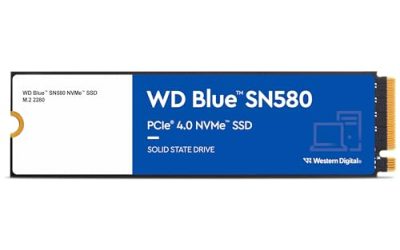
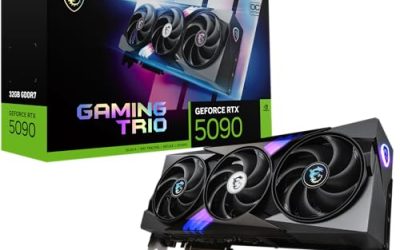
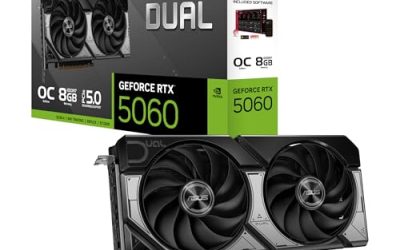
The best PC for streaming and YouTube gaming is a single machine with a recent NVIDIA RTX 50-series (or Radeon RX 9000) graphics card, a modern 8-core processor, 32GB of DDR5 and at least 1TB of NVMe storage, because the graphics card’s hardware encoder now handles the stream while the processor keeps the game running. You only need a second PC for heavy production setups. Below you will find the encoding and bandwidth math, then seven build types from entry streaming to a dedicated two-PC rig, based on published specifications and reviews.
As an Amazon Associate we earn from qualifying purchases at no extra cost to you.


Top 3 picks at a glance
What the PC actually has to do while streaming
When you stream, the computer runs three jobs at once: the game, the encoder that compresses what you see into a video stream, and the broadcast software that composites your scenes (OBS Studio, Streamlabs or similar). Older guides assumed the processor would do the encoding, which is why they recommended huge core counts. Today the better approach is to use the graphics card’s dedicated hardware encoder, which runs on its own silicon and costs only a small amount of game performance. NVIDIA calls its encoder NVENC, AMD’s equivalent is AMF (part of the Advanced Media Framework), and Intel’s is Quick Sync.
Quick comparison of seven builds
| Build | Best for | Graphics class | Processor class | RAM / storage | Price tier |
|---|---|---|---|---|---|
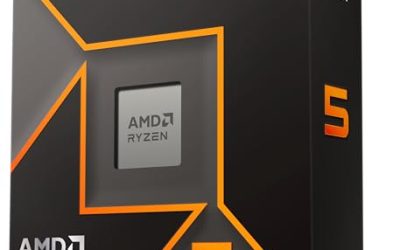
| 1. Starter streamer tower | 1080p60 stream, 1080p games | RTX 5060 Ti or RX 9060 XT | 6-core, Ryzen 5 class | 32GB / 1TB | Entry to mid |
| 2. Corsair Vengeance mid-range | Clean 1080p to 1440p streaming | RTX 5070 class | Ryzen 7 class | 32GB / 1TB to 2TB | Mid |
| 3. NZXT Player series | On-camera streamers who care about looks | RTX 5070 to RTX 5070 Ti class | Ryzen 7 class | 32GB / 2TB | Mid to premium |
| 4. MSI MPG tower | Balanced 1440p streaming | RTX 5070 Ti class | Core Ultra 7 or Ryzen 7 | 32GB / 2TB | Mid to premium |
| 5. Alienware Aurora class | Streamers who want a big-brand warranty | RTX 5070 Ti class | Core Ultra 7 class | 32GB / 1TB to 2TB | Mid to premium |
| 6. Lenovo Legion Tower 7 class | YouTube creators who also edit video | RTX 5070 Ti to RTX 5080 class | 8 to 16 cores | 32 to 64GB / 2TB | Premium |
| 7. Two-PC rig (gaming PC plus streaming PC) | Full-time creators with heavy overlays | High-end card in gaming PC; capture card plus modest system for streaming | Two systems | 32GB each | Premium |
Lines and configurations change frequently, so confirm the parts list for each system before buying. The classes in the table matter more than the model names.
The bitrate math: how much upload speed you need
Bitrate is the amount of video data you send per second, measured in kilobits per second (kbps). Your upload connection must carry that figure comfortably. A safe rule is to keep the stream bitrate at or below about 70% to 75% of your measured upload speed, so there is headroom for other traffic and for variation.
| Stream target | Typical bitrate range | Upload speed to aim for |
|---|---|---|
| 720p 30fps | 2,500 to 4,000 kbps | 5 to 6 Mbps |
| 1080p 30fps | 3,500 to 6,000 kbps | 8 Mbps |
| 1080p 60fps | 4,500 to 9,000 kbps | 12 Mbps |
| 1440p 60fps | 9,000 to 18,000 kbps | 25 Mbps |
| 4K 60fps (YouTube) | 20,000 to 51,000 kbps | 60 Mbps or more |
The ranges follow commonly published streaming guidance from the platforms and from encoder vendors; always check each platform’s current recommended settings, because maximum allowed bitrates and supported resolutions differ between services and change over time. Worked example: for a 1080p60 stream at 8,000 kbps, divide by 0.72 to get roughly 11,100 kbps, or about 11 Mbps of upload speed. Run a wired speed test, and if your result is below that number, drop the bitrate or the resolution.
Recording to disk: how much storage a session uses
If you record locally for YouTube editing, the file size follows from bitrate. File size in gigabytes per hour is bitrate in Mbps multiplied by 3,600 seconds, divided by 8, divided by 1,000. At 50 Mbps that is 50 x 3,600 / 8 / 1,000 = 22.5GB per hour. At 20 Mbps it is 9GB per hour. A 2TB drive holds roughly 88 hours of 50 Mbps footage, but you should keep recordings on a separate drive from the game install to avoid slowdowns.
Encoder choice: what to select in OBS
- Use the hardware encoder on your graphics card. In OBS, choose NVENC for NVIDIA cards, AMF for AMD cards or Quick Sync for Intel integrated graphics. This frees the processor for the game.
- Pick a modern codec your platform accepts. H.264 is universal. AV1 gives better quality at the same bitrate on supported cards and platforms, and RTX 50-series cards include a newer-generation NVENC with AV1 support. Check the platform’s current supported codecs before switching.
- Set rate control to CBR for live streaming. Constant bitrate keeps the stream stable. Use a keyframe interval of 2 seconds, as most platforms recommend.
- Choose a quality preset. A quality or maximum-quality preset on recent NVIDIA cards has a small performance cost. Raise it only if your game headroom allows.
- Record at a higher bitrate than you stream. You can record at a higher quality locally while streaming a lower-bitrate version, as long as your graphics card has encoder capacity for both; higher-tier cards carry more than one encoder.
1. Starter streamer tower: best for beginners at 1080p
Spec line: RTX 5060 Ti or RX 9060 XT graphics, six-core Ryzen 5 or equivalent, 32GB DDR5, 1TB NVMe. Best for: new streamers playing esports and mainstream games at 1080p. Skip if: you play the heaviest new releases at 1440p and stream at the same time.
Entry streaming works well on this class because the hardware encoder handles the stream with a modest performance cost. A six-core processor is enough as long as you keep background apps to a minimum. If you only find a configuration with 16GB, plan to add a second pair of sticks.
- Pro: Lowest cost of entry for a single-PC streaming setup.
- Pro: Hardware encoder keeps the processor free.
- Pro: Easy to upgrade the graphics card later.
- Con: Heavier games may need reduced settings while streaming.
- Con: Fewer cores limit simultaneous heavy tasks such as editing while live.
2. Corsair Vengeance mid-range: best for clean, dependable streaming
Spec line: RTX 5070-class graphics, Ryzen 7 class processor, 32GB DDR5, 1TB to 2TB NVMe, Corsair cooling and power supply. Best for: streamers who want a quiet, tidy machine from a company that makes many of the parts. Skip if: budget is the main constraint.
Corsair’s Vengeance line is frequently named in 2026 roundups for its standard parts and support. For streaming the benefit is straightforward: good airflow keeps fans quieter, which matters if your microphone is nearby.
- Pro: Quiet-oriented airflow and cooling.
- Pro: Standard parts for later upgrades.
- Pro: Strong 1440p gaming alongside streaming.
- Con: Higher price than integrator builds with similar graphics.
- Con: Limited low-end configurations.
3. NZXT Player series: best for on-camera streamers
Spec line: RTX 5070 to RTX 5070 Ti class graphics, Ryzen 7 class processor, 32GB DDR5, 2TB NVMe, NZXT case with glass panel. Best for: creators whose PC is visible on camera. Skip if: you want the lowest price.
If your PC appears behind you on stream, the case matters as much as the specs. NZXT’s cases are designed to look clean and organized, and the build-to-order system makes the parts list easy to read.
- Pro: Clean look that suits a camera.
- Pro: Curated, easy-to-read configurations.
- Pro: Airflow-oriented design.
- Con: Premium for the aesthetic.
- Con: Fewer budget options.
4. MSI MPG tower: best for balanced 1440p streaming
Spec line: RTX 5070 Ti class graphics, Core Ultra 7 or Ryzen 7 processor, 32GB DDR5, 2TB NVMe. Best for: streamers who want 1440p gaming and a 1080p60 stream without compromise. Skip if: you need a compact PC.
The MPG family offers coordinated MSI components and sits in a middle-to-premium tier. With 16GB of graphics memory, the card has room for high textures plus encoder and capture workloads at the same time.
- Pro: 16GB of graphics memory helps when streaming and gaming together.
- Pro: Coordinated MSI internals.
- Pro: Widely stocked.
- Con: Many similar model names.
- Con: Larger case than some alternatives.
5. Alienware Aurora class: best for a big-brand warranty
Spec line: RTX 5070 Ti class graphics, Core Ultra 7 class processor, 32GB DDR5, 1TB to 2TB NVMe. Best for: streamers who prefer a large company’s service network and financing options. Skip if: you want guaranteed standard parts for later upgrades without checking the configuration.
Alienware’s Aurora line is a mainstream gaming tower with a recognizable look and Dell’s support structure. Verify which parts are standard in the configuration you choose, and read the seller’s current terms.
- Pro: Large support organization.
- Pro: Distinct design.
- Pro: Frequent promotions.
- Con: Premium positioning.
- Con: Some parts may be less standard.
6. Lenovo Legion Tower 7 class: best for creators who also edit
Spec line: RTX 5070 Ti to RTX 5080 class graphics, 8 to 16 cores, 32GB to 64GB DDR5, 2TB NVMe. Best for: YouTube creators who record, edit and stream from one PC. Skip if: you only stream and do not edit video.
Video editing benefits from more cores and more RAM, and the GPU’s encoder speeds up exports. A 64GB configuration is useful if you work with large timelines or run several creative apps at once.
- Pro: Strong for both gaming and editing.
- Pro: Larger memory options.
- Pro: Established warranty structure.
- Con: Higher price tier.
- Con: Less customization than boutique sellers.
7. Two-PC rig: best for heavy production
Spec line: A high-end gaming PC, a capture card (internal PCIe or external USB), and a separate streaming PC with a modest modern processor and a mid-range graphics card. Best for: full-time creators with complex overlays, multiple cameras and browser sources. Skip if: you are starting out.
A second PC makes sense when scene complexity or multiple capture sources push a single machine too hard, or when you want the stream to stay stable even if the game crashes. Today’s single-PC hardware encoders reduce the need for it, so treat it as an advanced option.
- Pro: Stream stays up if the game PC crashes.
- Pro: Dedicated resources for production tasks.
- Pro: Highest overall headroom.
- Con: Highest cost and complexity.
- Con: Needs a capture card and extra desk space.
Decision matrix: match your situation to a build
| Your situation | Best match | Settings to start with |
|---|---|---|
| New streamer, mostly esports, 1080p | Build 1 | 1080p60, 6,000 kbps, hardware encoder, CBR |
| Streams AAA games at 1440p | Builds 2 to 4 | 1080p60 stream, 8,000 kbps, record locally at higher bitrate |
| Facecam and visible PC | Build 3 | Quiet fan curve, 1080p60 |
| YouTube creator who edits | Build 6 | Record at high bitrate, export with hardware encoder |
| Heavy overlays, multiple cameras | Build 7 | Capture card, separate streaming PC |
Other streaming essentials the PC does not provide
- Wired internet. Ethernet is more stable than Wi-Fi for uploading a live stream.
- Microphone and audio. A USB or XLR microphone matters more to viewers than a small bump in video quality.
- Webcam or camera. A decent webcam or a camera with a capture card improves quality.
- Storage plan. Keep recordings on a separate drive from game installs.
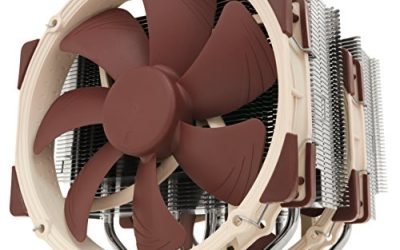
- Cooling. Case fans and a tower cooler keep noise down during long sessions.
YouTube gaming specifically
For YouTube, recording quality and export speed matter as much as live encoding. Record at a higher bitrate than you would stream, edit in a program that uses the graphics card to accelerate timelines and exports, and keep 32GB of RAM so the editing software and the game launcher can coexist. YouTube processes uploads into multiple resolutions, so a 1440p upload often looks better than a 1080p upload after processing, even to viewers watching at 1080p, as the platform commonly applies a higher-quality encode to higher-resolution sources. Check current platform guidance for upload settings, since those recommendations change.
Frequently Asked Questions
What is the best PC for streaming?
A single PC with an RTX 5070-class or better graphics card, an 8-core processor, 32GB of DDR5 and a 2TB NVMe drive is the best fit for most streamers. The graphics card’s hardware encoder handles the stream with a small performance cost.
Do I need a two-PC setup for streaming?
No, most streamers do not. A single PC with a modern hardware encoder is enough for 1080p60 and often 1440p. Consider two PCs if you run heavy overlays, multiple cameras or need the stream to survive a game crash.
How much upload speed do I need to stream?
Aim for an upload speed at least 1.4 times your bitrate. For a 1080p60 stream at 8,000 kbps, that means about 11 Mbps. Use a wired connection and run a speed test at the time of day you stream.
How much RAM do I need for streaming?
32GB is the practical target. 16GB works for light setups, but games, OBS, a browser and chat tools together can exceed it.
Is an AMD graphics card good for streaming?
Recent AMD cards include hardware encoders and work well for streaming, though many creators prefer NVIDIA for its encoder quality and software support. Compare both for the codecs and settings your platform supports.
Will streaming reduce my game frame rate?
Typically by a small amount with a hardware encoder, though the loss depends on the game, the encoder preset and the resolution. Lowering the preset or resolution reduces the impact.
Bottom line
Choose the graphics tier from the games you play, then pick a processor with at least eight cores if you edit or multitask, and give the machine 32GB of RAM and a fast NVMe drive. Use the hardware encoder in OBS, set bitrate from your measured upload speed using the 70% rule, and consider a second PC only when a single machine truly runs out of headroom.
Related guides
More from Amazon
Programs that pair well with the guide above. Offers and eligibility are set by Amazon and may change.
Free shipping on eligible items, Prime Video and more. Eligible new members can start with a free trial.
Start a Prime free trialAd-free music streaming. Eligible new subscribers can start with a free trial.
Try Music Unlimited freeA Prime membership for ages 18-24 with a trial period. Eligibility is set by Amazon.
See Prime for Young AdultsAudiobooks and podcasts to listen to on the go. Eligible new members can start with a free trial.
Try Audible freeAs an Amazon Associate we earn from qualifying purchases.