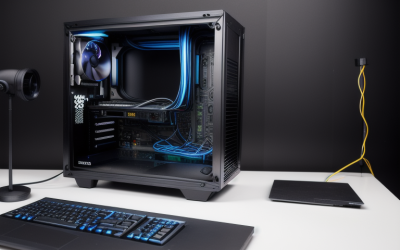
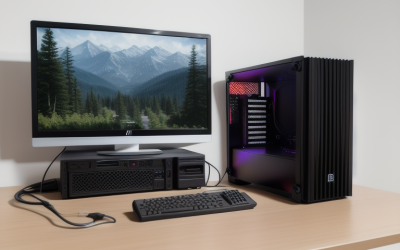
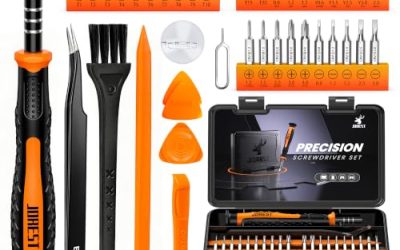
An office PC is worth upgrading for gaming only if it is a full-size tower with a power supply of at least 400 W, a PCIe x16 slot, a 6-core or better CPU from roughly 2019 onward, and 16 GB of RAM or room to add it. In that case a GPU in the 75 to 160 W range and a new SSD turn it into a capable 1080p machine for far less than a new build. If your office PC is a small form factor or micro model with a 180 to 260 W supply and no spare power connectors, you are limited to a slot-powered graphics card of about 75 W, and the gain is modest.
This guide is based on published specifications and manufacturer documentation, and the checks below are things you can do with a screwdriver and a label. Business desktops vary a lot by generation and even by configuration within a model, so treat the family descriptions as starting points and verify your own machine.
As an Amazon Associate we earn from qualifying purchases at no extra cost to you.


Our Top Picks
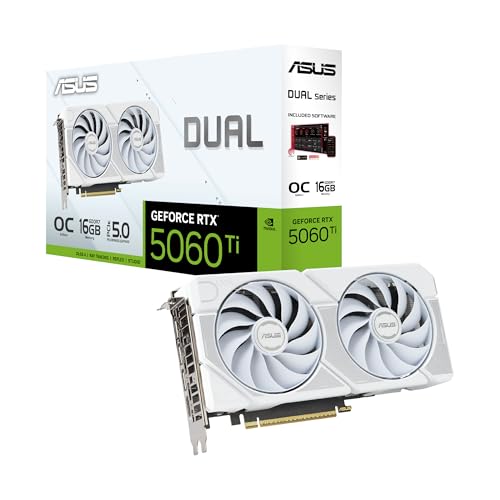 ASUS Dual GeForce RTX 5060 Ti 16GB GDDR7RTX5060Ti|OC|16GB|White9 x 4.7 x 0.1 inches1.4 poundsCheck on Amazon

Top 3 picks at a glance
The Five Checks Before You Spend Anything
- Read the power supply label. Open the side panel and note the wattage and the connectors. Many office PCs have 180 W to 300 W supplies and no PCIe power cables.
- Measure the space. Note the case height (full height or low profile), maximum card length, and whether a double-width cooler fits.
- Identify the CPU. Run a system information tool and record the model. A 4-core processor will limit a modern GPU badly; a 6-core or better chip from the last six or so years is a reasonable base.
- Check the motherboard slots. You need a full-size PCIe x16 slot (not x4 or x1) and ideally a spare M.2 slot or SATA port.
- Check whether the PSU and motherboard are standard. Some Dell, HP and Lenovo models use proprietary connectors or shapes, which means you cannot just swap in a normal ATX power supply.
Decision Matrix: What Your Office PC Can Support
| Your PC type | Typical PSU | Realistic GPU | Gaming target | Verdict |
|---|---|---|---|---|
| Micro or mini PC | External adapter | None (integrated graphics only) | Light esports and older games | Not worth upgrading for gaming |
| Small form factor (SFF) | 180 to 260 W, proprietary | Low-profile card up to about 75 W (slot power) | 1080p medium in many games | Modest gains; check cooling |
| Mid-tower business PC, 260 to 300 W supply | 260 to 300 W | Up to about 75 W; sometimes a 6-pin card with a PSU swap | 1080p medium to high | Good if the PSU can be replaced |
| Mid-tower with 500 W supply and PCIe cables | 500 W | Up to about 160 W (RTX 5060 or RX 9060 XT class) | 1080p high to 1440p | Strong candidate |
| Workstation tower (standard ATX parts) | 600 to 1000 W | Almost any GPU | 1440p to 4K | Best candidate |
Worked Example: How Big a Graphics Card Fits the Power Budget?
Take a mid-tower office PC with a 260 W power supply and a 65 W CPU. Add roughly 50 W for the motherboard, RAM, SSD and fans.
| Item | Draw |
|---|---|
| CPU (65 W class) | 65 W |
| Motherboard, RAM, SSD, fans | 50 W |
| Subtotal without a GPU | 115 W |
| PSU rating | 260 W |
| Headroom at 80 percent of rating (208 W) | 93 W |
That leaves roughly 90 W of headroom, so a card powered entirely by the PCIe slot, which provides up to 75 W, fits. A 130 W card does not: it would push the total near 245 W, and it would also need a PCIe power connector that the supply may not have. If the PSU is a standard ATX unit you can replace it with a 550 to 650 W model and the same case then supports a 160 W card; if it is proprietary, the options narrow to slot-powered cards.
The 80 percent figure is a safety margin, because power supplies run more reliably and quietly when not pushed to their limit and because GPUs have brief power spikes above their rated draw.
Graphics Cards That Suit Office PCs
| Card class | Power draw | Needs PCIe cable? | Typical use |
|---|---|---|---|
| Radeon RX 6400 (low-profile versions exist) | about 53 W | No | Esports at 1080p, SFF PCs |
| GeForce GTX 1650 (low-profile versions exist) | about 75 W | No in many models | Older and esports titles |
| GeForce RTX 3050 6 GB (low-profile versions exist) | about 70 W | No | 1080p medium in many games |
| Intel Arc A380 | about 75 W | Some models | Light games, video encoding |
| GeForce RTX 5050 8 GB | about 130 W | Yes (8-pin) | 1080p high, mid-tower with 400 W or more |
| GeForce RTX 5060 8 GB and Radeon RX 9060 XT 16 GB | about 145 to 160 W | Yes | 1080p ultra to 1440p |
| GeForce RTX 5060 Ti 16 GB | about 180 W | Yes | 1440p, with a 550 W or larger PSU |
The stock of older slot-powered cards is limited and moves around, and some are sold only at higher prices. Check availability on the current market rather than assuming a particular model will be easy to find. If your PSU has a standard 6- or 8-pin cable, a full-size card in the RTX 5050 or RX 9060 class is almost always a better buy than an old low-profile card.
Best Office Computers to Upgrade for Gaming
1. Workstation Towers: Best Overall Upgrade Base
Spec line: Dell Precision, HP Z2 Tower and Lenovo ThinkStation P-series towers, with 500 to 1000 W power supplies, standard PCIe power cables and room for full-length cards.
Best for: buyers who find one used or off-lease and want a real gaming upgrade path.
Skip if: you want a quiet, compact PC.
- Pro: large PSUs and good cooling support strong GPUs.
- Pro: professional-grade build, often with ECC memory support.
- Pro: standard sockets and, in many generations, standard parts.
- Con: larger and heavier than typical office PCs.
- Con: some models use proprietary motherboard connectors.
2. Dell OptiPlex Towers: Best Widely Available Choice
Spec line: mid-tower models from the OptiPlex 3000, 5000 and 7000 families and their successors, with PSU options that often range from 260 W to 500 W depending on configuration.
Best for: upgrading a mainstream business PC that is already on your desk.
Skip if: your unit has the smallest PSU and a proprietary motherboard.
- Pro: common and inexpensive on the used market.
- Pro: easy access to RAM, SSDs and the GPU slot.
- Pro: 6-core and better CPUs in recent generations.
- Con: PSU wattage depends strongly on the exact configuration.
- Con: some generations use nonstandard motherboard power connectors.
3. HP EliteDesk and ProDesk Towers: Best Tool-Free Access
Spec line: mid-tower and microtower models with PSU options in the 180 to 500 W range depending on model.
Best for: easy hardware access and straightforward GPU swaps in larger cases.
Skip if: you have a small-form-factor unit and want a large GPU.
- Pro: tool-less side panels and drive bays in many models.
- Pro: good airflow in tower versions.
- Pro: broad availability of both new and refurbished units.
- Con: proprietary power supplies in some models.
- Con: stock cooling is tuned for quiet office use, so check temperatures after adding a GPU.
4. Lenovo ThinkCentre M-Series Towers: Best for Straightforward Layouts
Spec line: tower and SFF models, 6-core and 8-core Intel and AMD options in recent generations, PSU options that vary by configuration.
Best for: users who want a plain, serviceable case.
Skip if: you are choosing the small chassis.
- Pro: simple internal layout.
- Pro: reliable and widely supported.
- Pro: AMD Ryzen PRO options in some generations.
- Con: PSU limits on lower-tier models.
- Con: some models use proprietary front-panel and power connectors.
5. Small Form Factor Desktops: Best for Light Gaming Only
Spec line: SFF business PCs with 180 to 260 W supplies and a low-profile PCIe slot.
Best for: esports and older games with a slot-powered low-profile card.
Skip if: you want modern AAA games at high settings.
- Pro: small, quiet and cheap.
- Pro: slot-powered low-profile cards need no PSU change.
- Pro: fits a small desk.
- Con: limited cooling and power.
- Con: low-profile GPU choices are limited and often priced above their performance.
6. Upgradable Standard-Parts Gaming Prebuilt: Best Alternative
Spec line: prebuilt lines such as Corsair Vengeance, NZXT Player, Skytech and iBUYPOWER that use standard ATX parts, a 750 to 850 W supply and a replaceable GPU.
Best for: people whose office PC fails the checks above.
Skip if: you already own a suitable workstation tower.
- Pro: designed for gaming and upgrades from day one.
- Pro: one warranty and no compatibility worries.
- Pro: modern platform with DDR5 and PCIe 5.0.
- Con: costs more than upgrading a spare office PC.
- Con: no reuse of your existing hardware.
Upgrade Order: Where the Money Gives the Biggest Gain
| Step | Upgrade | Why | Priority |
|---|---|---|---|
| 1 | SSD to NVMe or SATA SSD | Faster load times, cheap | High if on a hard drive |
| 2 | RAM to 16 GB dual-channel | Office PCs often ship with one 8 GB stick | High |
| 3 | Graphics card | Largest frame rate gain | Highest |
| 4 | Power supply (if standard) | Enables a bigger GPU safely | As needed |
| 5 | CPU | Only if the GPU is limited by it | Low to medium |
| 6 | Case fan or cooler | Keeps temperatures in check | As needed |
The CPU Bottleneck Rule of Thumb
Pair the GPU to the CPU, not to your wish list. A 4-core, 4-thread processor from the 2010s will hold back almost any modern graphics card. A modern 6-core part, such as an Intel Core i5 from the 10th generation or later or a Ryzen 5 with 6 cores, can feed an RTX 5050 or RX 9060 class GPU at 1080p with room to spare. If your CPU usage sits near 100 percent while the GPU idles at 60 percent during a game, the CPU is the limit and a bigger GPU will not help. Frame rates vary with the game, settings and patch, so use that observation as a guide rather than a precise rule.
Airflow and Noise After the Upgrade
Office towers are designed for 65 W CPUs and no GPU heat. A 130 to 160 W graphics card adds a lot of heat to a case with a single rear fan. After installing the card, run a game for 20 to 30 minutes and watch GPU and CPU temperatures. If the GPU stays under about 80 degrees Celsius and the CPU under about 90, you are fine; if not, add a front intake fan, remove dust filters that restrict flow, or open the case panel to check whether airflow is the cause.
Installing the Upgrade: Steps and the Reason for Each
- Back up files and note your Windows license state. Office PCs are often managed by an employer or school; if this one is, ask the administrator before changing hardware or reinstalling Windows.
- Update the BIOS first. Business PCs often ship with old firmware, and newer versions can fix GPU detection and memory compatibility problems.
- Uninstall the old graphics driver or use the integrated driver cleanup. This avoids conflicts when the new card is detected.
- Install the card and connect power. Press it firmly into the PCIe x16 slot, secure the bracket, then connect every PCIe power connector the card requires. Never use adapters that combine several Molex connectors to feed a card with an 8-pin input.
- Move the monitor cable to the card. Plugging into the motherboard output while the card is installed leaves the integrated graphics in charge, a very common first-day mistake.
- Install the current driver from the manufacturer. Then check in the display settings that the monitor is running at its native resolution and full refresh rate.
- Enable resizable BAR if the platform supports it. The setting is in the BIOS under PCIe options and can add a small performance gain on supported systems; on older business BIOS versions it may be absent.
- Stress test for stability. Run a demanding game for 30 minutes and watch for restarts, which are the typical sign that a small power supply cannot handle the card.
If the machine restarts under load, do not keep running it. A reboot during a game is the power supply protecting itself, and the fix is a bigger supply or a lower-power card, not a software setting.
Frequently Asked Questions
Can I turn any office PC into a gaming PC?
No. The PC needs a full-size PCIe x16 slot, a CPU with at least 6 cores for modern games, and a power supply that can support the card. Small form factor and mini PCs are limited to light gaming or are not worth upgrading.
What is the best graphics card to upgrade an office PC?
For PCs with a weak or proprietary PSU, a slot-powered card of about 75 W or less is the realistic option. For PCs with 400 W or larger supplies and PCIe cables, an RTX 5050, RTX 5060 or RX 9060 XT is usually the best fit.
Do I need to replace the power supply?
If the supply is below about 350 W or lacks a PCIe power cable, yes, as long as it is a standard ATX unit. If it is proprietary, you may be limited to slot-powered cards or may need a different case and supply.
Will a new graphics card be limited by my CPU?
Possibly. A 4-core CPU can limit modern GPUs severely, while a 6-core CPU from the last several generations works well for 1080p gaming. Watch CPU and GPU usage during a game to see which one is the bottleneck.
Is it better to upgrade an office PC or buy a gaming prebuilt?
If you already own a workstation or mid-tower with a decent CPU and a standard PSU, upgrading is cheaper. If your PC is a small form factor or has a proprietary design, a gaming prebuilt with standard parts is the more reliable path.
How much RAM does an upgraded office PC need?
16 GB in two sticks is a good target for 1080p gaming, and 32 GB is comfortable for modern open-world titles and multitasking. Check whether your office PC uses DDR4 or DDR5, as the two are not interchangeable.
Related guides
- Best Websites to Build a Gaming PC Online: 7 Custom PC Builders Compared (2026)
- Best Gaming PC Components in 2026: A Part-by-Part Guide for a DIY Build
- Best Gaming PC Build Under $2,000 in 2026: Three Part Lists and a Budget Split: 4 Compared
- Best Gaming PC Build Under $1,500 in 2026: Three Parts Lists for 1440p: 4 Compared
More from Amazon
Programs that pair well with the guide above. Offers and eligibility are set by Amazon and may change.
Free shipping on eligible items, Prime Video and more. Eligible new members can start with a free trial.
Start a Prime free trialAd-free music streaming. Eligible new subscribers can start with a free trial.
Try Music Unlimited freeA Prime membership for ages 18-24 with a trial period. Eligibility is set by Amazon.
See Prime for Young AdultsAudiobooks and podcasts to listen to on the go. Eligible new members can start with a free trial.
Try Audible freeAs an Amazon Associate we earn from qualifying purchases.