
Radiator fans and case fans should not use the same control logic. Radiator fans need to react to coolant or CPU package temperature because they directly control how quickly heat leaves the loop. Case fans should prioritize steady airflow through the chassis, preventing GPU heat pockets, motherboard heat buildup, and stagnant air around storage and voltage-regulator components.
For most gaming PCs in 2026, the best starting point is a quieter fixed floor for case fans plus a more responsive curve for radiator fans. This avoids the irritating “fan hunting” effect where every small CPU temperature spike makes the entire system surge and settle. Start conservative, verify temperatures during your actual games, and then adjust only the fan group responsible for the heat source.
As an Amazon Associate we earn from qualifying purchases at no extra cost to you.



Our Top Picks
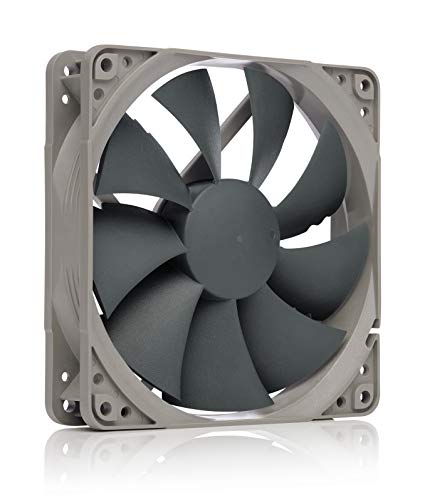


Top 3 picks at a glance
Quick Recommended Settings
| Setting | Recommended value | Why |
|---|---|---|
| Radiator fan control source | Coolant temperature; CPU package temperature if coolant data is unavailable | Coolant changes slowly and produces stable fan behavior; CPU temperature is a workable fallback. |
| Radiator fan minimum speed | 30% PWM, or the lowest speed at which every fan reliably starts | Maintains airflow through the radiator without unnecessary idle noise. |
| Radiator curve at 60°C CPU | 50% PWM | Provides meaningful cooling before sustained gaming or rendering temperatures build. |
| Radiator curve at 75°C CPU | 75% PWM | Handles longer high-load periods without immediately jumping to maximum noise. |
| Radiator emergency point | 100% PWM at 85°C CPU | Prioritizes cooling when the processor is approaching a sustained high-temperature condition. |
| Front/bottom intake fans | 35% idle, 55% at 60°C GPU, 75% at 75°C GPU | GPU heat is the dominant case heat source in most gaming systems. |
| Rear/top exhaust fans | 30% idle, 50% at 60°C CPU or GPU, 70% at 75°C | Maintains a controlled exhaust path without stripping intake air away too aggressively. |
| Fan response delay | 5-second ramp-up; 15-second ramp-down | Prevents sudden speed changes caused by brief temperature spikes. |
| Pressure balance | Slight positive pressure: intake fans typically 5% to 15% faster than exhaust | Reduces unfiltered dust entry while preserving consistent airflow. |
Setting-by-Setting
Radiator Fan Temperature Source: Coolant Temperature Preferred
Exact value: Set radiator fans to follow coolant temperature when your AIO or custom loop exposes a liquid sensor. Use 30% at 30°C coolant, 45% at 35°C, 65% at 40°C, 85% at 45°C, and 100% at 50°C. If no coolant sensor is available, use CPU package temperature with the 30%/50%/75%/100% curve listed above.
Trade-off: Coolant-based control is quieter and steadier, but it responds more slowly to sudden CPU loads. CPU-based control reacts immediately but can create audible fan ramping.
What causes it: CPU package temperature can jump sharply during game loading, shader compilation, background updates, and short boost bursts. The radiator itself does not heat up at the same instant.
How to check: Open your motherboard BIOS and look under Monitor, Hardware Monitor, Smart Fan, Q-Fan Control, or Fan Control. In Windows, check whether your AIO software lists “Liquid Temperature” or “Coolant Temperature.”
What to do: In ASUS UEFI, press F6 for Q-Fan Control, select the radiator header, choose Source, and select the liquid sensor if available. In MSI Click BIOS, open Hardware Monitor, select the fan header, and assign the available temperature source. If your AIO software owns the radiator fans, set the curve there and leave the motherboard header on a fixed duty cycle or disabled from control.
How to undo: Restore the fan header to CPU or CPU Package as its source, then select the BIOS Standard profile or clear the custom curve.
Radiator Fan Minimum Duty: 30% PWM
Exact value: Set a 30% minimum for PWM radiator fans. For 3-pin DC fans, use the lowest percentage that starts every fan reliably after a full shutdown, commonly 40% to 50%.
Trade-off: A lower minimum reduces idle noise but risks stalled fans, uneven fan startup, and slower recovery after a load begins.
What causes it: Fan motors do not all start at the same voltage or PWM duty. A splitter can also make several fans behave differently at low speed.
How to check: Shut down the PC completely, wait 10 seconds, then start it while watching each radiator fan. Repeat this three times. A fan that twitches, starts late, or remains stopped needs a higher minimum.
What to do: Set the header mode correctly: PWM for 4-pin fans and DC for 3-pin fans. Then raise the first curve point in 5% increments until all fans start consistently. Save BIOS changes with F10.
How to undo: Return the minimum duty to the prior value or load the motherboard’s default fan profile.
Radiator Fan Curve: 30% / 50% / 75% / 100%
Exact value: For a CPU-temperature curve, use 30% at 35°C, 50% at 60°C, 75% at 75°C, and 100% at 85°C. Keep the curve smooth rather than making a vertical jump between adjacent points.
Trade-off: A steeper curve lowers temperatures sooner but makes fan noise more noticeable. A flatter curve is quieter but allows higher sustained temperatures before full cooling is available.
What causes it: A curve that stays below 40% until 70°C often feels quiet at first, then becomes abruptly loud after heat has already accumulated in the radiator.
How to check: Run the game or workload that normally produces the most heat for at least 20 minutes. Watch CPU temperature and radiator fan behavior using your motherboard monitoring page or AIO software.
What to do: Add the four points above. Set Step Up or Fan Spin-Up Time to 5 seconds and Step Down or Fan Spin-Down Time to 15 seconds when those controls are available.
How to undo: Select the built-in Standard or Normal profile, or delete the added curve points and save.
Case Intake Fans: Follow GPU Temperature
Exact value: Set front and bottom intake fans to 35% at idle, 55% at 60°C GPU temperature, 75% at 75°C GPU temperature, and 100% at 82°C GPU temperature.
Trade-off: GPU-based intake control improves gaming airflow, but some motherboard BIOS interfaces cannot read GPU temperature directly.
What causes it: During gaming, the graphics card usually dumps more heat into the case than the CPU. CPU-only case fan curves may remain slow while the GPU recirculates warm air.
How to check: Compare CPU and GPU temperatures while gaming. If the GPU is heavily loaded while CPU usage is modest, CPU-controlled intake fans are likely responding to the wrong component.
What to do: If your fan-control software supports GPU temperature, assign front and bottom fans to it. If BIOS offers only CPU and motherboard sensors, use a motherboard or system-temperature source and set a higher fixed baseline of 40% to 50% during gaming.
How to undo: Reassign intake fans to CPU temperature or restore their previous fixed speed.
Exhaust Fans: Keep Them Slightly Slower Than Intake
Exact value: Set rear and top exhaust fans about 5% to 15% below equivalent intake speed. For example, when intake is 55%, set exhaust to 50%; when intake is 75%, set exhaust to 65% or 70%.
Trade-off: Lower exhaust speeds support positive pressure and dust control, but excessive reduction can trap heat in restrictive cases.
What causes it: Running every exhaust fan faster than intake creates negative pressure, pulling dust through unfiltered gaps around side panels, PCIe slots, and cable openings.
How to check: Inspect dust filters and unfiltered seams after several weeks. Heavy dust around gaps indicates negative pressure or poor filter maintenance.
What to do: Lower exhaust duty by 5% first. Keep a top-mounted radiator’s fans controlled as radiator fans, not as generic exhaust fans, because radiator heat removal remains their primary job.
How to undo: Match exhaust and intake percentages if internal temperatures rise or your case has very limited venting.
By Hardware Tier
Low-End Hardware: Stock Cooler or 120 mm AIO
Use a simple CPU-based setup if the board has limited headers or controls. Set the CPU/radiator fan to 35% at 35°C, 55% at 60°C, 80% at 75°C, and 100% at 85°C. Run one or two case intake fans at a fixed 45%, with rear exhaust at 40%. This prioritizes dependable airflow over ultra-low idle noise. Avoid fan-stop mode on the only intake or exhaust fan in a compact case.
Midrange Hardware: 240 mm or 280 mm AIO and Dedicated GPU
Use the recommended split-control approach: radiator fans follow coolant temperature or CPU temperature, while front intake follows GPU temperature where possible. Start intake at 35%, rear exhaust at 30%, and maintain slightly higher intake than exhaust. A 5-second rise delay and 15-second fall delay are especially useful here because modern CPUs can spike briefly even when the game is mostly GPU-bound.
High-End Hardware: 360 mm AIO, Custom Loop, or High-Wattage GPU
Prioritize sensor separation. Radiator fans should follow coolant temperature, bottom intake should follow GPU temperature, and rear exhaust can use the higher of CPU or GPU temperature if your software supports a combined sensor. For custom loops, do not allow the pump to follow an aggressive CPU curve; set it to a steady 60% to 80% unless your pump manufacturer specifies otherwise. Keep radiator fans at 30% minimum and reserve 100% for high coolant temperatures or sustained thermal load.
Common Mistakes
Using CPU Temperature for Every Fan
What causes it: It is the default BIOS configuration and requires no extra setup.
How to check: Watch whether all case fans surge during brief CPU spikes while GPU-heavy gaming continues.
What to do: Move intake fans to GPU or system temperature control and retain CPU or coolant control for radiator fans.
How to undo: Assign all headers back to CPU temperature in BIOS.
Mixing PWM and DC Modes
What causes it: A 4-pin fan may be connected to a header configured for DC, or a 3-pin fan may be assigned PWM mode.
How to check: In BIOS, compare each header’s mode with the fan connector type and listen for clicking, stalling, or erratic speed changes.
What to do: Set 4-pin fans to PWM and 3-pin fans to DC, then run the BIOS fan tuning or calibration feature.
How to undo: Switch the header back to Auto mode if manual selection creates problems.
Setting Fan Stop on Radiator Fans
What causes it: Fan-stop profiles look attractive for idle silence.
How to check: Confirm whether radiator fans stop completely below the first temperature point.
What to do: Disable fan stop for radiator fans and use a 30% minimum instead.
How to undo: Re-enable fan stop only if your cooler manufacturer explicitly supports it and temperatures remain stable.
FAQ
Should radiator fans run faster than case fans?
Usually, yes under CPU load. Radiator fans overcome airflow resistance from fins, while case fans mainly maintain chassis airflow. At idle, both can run quietly near their minimum stable speed.
Should top-mounted radiator fans be intake or exhaust?
Use top exhaust for the simplest overall heat path in most gaming PCs. Use top intake only when CPU cooling is the priority and you accept that warmer radiator exhaust will enter the case.
What if my BIOS cannot use GPU temperature for case fans?
Use the motherboard’s system or VRM sensor if available, and raise the intake baseline to 40% to 50%. Alternatively, use fan-control software that can read GPU temperature and write curves to supported motherboard headers.
How often should I retune fan curves?
Retune after changing the case, cooler, GPU, fan layout, or room temperature conditions. Otherwise, check operation every few months, clean dust filters, and verify that every fan still starts at its configured minimum duty.









