
Connecting PWM fans to a fan hub lets several case fans follow one motherboard control signal instead of forcing each fan to run at a fixed speed. When the hub is powered correctly and connected to a 4-pin PWM motherboard header, you can set a single fan curve in BIOS or your motherboard’s control software, reduce idle noise, and still increase airflow when CPU or system temperatures rise.
This guide covers the standard powered PWM hub: a small board with several 4-pin fan ports, a SATA power input, and one cable that connects to a motherboard fan header. You will need a powered-off PC, access to the rear side of the motherboard tray, and enough cable slack to route the hub safely. The process is the same for most modern ATX and microATX gaming PCs in 2026.
As an Amazon Associate we earn from qualifying purchases at no extra cost to you.

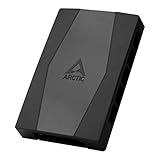
Before You Start
| What you need | Why | Optional? |
|---|---|---|
| Powered PWM fan hub with SATA power connector | Supplies stable 12 V power to multiple fans without overloading a motherboard header | No |
| 4-pin PWM case fans | Lets fan speed respond to the motherboard’s PWM control signal | No |
| Available motherboard fan header labeled CHA_FAN, SYS_FAN, or FAN | Provides the PWM control signal and usually the RPM reading | No |
| Free SATA power plug from the power supply | Powers the hub and all attached fans | No for powered hubs |
| Phillips screwdriver | Removes the side panels and may secure the hub | Usually |
| Zip ties or hook-and-loop cable straps | Secures fan cables away from blades, GPU fans, and side panels | Yes |
| Motherboard manual | Confirms header labels, supported modes, and header current limits | Recommended |
First, identify your hardware. A true PWM fan has a 4-pin connector with four metal contacts. A 3-pin DC fan can often plug into a 4-pin hub port, but it will not respond correctly if the hub sends PWM-only control. If you have mixed 3-pin and 4-pin fans, use separate headers or a hub specifically designed for both DC and PWM control.
Also check whether your device is a fan hub or an RGB hub. Fan hubs have 3-pin or 4-pin fan ports and usually a SATA power connection. RGB hubs use 3-pin 5 V ARGB or 4-pin 12 V RGB lighting connectors. Never force an RGB plug onto a fan hub, or the reverse.
Step-by-Step
1. Shut down, switch off, and discharge the PC (5 minutes)
In Windows, select Start > Power > Shut down. Wait until all fans and LEDs stop. Turn the rear power-supply switch to the O position, then unplug the AC power cable. Hold the case power button for 10 seconds to discharge residual power.
Place the case on a stable table. Remove both side panels if your case supports rear cable management: loosen the captive thumbscrews, slide each panel backward, and lift it away. Touch an unpainted metal part of the case before handling components to reduce static buildup.
2. Choose the correct motherboard header (5 minutes)
Locate a chassis/system fan header, typically labeled CHA_FAN1, SYS_FAN1, CASE_FAN, or similar. These headers are usually along the motherboard’s right edge, bottom edge, or near the top-left corner. Avoid using CPU_FAN for the case-fan hub unless your motherboard manual explicitly directs otherwise. Your CPU cooler should normally remain connected directly to CPU_FAN so the motherboard can monitor it for boot protection.
Use AIO_PUMP only if you deliberately want the connected hub to run at a constant speed and your motherboard manual supports fan control on that header. For normal case airflow control, a SYS_FAN or CHA_FAN header is the best choice.
Check that the selected header supports PWM mode. Most 4-pin headers do. A 4-pin header has a plastic guide rail and four pins; the fourth pin carries the PWM control signal.
3. Mount the PWM fan hub in a safe location (5 to 10 minutes)
Choose a flat spot behind the motherboard tray, ideally near the cable-routing holes and a SATA power lead. Many hubs include double-sided adhesive, a magnetic back, or screw holes. Mount it where fan cables can reach without stretching and where the side panel will not press against connectors.
Keep the hub away from exposed motherboard circuitry, GPU backplate vents, radiator fans, and moving parts. Position the labeled input port, often called MB, PWM IN, or INPUT, toward the motherboard header cable route.
4. Connect SATA power to the hub (3 minutes)
Find an unused SATA power connector from the power supply. It is wide, flat, and keyed in an L shape. Align the L-shaped notch with the hub’s SATA power socket and push straight in until fully seated. Do not use excessive force; if it does not slide in easily, reverse your alignment.
SATA power is important because the hub, rather than the motherboard header, supplies most of the electrical current for the attached fans. This prevents several fans from drawing more current than a single motherboard header is rated to provide.
5. Connect the hub’s PWM input cable to the motherboard (3 minutes)
Connect the hub’s single motherboard lead to the SYS_FAN or CHA_FAN header selected in Step 2. Align the connector’s plastic groove with the guide on the motherboard header. Press it down evenly until seated.
Do not confuse this cable with the SATA power lead. The PWM input cable is a narrow 4-pin fan-style connector. It carries the speed-control signal and, on most hubs, returns one fan’s tachometer signal to the motherboard.
6. Connect each PWM fan to a hub port (10 to 15 minutes)
Plug each 4-pin fan connector into an open hub port. Align the connector’s guide channel with the raised plastic rail on the port. Do not offset the connector by one pin.
If the hub has a specially labeled port such as CPU, FAN1, or RPM, connect one fan to that port first. Most hubs report RPM from only that port to prevent conflicting tachometer signals. Put a representative case fan there, such as a front intake fan or rear exhaust fan—not a disconnected spare port.
For airflow, a common layout is front and bottom fans as intake, with rear and top fans as exhaust. Check the fan frame for airflow arrows. The open side of many fans is the intake side, while the side with support struts is usually the exhaust side.
7. Set the motherboard header to PWM mode (5 to 10 minutes)
Reconnect the AC cable, switch the power supply to I, and start the PC. Immediately tap Delete or F2 repeatedly to enter UEFI/BIOS.
Menu names vary by board maker, but use one of these common paths:
- ASUS: Advanced Mode (F7) > Monitor > Q-Fan Configuration > [selected CHA_FAN/SYS_FAN] > Q-Fan Control > PWM Mode.
- MSI: Advanced Mode (F7) > Hardware Monitor > select the fan header > Control Mode > PWM.
- Gigabyte: Advanced Mode > Smart Fan 6 > select the fan header > Fan Control Mode > PWM.
- ASRock: Advanced Mode > H/W Monitor > [selected fan header] > Fan Control Mode > PWM Mode.
Set a sensible starting curve. For case fans, try 25% at 30°C, 40% at 45°C, 60% at 60°C, and 80% at 75°C. If your firmware offers a temperature source, choose CPU for a simple responsive setup, or Motherboard/System for steadier case-fan behavior. Press F10, confirm Save Changes and Reset, and allow Windows to boot.
8. Secure cables and reinstall panels (5 minutes)
Shut down again if cables need adjustment. Route excess wire behind the motherboard tray and secure it with straps. Keep every cable at least a few inches away from fan blades. Reinstall the rear panel first, making sure it closes without forcing cables into the hub connectors, then reinstall the main glass or metal panel.
Verify It Worked
Boot into BIOS again and open the hardware-monitor or fan-control screen. The header connected to the hub should display an RPM value, usually from the fan attached to the hub’s RPM/FAN1 port. A reading of 0 RPM may indicate that the monitored port is empty, the fan is not spinning, or the hub’s input cable is on the wrong header.
In Windows, listen for all connected fans starting at boot. Then reopen BIOS and temporarily set the selected fan header to 100% duty cycle. All fans on the hub should speed up together. Set it back to your preferred curve before saving. Because one hub shares one PWM signal, individual fans connected to it cannot normally use separate speed curves.
You can also inspect fan behavior from Windows with your motherboard utility, if installed. Look for the same header name used in BIOS, such as CHA_FAN1 or SYS_FAN2, and verify that changing its duty percentage changes the connected fans.
Mistakes to Avoid
Using a 3-pin fan on a PWM-only hub
What causes it: A 3-pin DC fan needs voltage control, while a PWM hub typically supplies constant 12 V plus a PWM signal. How to check: Count the contacts in the fan connector; three contacts means DC. What to do: Connect 3-pin fans to a motherboard header set to DC mode, or use a DC-compatible hub. How to undo: Power off the PC, disconnect the fan from the PWM hub, and reconnect it to the correct control source.
Forgetting the SATA power connection
What causes it: The hub receives the control signal from the motherboard but no operating power from the power supply. How to check: Fans do not spin, or only behave inconsistently, despite the hub input cable being connected. What to do: Shut down and firmly connect an unused SATA power plug to the hub. How to undo: If troubleshooting another issue, power down and unplug the SATA connector by gripping its housing rather than pulling the wires.
Connecting the hub to CPU_FAN
What causes it: The CPU cooler and case-fan hub are placed on the same monitored header. How to check: BIOS shows the CPU fan RPM as a case fan, or the CPU cooler is connected to a non-CPU header. What to do: Put the CPU cooler on CPU_FAN and move the hub input cable to CHA_FAN or SYS_FAN. How to undo: Restore the previous wiring only if your cooler documentation specifically requires a different arrangement.
Setting the header to DC instead of PWM
What causes it: The motherboard reduces voltage rather than sending the expected PWM control signal. How to check: Fans run at one speed, stall at low settings, or ignore the curve. What to do: Enter BIOS and change the selected header’s control mode to PWM. How to undo: Return the setting to DC only when the hub and all attached fans are designed for DC voltage control.
FAQ
Can I connect different PWM fan models to one hub?
Yes. Different 4-pin PWM fans can share one hub as long as the hub has adequate power capacity and all connectors fit correctly. They will receive the same PWM duty signal, so their exact RPM may differ by model, but they will rise and fall together.
Why does BIOS show only one fan speed?
This is normal for most PWM hubs. To avoid multiple tachometer signals on one header, the hub reports RPM from only its designated FAN1, CPU, or RPM port. Confirm that port has a working fan attached.
Can I use a splitter instead of a powered hub?
Yes, but only when the combined current draw stays below the motherboard header’s rated limit. A powered SATA hub is safer for several fans because it draws fan power from the PSU while using the header only for control and RPM monitoring.
Should case fans follow CPU temperature or motherboard temperature?
CPU temperature is easy to configure and responds quickly to gaming load. Motherboard or system temperature usually produces smoother behavior and may reduce rapid fan ramping. Start with CPU temperature if your BIOS offers limited options; use system temperature if your case fans repeatedly surge during short CPU spikes.









