
The Short Answer
Yes, a fan hub does work with DC fans, but speed control depends on one critical condition: the hub must support variable voltage (DC) regulation or function as a direct, unpowered passive pass-through to a motherboard header set to DC mode. If you connect 3-pin DC fans to a standard SATA-powered or Molex-powered 4-pin PWM fan hub, the fans will receive a constant 12V supply. They will function safely, but they will run at 100% maximum speed at all times with no option for speed adjustment.
Compatibility at a Glance
| Factor | Requirement | Notes |
|---|---|---|
| Header Interface | 3-pin or keyway-compatible 4-pin header | 3-pin female fan connectors physically fit 4-pin male hub headers via standard plastic tab guides. |
| Power Source | Motherboard 12V header or active DC buck-converter hub | SATA/Molex power rails deliver flat 12V DC, bypassing voltage-based speed modulation. |
| Signal Line | Pin 3 Tachometer feedback | Pin 4 (PWM signal) remains disconnected or unused on 3-pin DC fan cables. |
| Control Interface | BIOS DC Mode or USB-based MCU software control | Motherboard must vary pin 2 output between 5V and 12V DC for RPM adjustment. |
| Hub Circuitry Type | Passive pass-through vs. Active PWM repeater | Active PWM repeaters locked to 12V power force all 3-pin DC fans to maximum RPM. |
What Determines It
Interface
The physical interface of a fan header uses keyed plastic guide tabs to ensure correct pin alignment. A 3-pin DC fan connector exposes Pin 1 (Ground), Pin 2 (Voltage Control / VCC), and Pin 3 (Tachometer/RPM feedback). A 4-pin PWM header adds Pin 4 (25 kHz PWM signal). Because the physical locking tab on a 4-pin male hub header lines up with the notch on a 3-pin female connector, you can physically attach a 3-pin DC fan to a 4-pin hub. However, leaving Pin 4 unconnected means the fan relies entirely on Pin 2’s voltage level to change its rotational speed.
As an Amazon Associate we earn from qualifying purchases at no extra cost to you.

Power
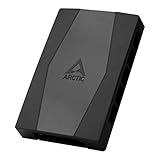
Power delivery architecture dictates whether speed control is possible. Standard motherboards supply up to 1.0 Ampere (12 Watts) per standard CPU_FAN or SYS_FAN header, with dedicated PUMP_SYS headers delivering up to 2.0A or 3.0A (24W to 36W). Powered fan hubs bypass motherboard trace power limits by drawing direct 12V DC current via a 15-pin SATA power connector or a 4-pin Molex connector. Because these direct power connections supply a continuous, fixed +12V rail, any 3-pin DC fan plugged into a powered hub without specialized onboard step-down converters will receive continuous 12V power, locking the motor to its maximum continuous RPM range.
Drivers
Direct motherboard fan control relies on standard ACPI system drivers and low-level Super I/O chipsets (such as Nuvoton or ITE microcontrollers). When using smart USB-connected hardware hubs, communication switches to human interface device (HID) protocols over internal 9-pin USB 2.0 headers running at 480 Mbps. Proprietary control utilities (such as Corsair iCUE or Aqua Computer Aquasuite) interact with Windows device drivers to send polling commands to the hub’s integrated microcontroller. If the software or underlying driver lacks a toggle to switch output channels from PWM to DC modulation mode, the hardware cannot vary channel voltage.
Firmware
The motherboard Unified Extensible Firmware Interface (UEFI) or internal hub MCU firmware controls line modulation. In BIOS, the hardware monitor firmware determines whether a header outputs a constant 12V DC with an active PWM square wave on Pin 4, or a variable analog voltage ranging from roughly 5V DC (minimum start voltage for most motor coils) to 12V DC (full speed) on Pin 2. If the firmware is locked to PWM output mode, Pin 2 maintains an unmodulated 12V supply, rendering 3-pin DC fans incapable of scaling speed relative to thermal curves.
Form Factor
Physical dimensions and header layout on the hub PCB determine mechanical clearance. Fan headers placed too close together can prevent side-by-side connection of standard 3-pin keyed connectors, which have wider plastic latch housings than thin un-keyed variants. Furthermore, the length and gauge of internal chassis wire routing affect voltage drop. Using thin 28 AWG wiring across long hub extensions under heavy current draw can cause small voltage drops (0.2V to 0.5V), reducing maximum fan RPM slightly under load.
How to Check Yours
To determine if your current setup allows full speed control when questioning does a fan hub work with dc fans, follow these technical verification steps:
- Inspect the Fan Hub Power Cables: Check if your fan hub requires a dedicated 15-pin SATA or 4-pin Molex power input plugged directly into your power supply. If it has direct PSU power and only a single 2-pin or 4-pin signal wire running to the motherboard, it is a PWM-only repeater. 3-pin fans plugged into this hub will run at 100% speed.
- Examine the Fan Connector Pins: Count the physical wires on your fan connector. Three wires (typically black/red/yellow or all-black with textured ribs) indicate a DC fan. Four wires indicate a PWM fan.
- Access Motherboard UEFI/BIOS: Restart your computer and press Delete or F2 during POST to enter system setup. Navigate to the thermal control section:
- ASUS: Press F7 for Advanced Mode >
Monitor>Q-Fan Control. - MSI: Press F7 > Click
Hardware Monitoron the left menu. - Gigabyte: Select
Smart Fan 6from the main dashboard. - ASRock: Go to
H/W Monitor>FAN-Tastic Tuning.
- ASUS: Press F7 for Advanced Mode >
- Verify Header Mode Capabilities: Select the header powering your hub (e.g.,
CHA_FAN1). Look for a toggle betweenPWMandDCmode. Switch the header toDCmode and save settings by pressing F10. If the hub is unpowered (a passive Y-splitter or unpowered PCB block), lowering the voltage curve in DC mode will successfully drop the 3-pin fan speeds.
If It’s Not Compatible
If your 3-pin DC fans run at constant full speed on your current hub setup, apply these specific hardware and configuration solutions.
Solution 1: Switch Motherboard Control from PWM to DC Mode
- What causes it: The motherboard fan header is forced into PWM mode, outputting a constant 12V on Pin 2 that keeps 3-pin fans spinning at maximum RPM.
- How to check: Open your BIOS hardware monitor panel and verify if the selected header control mode is set to
PWM. - What to do: Reboot system, enter BIOS (Del/F2), navigate to
Monitor/Hardware Monitor, select the specific fan header pinout, and change the setting toggle fromPWM ModetoDC Mode(orVoltage Mode). Press F10 to save and restart. Note: This solution only works if you are using an unpowered passive splitter, not a SATA-powered PWM hub. - How to undo: Re-enter BIOS, navigate back to the same header settings, select
PWM ModeorAuto Detect, and press F10.
Solution 2: Replace Active PWM Hub with a Smart Variable-Voltage Controller
- What causes it: Powered SATA/Molex PWM hubs deliver raw 12V power straight from the PSU rail, bypassing motherboard voltage modulation entirely.
- How to check: Trace the hub’s power source; if a SATA cable runs directly to the PSU, the hub cannot modulate voltage for 3-pin fans.
- What to do: Replace the passive SATA hub with an active USB-controlled smart device featuring independent channel voltage step-down converters (such as a Corsair Commander Pro or Aqua Computer Quadro). Connect the unit to a 9-pin USB 2.0 internal header and SATA power. Open the control software in Windows, select the channel configuration tab, and change the port detection setting from
4-Pin PWMto3-Pin DC. - How to undo: Disconnect the smart hub, remove its software package, and reconnect fans directly to motherboard headers or standard splitters.
Solution 3: Install Inline Low-Noise Voltage Reduction Adapters
- What causes it: High fixed 12V output from a SATA hub forces high noise levels when component upgrades or hardware changes aren’t feasible.
- How to check: Listen for maximum fan acoustics or check RPM readings in software showing fan operation near maximum rated motor limits (e.g., 1800+ RPM).
- What to do: Insert a 3-pin step-down resistor adapter cable (such as a Noctua NA-RC7 or equivalent 50-Ohm inline resistor) inline between the hub header port and the 3-pin fan cable. This drops the operational voltage from 12V to approximately 7V DC, permanently lowering peak motor speed and acoustic output.
- How to undo: Power down the PC, unplug the inline resistor adapter, and reconnect the 3-pin fan directly to the hub port.
FAQ
Will plugging a 3-pin DC fan into a 4-pin PWM hub break the fan or motherboard?
No. Standard 3-pin and 4-pin PC fan connectors are fully pin-compatible and operating on standardized +12V DC limits. Plugging a 3-pin DC fan into a 4-pin hub simply leaves the fourth pin (PWM signal) disconnected. The fan motor will receive standard power and operate safely without hardware damage.
Why are my 3-pin DC fans stuck running at 100% speed on my new hub?
Your fan hub is drawing direct 12V power from a SATA or Molex connection attached to your power supply. Because 3-pin DC fans require the hub to lower the input voltage (from 12V down to 7V or 5V) to reduce speed, an active PWM hub supplying a static 12V feed will force the 3-pin fan motor to spin at continuous maximum RPM.
Can I mix 3-pin DC fans and 4-pin PWM fans on the same unpowered passive hub?
You can physically plug both into the same passive splitter, but speed control will be compromised. If you set the motherboard header to PWM mode, the 4-pin fans will adjust speed dynamically while the 3-pin fans run at 100% speed. If you set the header to DC mode, both types will adjust speed via voltage drop, but 4-pin PWM fans may not scale linearly or may turn off prematurely at lower voltage thresholds.
How do I enable DC mode in modern motherboard BIOS environments in 2026?
Boot your system into BIOS using the Delete key. Enter the advanced hardware monitoring section (usually under Monitor, Cooling, or Smart Fan menus). Locate the header mapping corresponding to your fan hookup, locate the control mode selection toggle, switch the setting from PWM to DC, and save changes before exiting.









