
An All-in-One (AIO) liquid cooler is a fantastic addition to any modern home office or high-end gaming setup, keeping powerful processors running cool while maintaining a sleek, modern aesthetic. However, when your quiet workspace is suddenly disrupted by a sound resembling a miniature garden fountain or a clogged kitchen drain, it can be incredibly frustrating. That annoying liquid sound is almost always caused by trapped air bubbles circulating through the pump block rather than resting quietly at the top of your radiator.
If you ignore this issue or attempt a sloppy, unguided repair, the consequences for your hardware can be severe. Running an AIO cooler with air trapped inside the pump housing leads to localized overheating, thermal throttling, and premature pump failure. In worst-case scenarios, extreme heat can warp your motherboard or degrade your CPU’s lifespan. Fortunately, learning how to fix gurgling noise in aio liquid cooler setups is a straightforward process that saves your hardware and restores peace to your room.
As an Amazon Associate we earn from qualifying purchases at no extra cost to you.

Our Top Picks

What You Need
Before you begin troubleshooting, gather a few basic tools to safely adjust your computer hardware. Use the table below to prepare your workspace:
| Item | Why You Need It | Optional? |
|---|---|---|
| Phillips #2 Screwdriver | To loosen, adjust, and remount the radiator or fans to the PC chassis. | No |
| High-Quality Thermal Paste | Required if you must remove the CPU water block to reposition the radiator. | Yes (only if removing the pump block) |
| 99% Isopropyl Alcohol & Microfiber Cloth | To clean old thermal paste off the CPU lid and water block contact plate. | Yes |
| Zip Ties or Velcro Straps | To secure loose fan cables and tidy up liquid tubes after repositioning. | Yes |
Step-by-Step
Follow these progressive troubleshooting steps to clear the trapped air out of your liquid cooler’s pump block and eliminate the gurgling sound once and for all.
Step 1: The Tilt and Cycle Method
Estimated Time: 5 minutes
Air naturally rises to the highest physical point in your liquid loop. If your radiator is mounted correctly but air has temporarily migrated to the pump, you need to tilt the PC chassis to force those bubbles up into the radiator reservoir.
- Turn your computer on and let it run at idle.
- Gently tilt the entire PC case 45 degrees forward, holding it in place for 10 to 15 seconds.
- Slowly tilt the case 45 degrees backward, holding it for another 15 seconds.
- Repeat this motion to the left and right sides. Listen closely as you do this; you should hear the pitch of the gurgling shift and eventually fade away as the air pockets migrate out of the pump block and into the radiator’s end tanks.
Step 2: Adjust Pump Speed in the BIOS
Estimated Time: 10 minutes
Sometimes, low pump speeds allow air bubbles to linger inside the pump block instead of being pushed into the radiator. Forcing the pump to run at maximum speed temporarily will flush these bubbles out.
- Restart your computer and tap the “Delete” or “F2” key repeatedly to enter your motherboard’s BIOS menu.
- Navigate to the Hardware Monitor, Fan Control, or Smart Fan settings.
- Locate the fan header associated with your pump (typically labeled “AIO_PUMP”, “CPU_OPT”, or “SYS_FAN”).
- Set the pump speed curve to 100% or “Full Speed” mode. Save your settings and boot into your operating system.
- Let the pump run at 100% speed for 20 to 30 minutes. The high-velocity liquid flow will sweep stubborn microbubbles out of the pump chamber. Once the noise stops, you can return to the BIOS and set your pump back to a standard PWM curve.
Step 3: Reposition the Radiator
Estimated Time: 20 minutes
If the gurgling noise returns shortly after tilting, your radiator mounting orientation is likely the root cause. The golden rule of AIO liquid cooling is that the top of the radiator must be physically higher than the pump block. If your radiator is mounted at the bottom of your case, gravity will pull all the air straight into your CPU pump.
- Shut down your computer, switch off the power supply, and unplug all cables.
- Lay the PC flat on its side and use your Phillips #2 screwdriver to unscrew the radiator from the chassis.
- If your case allows, mount the radiator to the top panel as an exhaust. This is the optimal position because the entire radiator sits above the pump.
- If you must mount the radiator to the front panel, ensure the hose connections are at the bottom of the radiator, and that the top tank of the radiator is positioned higher than the CPU pump block. Secure the radiator using its original mounting screws.
Step 4: Run a Thermal Cycle and Stress Test
Estimated Time: 15 minutes
Once you have adjusted the physical layout, you need to heat up the liquid to ensure any remaining microbubbles expand and escape to the radiator.
- Stand your PC upright, plug it back in, and turn it on.
- Open a hardware monitoring application to check your CPU temperatures. Idle temperatures should sit comfortably between 30 degrees Celsius and 45 degrees Celsius.
- Run a demanding program, a modern game, or a CPU stress-testing utility for 10 minutes. As the liquid heats up and expands, the increased pressure will help push the final microscopic bubbles out of the pump head and lock them safely in the top of the radiator.
Mistakes to Avoid
- Mounting the Radiator at the Bottom of the Case: This is the absolute worst layout. Because the pump block sits higher than the radiator, gravity ensures that air will pool in the pump, leading to a loud, dry grinding noise and rapid pump burnout.
- Shaking the PC Case Violently: While gentle tilting is highly effective, shaking your PC can damage your graphics card’s PCIe slot, dislodge heavy components, or put excessive tension on the AIO tubing fittings, risking a catastrophic liquid leak.
- Overtightening Radiator Screws: Standard radiator screws are usually M3 or 6-32 threads. Overtightening them can easily strip the threads, bend the frame, or puncture the delicate aluminum cooling fins, which can rupture the internal liquid channels.
- Ignoring Dry Pump Noises: If you hear a harsh, dry, metal-on-metal rattling sound instead of a wet, bubbly gurgle, turn off your PC immediately. Running a pump without liquid lubrication will destroy the motor in a matter of minutes.
How Often
AIO liquid coolers are sealed, closed-loop systems that require very little routine maintenance compared to custom open-loop setups. However, you should inspect your PC’s internal layout and listen for unusual noises at least once every six months. Because all liquid coolers experience a tiny amount of natural fluid permeation through the rubber tubes over time, air pockets will slowly grow. By the year 2026, many older AIO systems installed during the early part of the decade will naturally develop louder gurgling noises due to this normal fluid loss, requiring a quick tilt adjustment or a complete replacement.
When to Call a Pro or Replace
If you have tilted your PC, run the pump at maximum speed, and verified that the radiator is mounted higher than the pump, but the gurgling or harsh rattling persists, your cooler has likely lost too much liquid to permeation or the pump motor is failing. Closed-loop AIOs cannot be easily refilled by the average user without voiding the manufacturer’s warranty and risking major leaks. At this stage, it is safest to replace the unit.
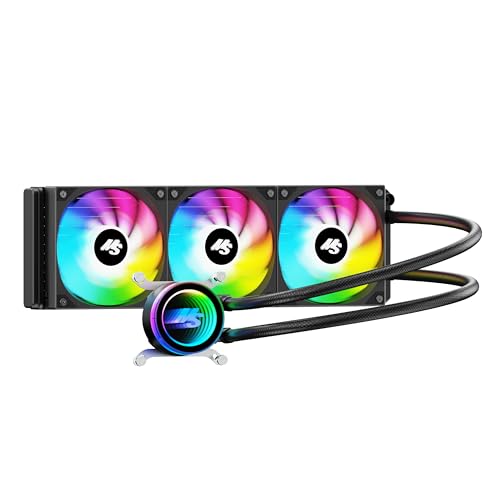
When shopping for a replacement, look for reliable, low-noise units that match your case’s fan mounting dimensions (standard sizes range from 120mm to 360mm). For a premium, high-performance upgrade, the CORSAIR Nautilus 360 RS ARGB Liquid CPU CoolerIf you are working with a tighter budget but still want excellent thermal transfer and a quiet, high-speed ceramic bearing pump, the Minorsonic AIO CPU Cooler
FAQ
Is a slight gurgling sound normal when I first turn on my PC?
Yes. A brief, 5-to-10-second gurgle or trickle sound when you boot your PC after it has been powered off for several hours is completely normal. This is simply the pump starting up, pushing the liquid through the loop, and clearing out small air bubbles that settled while the system was resting.
Can I manually open and refill a sealed AIO cooler?
No. Standard AIO coolers are factory-sealed loops. They do not feature fill ports, and attempting to cut the tubes or unscrew the cold plate to add distilled water will ruin the seal, void your warranty, and likely cause a leak that could destroy your entire motherboard and graphics card.
Does a gurgling sound mean my CPU is overheating?
Not necessarily, but it is a warning sign. While a small air bubble might only cause noise without affecting your system’s temperatures, a large pocket of air trapped directly inside the pump block will prevent heat transfer, causing your CPU temperatures to spike rapidly under heavy workloads.
What is the absolute best position for an AIO radiator?
The absolute best position is mounted to the top panel of your PC case as an exhaust. This guarantees that the radiator is the highest point in the entire loop, ensuring that all air bubbles rise to the top of the radiator tank, completely away from the pump block and hoses.









