For a desktop that stays put, an internal WiFi card is usually the better choice, because its external antennas, direct PCIe connection and low cost give steadier performance. A USB adapter wins when you have no free slot, need to move the adapter between machines, or want an easy fix without opening the case.
Both do the same job of getting a desktop onto wireless, yet they differ in antenna placement, bandwidth headroom and hassle. If running an ethernet cable is truly impossible, the choice becomes important for latency in online games and for steady video calls. Here is how to decide between the two, with the checks worth making before you buy in 2026.
How Each Option Works
Internal WiFi cards
A WiFi card installs in a PCIe slot, or occasionally in a small M.2 connector, and links to antennas that screw onto the back panel. Many cards also add Bluetooth through a cable plugged into a USB header on the motherboard. Because the card talks directly to the system, it does not compete for USB bandwidth.
USB WiFi adapters
A USB adapter plugs into a port and is recognized like any other device. Small “nano” models sit flush against the port, while larger ones come with an antenna or a cradle on a cable. Installation takes a minute and does not require opening the case.
WiFi Card vs USB Adapter
| Factor | Internal card | USB adapter |
|---|---|---|
| Installation | Open the case, fit a card | Plug in and install a driver |
| Antenna placement | External, can be repositioned | Often small or hidden behind the PC |
| Signal stability | Generally better | Varies, port position matters |
| Bandwidth headroom | Direct link to the motherboard | Limited by the USB port speed |
| Portability | Fixed in one machine | Moves between computers |
| Bluetooth | Often bundled | Sometimes bundled |
| Slot or port use | Needs a free PCIe or M.2 slot | Uses a USB port |
What Affects Wireless Performance on a Desktop
Antenna position
A desktop tucked behind a monitor or under a desk puts the antenna among metal and walls. Cards with a detachable antenna or a magnetic base let you raise it onto the desk, which often helps more than moving to a newer standard. USB adapters with an extension cradle give a similar benefit.
WiFi generation
Newer generations improve efficiency, handle more devices and open additional frequency bands, but your router has to support the same generation for you to benefit. Matching the adapter to the router matters more than buying the newest label.
USB port speed
A fast adapter plugged into a slow port will be held back. Use a high-speed port on the back of the board, and avoid long, unpowered hubs. Connecting through a front panel or hub can add interference.
Driver and operating system support
Check that the product lists support for your operating system. A good chipset with weak drivers can disconnect or fail to reconnect after sleep.
Which Situations Favor Which
- A gaming desktop in a permanent spot with a free slot: choose the internal card with an external antenna.
- A small-form-factor build with no spare slots: a USB adapter on a cradle is practical.
- A temporary or shared desk: a USB adapter moves with you.
- A machine that also needs Bluetooth for a controller or headset: pick a model that includes it, internal or USB.
- A home with a router in another room and no way to run a cable: put the money into good antenna placement, and consider a better router or a mesh node nearby.
Before You Buy Checklist
- Check for a free PCIe x1 slot or an M.2 key that accepts a WiFi module before choosing a card.
- Confirm the router’s WiFi generation and the bands you intend to use.
- Look for external, repositionable antennas on cards, or a cradle with a USB adapter.
- Confirm Bluetooth is included if you want wireless controllers or headsets.
- Verify operating system and driver support in the listing.
- Decide whether you could use ethernet or powerline networking instead, which beats any wireless option for latency.
Common Mistakes
Leaving the antenna behind the case
Placing the antenna against the back of the PC wastes much of what you paid for. Move it to a clear spot.
Plugging a USB adapter into a congested port
Ports near a USB 3 drive or a docking hub can pick up interference. Try a different port if the connection feels unstable.
Chasing the newest standard with an old router
The adapter and router negotiate down to the lower of the two. If your router is older, a newer adapter will mostly help with range and efficiency.
Installation Notes for Each Type
Installing an internal card
Power down and unplug the PC, then open the side panel and find a free PCIe slot, usually the short x1 one. Seat the card firmly, secure its bracket, then connect the Bluetooth cable to the motherboard USB header if the card has one. Thread the antenna leads out the back, attach the antennas and install the driver. If the case is pushed against a wall, use an antenna with a cable and place it on top of the desk.
Installing a USB adapter
Plug it into a rear USB port, install the driver if the operating system does not supply one, and connect to your network. If the adapter has a cradle or extension cable, put it somewhere high and open. Avoid plugging it right next to a fast external drive, because USB 3 devices can create interference in the 2.4 GHz band.
Switching from an old adapter
Remove the old device and uninstall its driver first, otherwise two drivers can conflict and cause drops. Restart before testing the new connection.
Which Wireless Bands to Use
Most modern adapters support both the 2.4 GHz and 5 GHz bands, and newer models add 6 GHz. The 2.4 GHz band reaches farther but is crowded and slower. The 5 GHz band is faster over a short distance and handles gaming traffic well when the router is in the same or a neighboring room. The 6 GHz band, where supported, offers the cleanest channels but the shortest reach. For a desktop you will mostly want the fastest band that still holds a steady signal, so check signal strength in your actual spot before settling.
Troubleshooting a Weak Wireless Connection
- Move the antenna or adapter higher and farther from the case, monitors and speakers, then compare signal strength.
- Switch between the available bands and see which holds a steadier connection at your desk.
- Update the driver from the manufacturer, since generic operating system drivers can be less stable.
- Turn off power saving for the adapter in the device settings so it does not sleep mid-session.
- Try a different channel on the router if neighbors are crowding yours.
- If drops persist, test with a cable temporarily to separate a network problem from an adapter problem.
When Neither Option Is the Right Answer
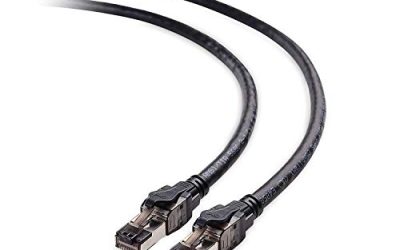
If the router is only a room or two away, running a thin flat ethernet cable along a baseboard or under a rug often costs less than a quality adapter and performs better. Where cable is impossible, a pair of powerline adapters or a nearby mesh node with an ethernet port can bring a wired connection to the desk. Wireless on a desktop is a fallback, and treating it that way keeps expectations realistic.
Related guides
- How To Set Up Computer Speakers For Better Sound At Your Desk
- How To Check Whether Your Ram Is Running At Its Rated Speed
- How To Choose The Right Monitor Riser Height For Your Desk
Frequently Asked Questions
Is a USB WiFi adapter good enough for gaming?
For many setups, yes, particularly with a cradle and a good port. Online games care more about stable latency than raw speed, so a clean signal matters most.
Do WiFi cards include Bluetooth?
Many do, but not all. Look for a Bluetooth line in the specifications and plan for a motherboard USB header connection.
Will a WiFi card work in any PCIe slot?
Most cards use a small x1 connector and fit in any slot that is physically long enough. A graphics card may block neighboring slots, so check the clearance.
Is wired always better?
Generally, yes. A cable offers lower and steadier latency and no interference, so use it whenever you can and keep wireless as the fallback.
Related guides
More from Amazon
Programs that pair well with the guide above. Offers and eligibility are set by Amazon and may change.
Free shipping on eligible items, Prime Video and more. Eligible new members can start with a free trial.
Start a Prime free trialAd-free music streaming. Eligible new subscribers can start with a free trial.
Try Music Unlimited freeA Prime membership for ages 18-24 with a trial period. Eligibility is set by Amazon.
See Prime for Young AdultsAudiobooks and podcasts to listen to on the go. Eligible new members can start with a free trial.
Try Audible freeAs an Amazon Associate we earn from qualifying purchases.