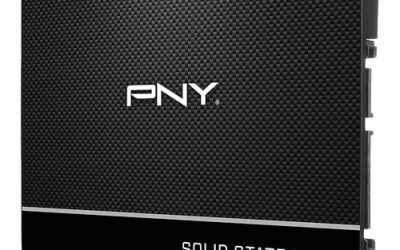
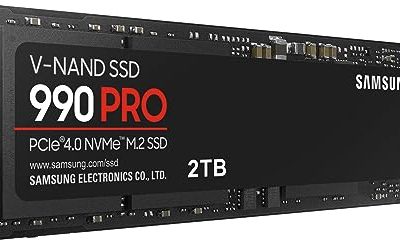
A Chromebook ships with a small amount of onboard storage, and the moment you start saving school projects, camera uploads, or offline media you feel the limit. An external drive is the usual fix, but a Chromebook is pickier than a Windows laptop. It has few ports, often only one or two USB-C connections, it cannot install vendor utilities, and its power budget for bus-powered drives is limited. The decision behind this keyword is therefore less about raw capacity and more about connector type, file system, and how much power the drive pulls. A drive that is perfect for a Windows desktop can be a poor match for a thin education laptop with a single port.
This guide is for students, teachers, and travelers who want a plug-and-play drive that mounts in the Files app without drama. We compare five drives from their listings, ranging from a classic spinning portable drive to fast portable SSDs and a drive that doubles as a hub. Where a listing does not mention Chromebook compatibility, we say so and tell you what to verify. In 2026 most ChromeOS devices read common formats such as exFAT and FAT32 without extra software, but you should still confirm before you buy. Read each listing for supported systems, the cable type in the box, and whether the drive needs outside power.
Our Top Picks

Top 3 picks at a glance
Quick Picks
As an Amazon Associate we earn from qualifying purchases at no extra cost to you.


| Product | Best for | Key spec from the title |
|---|---|---|
| Tianken 1TB Portable HDD | Cheap bulk storage for documents and media | 1TB, 2.5-inch, USB 3.0, ultra slim |
| 2TB Portable SSD (Gold) | Large capacity with Chromebook named in the listing | 2TB solid state, USB 3.1, for PC, Mac, Desktop, Chromebook |
| OSCOO 2TB Portable SSD | Fast transfers of big video and photo folders | Up to 2100MB/s, USB 3.2 Gen 2 |
| ModusTech Nexus 1TB | Chromebook owners short on ports | Built-in 5-in-1 USB-C hub, 10Gbps, SD and microSD, bus-powered |
| Crucial X9 1TB | A well-known name with a compact USB-C SSD | Up to 1050MB/s, USB 3.2 USB-C |
How to Choose
Match the connector to your Chromebook’s ports
Look at the side of your laptop first. Most recent models have USB-C, and some also have a USB-A port. A drive with a USB-C connector or a USB-C cable plugs straight in; a USB-A cable needs an adapter on a USB-C-only machine. Cables matter too: a short cable from a reputable maker reduces dropouts, and a loose connector on a thin laptop is a common source of mid-copy disconnects. If your Chromebook has only one USB-C port that also handles charging, a drive that combines a hub function can save you from juggling adapters.
Decide between a hard drive and a solid-state drive
Spinning portable drives offer the most gigabytes for the least money, but they are slower, heavier, and sensitive to knocks. Solid-state drives handle drops better, start instantly, and move large folders far faster. For a school bag or daily commute, an SSD is the safer choice. For a stay-at-home backup of photos and videos, a hard drive is a reasonable budget pick. Look for interface standards: USB 3.0 caps near 5Gbps, while USB 3.2 Gen 2 supports up to 10Gbps, which is only worth paying for with an SSD.
Mind the file system and power draw
ChromeOS handles exFAT and FAT32 cleanly, so format the drive as exFAT if you share it between a Chromebook and a Windows or Mac machine. Avoid relying on drive-specific apps for encryption or backup, because Chromebooks cannot run them. Power is the other trap. Bus-powered hard drives draw more current than SSDs, and some low-cost Chromebooks struggle to spin them up. If a hard drive disconnects at random, a powered USB hub is the usual cure.
Capacity thresholds and what to ignore
For documents and school work, 500GB is plenty. For offline video, camera libraries, or game saves, aim for 1TB to 2TB. Check how much of the drive you will really fill in a school year before paying for the next size up. Ignore headline speed figures if you plan to use the drive only for documents; the Chromebook will not exceed what its own USB port and storage can handle. Budget models often cut corners on cable quality, case materials, and warranty length, so weigh those as carefully as capacity. A drive that ships with a flimsy cable can turn a good spec sheet into a frustrating daily experience.
The 5 Best Options
Tianken 1TB Portable HDD
This is a slim 2.5-inch spinning drive with a USB 3.0 connection, listed for Mac, PC, laptops, and game consoles. It sits in the budget tier and offers a lot of storage for the cost, which makes it the natural choice when the goal is a bulk archive of schoolwork, ebooks, and family photos rather than a drive you open every hour.
- Strength: 1TB of capacity in an ultra slim body fits easily in a bag.
- Strength: USB 3.0 is more than fast enough for documents, music, and backups.
- Trade-off: The title does not mention Chromebook support, and a mechanical drive is slower and less shock-tolerant than an SSD.
Skip it if you carry your laptop around all day or need fast transfers. It suits a student who wants a cheap archive for coursework and rarely moves more than a few gigabytes at a time.
2TB Portable SSD (Gold)
This unbranded-looking portable solid-state drive lists USB 3.1 and names PC, Mac, desktop, and Chromebook as supported devices. At 2TB it targets people who want a big library without a hard drive’s moving parts, and the Chromebook mention in the title makes it one of the few listings here that addresses ChromeOS head on.
- Strength: The listing names Chromebook directly, which removes some guesswork.
- Strength: 2TB of solid-state storage gives you generous room for media.
- Trade-off: The title offers little detail about transfer speed or build, so brand support is thin.
Skip it if you want a recognizable name and a clear warranty trail. It suits buyers who value capacity and a Chromebook mention above all, and who are comfortable with a less familiar maker.
OSCOO 2TB Portable SSD
The OSCOO lists speeds up to 2100MB/s over USB 3.2 Gen 2 and says it works with Mac, Windows PC, laptops, gaming devices, and iPhone. It is the speed leader among these five on paper, so it makes the most sense for someone who regularly shuffles large video exports or camera folders.
- Strength: Up to 2100MB/s is the highest listed speed here, ideal for large video files.
- Strength: 2TB capacity combined with a Gen 2 connection suits heavy media work.
- Trade-off: Chromebook is not named in the visible title, and the top speed needs a port that supports it.
Skip it if your Chromebook only has slow USB ports, since you would not use the speed. It suits creators moving large files between a Chromebook, a phone, and a desktop.
ModusTech Nexus 1TB
The Nexus combines a 1TB portable drive with a built-in docking station. The listing mentions a 5-in-1 USB-C hub, USB 3.1 at 10Gbps, SD and microSD slots, and bus-powered operation.
- Strength: The hub adds card readers, helpful when a Chromebook has few ports.
- Strength: Bus-powered design means no separate power brick to carry.
- Trade-off: Combining a hub with storage draws more power, so older or low-power Chromebooks may need a closer look at compatibility.
Skip it if you only need plain storage. It suits photographers and students who pull files from SD cards and want one compact unit instead of a drive plus a separate dongle.
Crucial X9 1TB
The X9 is a compact portable SSD with speeds up to 1050MB/s over USB 3.2 with a USB-C connector, listed as compatible with Windows, Mac, and Android. It is the brand-name choice of the group, aimed at buyers who would rather start from a familiar maker and a simple, single-cable setup.
- Strength: USB-C connection matches modern Chromebook ports directly.
- Strength: Up to 1050MB/s is fast enough for nearly any school or travel workload.
- Trade-off: The title lists Windows, Mac, and Android but not ChromeOS, so confirm the format before first use.
Skip it if you need more than 1TB. It suits buyers who want a reputable maker and a simple USB-C setup, especially for a one-port travel laptop.
Which One Fits Your Situation
You are a student on a tight budget
Choose the Tianken 1TB. It gives you the most storage per unit of spending for documents and media, and its USB 3.0 connection is plenty for coursework backups. Just keep it in a padded sleeve and avoid moving the laptop while the drive is actively copying, because spinning platters dislike sudden jolts.
You carry the Chromebook all day
The Crucial X9 1TB fits best. Solid-state storage tolerates bumps, and the USB-C connector plugs straight into a modern Chromebook without adapters. It is a sensible default for anyone who wants one drive to last through several school years of backpack travel.
You edit video or hold a large photo library
Go with the OSCOO 2TB. The listed 2100MB/s speed and 2TB capacity make sense for big files, as long as your Chromebook’s port can carry the data rate. If it cannot, you are paying for speed the laptop will never use, and the Crucial X9 becomes the more economical choice.
Your Chromebook has too few ports
The ModusTech Nexus 1TB solves that by adding SD and microSD readers in the same unit. It is also the pick for teachers who regularly import classroom camera cards. Having the readers built in also means one fewer small accessory to lose in a bag.
Common Mistakes
- Assuming every external drive mounts on ChromeOS; check the file system and format as exFAT when needed.
- Buying a USB-A-only drive for a USB-C-only Chromebook and forgetting the adapter.
- Paying for 10Gbps speeds on a laptop whose ports are slower than that.
- Using a power-hungry hard drive on a low-power Chromebook and blaming the drive for random disconnects.
- Storing the only copy of important files on one external drive instead of keeping a cloud or second backup.
Related guides
- Noctua Nh-D15 Vs Thermalright Peerless Assassin 120
- Sustainable Gaming Pc Power Supply Efficiency Guide
- Thermal Paste Application Method For Lga1851
Frequently Asked Questions
Do external hard drives work on Chromebooks without drivers?
Most do. ChromeOS mounts standard USB storage automatically and shows it in the Files app. You will not be able to install the maker’s software, so rely on drag-and-drop copying. Eject the drive from the Files app before unplugging it to avoid damaged files.
Which file system should I use?
exFAT is the safest choice because it works on ChromeOS, Windows, and macOS and handles large files. Format the drive on a computer that offers the option, and back up before erasing anything.
Will an SSD make my Chromebook faster?
No. An external drive adds space, not processing power. It can speed up copying large folders compared with a hard drive, but your Chromebook’s own performance stays the same.
Can I use the drive for Android apps or games?
Generally you can store media and files on it, but apps usually install to internal storage. Treat the external drive as a place for documents, photos, and video rather than installed software.