The Plugable 16-in-1 Thunderbolt 4 dock is the best overall pick for running two monitors from one cable. It is a true Thunderbolt 4 dock with two DisplayPort and two HDMI outputs, 2.5 gigabit Ethernet and up to 100 W of charging, and on a Windows machine with a Thunderbolt 4 port it can drive more than two screens. A Thunderbolt dock is a single-cable hub that carries video, data, network and power over one 40 Gbps connection, which is what makes dual-monitor desks practical.
Our Top Picks
 Lenovo USA ThinkPad Thunderbolt 3 Dock Gen 21.2" x 8.7" x 3.1"8.7 x 3.1 x 1.2 inches2 poundsCheck on Amazon


Top 3 picks at a glance
Quick List
- Plugable 16-in-1 Thunderbolt 4 Dock – best for Windows laptops that need two or more monitors and fast wired networking
- Dell Thunderbolt 4 Dock (3-display listing) – best for Dell laptops, once the exact model is confirmed
- Lenovo ThinkPad Thunderbolt 3 Dock Gen 2 (40AN0135US) – best for ThinkPad owners with Thunderbolt 3 ports
- Lenovo 40AN0135US second listing – best for buyers who find the same dock in this alternate listing
- Plugable USB C Docking Station, Dual Monitor 4K 60Hz – best for MacBook owners who need two screens
- Anker 8-in-1 USB C Hub, Dual HDMI – best for light two-monitor office use on a budget, though it is not a Thunderbolt dock
Which One Is Right for You?
| If you… | Choose |
|---|---|
| run a Thunderbolt 4 Windows laptop or desktop add-in card and want the most outputs | Plugable 16-in-1 Thunderbolt 4 Dock |
| own an older ThinkPad with Thunderbolt 3 and want OEM-style behavior | Lenovo ThinkPad Thunderbolt 3 Dock Gen 2 |
| use a MacBook and need two external screens without relying on Thunderbolt-only features | Plugable USB C Docking Station, Dual Monitor |
| use a Dell laptop and prefer a Dell-branded dock | Dell Thunderbolt 4 Dock (3-display listing) |
| only need two basic 1080p or 4K office screens and a USB-C laptop | Anker 8-in-1 USB C Hub |
| found the Lenovo dock under a different listing and want to compare | Lenovo 40AN0135US second listing |
The deciding factor is almost always your host. Confirm whether your laptop or PC has Thunderbolt 3, Thunderbolt 4 or plain USB-C with DisplayPort support, then match the dock to it. A Thunderbolt dock will not unlock extra displays that the host graphics cannot output.
All 6 Picks in Detail
1. Anker 8-in-1 USB C Hub, Dual HDMI – Best for Light Office Use
As an Amazon Associate we earn from qualifying purchases at no extra cost to you.

Despite showing up in a Thunderbolt search, this Anker unit is a USB-C docking station, not a Thunderbolt one, and it is placed as a runner-up for that reason. The listing names dual HDMI outputs with 4K support, 1 Gbps Ethernet, up to 85 W of power delivery passthrough and SD and microSD card readers. It is a tidy way to get two external screens and a few ports from a laptop that lacks Thunderbolt.
- Interface: USB-C (not Thunderbolt) per the listing name
- Video: dual HDMI outputs with 4K support; exact refresh rate with two screens – confirm on listing
- Charging: up to 85 W pass-through
- Network: 1 Gbps Ethernet
- Storage: SD and microSD card slots
Pros
- Compact and simple for travel or a basic desk
- Card readers cover photo and camera workflows
Cons
- No Thunderbolt bandwidth, so two high-refresh or 4K 60 Hz screens are not guaranteed
- Only 8 ports, with no DisplayPort output
For a PC builder, this kind of hub is most relevant if you game on a thin laptop and only occasionally dock it at a desk. It also works as a cheap second dock for a travel bag. Keep expectations modest: office apps, video calls and spreadsheets run well on two screens, while fast-paced games belong on the laptop’s own display or a Thunderbolt-class dock with more headroom.
Docks like this share one USB-C video link between both monitors, so expect lower resolution or refresh when both are active; confirm the exact limits on the listing. Next to the Lenovo Thunderbolt dock, it gives up bandwidth and port count for a smaller footprint.
2. Dell Thunderbolt 4 Dock, 3-Display Listing – Best for Dell Laptops

This listing describes a Dell Thunderbolt 4 dock with a 16-in-1 port count and three display outputs, two HDMI and one DisplayPort. That arrangement does not match Dell’s published WD22TB4 layout, which Dell documents with two DisplayPort, one HDMI and a USB-C video output, so confirm the exact model number and the included power adapter on the product page before ordering. Dell’s WD22TB4 supports up to 130 W of power delivery to Dell systems and up to 90 W to others, and your laptop’s graphics limit the number of screens in practice.
- Interface: Thunderbolt 4 host connection
- Video: two HDMI plus one DisplayPort per the listing
- Port count: 16-in-1 per the listing name
- Charging: confirm wattage on listing; Dell’s WD22TB4 documents up to 130 W for Dell systems
- Compatibility: aimed at Dell XPS and Inspiron laptops but works with other Thunderbolt 4 hosts
Pros
- Thunderbolt 4 connection with room for three displays
- Strong fit for Dell laptops and their firmware tools
Cons
- Listing details do not match Dell’s own published model, so verify before buying
- Charging wattage depends on which laptop you attach
The biggest practical point is the mismatch itself. A Thunderbolt 4 dock that shows two HDMI and one DisplayPort may be a different Dell part, a newer generation, or a third-party product that uses the Dell name in its description, and the number of USB ports, the charging wattage and the included power brick would all change with it. Read the model number on the page, compare it with Dell’s support page for that model, and ask the seller if anything is unclear.
Its main advantage over the Plugable dock is brand-level firmware and driver support if your laptop is also a Dell; otherwise Plugable’s documented specs are easier to confirm.
3. Lenovo ThinkPad Thunderbolt 3 Dock Gen 2 (40AN0135US) – Best for ThinkPads

This is Lenovo’s Thunderbolt 3 dock for ThinkPads, shipping with a 135 W power adapter and a Thunderbolt 3 cable. The listing advertises dual UHD 4K display capability from two HDMI and two DisplayPort outputs, which gives you flexibility in cable types. Retailer pages show a Gigabit Ethernet port, a headphone and microphone jack and a handful of USB 3.1 Gen 2 ports, though port counts vary between listings, so check the one you open.
- Interface: Thunderbolt 3 host connection
- Video: 2 HDMI and 2 DisplayPort outputs, dual 4K per the listing
- Power: 135 W adapter; laptop charge level – confirm on listing
- Network: Gigabit Ethernet
- Ports: USB 3.1 Gen 2 Type-A and Type-C, count varies by listing
Pros
- Four video outputs give cable flexibility
- Built for ThinkPad hosts, with two HDMI and two DisplayPort outputs for flexible cabling
Cons
- Thunderbolt 3 is an older generation; newer laptops may prefer Thunderbolt 4 docks
- Gigabit Ethernet, not 2.5 Gbps
Compared with the Plugable Thunderbolt 4 dock it is older, but a ThinkPad owner may value the matching brand and firmware.
4. Plugable USB C Docking Station, Dual Monitor 4K 60Hz – Best for MacBooks

This Plugable dock is sold for Apple Mac M-series laptops and advertises two monitors at 4K 60 Hz through two HDMI or DisplayPort connections, plus 100 W charging. The explicit Mac callout matters because base Apple silicon chips only natively support a limited number of external screens, and docks aimed at Macs often use a different video method to get around that. Check the product page to see whether it needs a driver, and which operating systems are supported.
- Interface: USB-C; Thunderbolt connection – confirm on listing
- Video: dual monitors at 4K 60 Hz via HDMI or DisplayPort
- Charging: up to 100 W per the listing name
- Host focus: Apple M1 through M5 MacBooks
- Extras: ports beyond video – confirm on listing
Pros
- Designed with the Mac two-screen limit in mind
- Clear dual 4K 60 Hz claim
Cons
- May rely on driver software that adds a setup step
- Less port documentation in the listing name than the Thunderbolt docks
Mac buyers should also remember that macOS handles external displays differently from Windows: on many Apple silicon laptops, a plain USB-C dock will mirror the same image on both outputs, which is exactly the problem this style of dock exists to solve. If you also own a Windows desktop, check that the dock works with it too, since driver-based docks tend to behave differently between operating systems.
It is the better pick than the Anker hub when your priority is smooth 4K 60 Hz on both screens from a MacBook.
5. Lenovo 40AN0135US Thunderbolt 3 Dock Gen 2, Second Listing – Best for Comparison Shoppers
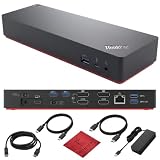
This listing names the same Lenovo 40AN0135US Thunderbolt 3 Dock Gen 2 as the ThinkPad dock above, with a shorter description that identifies it as a ThinkPad docking station. Since the model number matches, the hardware should be the same, but the listing does not repeat the display, port or warranty details, so confirm the seller, condition and included accessories before choosing between the two pages.
- Interface: Thunderbolt 3, per the model name
- Model: 40AN0135US
- Video: two HDMI and two DisplayPort outputs on this model; confirm on listing
- Included power adapter: confirm on listing
- Warranty: confirm on listing
Pros
- Same dock design for ThinkPad desks
- Useful as an alternate source of the same model
Cons
- Thinner listing detail than the first Lenovo entry
- Same Thunderbolt 3 generation limits
When two pages sell what looks like the same product, look at the seller name, whether the item is new or used, and what ships in the box. A dock without its 135 W adapter or Thunderbolt cable is not useful, and replacement adapters for this class of dock are specific to the model. The warranty terms and return window can also differ from one page to the next.
It duplicates the third pick, so choose whichever page gives clearer information on the seller and accessories.
6. Plugable 16-in-1 Thunderbolt 4 Dock – Best Overall

This is the most fully documented Thunderbolt 4 dock in the set. Plugable’s product page describes two DisplayPort 1.2 and two HDMI 2.0 outputs, 2.5 GbE, UHS-II SD and microSD readers, a front headphone and microphone jack, and up to 100 W of charging (98 W certified). Display support depends on the host: four 4K 60 Hz screens on Windows Thunderbolt 4 systems, two on M3, M4, M5 and Pro or Max Macs, and one on base M1 and M2 Macs.
- Interface: Thunderbolt 4 with 40 Gbps host cable included
- Video: 2 DisplayPort 1.2 and 2 HDMI 2.0
- Charging: up to 100 W (98 W certified)
- Network: 2.5 GbE
- Storage: UHS-II SD and microSD readers
Pros
- Plenty of ports and four video outputs
- Faster than gigabit Ethernet for NAS or large downloads
Cons
- Larger than compact hubs and uses an external power brick
- Mac display count varies by chip
It beats the Lenovo Thunderbolt 3 dock on generation, Ethernet speed and output count, while the Lenovo keeps the edge for ThinkPad-specific compatibility.
Specs Compared
| Product | Interface | Video outputs | Max charging | Ethernet | Card readers |
|---|---|---|---|---|---|
| Anker 8-in-1 USB C Hub | USB-C (not Thunderbolt) | Dual HDMI, 4K support | 85 W max PD | 1 Gbps | SD and TF |
| Dell Thunderbolt 4 Dock (3-display listing) | Thunderbolt 4 | 2 HDMI + 1 DisplayPort | Confirm on listing | Confirm on listing | Confirm on listing |
| Lenovo ThinkPad Thunderbolt 3 Dock Gen 2 | Thunderbolt 3 | 2 HDMI + 2 DisplayPort, dual 4K | 135 W adapter; confirm laptop charging | Gigabit (per retailer pages) | None listed |
| Plugable USB C Dock, Dual Monitor 4K 60Hz | USB-C; confirm Thunderbolt on listing | 2 x HDMI or DisplayPort, 4K 60 Hz | 100 W | Confirm on listing | Confirm on listing |
| Lenovo 40AN0135US (second listing) | Thunderbolt 3 | Confirm on listing | Confirm on listing | Confirm on listing | Confirm on listing |
| Plugable 16-in-1 Thunderbolt 4 Dock | Thunderbolt 4 | 2 DisplayPort 1.2 + 2 HDMI 2.0 | 100 W (98 W certified) | 2.5 Gbps | UHS-II SD and microSD |
How We Chose These
The set comes from current catalog listings for Thunderbolt and USB-C docks that advertise dual-monitor support, so some entries are true Thunderbolt docks and others are USB-C look-alikes that appear in the same searches. We compared listing names against manufacturer product and support pages for Plugable, Dell, Lenovo and Anker, and used retailer specification fields where the maker’s page was incomplete. Ranking favored documented display outputs, stated charging wattage and host compatibility over extra ports. We did not run the docks ourselves, so we flag every missing detail as “confirm on listing” rather than guess, and we mark items that do not match the facet as runner-ups.
What to Look For
Thunderbolt versus plain USB-C docks
Thunderbolt 3 and 4 offer a 40 Gbps link, which leaves room for two 4K 60 Hz displays plus fast data. A basic USB-C dock usually relies on DisplayPort Alt Mode over a narrower link, so two screens often means reduced resolution or refresh. If your plan is two 1440p 144 Hz or two 4K 60 Hz monitors, a Thunderbolt or USB4 host and dock is the safer route. Thunderbolt 4 also mandates a minimum feature set, including support for two 4K displays on the host, so it is easier to predict than Thunderbolt 3.
Your host decides the display count
A dock cannot add screens the host does not support. Windows laptops usually split the 40 Gbps link into DisplayPort streams, so multiple screens work, subject to the graphics chip. Base Apple silicon Macs are the notable exception, supporting few external displays natively, which is why Mac-oriented docks often use driver-based video. Check your laptop’s specification for the number of external displays and the maximum resolution per port.
For a desktop PC, Thunderbolt requires a motherboard port or an add-in card. Many add-in cards need a cable from your graphics card’s DisplayPort output into the card so video can travel out over Thunderbolt, and they also need a Thunderbolt header on the motherboard. If your motherboard lacks one, check the card’s compatibility notes first.
Power delivery: wattage you actually need
Match the dock’s charging output to your laptop charger. A thin ultrabook may need 65 W, while a gaming laptop can draw 180 W or more under load and will not be fully fueled by a 90 W or 100 W dock; it will charge slowly or discharge under heavy use. Check your original adapter’s wattage, and if the dock offers less, plug the laptop’s own charger in for gaming sessions.
Cables, ports and network
Use the cable that ships with the dock, since a charge-only USB-C lead will not carry video. Count the ports you use daily: a keyboard, mouse, webcam, headset and storage drive can take five Type-A ports. For network, 2.5 GbE helps if your router, switch and storage support it; otherwise gigabit is enough. A card reader matters only if you work with cameras.
Worked example: for a laptop with a 100 W charger, two 4K 60 Hz monitors and a wired connection, you want a Thunderbolt 4 dock, two video outputs on cables your monitors accept, at least 100 W of charging and a 2.5 GbE port if your network is that fast. The Plugable Thunderbolt 4 dock in this list meets that checklist.
Setup tips and common problems
Plug the dock’s power supply in first, then connect the host cable, and only then attach monitors one at a time so you can confirm each is detected. If a screen stays black, try a different output on the dock, since HDMI and DisplayPort paths may use different video lanes. Update the dock’s firmware and your graphics driver, and switch the monitor’s input manually if auto-detect fails. A wobbly picture usually points to a poor-quality cable or an HDMI lead that is not rated for 4K 60 Hz. If Ethernet drops, check whether the dock’s network controller needs a driver on Windows, and avoid daisy-chaining a second hub on the same port unless you need the extra connections.
Questions
Can a Thunderbolt dock run two monitors on any laptop?
Only if the laptop’s graphics and ports support that many displays. The dock distributes video from the host, so check the laptop’s maximum external display count and the cable types your monitors use before buying.
Do I need Thunderbolt for two 4K monitors?
Not always, but it helps. A USB-C dock can run two 4K screens at reduced refresh or through compression, while Thunderbolt has bandwidth for two 4K 60 Hz screens plus data.
Will a Thunderbolt dock work on a desktop PC?
Yes, if the PC has a Thunderbolt or USB4 port. Many add-in cards also need a loop cable from the graphics card, so read the card’s instructions.
Can I charge my gaming laptop through a dock?
Docks that supply 90 to 100 W suit thin laptops. Gaming laptops that ship with larger adapters may need their own charger for full performance.
Why do some docks mirror screens on a Mac?
Base Apple silicon chips support only a limited number of independent external displays through standard docks. Mac-oriented docks often use extra software to extend the desktop across two monitors.
Is a Thunderbolt 3 dock still worth buying?
If your laptop has Thunderbolt 3 and the dock is for a ThinkPad, it remains a workable choice. Thunderbolt 4 docks add stricter minimum features and often faster Ethernet.
Update History
- October 20, 2026 – Initial publication; product set drawn from current catalog listings.
- Check the product page for current specifications and availability before buying.
Sources
- Manufacturer product and specification pages for Plugable, Dell, Lenovo and Anker docks
- Retailer listing titles and specification fields for all six products
- Published retailer and reseller specification summaries for the Dell WD22TB4 and Lenovo 40AN0135US