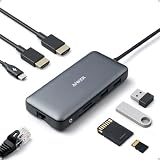
The Anker 13-in-1 triple-display USB-C dock is the best overall pick for a desktop PC that has a USB-C port with video output. It combines two HDMI outputs and one DisplayPort, Ethernet, card readers and a spread of fast USB ports in one box, and Anker publishes clear specifications for it. A USB-C docking station turns one USB-C connection into extra monitors, wired networking and USB ports, but on a desktop it only works if the motherboard’s USB-C port actually carries DisplayPort video.
Our Top Picks
 TobenONE 19-in-1 Laptop Docking Station Dual Monitor4.9 x 3.5 x 1.6 inches0.68 poundsCheck on Amazon
 Docking Station Dual Monitor 4K HDMI 13-in-1 USB13-in-1 Docking Station (USB C)13 x 0.5 x 5 inches0.3 poundsCheck on Amazon
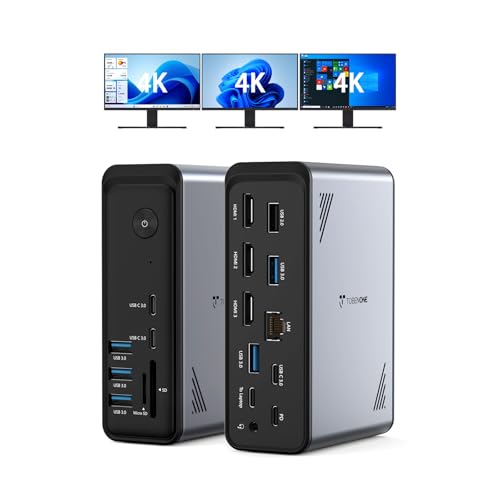 TobenONE 18 in 1 Laptop Docking Station 3Without power supply4.9 x 3.5 x 1.6 inches0.68 PoundsCheck on Amazon


Top 3 picks at a glance
Quick List
- Anker 13-in-1 USB-C Docking Station – best for desktops with a video-capable USB-C port and three monitors
- Anker Nano 13-in-1 with detachable hub – best for a desk dock that doubles as a travel hub
- Anker USB-C Smart Display Hub (no charger) – best for desktops that do not need power delivery
- TobenONE 19-in-1 Dual Monitor Dock – best for peripheral-heavy desks with two screens
- LIONWEI 13-in-1 Triple 4K Dock – best for buyers who want a triple-display dock with 100 W charging stated
- TobenONE 18-in-1 Triple HDMI Dock – best for three HDMI monitors
Which One Is Right for You?
| If you… | Choose |
|---|---|
| want three monitors and a well-documented, mainstream dock | Anker 13-in-1 USB-C Docking Station |
| need to unplug part of the dock and carry it to a laptop session | Anker Nano 13-in-1 |
| only need extra monitors and ports and your PC never charges over USB-C | Anker USB-C Smart Display Hub |
| connect many wired peripherals, drives and a capture device | TobenONE 19-in-1 |
| use three HDMI monitors and no DisplayPort screens | TobenONE 18-in-1 |
| want a mix of HDMI and DisplayPort with USB 10 Gbps | LIONWEI 13-in-1 |
Before comparing docks, check your own PC. Plug-and-play monitor support over USB-C on a desktop requires a USB-C port that supports DisplayPort Alt Mode or a Thunderbolt or USB4 port; a data-only USB-C port will run the dock’s USB, Ethernet and card readers but will not light up a single monitor.
All 6 Picks in Detail
1. Anker Nano 13-in-1 with Detachable Hub – Best for Desk and Travel
As an Amazon Associate we earn from qualifying purchases at no extra cost to you.

The Anker Nano is a compact dock with a removable 6-in-1 USB-C hub built in, so you can leave the main dock at the desk and carry the small hub in a bag. The listing names a 3-display USB-C setup with two HDMI outputs and one DisplayPort, a 10 Gbps USB-C port, three USB-A ports, audio, SD and TF readers, Ethernet and up to 100 W of power delivery. Published coverage of the product describes resolution limits when all three outputs are active, so treat triple 4K as unlikely and check Anker’s page for exact figures.
- Video: 2 HDMI plus 1 DisplayPort, up to three displays
- Data: one 10 Gbps USB-C port and three USB-A ports per the listing
- Charging: up to 100 W to the host
- Extras: detachable 6-in-1 hub, SD and TF slots, audio jack, Ethernet
- Platform note: on macOS, external displays typically mirror each other on this class of dock
Pros
- Small footprint that suits a crowded desk
- Detachable hub adds flexibility for a laptop and desktop
Cons
- Triple-display mode lowers resolution on most hosts
- The USB-C link is a shared 10 Gbps path rather than Thunderbolt
The detachable-hub idea is most useful if you move between a desktop and a laptop, or if you carry a laptop to a LAN event and want card readers and a few ports in your bag. For a desk that never changes, the larger Anker 13-in-1 in the next entry is the more conventional choice, with more fixed ports and a power-brick design that stays put. Also note that the dock ships with its own power adapter, so you will need a free outlet or surge-protector slot near the monitors.
It is smaller and more flexible than the Anker 13-in-1 that follows it, which is a better fit when you want fixed power and standard desk ports.
2. Anker 13-in-1 USB-C Docking Station – Best Overall for Three Monitors

This is Anker’s larger 13-in-1 dock with triple-display outputs: two HDMI and one DisplayPort, along with a 10 Gbps USB-C port and 5 Gbps USB-A ports, plus Ethernet. It ships with a power adapter and supports up to 85 W of charging on the upstream port. It is driverless, which means it uses the host’s DisplayPort Alt Mode, so resolution depends on the PC’s DisplayPort version. Anker’s published figures list one 4K 60 Hz monitor with a DisplayPort 1.4 host, with lower resolution when more screens are active, and regional pages differ slightly.
- Video: 2 HDMI 2.0 and 1 DisplayPort 1.4 outputs
- Data: 10 Gbps USB-C and 5 Gbps USB-A ports
- Charging: up to 85 W to the host, plus a separate phone-charging port
- Network: Gigabit Ethernet
- Extras: SD and microSD readers, audio jack
Pros
- Strong port selection and a widely documented design
- Works without drivers on Windows hosts that support the needed video mode
Cons
- Resolution drops as you add monitors
- Larger than the Nano and needs a wall outlet
For a desktop builder, the useful parts are the three video outputs, the Ethernet port for a board that lacks one and the card readers. The charging feature is a bonus if you also dock a laptop at the same desk. Because it is driverless, it behaves like any other DisplayPort Alt Mode device, which makes troubleshooting straightforward: if the host port supports video, monitors appear; if not, only the data ports work.
Choose it over the Nano when you want a permanent desk dock and do not need a detachable hub.
3. Anker USB-C Smart Display Hub (No Charger) – Best for Desktops Without Charging Needs

This Anker hub is sold as a desktop USB-C hub with dual displays on Windows and a single display on other platforms, and it explicitly skips a charger. For a desktop PC that is a point in its favor: a tower does not need power delivery over USB-C, so you avoid paying for wattage you will not use. The listing name gives limited port detail, so confirm the exact video output types, the number of USB ports and the host requirements on the product page.
- Video: dual displays on Windows, single display on other platforms per the listing
- Charging: none included
- Design: desktop hub format
- Port types and counts: confirm on listing
- Host requirement: USB-C with DisplayPort Alt Mode; confirm on listing
Pros
- Simple, charger-free design that suits a desktop
- Same brand family as the other Anker docks
Cons
- Platform limits on display count outside Windows
- Less port detail in the listing name than the bigger docks
One more reason to consider it: fewer ports mean fewer things competing for the same upstream bandwidth. If you only need a second monitor, an Ethernet jack and a couple of USB ports, a simpler hub leaves more of the link free for video, which can help the display stay at a higher resolution.
It trades the 13-in-1’s extra ports for a simpler and likely smaller design, so pick it only if you have fewer peripherals.
4. TobenONE 19-in-1 Dual Monitor Dock – Best for Peripheral-Heavy Desks

TobenONE lists this 19-in-1 dock as having ten USB-C and USB-A ports, two 4K HDMI outputs, Ethernet and USB Power Delivery 3.0, and positions it for office and home multi-screen use. That port count makes it the most connector-rich entry for a desk with drives, a headset, a webcam and a controller. Check the listing for the exact USB speeds, the Ethernet speed and the maximum refresh rate with both monitors running.
- Video: two HDMI outputs rated for 4K per the listing
- Ports: ten USB-C and USB-A ports in total
- Network: Ethernet; speed – confirm on listing
- Charging: USB PD 3.0; wattage – confirm on listing
- Use case: office and home multi-screen setups
Pros
- High port count reduces the need for a second hub
- Two 4K-capable HDMI outputs
Cons
- Less-known brand, so verify specs and support terms
- Dual 4K 60 Hz is not guaranteed on every host
Heavy peripheral use is where a dock like this earns its place: external drives, a webcam, a stream deck, a headset dongle and a controller can all live on one hub. Just remember that all of those ports share a single upstream connection, so large file transfers and a capture device running at once will compete. Spread the heaviest devices across the motherboard’s own ports when possible.
Next to the Anker 13-in-1 it offers more ports but fewer published details, so it suits buyers who value connectors over documentation.
5. LIONWEI 13-in-1 Triple 4K Dock – Best for Mixed HDMI and DisplayPort

This LIONWEI dock is described as a 13-in-1 USB-C hub for laptops with triple 4K outputs, dual HDMI plus DisplayPort, 10 Gbps data, 100 W power delivery, Ethernet and eight USB ports. On paper it resembles the Anker 13-in-1, which makes it a reasonable alternative if you prefer its mix of ports. As with every dock here, triple 4K depends on the host’s video chip and likely involves compromises in refresh rate or resolution, so verify the display modes on the listing.
- Video: dual HDMI plus DisplayPort, triple display
- Data: 10 Gbps USB-C per the listing
- Charging: 100 W power delivery
- Network: Ethernet; speed – confirm on listing
- Ports: eight USB ports according to the listing name
Pros
- HDMI and DisplayPort mix suits varied monitors
- High stated charging wattage for laptop use
Cons
- Little published detail on the brand’s support and firmware
- Triple 4K claims need checking for refresh rate
Because the listing name stacks several claims together, the careful way to shop it is to open the product page and look for a table of supported display modes by host type. That table, if present, tells you what resolution and refresh you will actually get from one, two or three screens. Without it, assume the conservative modes common to USB-C docks.
It is the closest rival to the Anker 13-in-1, with the Anker having the clearer published specification.
6. TobenONE 18-in-1 Triple HDMI Dock – Best for Three HDMI Monitors

This TobenONE dock offers three HDMI outputs, labeled triple 4K, along with nine USB-C and USB-A ports, Ethernet and USB Power Delivery 3.0. It is useful when all your monitors use HDMI and you do not want adapters. Triple-monitor docks of this kind usually run the displays at lower resolution or refresh when all three are active, so read the display mode table in the listing before relying on 4K for all three.
- Video: three HDMI outputs
- Ports: nine USB-C and USB-A ports per the listing
- Network: Ethernet; speed – confirm on listing
- Charging: USB PD 3.0; wattage – confirm on listing
- Monitor fit: triple monitor setups
Pros
- No DisplayPort adapters needed for HDMI monitors
- Plenty of USB ports
Cons
- All three outputs are HDMI, so DisplayPort-only monitors need an adapter
- Per-monitor resolution with three screens needs verification
It differs from the 19-in-1 mainly in having a third display output and fewer ports.
Specs Compared
| Product | Video outputs | Max displays | Charging | Fast USB | Ethernet |
|---|---|---|---|---|---|
| Anker Nano 13-in-1 | 2 HDMI + 1 DisplayPort | 3 | Up to 100 W | 10 Gbps USB-C, 3 USB-A | Yes; speed – confirm on listing |
| Anker 13-in-1 USB-C Docking Station | 2 HDMI + 1 DisplayPort | 3 | Up to 85 W | 10 Gbps USB-C, 5 Gbps USB-A | Yes; speed – confirm on listing |
| Anker USB-C Smart Display Hub | Confirm on listing | 2 on Windows, 1 elsewhere | No charger | Confirm on listing | Confirm on listing |
| TobenONE 19-in-1 | 2 HDMI (4K) | 2 | PD 3.0; confirm wattage | 10 USB-C and USB-A ports | Yes; speed – confirm on listing |
| LIONWEI 13-in-1 | 2 HDMI + 1 DisplayPort | 3 | 100 W | 10 Gbps; 8 USB ports | Yes; speed – confirm on listing |
| TobenONE 18-in-1 | 3 HDMI (4K) | 3 | PD 3.0; confirm wattage | 9 USB-C and USB-A ports | Yes; speed – confirm on listing |
How We Chose These
This set reflects current catalog listings for USB-C docks that advertise dual or triple display output, filtered for relevance to desktop builders. We read each listing name and compared it with manufacturer product pages where one exists, and with retailer specification fields and published product coverage for the Anker models. Ranking weighs how clearly the display modes are documented, the number and speed of ports, whether a charger is useful for a desktop, and how much the listing leaves unstated. We did not operate the docks ourselves, and where the listing is vague we say “confirm on listing” rather than fill gaps with assumptions.
What to Look For
Does your desktop have the right USB-C port?
This is the first check, and many buyers skip it. Most motherboard USB-C ports are data-only. Video over USB-C needs a port that supports DisplayPort Alt Mode, which on a desktop usually means a motherboard port wired to the integrated graphics output, a USB-C output on a graphics card, or a Thunderbolt or USB4 port. Some motherboards need a DisplayPort-in cable looped from the graphics card to feed the USB-C port. If your PC lacks such a port, a dock will still provide Ethernet and USB, but not extra monitors, and you would be better served by plugging monitors into the graphics card directly.
Understand display modes and bandwidth
A basic USB-C dock shares one DisplayPort connection among all monitors. At DisplayPort 1.4 speeds, one 4K 60 Hz display fits comfortably, while two or three displays push resolution or refresh down; Anker’s own figures for its 13-in-1 describe one 4K 60 Hz screen, two 1440p 60 Hz screens, or three 1080p 60 Hz screens in that mode. Compression (DSC) can raise those limits when both host and dock support it. If you want high-refresh gaming displays, connect them directly to the graphics card and use the dock only for office screens and peripherals.
Rule of thumb: count pixels. A 4K 60 Hz stream needs roughly the same bandwidth as two 1440p 60 Hz streams, and a single DisplayPort 1.4 link can carry about one 4K 60 Hz stream uncompressed.
Ports that matter on a desktop
A desktop already has plenty of USB ports, so the value of a dock lies in the extras: gigabit or faster Ethernet if your board has none, card readers, front-of-desk USB-A ports, and a headphone jack within reach. For storage, look for at least one 10 Gbps USB-C port. For a mouse and keyboard, any port works. Capture cards and fast SSDs should go on fast ports, not shared slower ones.
Worked example: a three-monitor desk
Say you want two office monitors and a third portrait display for chat and email, all on a dock, while the main gaming screen stays on the graphics card. Count the pixels: three 1080p 60 Hz screens fit within a single DisplayPort 1.4 link in the dock’s triple mode, so a triple-output dock suits that plan. If one of the three were 1440p, plan on checking the dock’s mode table, because the combined load grows quickly. The rule of thumb is to size the dock for the secondary screens only and never route your fastest monitor through it.
Power delivery is optional for a desktop
Power delivery matters if you also use the dock with a laptop. For a desktop-only desk, a dock without a charger is fine and may cost less. If you buy a dock with a power brick, make sure the brick is on a surge-protected outlet and keep it ventilated, as bricks run warm under load.
Troubleshooting and cable management
If a monitor stays blank, first confirm the host port: try the dock on a different USB-C port, update the motherboard’s graphics driver, and check whether your BIOS has a setting for the USB-C video output. Use short, certified cables, because long passive USB-C cables can limit speed. Place the dock where its vents are clear, since compact docks run warm under constant video load, and route the power brick away from audio cables to reduce hum. Finally, label which monitor sits on which output so that a driver reset does not leave you guessing which screen is which.
Questions
Can any USB-C port on my PC run a docking station?
No. USB-C ports vary: some carry only data, while others support DisplayPort Alt Mode, Thunderbolt or USB4. Check your motherboard manual for a video symbol or specification before buying.
Will a dock add monitors to a desktop with a graphics card?
Only if the dock’s USB-C connection is wired to a video source. Your graphics card’s outputs are separate, and it is often simpler and faster to plug monitors into the card directly.
Can I game on monitors connected to a dock?
You can, but bandwidth limits make high refresh rates unlikely, and a motherboard USB-C video port often uses integrated graphics rather than your discrete card. Keep gaming displays on the graphics card and use the dock for secondary screens.
Do I need Thunderbolt for a USB-C docking station?
No, plain USB-C docks work if the host supports DisplayPort Alt Mode. Thunderbolt hosts add bandwidth and more reliable multi-monitor behavior.
Why do three monitors show the same image on a Mac?
Many standard USB-C docks lack the multi-stream support macOS needs, so extra displays mirror the first. Driver-based docks or Thunderbolt docks are the usual fix.
Is a dock with a power adapter better?
It is better only if you plan to charge a laptop through it. For a desktop-only setup the adapter adds cable clutter without adding function.
Update History
- October 20, 2026 – Initial publication; product set drawn from current catalog listings.
- Check the product page for current specifications and availability before buying.
Sources
- Manufacturer product and specification pages for Anker docks
- Retailer listing titles and specification fields for all six products
- Published product coverage of the Anker Nano and Anker 13-in-1 docks