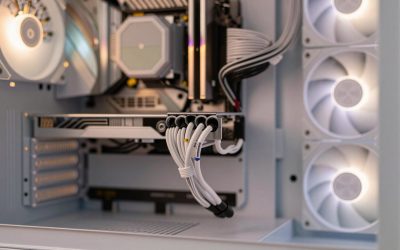
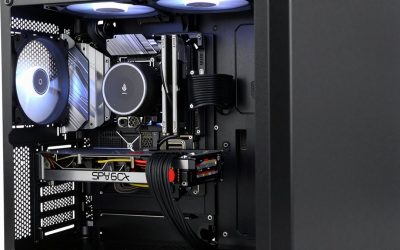
A gaming PC needs ten parts: a processor (CPU), a motherboard, memory (RAM), a graphics card (GPU), an SSD for storage, a power supply (PSU), a case, a CPU cooler, case fans, and a keyboard, mouse and monitor to use it. Windows 11 is the eleventh item on most lists because the machine does nothing without an operating system. Each part has one job, one or two specifications that matter, and a specific connector that links it to the rest.
This beginner parts list explains what each component does in plain language, which number on the spec sheet to read, how the part plugs in, and what mistakes to avoid. It ends with a compatibility checklist you can use before you buy anything.
As an Amazon Associate we earn from qualifying purchases at no extra cost to you.


Our Top Picks


Top 3 picks at a glance
Quick answer
| # | Part | Job in one line | Spec to read | Connects to |
|---|---|---|---|---|
| 1 | CPU | Runs the game logic and every program | Socket, core count, rated power | Motherboard socket |
| 2 | Motherboard | Connects every other part together | Socket, chipset, form factor, M.2 slots | Everything |
| 3 | RAM | Short-term memory for running programs | DDR generation, capacity, speed | Memory slots |
| 4 | Graphics card | Draws the game image | Video memory, length, power connector | PCIe x16 slot, PSU |
| 5 | SSD | Stores Windows and games | Capacity, interface (NVMe M.2 or SATA) | M.2 slot or SATA port |
| 6 | Power supply | Feeds electricity to all parts | Wattage, quality tier, connectors | Board, GPU, drives |
| 7 | Case | Holds and ventilates the parts | Board size, GPU length, cooler height | Screws and standoffs |
| 8 | CPU cooler | Removes heat from the processor | Socket support, height, rated capacity | Socket, CPU fan header |
| 9 | Case fans | Move air through the case | Size (120 or 140 mm), connector (3-pin or 4-pin) | Fan headers |
| 10 | Monitor, keyboard, mouse | How you see and control the PC | Resolution, refresh rate, ports | GPU video port, USB |
1. Processor (CPU)
The CPU is the part that runs your operating system and the logic of the game: physics, artificial intelligence, and the instructions that tell the graphics card what to draw. It matters most in games with many characters or simulation, and in high refresh rate play at lower resolutions.
What to look at:
- Socket. A CPU only fits one socket type. Current mainstream desktop sockets are AM5 for AMD Ryzen and LGA1851 for Intel Core Ultra 200S, according to each manufacturer’s product pages.
- Core count. Six to eight cores is a sensible target for gaming. More cores help with streaming and video editing.
- Rated power. Higher power means a bigger cooler and power supply.
- Integrated graphics. Many processors include basic graphics, which is useful for first boot and troubleshooting. Some models, such as Intel “F” versions, do not.
- Cooler in the box. Some processors include a cooler; many higher-end ones do not.
How it connects: it drops into the motherboard socket and is held by a lever or frame. Never force it; the alignment marker on the corner shows the direction.
2. Motherboard
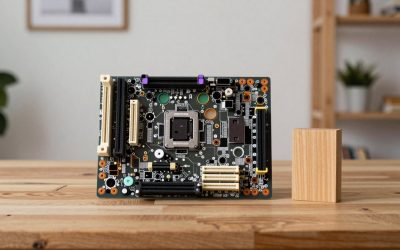
The motherboard is the circuit board that every other part plugs into. It decides which processor you can use, which memory type fits, how many drives you can add, how many USB ports you have and which internet connection options you get.
What to look at:
- Socket and chipset. The socket must match your CPU. The chipset (for example B650, B850 or X870 on AMD; Z890 or B860 on Intel) sets the feature level.
- Form factor. ATX is full-size, micro-ATX is smaller and mini-ITX is the smallest. The case must support the size.
- Memory type. Current AMD AM5 and Intel LGA1851 boards use DDR5.
- M.2 slots. Count them; one is enough to start, two or three give room to grow.
- Built-in Wi-Fi and Bluetooth. Many boards include them, which saves buying an adapter.
- BIOS support. Check the maker’s CPU support list for your exact processor.
How it connects: it is screwed to the case on brass standoffs, and it receives power from a 24-pin connector plus an 8-pin (or 4+4-pin) CPU connector from the power supply.
3. Memory (RAM)
RAM holds the data of the programs that are running right now. If you run out, Windows falls back to the SSD, which is much slower, and games stutter. RAM does not store anything when the power is off.
What to look at:
- Type: DDR5 for current platforms. DDR4 modules do not fit DDR5 slots.
- Capacity: 16 GB is the entry level; 32 GB is a comfortable level for modern gaming.
- Kit layout: a kit of two modules (for example 2 x 16 GB) uses dual-channel mode, which is faster than a single module.
- Speed and profile: look for EXPO (AMD) or XMP (Intel) profiles, which you enable in the BIOS to reach the rated speed.
How it connects: it clicks into the memory slots next to the CPU. Use the slots shown in the manual for two modules, normally the second and fourth.
4. Graphics card (GPU)
The graphics card produces the picture. It decides how detailed a game can look and how many frames per second you get at a given resolution. For most gaming, it is the component with the largest influence on performance.
What to look at:
- Video memory (VRAM). More helps at higher resolutions and texture settings. As a rough guide from manufacturer and reviewer recommendations, 8 GB is entry level for 1080p today, 12 to 16 GB suits 1440p, and 16 GB or more suits 4K.
- Length and thickness. Cards range from compact to well over 300 mm and 3 to 4 slots thick. Compare with your case.
- Power connector and board power. Mid-range cards use 8-pin PCIe cables; some high-end cards use the 12V-2×6 connector.
- Video outputs. HDMI and DisplayPort; match them to your monitor.
How it connects: it clicks into the top PCIe x16 slot, is held by the case slot bracket screws, and takes power from separate cables from the power supply. The monitor plugs into the card, not the motherboard.
5. Storage (SSD)
The SSD stores Windows, your games and your files. Compared with a hard disk, an SSD loads games and Windows far faster. Most new builds use an NVMe SSD in an M.2 slot, which looks like a small stick and needs no cables.
| Drive type | Connector | Typical use | Notes |
|---|---|---|---|
| NVMe M.2 SSD (PCIe 4.0) | M.2 slot | Main drive | Fast and affordable; the sensible default |
| NVMe M.2 SSD (PCIe 5.0) | M.2 slot with PCIe 5.0 support | Enthusiast | Higher speeds, more heat, small gain in games |
| SATA SSD | SATA data cable + SATA power | Extra storage | Slower than NVMe, works everywhere |
| Hard disk drive | SATA data cable + SATA power | Cheap bulk storage | Not for the game you play most |
What to look at: capacity (1 TB is a practical minimum for a gaming PC given modern game sizes), the interface your board supports, and whether the board’s M.2 slot includes a heatsink.
6. Power supply (PSU)
The power supply converts wall electricity into the voltages the parts need. It is the part beginners most often undervalue. A poor supply can cause crashes, and in the worst cases it can damage other parts.
What to look at:
- Wattage. Add up the processor and graphics card power, add a little for other parts, and leave headroom. Graphics card makers publish a recommended supply wattage; follow it.
- Efficiency rating. 80 PLUS Bronze, Gold and higher describe efficiency, not quality by themselves, but Gold and above tends to correlate with better components.
- Connectors. The 24-pin motherboard cable, CPU 8-pin, PCIe cables for the card (or the 12V-2×6 cable on newer supplies), and SATA power.
- Modularity. Fully modular supplies let you attach only the cables you use, which makes the build tidier.
- Standard. Recent models labelled ATX 3.0 or 3.1 are designed for the power spikes of modern graphics cards.
| Build tier | Typical graphics card class | Supply wattage to start from |
|---|---|---|
| Entry 1080p | Entry card | 550 W |
| Mid 1440p | Mid-range card | 650-750 W |
| High 4K | High-end card | 850-1000 W or per the card maker |
7. Case
The case holds everything and sets how well air flows through. It also sets which sizes of board, cooler and graphics card you can fit.
What to look at: supported motherboard sizes, maximum graphics card length, maximum CPU cooler height, fan and radiator support, dust filters, front USB ports (a USB-C front port needs a matching header on the board) and how many drives it holds. Manufacturers list these in the specification table. Cases with a mesh front panel usually give better cooling than solid or glass fronts, at the cost of more dust.
8. CPU cooler
The cooler keeps the processor within safe temperatures. There are two types: air coolers (a heatsink with fan) and all-in-one liquid coolers (a pump block, tubes and a radiator).
| Type | Pros | Cons | Check |
|---|---|---|---|
| Air cooler | Simple, reliable, no pump to fail, quiet in good designs | Can be tall; may clash with tall memory | Height versus case limit |
| 240 / 280 mm all-in-one | Clean look, moves heat to the case edge | Pump can fail; more cost | Radiator support in case |
| 360 mm all-in-one | Highest cooling of the group for hot processors | Needs a big case | Case radiator mount and graphics card clearance |
Check that the cooler supports your socket and that its rated capacity is above your processor’s rated power. A cooler normally comes with thermal paste applied or supplied.
9. Case fans
Fans move cool air in and hot air out. A typical airflow layout uses fans at the front and bottom drawing air in, and fans at the rear and top pushing air out. Many cases include some fans.
- Size: 120 mm or 140 mm; the larger size is quieter at the same airflow.
- Connector: 4-pin PWM fans let the board adjust the speed. 3-pin fans are controlled by voltage.
- Lighting connectors: RGB fans have an additional lighting cable (5V addressable or 12V RGB); they need a matching header or a controller.
Plug fans into the case fan headers on the board, or into a fan hub connected to one header.
10. Monitor, keyboard and mouse
You need a way to see and control the PC. The monitor should match the graphics card: a 1080p monitor at 144 to 240 Hz suits entry and mid cards, 1440p at 144 Hz or higher suits upper mid cards, and 4K suits high-end cards. Connect with DisplayPort or HDMI cable to the graphics card. A wired keyboard and mouse are fine to start.
The operating system
Windows 11 can be installed from a USB drive created with Microsoft’s Media Creation Tool. It needs a TPM 2.0 module and Secure Boot capability, which modern boards provide in firmware, usually enabled by default. You can install first and enter a licence key later.
How the parts connect: the cable map
| Cable or connector | From | To | Note |
|---|---|---|---|
| 24-pin ATX | PSU | Motherboard, edge near the RAM | Largest cable, push firmly |
| 8-pin (4+4) EPS | PSU | Motherboard, top corner near the CPU | Not the same as a PCIe cable |
| PCIe 8-pin or 12V-2×6 | PSU | Graphics card | Push fully in until it clicks |
| SATA power + SATA data | PSU and board | SATA drives | Only for SATA drives |
| Front panel header | Case | Motherboard bottom edge | Power switch, reset, LEDs; see the manual’s pin diagram |
| Front USB 3.0 / USB-C | Case | Motherboard header | Different headers; match the type |
| CPU_FAN | Cooler | Motherboard header | If missing, the board may show an error at start |
| Video cable | Monitor | Graphics card | Not the motherboard when a card is installed |
Compatibility checklist before you buy
- CPU socket equals motherboard socket.
- Motherboard BIOS supports your exact CPU (check the support list).
- RAM type equals the motherboard memory type (DDR5 for current platforms).
- Motherboard size is supported by the case.
- Graphics card length is below the case limit with a margin.
- Cooler height is below the case limit, and the cooler supports your socket.
- Power supply wattage meets the graphics card maker’s recommendation, with the right connectors.
- SSD interface matches a free slot on the board.
- Monitor input matches a video output on the graphics card.
Common beginner mistakes
| Mistake | Why it hurts | Fix |
|---|---|---|
| Buying one RAM stick | Single-channel memory is slower | Buy a two-module kit |
| Forgetting the CPU power cable | PC will not start | Connect the 8-pin (4+4) at the top of the board |
| Monitor on the motherboard port | No picture from the graphics card | Plug into the card |
| Skipping standoffs | Board can short | Use standoffs matching the board size |
| Not enabling EXPO or XMP | Memory runs slowly | Switch it on in the BIOS |
| Cheap, unknown power supply | Instability and risk | Choose a reputable tier and connectors |
| Ignoring case clearances | Cooler or card will not fit | Compare numbers first |
Safety and troubleshooting
Touch bare metal on the case to discharge static before handling parts. Hold the CPU and cards by their edges. Do not force connectors; most are keyed and fit only one way. If the PC does not start, check in order: wall and supply switch, RAM seating, 24-pin and CPU power cables, the monitor cable on the graphics card, and any debug LEDs listed in the board manual.
How we compared
We compared manufacturer manuals, specifications and independent guides named below. We did not build or benchmark these systems ourselves.
Sources
- AMD and Intel desktop processor product pages
- Motherboard maker manuals and CPU support lists
- Graphics card maker specification pages (recommended supply, board power, dimensions)
- PCI-SIG and Intel documentation for ATX 3.x power supplies and the 12V-2×6 connector
- 80 PLUS certification programme documentation
- Microsoft, Windows 11 system requirements and installation media
Frequently Asked Questions
What parts do I need to build a gaming PC?
You need a processor, motherboard, RAM, graphics card, SSD, power supply, case and CPU cooler (unless one is included with the processor). You also need a monitor, keyboard, mouse and a copy of Windows. Case fans are usually included with the case.
Do I need a separate graphics card?
For modern 3D games, yes. Integrated graphics in the processor is fine for installing Windows and basic use, but it cannot match a dedicated card in most current games.
How much RAM do I need?
16 GB works as an entry level, and 32 GB is more comfortable for modern games and background programs. Buy two modules in one kit so the memory runs in dual-channel mode.
Is a bigger power supply always better?
No. You need enough wattage with headroom, not the largest number. A supply far above your needs costs more and may run in a less efficient range, while a quality supply at a sensible wattage is the better purchase.
Can I mix and match any brands?
Yes, brands do not matter for compatibility. What matters are the sockets, memory types, sizes and connectors. A board from one brand works with a processor, memory and card from any other brand, as long as the specs match.
What is the most important part for gaming?
For most games at 1440p and above it is the graphics card, followed by a processor that does not hold it back. Fast storage and sufficient RAM matter, but they rarely raise frame rates on their own.
Do I need to buy thermal paste?
Usually not. Most coolers come with paste pre-applied or in the box. Buy a small tube only if you reuse an old cooler or need to remount.
Which part should I buy first?
Start with the processor and motherboard as a matching pair, then the memory, then the case, cooler, power supply and storage, and finish with the graphics card once you know how much budget and space remain.