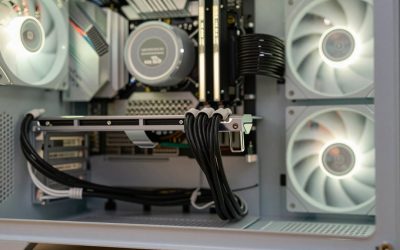
Excessive PC fan noise is rarely a sign of dying hardware; it is usually an indicator of aggressive factory fan curves, unoptimized voltage profiles, or restricted airflow. In 2026, high-TDP graphics cards and multi-core processors draw substantial power, prompting hardware manufacturers to set default cooling profiles that prioritize thermal headroom over acoustics. This leaves desktop rigs sounding like jet engines even during modest workloads.
Eliminating irritating fan acoustics does not mean sacrificing thermal performance or risking hardware stability. By replacing basic stock profiles with tuned PWM hysteresis, targeted undervolting, and physical acoustic decoupling, you can drastically reduce sound pressure levels. Learning how to reduce pc fan noise allows you to transition your system from a harsh, high-pitched whine to a faint, low-frequency hum under heavy gaming loads, often cutting operating noise by 6 to 12 dBA without raising component temperatures beyond safe operating limits.
As an Amazon Associate we earn from qualifying purchases at no extra cost to you.
Our Top Picks

Quick Wins
Before modifying system settings or disassembling components, use this overview to select the optimization strategies that offer the highest acoustic return for your available time.
| Change | Effort | Expected Gain |
|---|---|---|
| BIOS PWM Fan Curve & Delay Tuning | Low (10 mins) | Major (5–8 dBA reduction under load) |
| GPU Undervolting & Custom Curve | Medium (20 mins) | Major (4–7 dBA reduction under load) |
| Global FPS Capping in Driver Control Panel | Low (5 mins) | Moderate to Major (Eliminates excessive heat in light scenes) |
| Dust Filter & Radiator Deep Clean | Low (15 mins) | Moderate (2–4 dBA reduction, lowers temps by 3–5°C) |
| Windows Processor State Optimization | Low (5 mins) | Moderate (Eliminates idle fan revving) |
| Silicone Anti-Vibration Mount Installation | Low (15 mins) | Minor to Moderate (Removes high-frequency case rattling) |
| CPU/GPU Thermal Compound Replacement | High (45 mins) | Moderate to Major (3–6 dBA reduction on older builds) |
Step-by-Step Tuning
1. Configure Custom BIOS PWM Fan Curves and Hysteresis
What causes it: Motherboard manufacturers set default fan curves that react instantly to brief CPU temperature spikes. When a background process surges, fans ramp up to 100% duty cycle for 2 seconds and then drop back down, creating an irritating revving noise.
How to check: Open your case side panel or monitor fan speeds using hardware monitoring software. If fan RPM swings by more than 300 RPM every few seconds while viewing basic desktop applications, your BIOS step-up delays are disabled.
What to do: Reboot your PC and repeatedly press Delete or F2 to enter the BIOS. Navigate to the hardware monitor section: on ASUS press F6 or go to Monitor > Q-Fan Configuration; on MSI go to Hardware Monitor; on Gigabyte open Smart Fan 6. Ensure all fan headers are set to PWM Mode rather than DC Auto. Set a flat duty cycle of 30% to 40% for temperatures between 0°C and 55°C. Curve the line gently to hit 65% duty cycle at 75°C, and allow 100% duty cycle only when temperatures exceed 85°C. Crucially, locate the Fan Step Up / Step Down Time (or Smoothing Delay) and change it from 0 seconds to 3.0 seconds or 5.0 seconds.
How to undo: Re-enter the BIOS, select Load Optimized Defaults (usually assigned to F5 or F9), save settings, and exit.
Trade-off: The CPU temperature may peak 2°C to 4°C higher during instantaneous load spikes, which remains entirely safe for all modern desktop processors.
2. Apply GPU Fan Curves and Voltage Offsets in MSI Afterburner
What causes it: Modern GPUs draw high peak wattage, causing factory firmware to run fans at high speeds to maintain overly aggressive target temperatures like 65°C.
How to check: Run a graphics benchmark and monitor GPU fan speeds using hardware tools. If your graphics card fans hit 75% to 100% duty cycle (often exceeding 2,200 RPM) while core temperatures remain under 70°C, the default GPU curve is unnecessarily loud.
What to do: Download and launch MSI Afterburner. Click the Settings gear icon, open the Fan tab, and check Enable user defined software automatic fan control. Set point 1 at 40°C / 0% (if your card supports zero-RPM mode), point 2 at 60°C / 45%, point 3 at 75°C / 60%, and point 4 at 85°C / 100%. Next, on the main Afterburner interface, press Ctrl + F to open the Voltage/Frequency curve editor. Select a frequency node around 1900 MHz to 2000 MHz, drag it to match your base clock, and flatten all voltage points to the right of 925mV or 950mV. Click the checkmark on the main UI to apply the undervolt.
How to undo: Click the Reset button (curved arrow icon) at the bottom center of the MSI Afterburner main dashboard to restore factory GPU voltage and fan curves.
Trade-off: Setting an unstable undervolt can cause games to crash to the desktop. You must stress-test with 3DMark or a demanding game to verify stability.
3. Cap Frame Rates in Display Driver Settings
What causes it: When running uncapped frame rates in game menus or older titles, the GPU pushes hundreds of frames per second needlessly. This spikes power consumption and forces cooling fans to run at maximum RPM.
How to check: Launch an in-game menu or an older PC title. If fan noise skyrockets despite low visual complexity, check your frame rate overlay; it is likely rendering above 200 FPS.
What to do: For NVIDIA cards, right-click the desktop and open NVIDIA Control Panel. Go to 3D Settings > Manage 3D Settings. Locate Max Frame Rate, toggle it to On, and enter a value matching your monitor’s refresh rate (for example, 141 FPS on a 144Hz display, or 162 FPS on a 165Hz display). Click Apply. For AMD cards, open AMD Software: Adrenalin Edition, go to Gaming > Graphics, enable Radeon Frame Rate Target Control (FRTC), and set the same limit.
How to undo: Return to the driver control panel, set Max Frame Rate or FRTC back to Off, and click Apply.
Trade-off: Limits system output to your monitor’s native refresh capability, eliminating benchmark numbers higher than your display can physically render.
4. Deep Clean Dust Filters and Radiator Fins
What causes it: Over months of operation, airborne dust accumulates on nylon mesh intake filters, aluminum heatsink fins, and radiator channels. This air resistance forces fans to push against high static pressure, generating turbulence and forcing thermal sensors to call for higher RPMs.
How to check: Inspect case intake grills and fan blades under a bright light. A visible grey coating on heatsink fins indicates reduced airflow thermal conductivity.
What to do: Shut down the PC, switch off the power supply unit (PSU), and unplug the main AC cable. Remove magnetic dust filters and wash them under warm tap water, allowing them to dry completely before reinstallation. Hold a fan blade stationary with your finger to prevent over-spinning the bearings, then use short bursts of compressed air held 4 inches away to clean out heatsinks, radiator fins, and fan blades. Finish by wiping individual blades with an isopropyl alcohol wipe (91% or higher concentration).
How to undo: This physical maintenance step has no reversal mechanism; routine cleaning should be performed every 3 to 6 months.
Trade-off: Requires taking the PC offline for 15 to 30 minutes for physical cleaning.
5. Adjust Windows Processor Power Management and Energy Profiles
What causes it: The default Windows High Performance power plan forces the CPU to maintain maximum turbo boost clocks continuously, causing heat build-up even when sitting idle on the desktop.
How to check: Open Task Manager (Ctrl + Shift + Esc), switch to the Performance tab, and view CPU speed. If the clock frequency remains locked at peak boost speeds while utilization is below 3%, your Windows power scheme is preventing idle sleep states.
What to do: Press Win + R, type powercfg.cpl, and press Enter. Select the Balanced power plan. Click Change plan settings > Change advanced power settings. Scroll down to Processor power management, expand Minimum processor state, and set it to 5% for both plugged in and battery states. Expand System cooling policy and set it to Active. Click Apply and press OK.
How to undo: Re-open powercfg.cpl, select High Performance, or click Restore plan defaults inside the advanced settings menu.
Trade-off: Introduces a negligible 1 to 2 millisecond latency penalty when transitioning from complete idle to full load single-core tasks.
6. Decouple Fans Using Anti-Vibration Silicone Mounts
What causes it: Standard metal screws hard-mount plastic fan frames directly against steel or aluminum case chassis structures. Rigid contact transfers motor vibrations directly into metal case panels, turning the entire PC enclosure into a sounding board that produces a low hum.
How to check: Place your hand firmly on top of your PC case while fans are running. If you feel a continuous micro-vibration in your hand and the humming noise quietens when you press down on the panel, structural vibration transfer is occurring.
What to do: Turn off and open the PC. Unscrew the 4 metal mounting screws from each chassis intake and exhaust fan using a Phillips #2 screwdriver. Replace the metal screws with soft rubber/silicone pull-rivet fan mounts. Thread the rubber pins through the fan mounting holes first, then pull them through the chassis mounting slots until the retaining notch clicks firmly into place.
How to undo: Snip or pull out the silicone mounts and reinsert the original metal mounting screws.
Trade-off: Silicone mounts can deteriorate over several years of high-heat exposure, requiring eventual replacement.
7. Replace Thermal Interface Material on CPU and GPU Heatsinks
What causes it: Factory thermal paste degrades and dries out over time, creating microscopic air gaps between the processor die and heat spreader. This thermal bottleneck prevents heat from moving into the heatsink, causing integrated fan controllers to spin up to maximum speed despite cold exhaust air.
How to check: Launch hardware monitoring software and run a combined CPU/GPU load test. If core temperatures instantly surge past 85°C while the radiator or air heatsink metal feels cool to the touch, thermal transfer has failed.
What to do: Remove the CPU cooler mount or GPU shroud screws. Clean away dried thermal paste from the processor die and heatsink cold plate using a lint-free microfiber cloth saturated with 99% isopropyl alcohol. Apply a pea-sized dot (or an X pattern for larger heat spreaders) of non-conductive thermal paste (such as Arctic MX-6 or Noctua NT-H2) directly to the center of the CPU integrated heat spreader. Reattach the cooler using a cross-pattern screw tightening sequence to guarantee even mounting pressure.
How to undo: Remove the cooler, clean off the compound using 99% isopropyl alcohol, and apply a fresh layer of thermal paste.
Trade-off: Requires component disassembly, taking around 45 minutes to execute carefully.
Measure Before and After
To accurately gauge performance gains without guessing, establish baseline benchmarks before applying any software or physical adjustments. Understanding how to reduce pc fan noise requires tracking thermal metrics and acoustic output under identical test conditions.
Download and install open-source diagnostic utilities. Use HWiNFO64 for telemetry logging, alongside synthetic stress-testing programs such as Cinebench (CPU rendering) and 3DMark Time Spy or FurMark (GPU rendering).
- Step 1 (Idle Baseline): Close all background applications, let the PC sit idle on the desktop for 10 minutes, and log the following HWiNFO64 values:
CPU Tte/Tctl,GPU Temperature,GPU Hot Spot Temperature,CPU Fan RPM, andGPU Fan RPM. - Step 2 (Load Baseline): Execute a 10-minute Cinebench loop or 3DMark stress test. At minute 8, log peak values across all logged thermal sensors and fan speeds. Record acoustic levels by opening a calibrated smartphone sound measurement app held precisely 3 feet (1 meter) from your desktop case at a 45-degree angle. Note down the baseline decibel reading (dBA).
- Step 3 (Post-Tuning Verification): After configuring fan curves, undervolting, and cleaning dust filters, repeat steps 1 and 2 under identical ambient room temperatures. Compare logs to confirm successful noise suppression without exceeding safe operating thresholds.
What Not to Do
Avoid taking extreme shortcuts that can lead to hardware failure, thermal throttling, or component damage:
- Do not force a flat 0% fan curve on components lacking zero-RPM support: Forcing a 0% duty cycle on older 3-pin DC fans or GPUs without low-power sleep logic can overheat VRMs and memory modules that lack secondary temperature sensors.
- Do not disable safety thermal throttling in BIOS: Never alter or bypass internal thermal trip points (such as CPU PROCHOT limits). Thermal throttling protects silicon from permanent degradation when a cooling pump fails or fans stop spinning.
- Do not use 4-pin Molex-to-PWM adapters connected directly to the PSU: Connecting fan cables straight into power supply molex plugs forces fans to run at a permanent, unadjustable 12 Volts (100% speed), bypassing motherboard speed controls completely.
- Do not suffocating air intakes by placing the PC tower on thick carpet: Setting your PC case directly on soft carpet blocks the bottom power supply intake filter. This starves the power supply fan of fresh air, forcing its small internal cooling fan to run at high RPMs under load. Place a rigid board under the case feet to maintain proper ground clearance.
FAQ
Why are my PC fans ramping up and down constantly while idling?
This hunting behavior occurs because motherboard BIOS settings use zero-delay response times mapped directly to volatile CPU core temp spikes. Background tasks briefly boost single-core frequencies, causing transient temperature spikes that trigger instant fan acceleration. Fixing this requires increasing the BIOS Fan Step Up / Step Down time (hysteresis) to 3 or 5 seconds, allowing short spikes to pass without spinning up fans.
Is a 3-pin fan quieter than a 4-pin PWM fan?
No, 4-pin Pulse Width Modulation (PWM) fans are typically quieter and offer superior control range compared to 3-pin Voltage/DC fans. 3-pin fans are controlled by altering supply voltage between 5V and 12V, making them prone to stalling at low speeds or producing motor hum. 4-pin PWM fans maintain a constant 12V supply to the motor while using a dedicated fourth wire for speed control, allowing them to turn smoothly at low RPMs (down to 20% or lower) without motor whine.
What is a safe maximum fan speed percentage for daily gaming?
For optimal acoustic comfort, target a maximum load speed of 60% to 70% fan duty cycle (typically around 1,200 to 1,500 RPM for 120mm/140mm case fans). Operating fans below 70% speed reduces fluid dynamic bearing wear and prevents air turbulence noise from passing human perception thresholds, while still moving enough air volume to cool high-end gaming components effectively.
Will reducing fan speed cause thermal throttling or shorten hardware lifespan?
Reducing fan speeds will not cause thermal throttling or damage components as long as temperatures remain within established safety limits. Modern desktop CPUs and GPUs manage power states dynamically and will automatically run safely up to target temperatures (typically up to 85°C for CPUs and 83°C for GPUs). As long as custom fan curves keep core hardware temperatures below these built-in limits under sustained load, hardware lifespan remains uncompromised.