A case’s front-panel USB-C port is easy to overlook until you buy the case, plug in, and find the port does nothing, or that your motherboard has no place to connect it. The internal header that drives front USB-C is a specific standard, and mismatches are common. Here is what to check so your case’s Type-C port actually works.
As an Amazon Associate we earn from qualifying purchases at no extra cost to you.


The header is called Key-A / Type-E
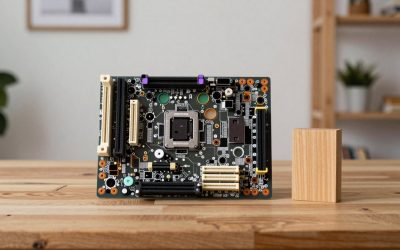
Front-panel USB-C connects to the motherboard through an internal USB 3.2 Gen 2 Key-A header, often labeled “USB-C” or “Type-E” on the board. It is a distinct, keyed connector, not the same as the older USB 3.0 (19/20-pin) header or USB 2.0 headers. If your case has a front USB-C port, your motherboard needs this Type-E header to drive it, and not all boards, especially budget ones, include one.
Check both sides before buying
Before pairing a case and board, confirm the board has the internal Type-E header and note how many (usually just one). If the board lacks it, the case’s front USB-C simply will not function, there is no standard adapter from USB 3.0 headers that fully replicates it, though limited converters exist with caveats.
| Front port | Internal header needed | Typical speed |
|---|---|---|
| USB-C (10Gbps) | USB 3.2 Gen 2 Key-A / Type-E | 10 Gbps |
| USB-A (5Gbps) | USB 3.0 19/20-pin | 5 Gbps |
| USB-A (older) | USB 2.0 9-pin | 480 Mbps |
| USB-C 20Gbps | USB 3.2 Gen 2×2 Key-A | 20 Gbps |
Speed and power considerations
Not every front USB-C port is fast. Some cases route the Type-C connector to a 10Gbps header, while a few premium ones support 20Gbps if the board has the matching Gen 2×2 header. Others, on cheaper cases, wire the Type-C physically but only at USB 2.0 speeds, fine for charging a phone, useless for fast external SSDs. Read the case spec for the exact speed, and match it to a board header of the same generation to get the rated throughput. Front USB-C generally does not deliver high-wattage charging unless specifically stated.
What if you want front USB-C but your board lacks the header?
Either choose a motherboard that includes the Type-E header (most mid-range and up do), or accept that the case’s front Type-C will be inactive. Do not assume a case’s port works, verify the header on your specific board model first.
FAQ
Why doesn’t my case’s front USB-C port work?
Almost always because your motherboard lacks the internal USB-C (Type-E, Key-A) header, or it is unplugged. The front port depends entirely on that header; without it, the port is physically present but electrically dead.
Is front USB-C always 10Gbps?
No. Speed depends on how the case wires it and which header it connects to. Some are true 10Gbps, a few premium cases hit 20Gbps, and budget ones may run the Type-C at only USB 2.0 speeds. Check the case’s stated spec.
Bottom line
Front-panel USB-C needs an internal USB 3.2 Gen 2 Key-A (Type-E) header on your motherboard, so verify your board has one before relying on a case’s Type-C port. Also check the port’s rated speed, since it can range from USB 2.0 to 20Gbps depending on the case. Match case and board generations to get the throughput you paid for.
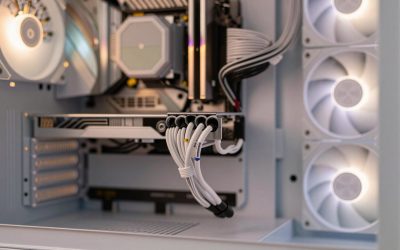
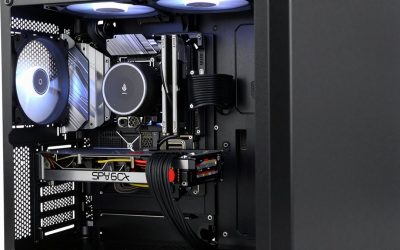
One practical build note: the Type-E header cable inside the case is thick and relatively stiff, and it plugs into a header that is often tucked along the right edge of the motherboard near the 24-pin. Route it early during assembly, because reaching that header after the GPU and cooler are installed can be awkward. If your chosen motherboard genuinely lacks the header but you love the case, weigh whether you actually use front USB-C often, plenty of builders live happily with rear-panel USB-C and never miss the front port. But if fast front-panel Type-C is a must-have for quickly plugging in a portable SSD or phone, make the motherboard’s Type-E header a non-negotiable item on your parts checklist rather than discovering the gap after the build is done.