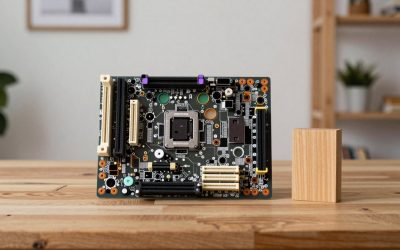
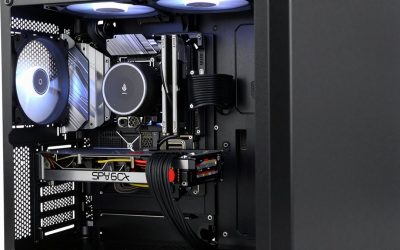
Browse premium custom-loop parts and you will run into “monoblocks”, chunky water blocks that bolt across a big section of the motherboard instead of just the CPU. They look impressive and cost a lot, so it is worth understanding what extra they actually cool and whether that justifies the price and hassle over a standard CPU block.
As an Amazon Associate we earn from qualifying purchases at no extra cost to you.



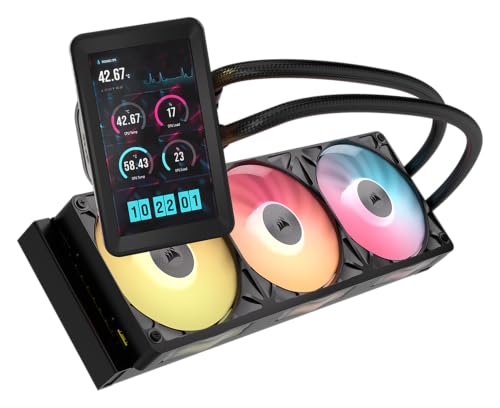
Our Top Picks
 CORSAIR iCUE Link XC7 RGB Elite CPU WateriCUE LINK XC7 RGB ELITE3.4 x 3.07 x 1.42 Inches0.35 poundsCheck on Amazon
 CORSAIR XTM60 High Performance Thermal Paste for CPU3 grams1.85 x 0.83 x 5.55 Inches0 poundsCheck on Amazon

Top 3 picks at a glance
Monoblock vs a standard CPU block
A normal CPU water block cools only the processor. A monoblock is a single unit that cools both the CPU and the motherboard’s VRM (the voltage regulation stage that feeds the CPU). It is designed for one specific motherboard model, since it has to line up with that board’s exact VRM and mounting layout.
Why VRM cooling can matter
On heavy overclocks or high-core CPUs, the VRM can get very hot and throttle or limit sustained power delivery. A monoblock puts liquid directly over those MOSFETs, holding them much cooler than the stock heatsink and finned airflow. For extreme tuning, that stability is the real selling point.
| Aspect | Standard CPU block | Monoblock |
|---|---|---|
| Cools | CPU only | CPU + VRM |
| Board compatibility | Universal socket brackets | One specific board model |
| Price | Lower | Higher |
| Reusable on next board? | Usually yes | Rarely, tied to the board |
| Best for | Most loops | Extreme OC, show builds |
The catches
The biggest downside is lock-in: because a monoblock is machined for one board, upgrading your motherboard usually means buying a new monoblock too. A universal CPU block moves to your next build. Monoblocks are also pricier and add more restriction to the loop, and installation is fussier because it spans more of the board.
Who actually benefits
Monoblocks make sense for two crowds: extreme overclockers pushing power-hungry CPUs where VRM temperature genuinely limits stability, and aesthetics-driven builders who want the clean, integrated look of one block spanning the socket area. For a typical gaming loop with a stock or mildly tuned CPU, a modern board’s VRM heatsink already stays well within spec, so a standard CPU block is the smarter spend.
A cheaper way to cool the VRM
If VRM temperatures are your worry but a monoblock’s cost and lock-in are not appealing, there are simpler fixes. First, buy a motherboard with a robust VRM and a large finned heatsink to begin with, quality boards handle mainstream CPUs without breaking a sweat. Second, add a small airflow fan aimed at the VRM heatsink; even a gentle breeze from a top or rear fan drops MOSFET temps significantly, since the stock heatsinks are designed assuming some case airflow. In a custom-loop build, an AIO or air cooler’s fan often already washes over the VRM. These steps cover the vast majority of gaming and even mild overclocking scenarios, leaving monoblocks to the extreme tuners who genuinely push VRMs to their limits.
FAQ
Will a monoblock lower my gaming temperatures?
Your CPU core temps will match a good standard block, and gaming rarely stresses the VRM enough to matter. The VRM benefit only shows up under sustained heavy overclocking or high-TDP all-core workloads, not typical gaming loads.
Can I reuse a monoblock when I upgrade my motherboard?
Almost never. Monoblocks are cut for a specific board’s VRM and mounting pattern, so a new motherboard means a new monoblock. A universal CPU block, by contrast, carries over to your next build with a bracket swap.
Bottom line
A monoblock cools the CPU and VRM in one board-specific unit. It is worth it for extreme overclockers who need VRM stability and for show builds chasing an integrated look, but it costs more and locks you to one motherboard. For most gaming loops, a universal CPU block delivers the same core temps with far more flexibility.