MSI Center is the software hub for MSI motherboards, and its fan control section lets you shape how your case and CPU fans respond to temperature without touching the BIOS. A good custom curve keeps the machine quiet at idle and ramps cooling only when heat actually rises. Setting one up takes a few minutes and pays off every time you use the PC.
As an Amazon Associate we earn from qualifying purchases at no extra cost to you.


Our Top Picks
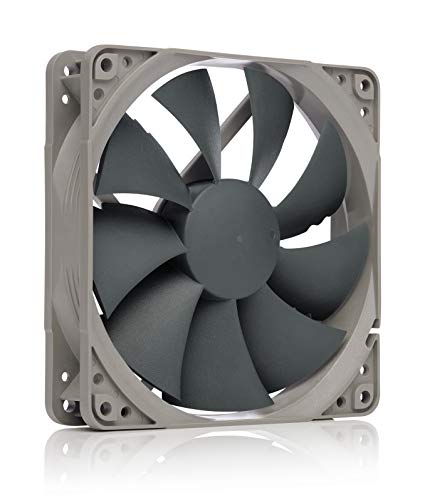

Getting to the fan controls
Install MSI Center from MSI’s site, then add the “User Scenario” or “Hardware Monitoring” feature that exposes fan tuning, depending on your version. Inside, you will find a fan section listing CPU_FAN, PUMP_FAN, and the numbered SYS_FAN headers. Each has a graph with temperature on one axis and fan speed percentage on the other, plus draggable points you can move to define the curve.
A sensible starting curve
| Temperature | CPU fan speed | Case fan speed | Behavior |
|---|---|---|---|
| Up to 40C | 20-30% | 0-30% | Near silent at idle |
| 50C | 35-45% | 40% | Light browsing/loads |
| 65C | 55-65% | 60% | Gaming ramp begins |
| 80C | 80-90% | 85% | Heavy sustained load |
| 90C+ | 100% | 100% | Full cooling safety |
Tuning for quiet and stable behavior
Two settings matter beyond the raw points. First, tie each fan to the right sensor: CPU fans should follow CPU temperature, while case fans often run smoother following a steadier source so they do not surge with every momentary CPU spike. Second, look for a smoothing or step-up/step-down delay option and set a second or two of delay, which stops the annoying up-and-down revving when temperatures hover near a threshold.
PWM versus DC mode
Confirm each header’s control mode matches the fan. Four-pin PWM fans should be in PWM mode for full range; three-pin fans need DC (voltage) mode. If a fan ignores your curve or runs full speed, a mismatched mode is the usual reason. MSI Center or the BIOS lets you switch the mode per header.
Saving and verifying
Apply the profile and confirm it persists after a reboot; some versions need you to save it as a named scenario and set it active. Then run a short game or stress test and watch the temperatures and fan speeds respond. If the machine gets loud too early, push the mid-range points to the right; if temperatures climb too high before fans react, pull them left.
FAQ
Should I set fan curves in MSI Center or the BIOS?
Either works, but the BIOS curve runs even before Windows loads and never depends on a background app. Many users set a safe baseline in the BIOS and use MSI Center only if they want convenient in-Windows adjustments. If you dislike running the software constantly, do it in the BIOS.
Why do my fans keep revving up and down?
That surging comes from a steep curve with no smoothing reacting to brief CPU spikes. Add a step-up and step-down delay of a second or two and flatten the curve slightly around idle temperatures, and the oscillation stops.
Monitoring to validate your curve
A fan curve is only as good as the temperatures it produces under real load, so validate it with logging rather than guesswork. Run a game or a stress test while watching CPU and GPU temperatures and fan RPM over ten to fifteen minutes, and note whether temperatures plateau at a comfortable level or keep climbing. If the CPU stabilizes in the seventies during gaming with fans at a moderate, quiet speed, your curve is well balanced. If it drifts into the high eighties before fans respond, steepen the mid-range. Logging also reveals surging you might not hear, showing RPM sawtoothing that a longer smoothing delay will fix. Treat the first curve as a starting draft and refine it once against actual data from your workloads.
Bottom line
MSI Center lets you draw per-header fan curves that trade noise for cooling exactly how you want. Match each header’s PWM or DC mode, tie case fans to a stable sensor, add a short smoothing delay to kill surging, and verify the profile sticks after a reboot. A few minutes of tuning turns a noisy default into a machine that is quiet at idle and cools hard only when it needs to.