
Dried thermal paste on CPU pins is a fixable problem, but it requires patience. The pins on pin-grid-array (PGA) processors are extremely thin, and forcing them, scraping aggressively, or flooding the area with liquid can bend pins or leave residue inside the socket. A single bent or contaminated pin can cause boot failures, missing memory channels, USB problems, or a CPU that is not detected at all.
The safest approach is to soften the paste with high-purity isopropyl alcohol, lift it away gradually, and let everything dry completely before reinstalling the processor. This guide is most relevant to CPUs with visible underside pins, such as many AMD Ryzen processors. Most current Intel desktop CPUs use flat contact pads rather than pins; use the same gentle cleaning principles, but do not scrub the motherboard socket.
As an Amazon Associate we earn from qualifying purchases at no extra cost to you.

Our Top Picks

What You Need
| Item | Why | Optional? |
|---|---|---|
| 90% to 99% isopropyl alcohol | Softens dried thermal paste and evaporates with minimal residue | No |
| Lint-free microfiber cloth or coffee filters | Wipes away loosened paste without leaving paper fibers behind | No |
| Soft anti-static brush or clean, soft-bristle toothbrush | Works between rows of pins without using metal tools | No |
| Wooden toothpicks | Helps lift small clumps from between pins with controlled pressure | Yes |
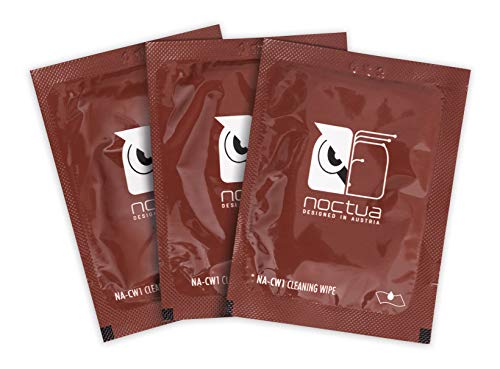
| Thermal paste cleaning wipes | Convenient pre-moistened option for exterior residue and final cleanup | Yes |
| Magnifying glass or phone camera with zoom | Makes it easier to inspect pin alignment and hidden residue | Yes |
| New thermal paste | Needed before reinstalling the cooler | No |
For the alcohol, choose a bottle labeled at least 90% isopropyl alcohol; 99% is ideal. Do not use rubbing alcohol below 70%, acetone, nail-polish remover, household degreasers, water, or WD-40. Dedicated wipes can be useful for the heat spreader and cooler base. For paste lodged directly among pins, bottled isopropyl alcohol and a soft brush provide better control.
Step-by-Step
1. Shut down, unplug, and discharge the computer — 5 minutes
Turn off the computer normally, switch off the power supply if it has a rear switch, and unplug it from the wall. Press the case power button for 10 to 15 seconds to discharge remaining power. Move the PC to a clean, well-lit work surface away from carpet, pets, food, and static-prone fabrics.
Ground yourself by touching an unpainted metal section of the PC case before handling components. If you have an anti-static wrist strap, attach it to bare case metal. Avoid working directly over the motherboard socket once the CPU is removed; a dropped brush bristle, toothpick fragment, or blob of paste can create a much larger cleaning job.
2. Remove the cooler and CPU carefully — 10 to 20 minutes
Disconnect the CPU fan cable. Loosen the cooler screws gradually in an X pattern, making a few turns on each screw rather than fully removing one corner at a time. If the cooler seems stuck, gently twist it a few millimeters left and right to break the thermal-paste seal. Do not pull straight upward with force, especially on PGA CPUs, because the CPU can come out stuck to the cooler.
Lift the socket retention arm, then hold the CPU only by its edges. Never touch the pins. Place it pins-up on a clean, lint-free surface, such as a fresh coffee filter laid on a flat table. Do not rest the pins on the table, foam, cardboard, or the CPU’s plastic clamshell unless the packaging is specifically designed to support it.
3. Inspect the contamination before applying cleaner — 3 to 5 minutes
Use a magnifying glass or your phone’s camera zoom to determine where the paste is. A thin haze on the edges of a few pins is much easier to remove than a thick, hardened blob packed into several rows. Look for bent pins now, but do not attempt to straighten anything until the paste has been removed and the pin pattern is clearly visible.
Thermal paste is usually nonconductive, but “usually” is not a reason to leave it behind. Some formulas contain conductive or capacitive materials, and even nonconductive paste can interfere with full socket contact.
4. Soften the dried paste with isopropyl alcohol — 5 to 10 minutes
Pour a small amount of isopropyl alcohol into a clean cap or glass container. Do not pour it directly onto the CPU. Lightly dampen the tip of a lint-free cloth, brush, or folded coffee filter. It should be moist, not dripping.
Touch the damp material to the paste and allow it to sit for 30 to 60 seconds. For a thick, crusted patch, repeat this softening step two or three times. The goal is to dissolve or loosen the paste without pushing it deeper between the pins. Keep the CPU level so liquid does not run across the substrate or toward the edges.
5. Brush in the direction of the pin rows — 10 to 20 minutes
With a soft, clean brush barely dampened with alcohol, use very light strokes parallel to the pin rows. Do not brush across the pins from side to side. Brushing in line with the rows reduces the chance of catching and bending a pin.
After several strokes, blot the brush on a lint-free cloth to remove transferred paste. Re-wet the brush lightly as needed, rather than continuing with a paste-loaded brush. Work in small sections no larger than about 1/2 inch by 1/2 inch. Take your time; this is not a job where more pressure produces a better result.
6. Lift stubborn deposits with wood, not metal — 5 to 15 minutes
If a small lump remains between pins, moisten it again and use the side or tip of a wooden toothpick to gently lift it away. Keep the toothpick nearly parallel to the CPU surface. Never dig downward into the pin field and never lever against a pin.
Avoid needles, tweezers, paper clips, knives, dental picks, and metal brushes. They can scratch the CPU substrate, snag a pin, or create an electrical risk if debris remains. If the paste will not release after several gentle softening cycles, stop rather than escalating force.
7. Perform a final clean and dry time — 15 to 30 minutes
Once the visible paste is gone, make one last gentle pass with a clean alcohol-dampened brush. Then inspect the entire pin field under bright light from multiple angles. The rows should look even, with no paste bridges, fibers, or pins leaning out of line.
Allow the CPU to air-dry for at least 15 minutes after using 99% alcohol, or 30 minutes if you used 90% alcohol or applied several passes. Do not use a hair dryer, heat gun, compressed air can held upside down, or direct sunlight. Excess heat and propellant can cause more problems than they solve.
8. Reinstall and apply fresh thermal paste — 10 to 15 minutes
With the socket arm raised, lower the CPU straight into its keyed position. It should settle without pressure. If it does not drop into place, remove it and check orientation and pin alignment; never force it. Lock the retention arm, then apply fresh thermal paste to the center of the CPU heat spreader.
For most mainstream desktop CPUs, a pea-sized dot about 4 to 5 mm wide is sufficient. Install the cooler evenly, tightening screws in an X pattern. Reconnect the fan, power on the system, and check that it boots normally. Monitor temperatures during the first workload to confirm the cooler is seated correctly.
Mistakes to Avoid
- Using too much liquid: Drenching the CPU can wash paste into crevices and extends drying time.
- Scrubbing across pin rows: Sideways force is a common cause of bent pins.
- Using cotton swabs in dense pin fields: Cotton fibers can snag on pins and leave debris behind.
- Using metal tools: Metal can scratch, bend, or contaminate delicate contacts.
- Rushing reinstallation: Even fast-evaporating alcohol needs time to dry fully.
- Reusing old thermal paste: Always remove old paste from the CPU lid and cooler base, then apply fresh paste.
- Trying to “test” a dirty CPU: Do not power up until the pins are clean, dry, and visibly aligned.
How Often
You should not need to clean thermal paste from CPU pins during normal maintenance. Ideally, paste stays only between the CPU heat spreader and cooler. Clean the CPU lid and cooler base whenever you remove the cooler, which for many home PCs is every 3 to 5 years, or sooner if temperatures rise unexpectedly and cooler mounting has been ruled out.
Clean pins only after an accidental spill, a CPU that came out attached to the cooler, or a previous installation that used too much paste. In 2026, most quality pastes remain stable for years, so frequent repasting is rarely necessary unless you are troubleshooting heat or regularly changing hardware.
When to Call a Pro or Replace
Consider a professional repair shop if paste is packed deeply throughout a large section of pins, if multiple pins are bent, or if you cannot clearly tell whether all residue is gone. A shop with board-level repair experience may have proper magnification and tools for pin inspection.
Replacement may be the more practical choice when pins are snapped off, the CPU still fails to boot after cleaning and careful inspection, or the motherboard socket itself has paste contamination or damaged contacts. If the CPU boots but one memory channel, PCIe device, or USB group no longer works, do not assume the issue is software; a damaged or poorly contacting pin may be responsible.
FAQ
Can I use 70% isopropyl alcohol to clean CPU pins?
It is better to avoid it. A 70% formula contains much more water and takes longer to evaporate. Use 90% to 99% isopropyl alcohol for electronics cleaning whenever possible.
Is thermal paste electrically conductive?
Many common thermal pastes are electrically nonconductive, but some formulations can be conductive or capacitive. Regardless of the formula, dried paste can prevent reliable pin-to-socket contact, so it should be removed.
Can I use a toothbrush on CPU pins?
Yes, if it is new, clean, dry before use, and has very soft bristles. Use almost no pressure, dampen it lightly with high-purity isopropyl alcohol, and brush only in the direction of the pin rows.
What if I bend a CPU pin while cleaning?
Stop cleaning and inspect the pin under magnification. A single slightly bent pin can sometimes be aligned with a mechanical pencil tip or a very fine nonmetallic tool, but this is delicate work. If several pins are bent or you are unsure of the alignment, seek professional help rather than repeatedly adjusting them.









