Cooling talk in PC building fixates on the CPU and GPU, but storage runs hot too, and heat quietly shortens the life of mechanical drives and forces fast NVMe SSDs to throttle mid-transfer. If your drives idle in the high 40s Celsius or your file copies slow to a crawl after a minute, a few airflow and mounting tweaks can drop temperatures by 10-15 C without spending much. Here is how to keep every drive in your build in its comfort zone.
Know the safe ranges first
Different storage types tolerate different temperatures, so aim for these targets before chasing lower numbers for their own sake.
| Drive type | Ideal range | Throttle / concern point |
|---|---|---|
| 3.5″ hard drive | 25-40 C | >50 C shortens lifespan |
| 2.5″ SATA SSD | 25-45 C | >60 C |
| NVMe Gen4 SSD | 30-55 C | ~70-80 C throttles |
| NVMe Gen5 SSD | 30-60 C | ~70-85 C throttles |
Fixes for mechanical hard drives
Add direct intake airflow
Hard drives dislike stagnant air. A single front intake fan blowing across the drive cage typically drops HDD temperatures by 8-12 C. If your case mounts drives behind the front fans, this is essentially free cooling; just make sure the drive bay is not blocked by cables.
Space multi-drive stacks
Two or three drives packed in adjacent bays trap heat between them. Leave an empty bay between drives where possible, or reposition them so air can move along their sides. Rubber-grommet mounting also helps by lifting the drive slightly off the metal cage.
Fixes for NVMe SSDs
Use the heatsink
A bare Gen4 or Gen5 NVMe drive under sustained writes can hit its throttle point within a minute. A basic aluminum heatsink, or the motherboard’s built-in M.2 armor, often cuts sustained temperatures by 15-25 C and keeps the drive at full speed. Peel the protective film off any thermal pad before mounting, a commonly missed step.
Mind the M.2 slot location
The primary M.2 slot usually sits between the CPU socket and the graphics card, one of the hottest zones in the case. A GPU dumping heat directly onto an unshielded drive can add 10-20 C. Moving a secondary drive to a lower slot away from the GPU, or improving case exhaust, relieves that soak.
Whole-case measures
Good general airflow benefits storage as much as anything. Ensure a clear intake-to-exhaust path, keep dust filters clean since a clogged filter can raise internal temperatures several degrees, and maintain slightly positive case pressure so cool air is pushed across drives rather than drawn in through gaps.
Monitor before and after
Do not guess whether a change worked, measure it. A drive health and temperature utility reports the exact temperature of each disk, and mechanical drives usually expose an airflow-temperature reading through their SMART data. Record each drive’s idle and load temperature, make one change at a time, and re-check. This turns cooling from folklore into a quick before-and-after comparison you can trust.
Where each drive type sits in the case
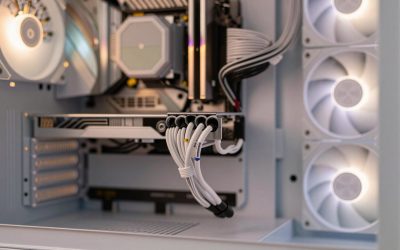
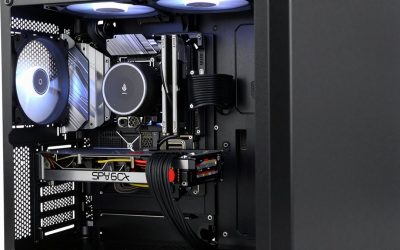
Placement matters as much as fan count. Mount hot NVMe drives away from the graphics card where possible, keep mechanical drives in the front intake path, and avoid tucking a SATA SSD directly against a hot GPU backplate. A drive’s neighbors and its position in the airflow stream often explain a stubborn 10 C difference that no amount of extra fan speed fixes, because the air simply is not reaching it.
FAQ
Do SSDs really need cooling?
SATA SSDs rarely do; they sip power and run cool. High-speed NVMe drives are the exception, because their controllers get hot under sustained transfers and will throttle to protect themselves. A heatsink and decent airflow are worthwhile for any Gen4 or Gen5 drive you push hard.
Is it bad if my hard drive runs at 45 C?
It is acceptable but not ideal. Large studies of drive reliability suggest lifespan is best when mechanical drives stay under about 40 C and consistently high temperatures above 50 C accelerate wear. A single front intake fan is usually enough to bring a 45 C drive down into the 30s.
Bottom line
Storage rewards the same basics as the rest of the build: direct airflow for hard drives, a heatsink and a cooler slot for hungry NVMe drives, and clean, well-directed case ventilation for everything. Target under 40 C for mechanical disks and keep NVMe drives below their 70-80 C throttle point, and you will trade quiet throttling and shortened life for full speed and longevity. Best of all, most of these fixes cost nothing beyond a fan you already own and a few minutes of repositioning, making storage cooling one of the highest-value tweaks in any build.