
A rattling case fan is more than just an annoyance. That buzz, hum, or intermittent rattle means something is vibrating where it should not be, and if you try to force the fan tighter with the wrong screws or overtighten metal screws into a thin steel or plastic case, you can make the problem permanently worse. Done badly, a quick fix can strip mounting holes, crack a fan housing, warp the frame so blades rub, pinch wires against hot components, or transfer even more vibration into your desk. The good news is that most case fan vibration is caused by hard mounting hardware, dust imbalance, or a loose corner, and it can be silenced in under 30 minutes with inexpensive parts and no special tools.
Our Top Picks


What You Need
| Item | Why | Optional? |
|---|---|---|
| Phillips-head screwdriver (#1 and #2) | To remove side panel and existing fan screws. Most cases use #2 screws for panels and #1 or #2 for fans. | No |
| Anti-vibration rubber or silicone fan mounts | Replaces rigid metal screws and decouples the fan from the case to absorb vibration. Standard mounts fit 120mm and 140mm fans with 4.5mm mounting holes and cases with 4mm to 5mm holes. | No – core to the fix |
| Compressed air can or electric duster | Clears dust from blades and hubs that causes imbalance and rattle. | No |
| Microfiber cloth and isopropyl alcohol (90%+) | Wipes grime from blades and case mounting area for a cleaner contact surface. | Yes |
| Flashlight or headlamp | Helps you inspect mounting corners and cable clearance inside a dark case. | Yes |
| Zip ties or Velcro straps (4 to 8 inch) | Secures loose fan cables so they do not vibrate against blades or panels. | Yes |
| Replacement fan (120mm or 140mm, 0.10A to 0.30A, 12V DC) | Needed only if the bearing is failing. Common sizes are 120 x 120 x 25mm (about 3 to 6 oz) and 140 x 140 x 25mm (about 5 to 8 oz). | Yes |
Step-by-Step
Step 1: Power Down, Unplug, and Open the Case (3 minutes)
Shut down your PC completely, not just sleep mode. Flip the power switch on the power supply to off and unplug the power cable from the wall. Press and hold the case power button for 5 seconds to discharge residual power. Move the case to a well-lit table and remove the side panel, usually two thumbscrews or #2 Phillips screws at the rear. Lay the case on its side with the open side up so you can see all fans. If you are working on a compact case under 15 liters or a heavy tower over 30 lbs, get help lifting to avoid dropping it.
As an Amazon Associate we earn from qualifying purchases at no extra cost to you.

Step 2: Identify Which Fan Is Rattling (5 minutes)
Do not guess. With the case open, plug the power back in temporarily and power on for 20 to 30 seconds. Use a rolled piece of paper as a listening tube or gently touch the center hub of each fan for one second to feel for vibration. Common culprits are front intake fans, rear exhaust fans, and top-mounted fans. If the rattle stops when you lightly press a corner of a fan frame with a fingertip, that mount is loose or hard-coupled. Power down and unplug again before touching any wiring. Note the fan size written on the hub, usually 80mm, 92mm, 120mm, or 140mm, and the connector type, 3-pin DC or 4-pin PWM.
Step 3: Clean the Fan and Mounting Area (5 minutes)
Dust buildup of even 1 to 2 grams on blades can throw a fan off balance. Hold the fan blades steady with one finger so they do not spin freely, then use short bursts of compressed air from 4 to 6 inches away to blow dust off the blades, hub, and surrounding case grill. Wipe each blade with a microfiber cloth lightly dampened with isopropyl alcohol. Also wipe the four mounting corners on both the fan and the case frame. Clear any dust bunnies trapped between the fan and the case panel, as they can act like a vibrating cushion.
Step 4: Remove the Old Metal Screws (3 minutes)
Most stock fans are secured with four coarse-thread metal screws driven directly into plastic fan holes. This creates a direct path for vibration into the case. Using your screwdriver, remove all four screws while supporting the fan with your other hand so it does not fall onto the motherboard or graphics card. Keep the screws in a small cup. Inspect the fan frame for cracks around the screw holes and the rubber grommets, if any, for flattening or tearing. If a hole is stripped or a corner is cracked, plan to use flexible mounts instead of trying to retighten metal screws.
Step 5: Install Anti-Vibration Mounts (7 minutes)
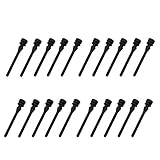
This is the most effective fix for rattle transfer. Flexible mounts work by suspending the fan on soft rubber or silicone instead of bolting it rigidly.
For pull-through rubber rivets: Push the narrow tip of each mount through the mounting hole on the case from the outside, then through the corresponding hole on the fan frame. The wider collar should sit between the fan and the case to create a gap of about 2mm to 3mm. Pull the tip gently with needle-nose pliers until the mushroom head locks. Repeat for all four corners. Trim excess tails with scissors if they stick out more than 10mm.
For soft silicone push-pins: Push the pin through the case and fan hole until it clicks, then pull to seat. These are reusable and easier to remove than rubber rivets but can feel looser during install.
Make sure the fan orientation is correct before you lock it down. Look for the small arrow on the fan frame that shows airflow direction. Intake fans should pull air in, exhaust fans should push air out. The fan should not touch the case grill or filter once mounted.
Step 6: Secure Cables and Check Clearance (3 minutes)
A fan cable that rests against a blade or side panel will tick or buzz at full speed, which is often mistaken for bearing rattle. Route the fan cable away from the blade path and secure it to the case frame with a zip tie or Velcro strap, leaving a gentle loop with about 1 inch of slack near the header so the cable does not pull on the motherboard connector. Verify that no other wires, especially front panel or SATA cables, are touching the fan frame. Spin the fan gently by hand; it should rotate freely for 2 to 4 revolutions without scraping.
Step 7: Test, Tighten, and Close Up (4 minutes)
Reconnect the fan header, double-check all connections, and plug the power cable back in. Power on with the side panel still off and listen for 60 seconds at idle, then run a brief load such as a game or fan curve test for another 60 seconds so the fan ramps to 800 to 1500 RPM. If the rattle is gone at both speeds, power down, replace the side panel, and put the case back. If you still hear a faint hum, try loosening and reseating one corner at a time by about a quarter turn of tension on the mount. Flexible mounts should be snug but not stretched thin.
Mistakes to Avoid
Do not overtighten metal screws to stop a rattle. Cranking them down bends the fan frame and actually increases vibration transfer and can cause blade rub that sounds like a louder rattle.
Do not use mismatched screw sizes. A 120mm fan needs standard self-tapping fan screws with a 5mm to 6mm head, not long case screws that can puncture the frame. If the screw does not thread smoothly by hand for the first two turns, it is the wrong size.
Do not spray lubricant into a sealed sleeve or fluid dynamic bearing. Most modern case fans are sealed and adding oil will attract dust and void any warranty.
Do not leave the fan hanging by one or two mounts while testing at full speed. Running with uneven support can wobble the hub and damage the bearing within minutes.
Do not block airflow to quiet a fan. Covering vents or removing a grill may seem quieter at first but raises internal temperatures by 5 to 15 degrees Celsius and forces fans to run faster and louder.
How Often
Check case fans every 3 to 6 months if your PC sits on the floor, near pets, or in a dusty room, and every 6 to 12 months if it is elevated on a desk in a clean environment. Quick dusting with compressed air takes less than 5 minutes and prevents imbalance. Inspect anti-vibration mounts once a year; rubber can harden and silicone can stretch after 2 to 4 years of heat exposure near 30 to 40 degrees Celsius inside the case. If you move your PC frequently, recheck mounting tension after each move, as vibration during transport can loosen rigid screws.
When to Call a Pro or Replace
Replace the fan instead of remounting it if you hear grinding, clicking that changes pitch when you tilt the case, or a rattle that continues even when you hold the fan housing firmly in your hand outside the case. Those are signs of a failing bearing, not a mounting problem. Also replace if a blade is chipped, the hub wobbles side to side by more than 1mm, or the fan will not start reliably below 600 RPM. Consider professional help if your system is a small-form-factor build with custom cooling, liquid cooling radiators, or fans wired through a proprietary hub that is not labeled, and you are not comfortable tracing 12V wiring.
FAQ
Why does my case fan rattle only at certain speeds?
This is usually a resonance issue. Every case panel has a natural frequency, and when a fan hits a specific RPM range, often between 700 and 1100 RPM, the vibration matches that frequency and amplifies. Flexible mounts dampen that transfer, and adjusting your fan curve in the BIOS to avoid staying at that exact speed for long periods can also help. A steady speed just above or below the resonance point is often silent.
Are rubber or silicone mounts better than metal screws with rubber washers?
Full rubber or silicone rivets are better for decoupling because they separate the fan from the case on all sides. A metal screw with a thin washer still creates a hard connection through the screw shaft itself. Washers help a little, but true anti-vibration rivets or pins reduce transferred vibration much more effectively and cost only a few dollars per set.
Can I mount a fan with only two anti-vibration mounts to save time?
No. Using two mounts leaves the fan unsupported and allows it to oscillate, which makes rattling worse and strains the remaining mounts. Always use four mounts, one per corner, and make sure they are seated evenly. If one mount tears during installation, replace the whole set so tension is balanced.
How do I know what size mounts to buy?
Measure your fan frame. A 120mm fan is 120 x 120 x 25mm and a 140mm fan is 140 x 140 x 25mm, both with mounting holes spaced about 105mm and 124.5mm apart respectively. Standard anti-vibration mounts are universal for 120mm and 140mm fans and fit holes 4mm to 5mm in diameter. If you have slim fans that are only 15mm thick or small 80mm to 92mm fans, look for mounts specifically labeled for those sizes, as standard rivets may be too long.









