
Converting a 3-pin fan to PWM control sounds simple until the fan stalls, whines, or burns out a header. A 3-pin fan controls speed by varying voltage (DC control), while a true 4-pin PWM fan uses a separate pulse signal to modulate speed without dropping voltage. If you wire it badly, force PWM directly onto a DC-only motor, or overload a motherboard header, you can end up with a fan that will not start below 7V, clicks loudly at low RPM, runs at full speed constantly, or draws too much current and damages the header. Done correctly, you can get quiet, variable speed control from your existing 3-pin fans without replacing every fan in the case.
Our Top Picks
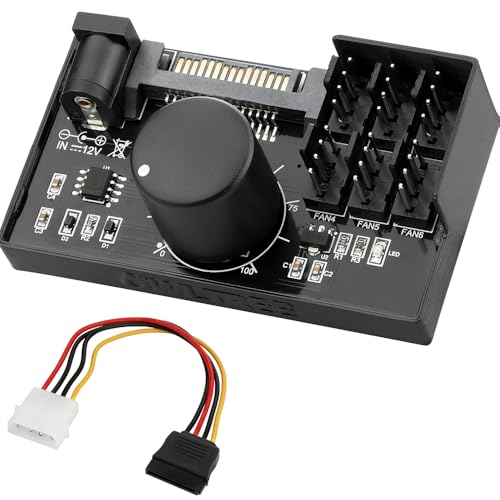

What You Need
| Item | Why You Need It | Optional? |
|---|---|---|
| 4-pin 12V PWM fan controller hub with SATA/DC 5525 power (supports up to 6 fans, 60W/5A total output) | Generates a true PWM signal and supplies clean 12V power so 3-pin fans can be speed-controlled via voltage regulation that mimics PWM behavior without overloading the motherboard header. Typical hub dimensions are 2.5 x 1.8 x 0.6 inches and weight is 1.2 to 2.0 ounces. | No – required for the hub method |
| 3-way 4-pin PWM splitter cable, 12 inches / 30 cm, 2-pack | Shares one motherboard PWM header or hub port among multiple fans with consistent wiring. Look for 26 AWG wire, sleeved, with one tachometer wire to avoid RPM signal conflicts. | Yes – if connecting more than one fan to a single port |
| Phillips screwdriver and small zip ties | For mounting the hub, routing cables, and securing fans to prevent vibration | No |
| Motherboard with available 4-pin PWM header or SATA power connector from PSU | Provides PWM signal and 12V power. Most ATX motherboards provide 1.0A to 1.5A per fan header (12W to 18W at 12V) | No |
| Electrical tape or 3-pin to 4-pin adapter | Covers exposed pins and ensures correct polarity if your hub uses 4-pin sockets for 3-pin plugs | Yes |
As an Amazon Associate we earn from qualifying purchases at no extra cost to you.


Step-by-Step
The method below uses a powered PWM hub, which is the safest way to give 3-pin fans PWM-style control. You are not turning a 3-pin fan into a native PWM fan, you are letting the hub translate the motherboard PWM signal into regulated voltage for the 3-pin fans. This avoids stalling and header overload.
Step 1: Power Down and Check Compatibility (5 minutes)
Shut down the PC, switch off the power supply, and unplug the AC cord. Open the side panel. Identify your fans: 3-pin connectors have three wires and a small tab with three holes, while 4-pin has four. Check the fan label for voltage and amperage. Most 120mm case fans are 12V, 0.12A to 0.30A (1.4W to 3.6W), and 140mm fans are 0.15A to 0.40A (1.8W to 4.8W). Add up the total amperage of all fans you plan to connect. Keep the total under 5A / 60W for the hub and under 1A per motherboard header if you are not using SATA power. Confirm your motherboard has a 4-pin PWM header labeled CPU_FAN, SYS_FAN, or CHA_FAN and that you have a free SATA power cable from the power supply or a DC 5525 barrel jack adapter.
Step 2: Mount the PWM Controller Hub (10 minutes)
Choose a flat spot behind the motherboard tray or on the rear panel where the hub will not touch hot components like VRM heatsinks. The hub is small, roughly 60 to 65mm long, and usually includes adhesive tape or a screw hole. Peel the backing and press firmly for 10 seconds, or use one included screw. Keep at least 0.5 inches of clearance around it for cable routing. Do not mount it directly on top of the power supply shroud vents where it can trap heat. Route the hub’s 4-pin PWM input cable toward the motherboard header and the SATA power cable toward the power supply.
Step 3: Connect Power to the Hub (5 minutes)
Connect the hub’s SATA power plug to a SATA power lead from your power supply. It should click and sit flush with no exposed pins. If your hub uses DC 5525 input instead, connect a 12V 2A to 5A DC adapter with center-positive polarity and 5.5mm outer / 2.5mm inner diameter. This step is critical. Without separate power, all fan current would be pulled through the motherboard header, which is limited to about 12W. The SATA connection lets the hub deliver up to 60W across six fans, or roughly 10W per fan, without stressing the board.
Step 4: Connect the PWM Signal Cable (5 minutes)
Plug the hub’s 4-pin PWM cable into a motherboard 4-pin PWM header. Line up the plastic key so the pins are not bent. This cable carries only the PWM signal and RPM reporting, not the main fan power. In BIOS, set that header to PWM mode, not DC or Auto, so it sends a proper pulse signal to the hub. If you only have a 3-pin header available, you can still power the hub via SATA, but you will only get DC voltage control, not true PWM translation, and the speed range will be narrower.
Step 5: Connect Your 3-Pin Fans to the Hub (10 minutes)
Plug each 3-pin fan connector into a 4-pin socket on the hub. The connector is keyed and will fit offset to one side, leaving one pin exposed on the hub side. That exposed pin is the PWM control pin, which the 3-pin fan simply does not use. The hub will regulate the 12V line based on the PWM input. If you have more fans than ports, use the 3-way splitter cable. Connect the splitter’s single input to one hub port, then connect up to three fans to the splitter’s outputs. Use only one splitter per hub port to keep tachometer signals clean. Secure excess 12-inch cable length with zip ties so it does not contact fan blades.
Step 6: Configure BIOS and Test Speed Range (15 minutes)
Reconnect AC power, boot, and enter BIOS. Locate Fan Control, Q-Fan, Smart Fan, or similar. For the header connected to the hub, select PWM mode, set a fan curve that starts at 30 to 40 percent duty cycle, ramps to 60 percent at 65 degrees Celsius, and hits 100 percent at 80 degrees Celsius. Save and boot into your operating system. Use BIOS or a utility like HWMonitor to watch RPM. A properly converted 120mm fan should idle around 600 to 900 RPM at low duty cycle and reach 1200 to 1800 RPM at 100 percent. If the fan stalls, ticks, or will not spin below 50 percent, raise the minimum duty cycle by 5 percent increments until it starts reliably. Check that no fan hub or splitter feels hot to the touch after 10 minutes of operation.
Step 7: Tidy Up and Close (10 minutes)
Once speeds are stable, power down briefly to finalize cable management. Ensure no cable presses against the CPU cooler or GPU fans. Keep splitter junctions away from sharp metal edges. Use the speed knob on the hub if included to fine-tune: turning clockwise typically increases duty cycle from 0 to 100 percent when in manual mode, while leaving it in PWM sync lets the motherboard control it automatically. Replace the side panel and run a final 15-minute stress check with a game or benchmark to confirm temperatures stay within your normal range.
Mistakes to Avoid
Do not plug three or four fans directly into one motherboard header with a passive splitter and no SATA power. Three 0.30A fans already draw 0.90A combined, right at the limit of many headers, and four would exceed it. That is how headers fail.
Do not expect a 3-pin fan to behave like a native 4-pin PWM fan at very low speeds. Most 3-pin fans have a start voltage of 5V to 7V and a minimum stable speed of 40 to 50 percent. Forcing them to 20 percent PWM-converted voltage will cause stalling or a buzzing sound.
Do not cover the tachometer pin on more than one fan per header or splitter branch. PWM hubs read speed from one designated port, usually labeled CPU or FAN1. If multiple tach signals are fed back, RPM readings will jump erratically.
Do not reverse the connector. The ridge on the 3-pin plug must align with the guide on the 4-pin socket. Forcing it backward sends 12V to the wrong pin and can stop the fan permanently.
Do not mount the hub with loose double-sided tape in a hot case and forget it. In as of 2026, cases with tempered glass and restricted airflow can reach 40 to 45 degrees Celsius internally near the PSU shroud. A hub that falls onto a GPU backplate can short if wires are pinched.
How Often
Check your fan curve seasonally, or whenever you change case layout, add a GPU, or notice noise changes. Dust buildup can raise temperatures by 5 to 10 degrees Celsius and force fans to run faster, which makes a previously quiet curve seem loud. Clean filters monthly and blow out the hub and splitter connectors with compressed air every three to six months to prevent poor contact. Re-verify the hub’s SATA connection once a year, especially if you have moved the PC. If you update BIOS, revisit fan settings because updates often reset headers to default Auto mode.
When to Call a Pro or Replace
Call a technician or consider replacement if the fan makes grinding or scraping noises at any speed, wobbles visibly, or needs a push to start. Those are bearing failure signs that no controller will fix. Replace any fan that draws more than 0.50A or feels excessively hot at the hub connector, as it may be shorting. For liquid coolers or server-style high-static-pressure fans that exceed 0.60A each, consult a PC builder to ensure power delivery is adequate before using splitters.
FAQ
Can a 3-pin fan ever be true PWM?
No. A true PWM fan has a fourth wire and an internal circuit that keeps 12V constant and pulses the motor. A 3-pin fan lacks that circuit. A PWM hub does the next best thing by reading the motherboard PWM signal and lowering the voltage to the 3-pin fan smoothly. You get similar speed control, but the low-end range is not as wide and you will not get the ultra-low 300 to 500 RPM idle that native PWM fans can achieve.
Will a 3-pin fan plug into a 4-pin header or hub?
Yes. The 3-pin plug fits onto the first three pins of a 4-pin socket. The fourth PWM pin simply stays unused. The fan will run at full speed unless the header is set to DC mode or you use a hub that translates PWM to voltage control. Never file down the keying tab to make it fit reversed.
How many 3-pin fans can I run on one hub?
Up to six fans on a typical 60W/5A SATA-powered hub, as long as the combined draw stays under that limit. For example, five 120mm fans at 0.20A each total 1.0A (12W), well within limits. If you use splitters, still count every fan. Do not daisy-chain splitters together to run eight or nine fans from one 60W hub, and keep each splitter branch to three fans or fewer for stable RPM reporting.
Why does my converted fan hum or click at low speed?
Humming or clicking usually means the voltage is too low for the motor to spin smoothly. Raise the minimum duty cycle in BIOS from 30 percent to 40 or 45 percent. Also check that the fan blades are balanced and no cable is touching the frame. Sleeve-bearing fans are more prone to low-speed noise than fluid-dynamic or ball-bearing models. If the noise persists only below 800 RPM, set your idle speed slightly higher to keep the fan in its quiet, stable window.









